How to print several photos on one page on a Mac
By Flavio
Preview's Pages per Sheet and Photos' Contact Sheet and Custom layouts all put several photos on one page, but they pick the sizes for you. Here's what each one printed, measured, and how to give each photo its own size.
You have four photos and want them on one sheet of paper instead of four. The Mac can do it without any extra app: Preview has Pages per Sheet in its print panel, and Photos has a Contact Sheet and a Custom layout. All of them fit several photos on a page.
What none of them does is let you say “this one at 5×7, these two at wallet size, that one at 2×2”. If you need sizes, you need a layout tool, like Photo Print Sheet.
The four pictures here are drawings made for this tutorial: a lighthouse, a meadow, a harbor and a kite. All screenshots are from macOS 15 Sequoia, on a test Mac with no printer. Every print went to a PDF with the print panel’s PDF › Save as PDF, and the photos were measured on those PDFs.
How do I print several photos on one page with Preview?
- Select the photos in the Finder and press Command-O. They open together in one Preview window.
- Choose File › Print….
- Scroll down to Layout and set Pages per Sheet to 4.
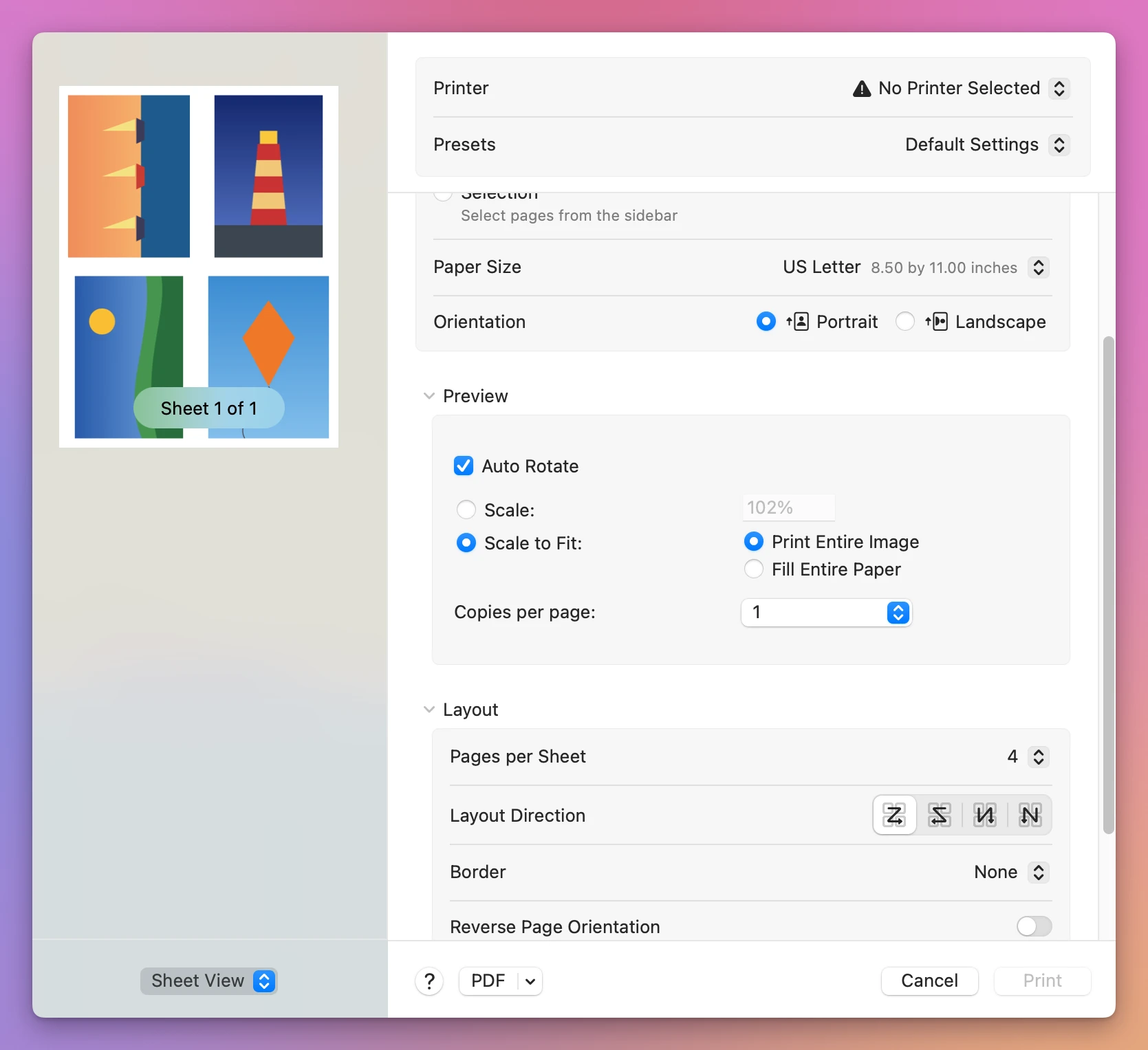
Pages per Sheet shrinks each picture into its quarter of the page, and Auto Rotate turned the two wide pictures sideways to fill more of it. On the PDF the four came out 3.37×4.49, 2.99×4.49, 2.99×4.49 and 3.34×4.49 inches. Every photo got the height of its quarter, and its width followed from its shape.
That’s fine for a page of memories to stick on the fridge. It’s no use for a frame.
What about the Photos app?
Photos has its own print window with ready-made layouts. Import the photos with File › Import…, select them, and choose File › Print…. The window had Fit, Fill, Custom, 8” × 10”, 5” × 7”, 4” × 6” and Contact Sheet, and with no printer it said “No Printers Installed” at the top.
Contact Sheet puts them all in a grid, with Columns and Margin sliders:
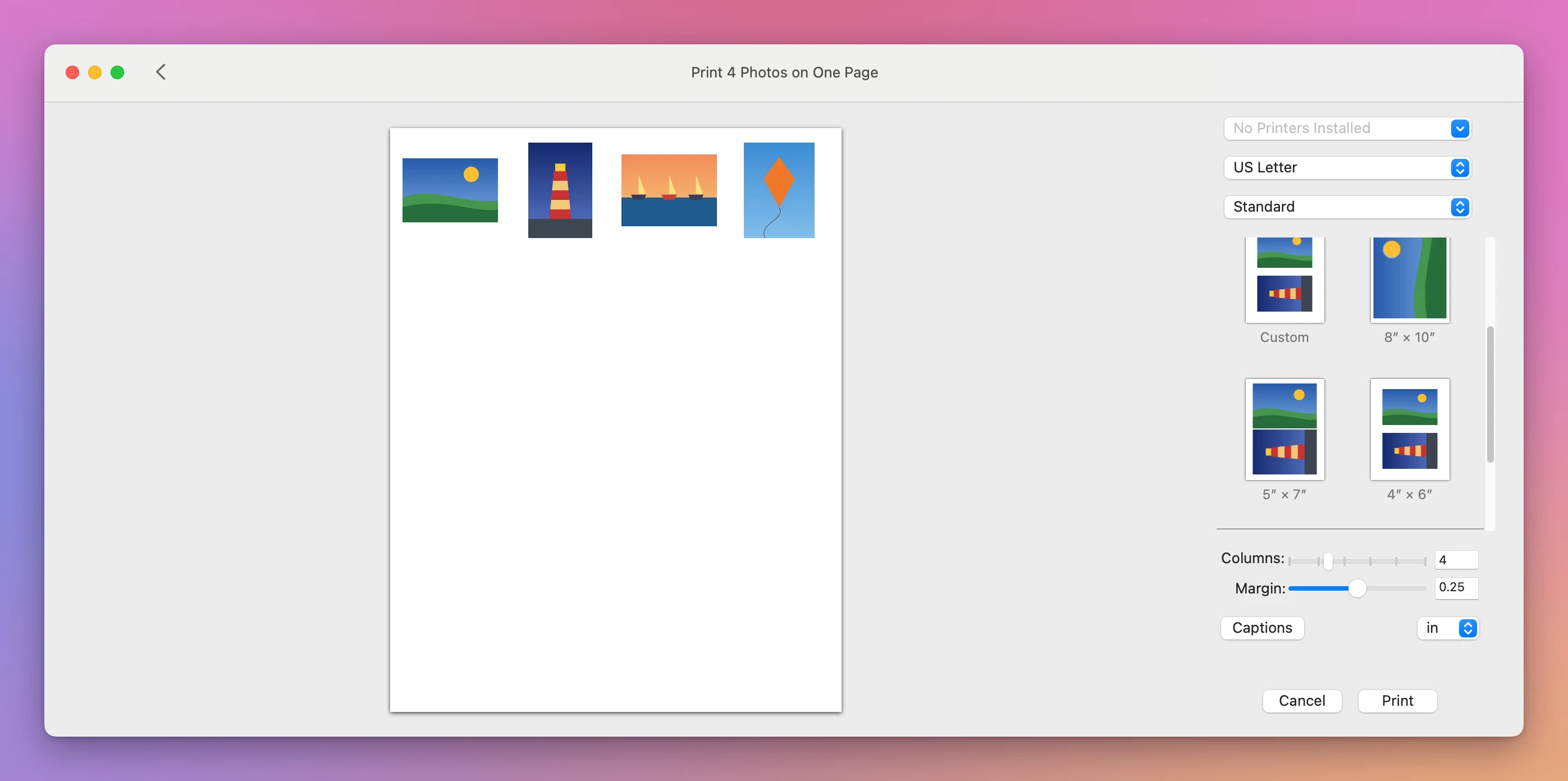
With 4 columns, the four photos measured between 1.21 and 1.81 inches on their longest side. A contact sheet is an index of thumbnails, made to see which photos you have.
Custom has a Photo Size box where you type a width and a height. It started at 6 by 4 inches, and Photos put two photos on each page, so the four needed two pages:
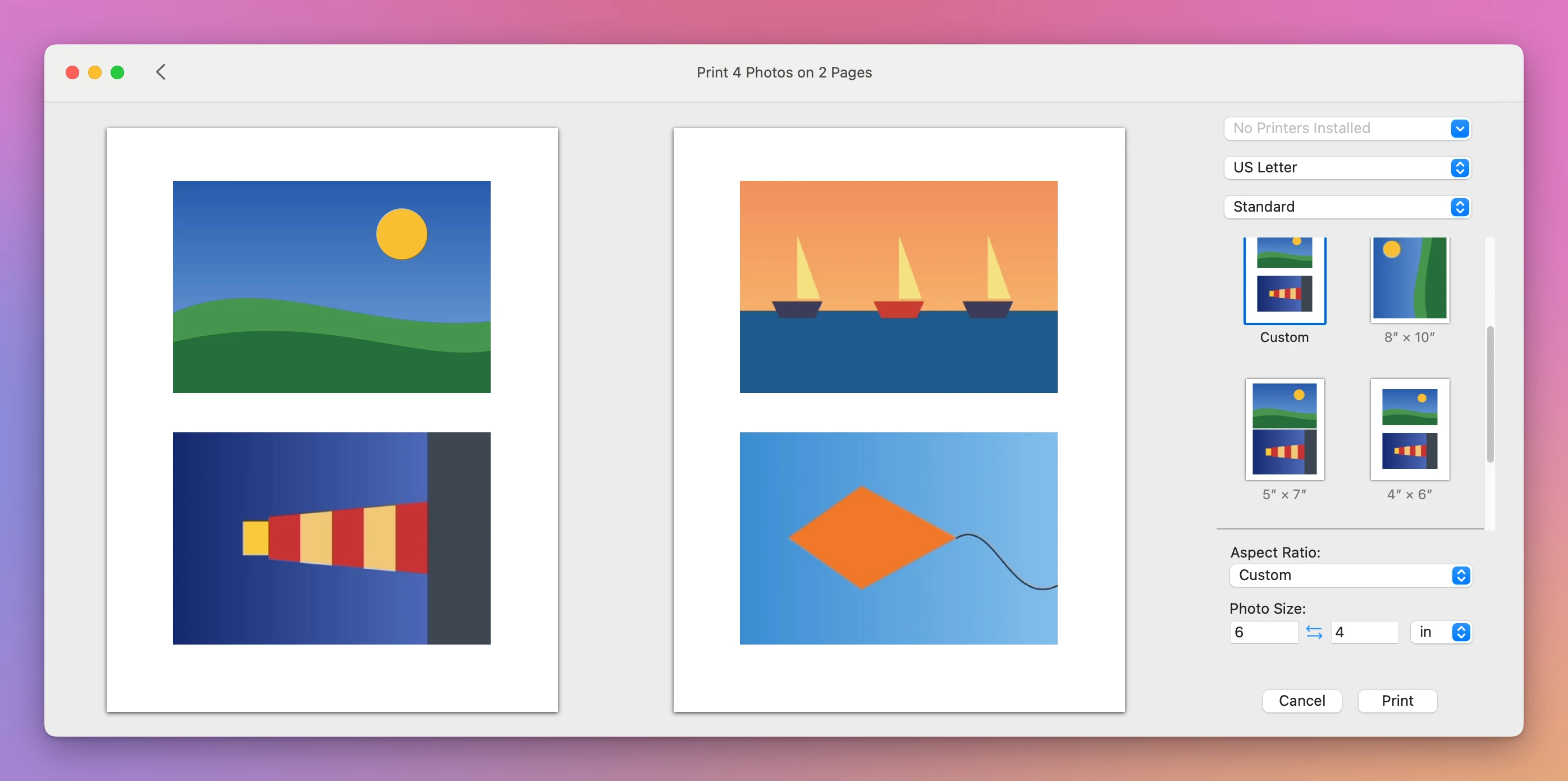
Those measured exactly 6×4 inches, all of them. Custom is the closest the Mac gets to real sizes, with one limit: the size you type is for every photo in the print. A 5×7 and a 2×2 on the same page aren’t possible.
Can I give each photo its own size?
Here’s how the three ways compare, for the same four pictures on Letter paper:
| Pick each photo’s size | Sizes on the PDF | Pages | |
|---|---|---|---|
| Preview, 4 pages per sheet | No | 2.99 to 3.37 by 4.49 in | 1 |
| Photos, Contact Sheet | No | 1.21 to 1.81 in on the long side | 1 |
| Photos, Custom 6×4 | One size for all | 6×4 in | 2 |
| Photo Print Sheet | Yes | 5×7, 2×2 and two 2.5×3.5 in | 1 |
How do I mix sizes on one sheet?
Photo Print Sheet is a Mac app I made for this. It costs $20, paid once. It’s my own app, not made by, affiliated with or endorsed by Apple or any printer or paper maker. The actual size tutorial shows it with one photo. With several:
- Click Add Photos… and pick all four.
- Pick the paper at the top, Letter here.
- Give each photo its size from its menu: the lighthouse at 5×7 in, the kite at 2×2 in, the harbor and the meadow at Wallet, 2.5×3.5 in.
The line under the sheet said “Letter, 4 prints on 1 sheet”:
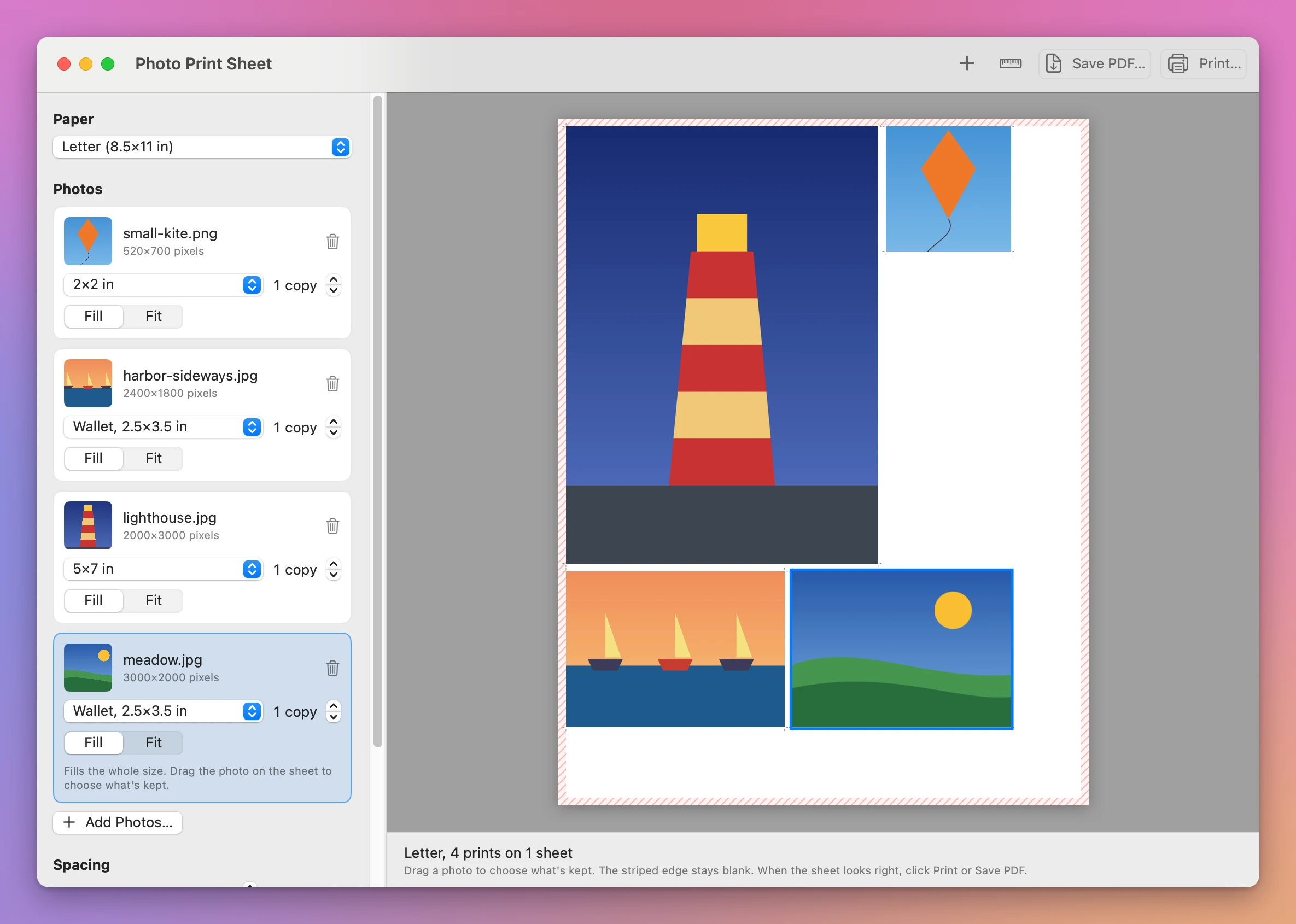
A size follows the photo: the harbor and the meadow are wider than tall, so their wallets print 3.5 inches across and 2.5 down, and they fit side by side under the 5×7. Every photo fills its size, and you can drag one on the sheet to choose what’s kept.
Save PDF… said “Saved 1 sheet with 4 prints to app-four.pdf. Print it at 100% size.” On that PDF the lighthouse measured 5×7 inches, the kite 2×2, and the two wallets 3.5×2.5.
Thin cut marks sit in the gaps between the photos, 1/8 inch wide unless you change Gap between photos. With the gap at 0 the photos touch and there are no marks.
Get Photo Print Sheet
Put several photos on one sheet of paper, each at the exact size you pick: wallet photos, a 5×7 for a frame, a few small ones for a locket. Arranged on as few sheets as possible, with cut marks. Print at 100% or save a PDF.
See Photo Print Sheet → · Read the docs · $20. See the app page for tax details.
Want me to talk about your product? You can sponsor this site.