How to save a stretch of dashcam video for the insurance, with QuickTime Player
By Flavio
Cut the minute around an accident out of a dashcam clip with QuickTime Player's Trim, and save it as a new file without touching the card. What the saved file keeps, and what to do when the moment falls between two clips.
After something happens on the road, the insurance or the police may ask for the video. You don’t want to send a whole card, and you don’t want to change the camera’s files either. What you want is a short video of the moment, saved on your Mac, with the original clip left as it was.
QuickTime Player can do that with Trim. It works well when the moment is inside one clip.
I tried it on a stand-in card: a disk image formatted like a dashcam’s card, with made-up one-minute clips named the way a dashcam names them. The pictures are a drawn road with the camera’s clock in the corner, and the files are much smaller than a real camera’s. In my made-up story, the bump happened at 9:46:30 and the camera locked that minute, 2026_1107_094600_0007F.MP4, in its Event folder.
Find the clip with the moment
The file name has the time the clip started. 094600 means 9:46:00, so with one-minute clips the moment at 9:46:30 is 30 seconds into that file. If your camera locked the clip, look in its event folder first. If it didn’t, look in the normal folder for the clip that started just before the time you remember.
Keep the original clip as it is, on the card or in a copy, in case someone asks for it later.
Trim it in QuickTime Player
- Double-click the clip to open it in QuickTime Player.
- Choose Edit > Trim. A yellow frame appears around the clip’s timeline.
- Drag the left edge of the yellow frame to where the stretch should start, and the right edge to where it should end.
- Click Trim.
I kept 20 seconds before and after the bump, from 0:10 to 0:50 of the clip:
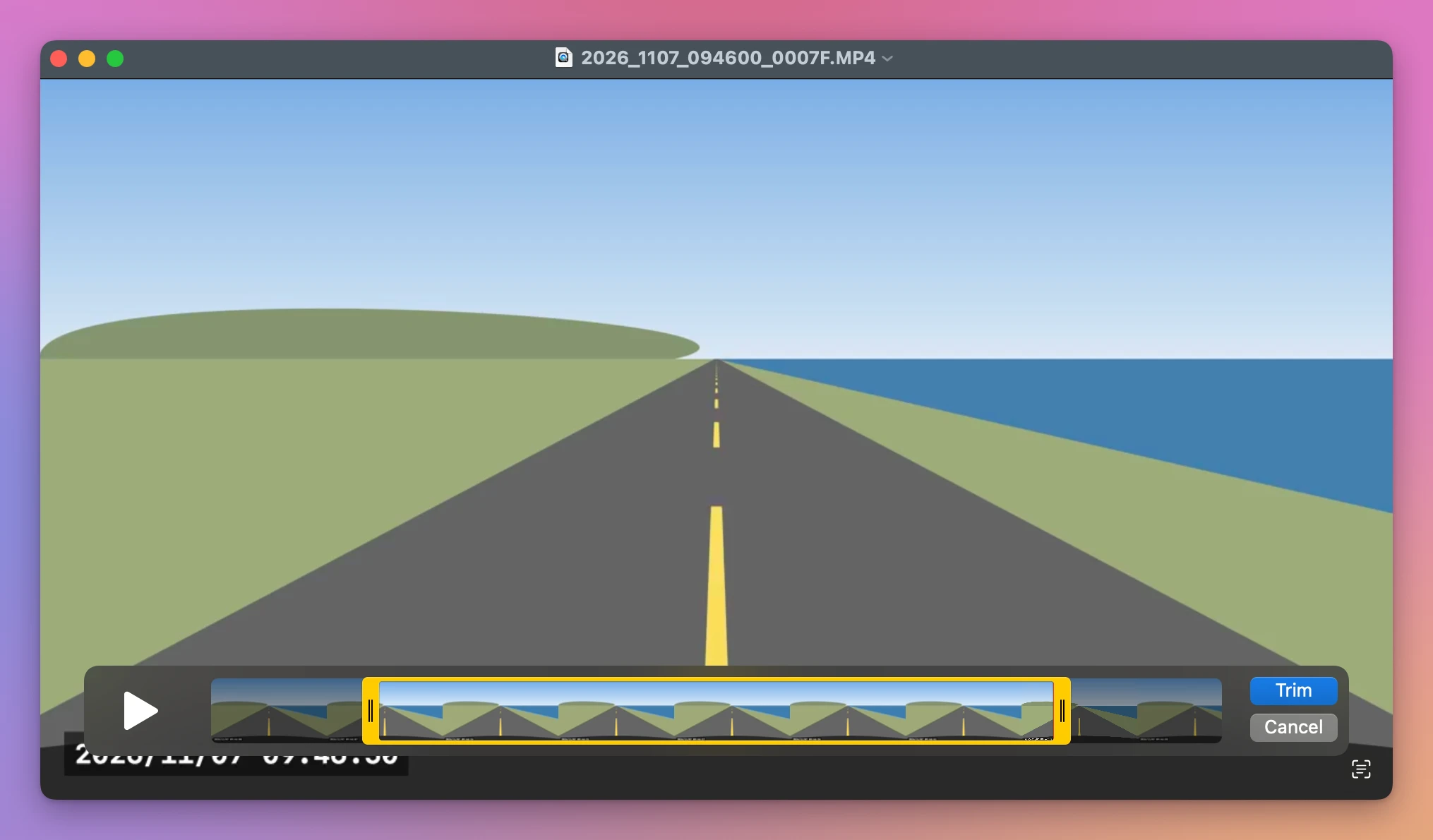
After the trim, the window was called Untitled and marked Edited. QuickTime Player made a new document, and the clip on the card stayed as it was.
Save it as a new file
Choose File > Save. QuickTime Player asked for a name and a folder under Export As, with no question about the format:
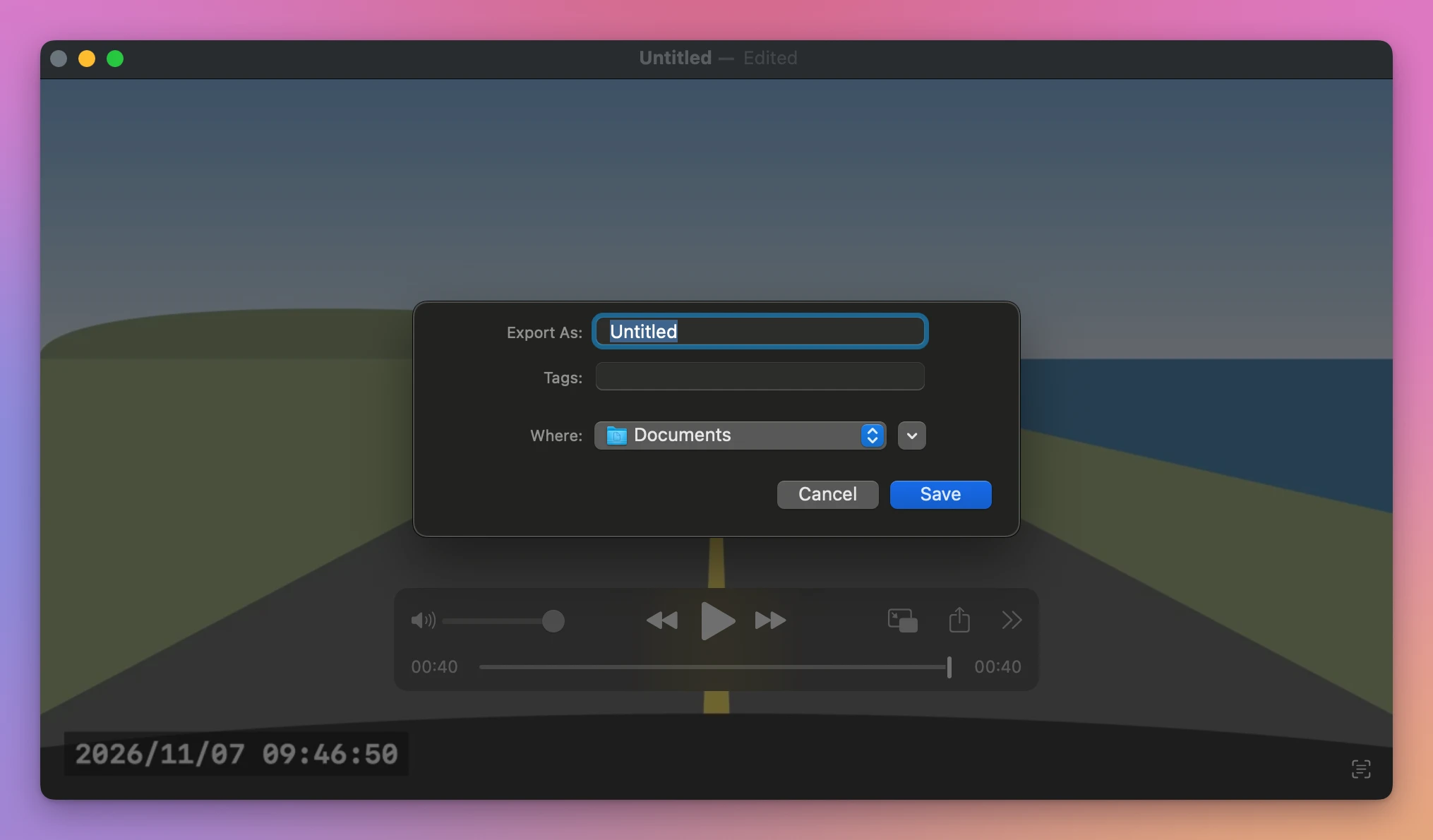
Give it a name that says what and when, like Event 09.46.10 trimmed, because the new file’s date is the day you saved it, not the day of the drive. Pick a folder on your Mac, not the card, and click Save.
The saved file is 40 seconds long and starts at 09:46:10 on the clock in the video:
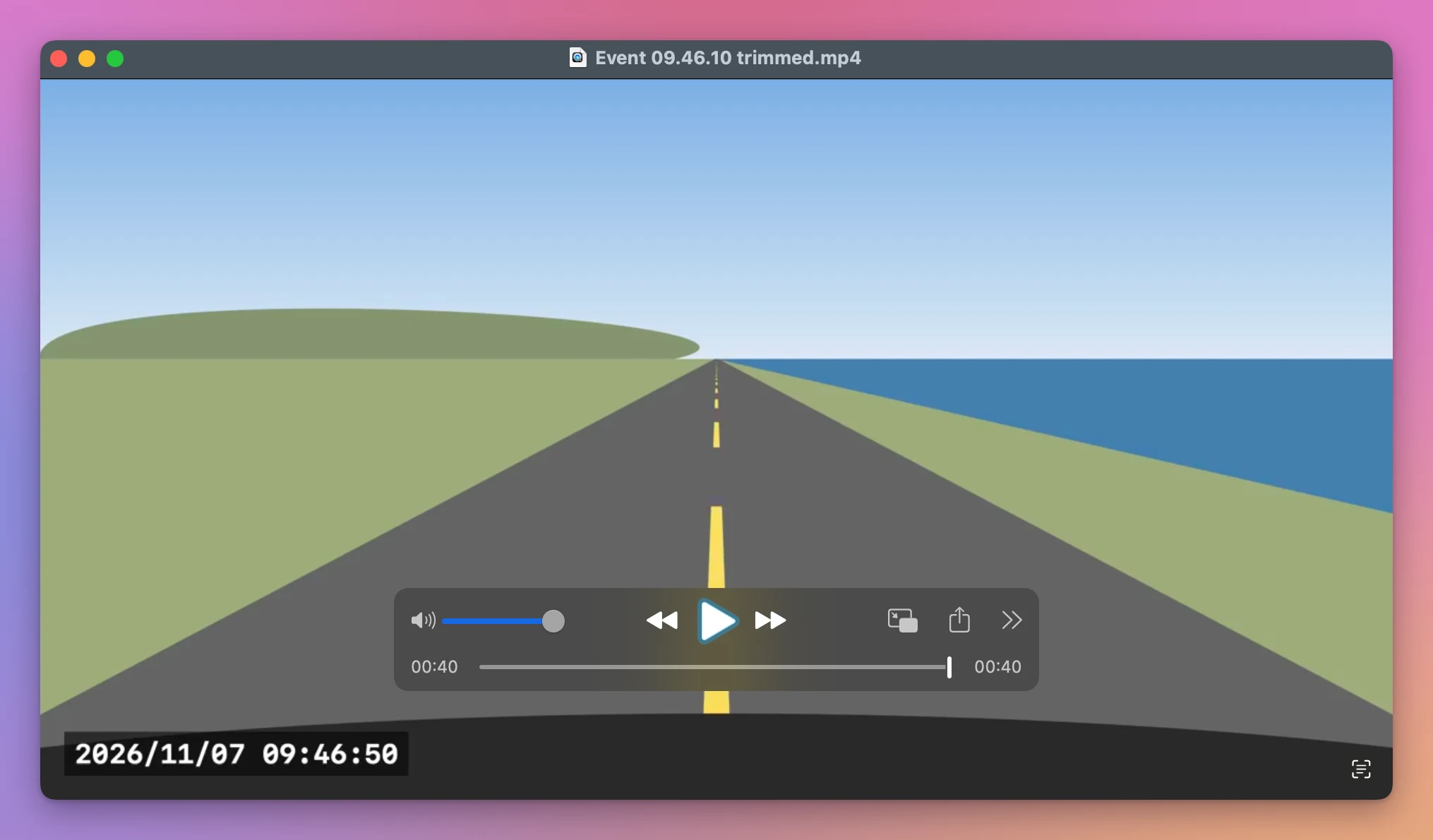
I compared it with the original clip. The video inside is the camera’s own, copied as it was and not compressed again, at the same picture size. On my stand-in card it’s an MP4 of 868 KB.
Where Trim stops
Trim works inside one file. It stops being enough in a few cases:
- The moment falls between two clips. A bump at 9:45:58 needs the end of the 9:45 clip, in the normal folder, and the start of the 9:46 clip, in the event folder. You’d have to join them first with Edit > Add Clip to End, and then QuickTime Player asks for a format when you save. The tutorial about joining videos in QuickTime Player explains that question.
- You also need the rear camera. That’s another file, another trim and another save.
- You don’t know the exact time. Then you’re opening clips one by one until you find it.
| QuickTime Player’s Trim | Trips for Dashcam | |
|---|---|---|
| A stretch inside one clip | Yes, 40 seconds in my test | Yes |
| A stretch across two clips in two folders | Join them first | Yes, 9:45:30 to 9:46:30 in my test |
| The video in the saved file | The camera’s, copied | The camera’s, copied |
| The rear camera | A second file, by hand | Pick it in the menu |
| A still picture of the moment | No | Yes, a PNG |
| Where you find the moment | By the time in the file name | On the timeline, or by clicking the place on the map |
Save the stretch in one step
Trips for Dashcam is a Mac app I made that plays the card as trips and saves any stretch of a trip as one video file. It’s my own app, not made by, affiliated with or endorsed by any dashcam maker. It costs $20, paid once.
Play the trip to the moment, or click the event under Locked Clips, then choose File > Save Video Stretch. The sheet starts on the minute around the playhead. With the playhead at 6:00 of my 9:40 AM trip, which is 9:46:00 on the clock, it offered 5:30 to 6:30, half a minute from each of two clips in two different folders:
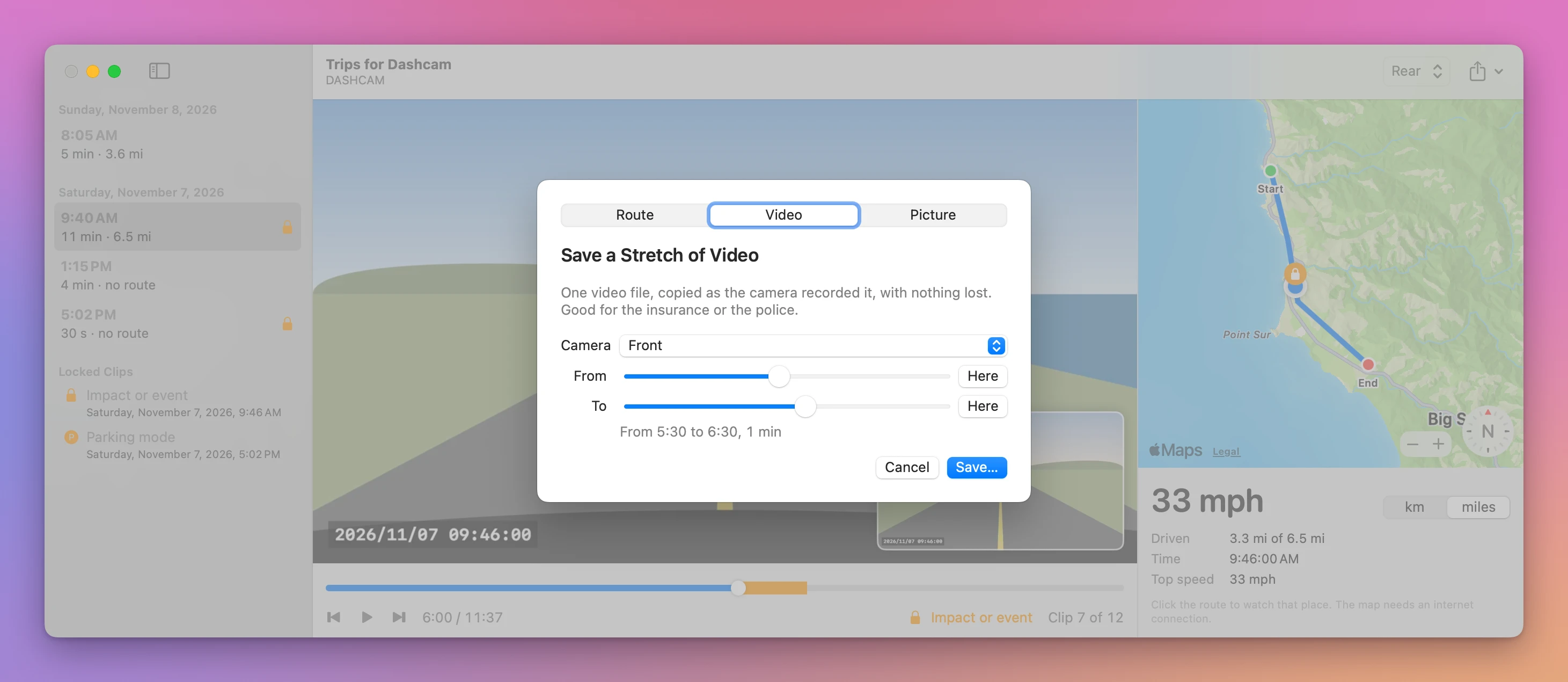
Here next to From or To uses the moment on screen, and Camera switches to the rear one. I clicked Save and picked a folder on the Mac:
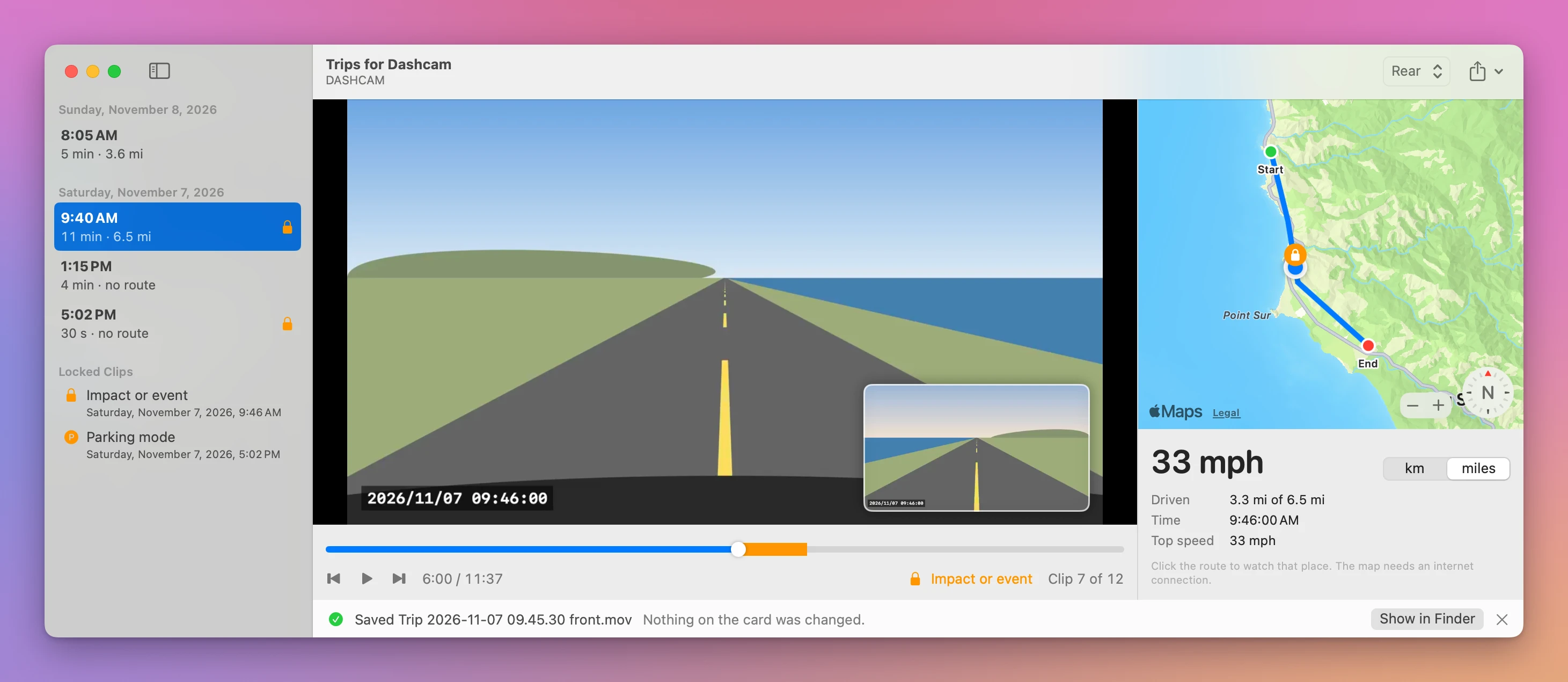
Trip 2026-11-07 09.45.30 front.mov is 1:00 long and 1.3 MB, and the name says when it starts and which camera it is. I opened it in QuickTime Player to check the start: the first picture shows 09:45:30 on the camera’s clock, the second I picked.
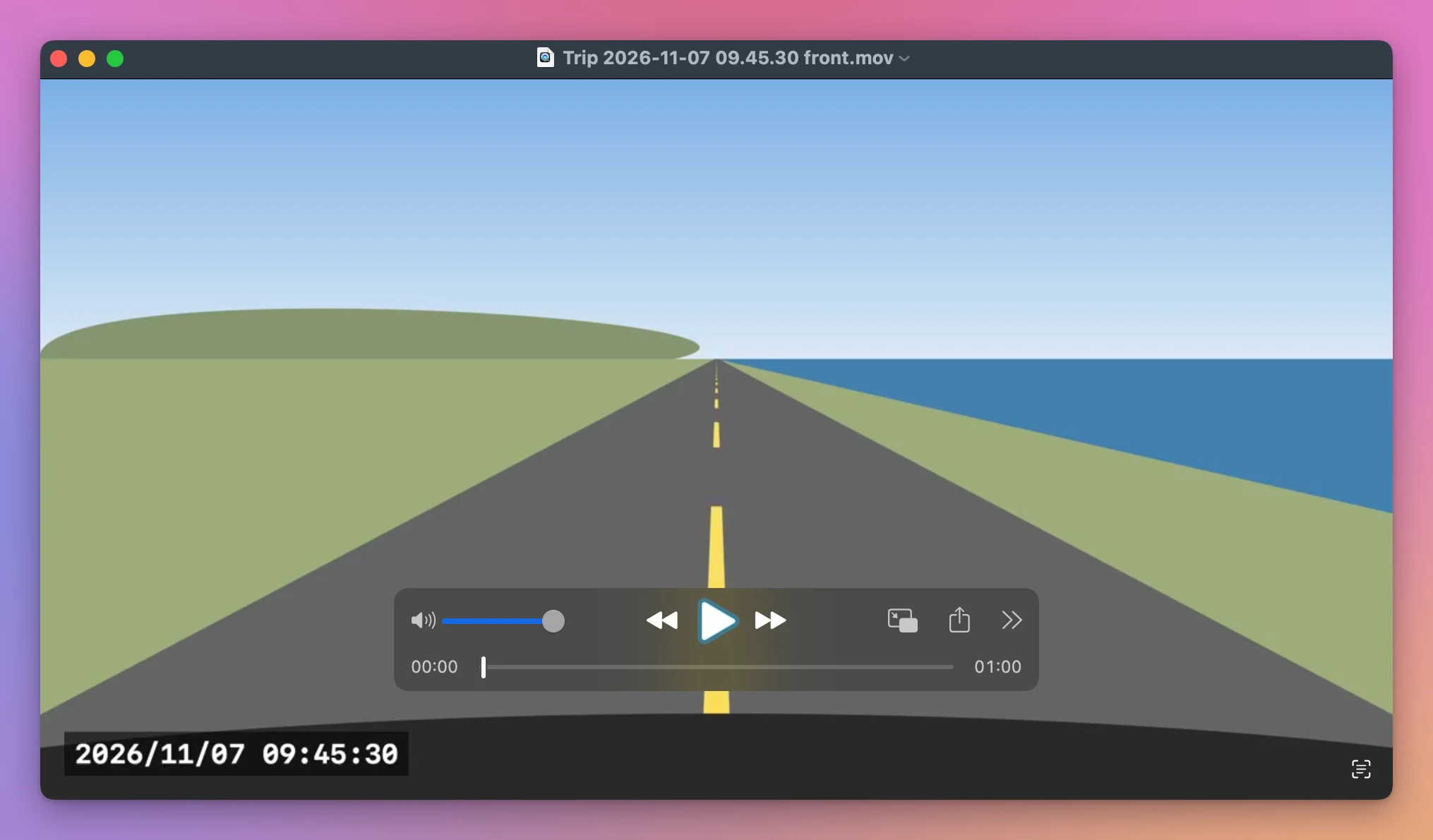
Because nothing is re-encoded, a stretch can only start on certain pictures of the video, and the app starts it on the one at or before the second you picked. My stand-in clips have one every second, so mine started exactly at 9:45:30. A real camera’s clips may have them further apart, so check the start of yours. File > Save Picture saves the moment on screen as a PNG, which was the full 1280 × 720 picture of my stand-in clip. The app never writes to the card, and a save never replaces a file that’s already there.
Get Trips for Dashcam
Watch your dashcam's memory card as trips instead of hundreds of short files, with the rear camera in a corner and the route on a map. Save a stretch of video without losing quality, the route or a picture. Nothing on the card is changed.
See Trips for Dashcam → · Read the docs · $20. See the app page for tax details.
Want me to talk about your product? You can sponsor this site.