How to save many emails as PDFs at once on a Mac
By Flavio
Select the emails in Mail and choose File › Export as PDF… to get one PDF per email, or File › Print… and PDF to get them all in one file. Here's what each gives you, and how to get one PDF per email, per conversation or for everything, with the attachments.
You have twenty emails to hand over as PDFs: every invoice from a supplier, or a whole exchange with a landlord. Doing them one at a time means twenty Save dialogs.
Mail on the Mac can do several at once, in two ways. Select the emails and choose File › Export as PDF… to get one PDF per email in a folder. Or choose File › Print… and save as PDF to get one file with all of them. Mailbox to PDF puts the date in each name, can make a PDF per conversation and saves the attachments too.
For a single email, the tutorial on saving an email as a PDF has the details.
Select the emails in Mail
Click the first email, then hold Command and click the others.
The test Mac runs macOS 15 Sequoia, with a mailbox of made-up emails from made-up people. Here four are selected, and Mail stacks them on the right:
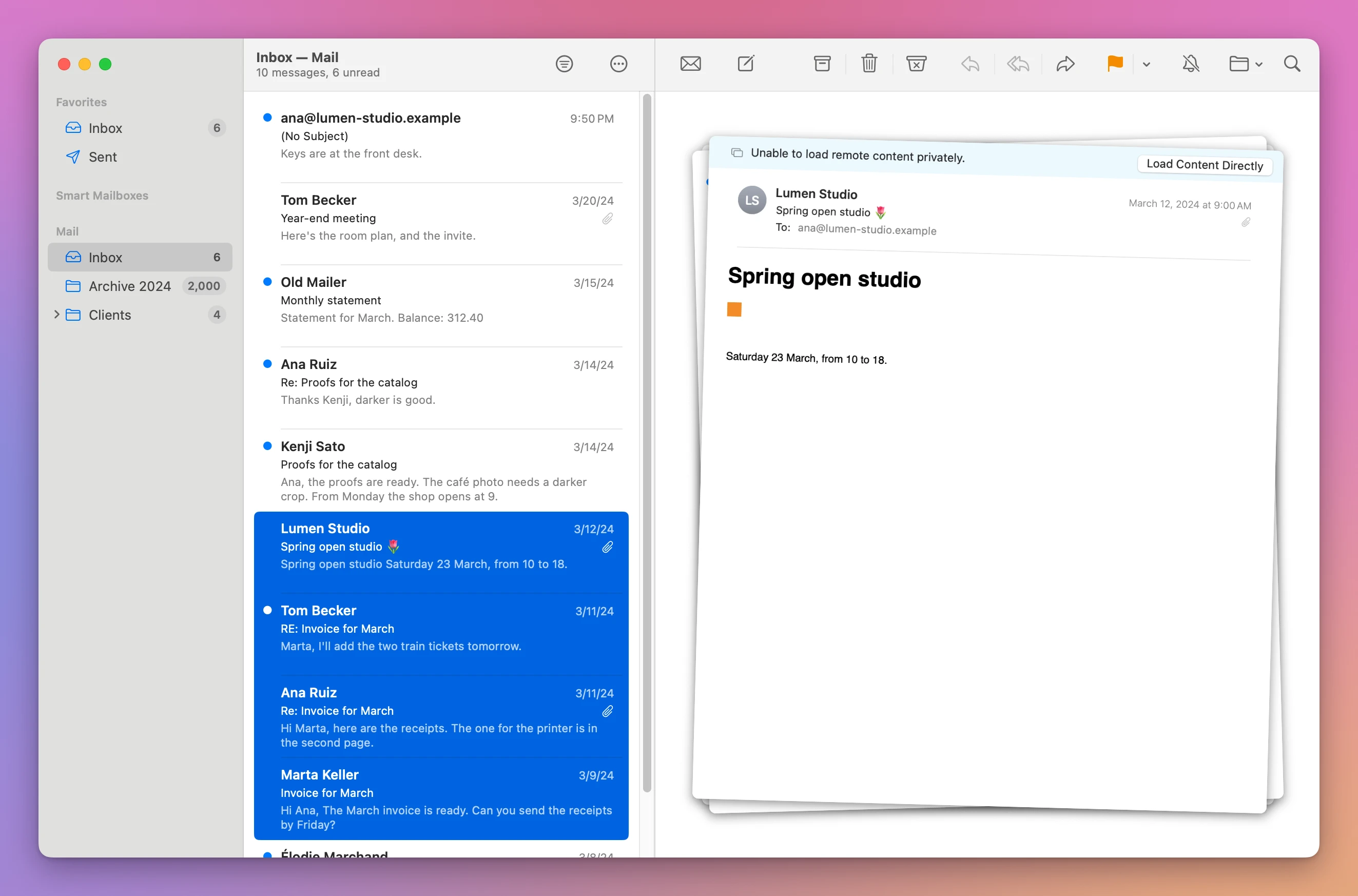
With several emails selected, File › Export as PDF… and File › Print… both stay available.
Export as PDF: one file per email
With four emails selected, File › Export as PDF… didn’t ask for a file name. It opened a folder picker with a Choose button. After picking a folder, Mail wrote four PDFs:
Invoice for March.pdfRe Invoice for March 2.pdfRE Invoice for March 3.pdfSpring open studio .pdf
So it does export every selected email, one PDF each, named after the subject. The colon is gone from “Re:”, the replies got numbers, and the flower emoji in the last subject turned into a space. All four files carry the time of the export, so the Finder can’t sort them by when the emails were sent.
Print: one file with all of them
File › Print… with the same four selected opened the print window with All 4 Pages in it, one email per page:
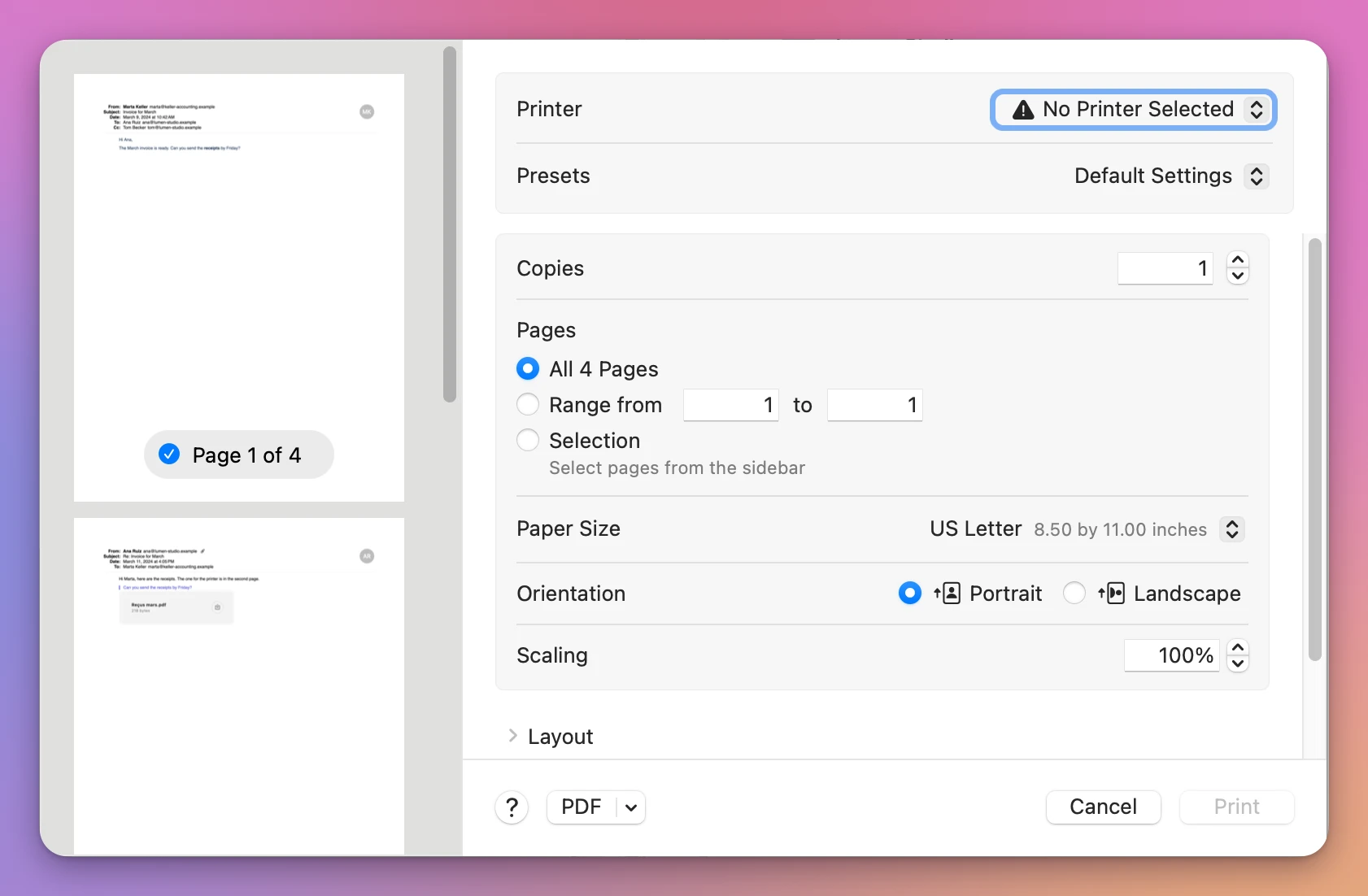
The test Mac had no printer. Click the arrow on the PDF button, choose Save as PDF, then pick a name and a folder. Mail suggested “Invoice for March” again.
The result is one PDF. In Preview’s View › Contact Sheet, each page is one email, starting with its From, Subject, Date and To lines:
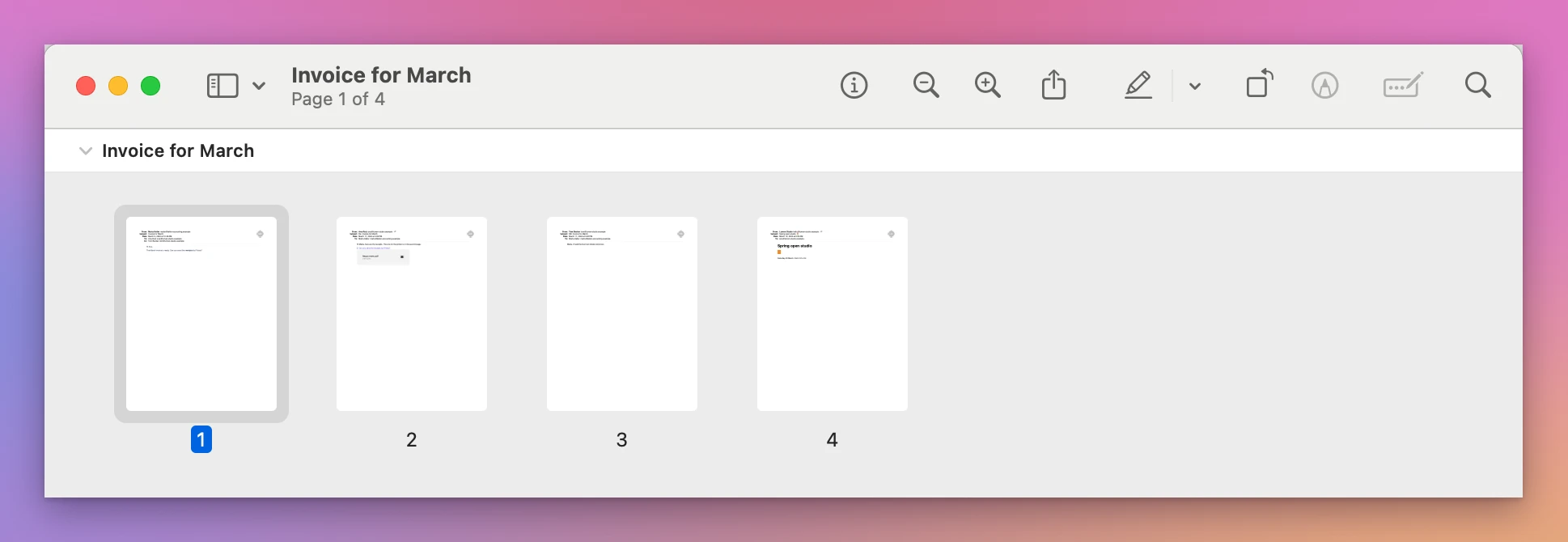
The pages came out oldest first, from the invoice on March 9 to the newsletter on March 12. The receipt attached to one of them is in the PDF only as a name and a size.
Mailbox to PDF: three layouts
Mailbox to PDF is a Mac app I made that turns the emails you pick into PDFs, with their attachments in a folder next to each PDF. It isn’t made by, affiliated with or endorsed by Apple. It costs $20, paid once.
Select the emails in Mail as above, then click Read Selected Emails in the app. The first time, macOS asks whether the app can control Mail: click Allow. Here all ten emails of the made-up inbox are selected. Untick the ones you don’t want, then pick a layout in Make:
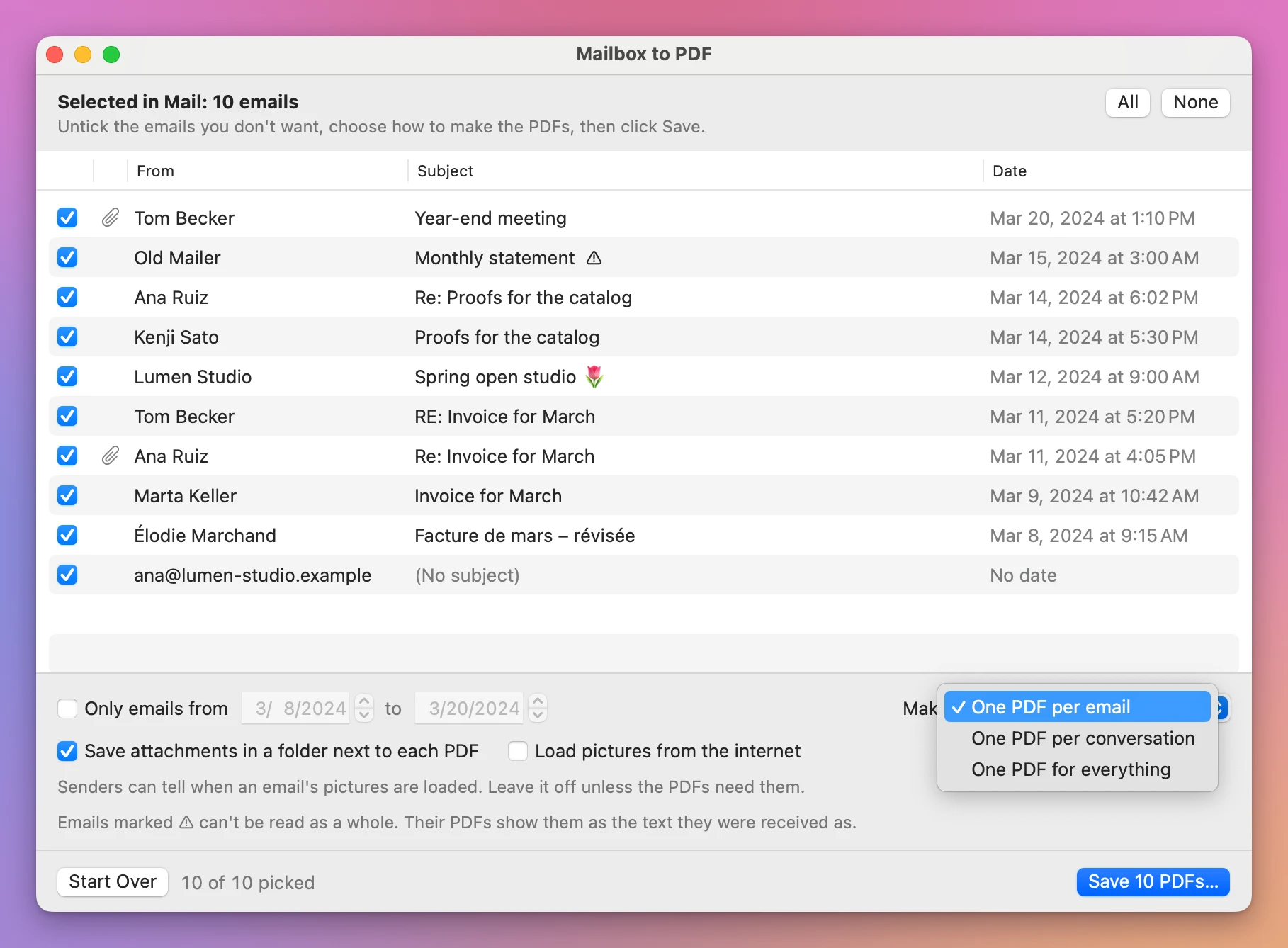
- One PDF per email gave ten files named like
2024-03-11 Re Invoice for March.pdf. “RE: Invoice for March” on the same day became2024-03-11 RE Invoice for March 2.pdf. - One PDF per conversation gave seven files for the same ten emails. The three emails about the March invoice became one PDF of three pages, each email starting on a new page.
- One PDF for everything gave a single file named after where the emails came from and their dates,
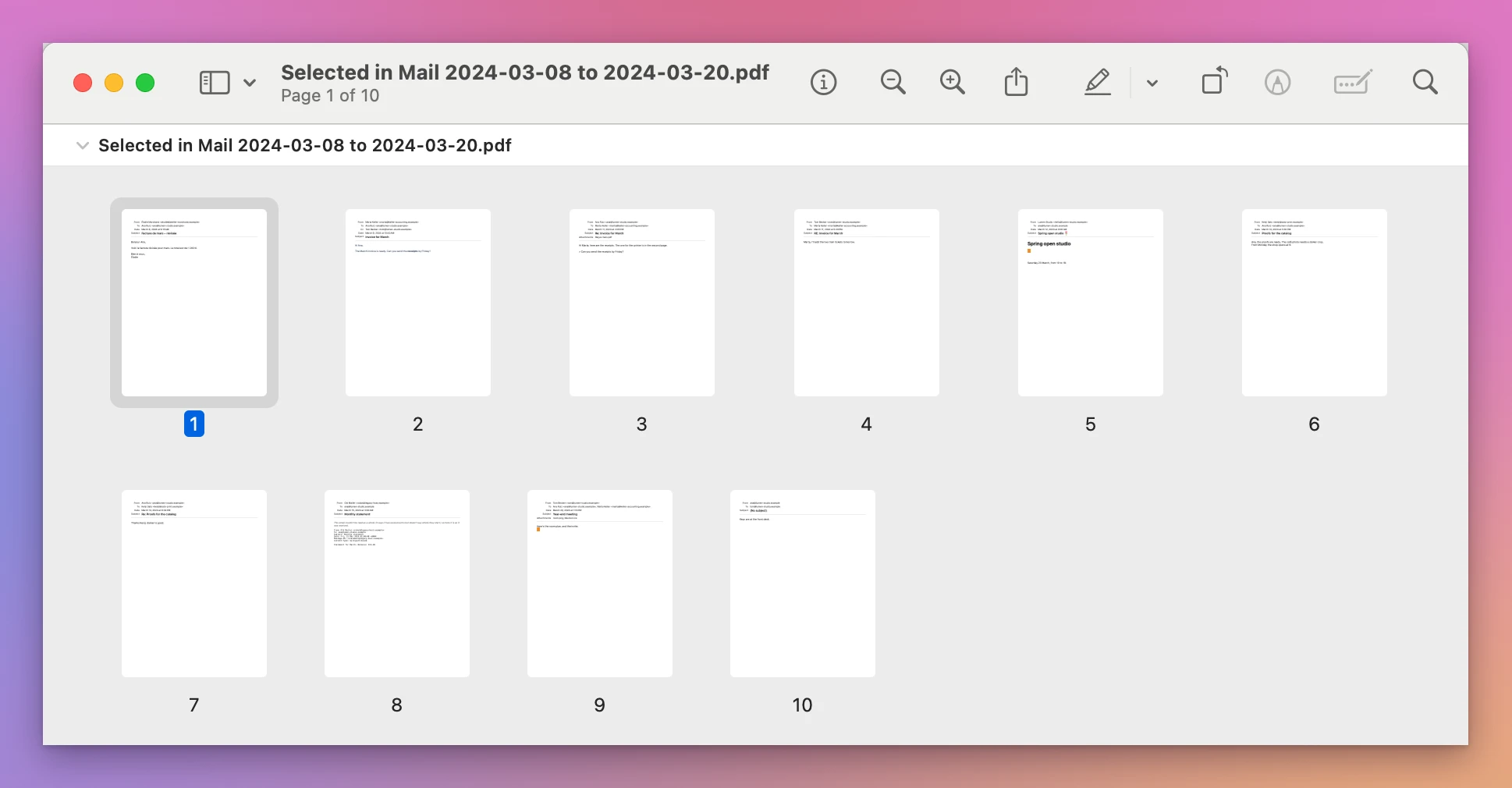
Selected in Mail 2024-03-08 to 2024-03-20.pdf, with ten pages.
Every PDF is dated like its email (a conversation like its newest email), so the Finder sorts them by when they were sent. Here’s the single PDF:
One PDF for everything takes up to 2,000 emails. With a made-up mailbox of 2,001, the window said “One PDF for everything takes up to 2,000 emails, and 2,001 are picked. Pick fewer, or make one PDF per email or per conversation.” and the Save button stayed greyed out. One PDF per email and per conversation have no limit.
One of the made-up emails is broken on purpose, and the list marks it with ⚠︎. It still got its page, with the text it was received as. The report at the end was headed “Done, with 1 email kept as text” and said why: “1 email couldn’t be read as a whole, so its PDF shows it as the text it was received as.”
Which way gives you what
| Mail: Export as PDF… | Mail: Print… then PDF | App: per email | App: per conversation | App: for everything | |
|---|---|---|---|---|---|
| Files made here | 4 for 4 emails | 1 for 4 emails | 10 for 10 emails | 7 for 10 emails | 1 for 10 emails |
| Names | The subject, numbered | Typed by you | Date and subject | Date and subject of the first email | Where they came from and the dates |
| File date | When exported | When saved | The email’s | The newest email’s | The newest email’s |
| Attachments | Named only | Named only | In a folder next to each PDF | In a folder next to each PDF | In one folder next to the PDF |
| Limit | Not stated by Apple | Not stated by Apple | None | None | 2,000 emails |
Get Mailbox to PDF
Turn emails into PDFs: the ones selected in Mail, a whole mailbox, or an .mbox or .eml file. One PDF per email, per conversation, or one for everything, with the attachments in a folder next to each PDF.
See Mailbox to PDF → · Read the docs · $20. See the app page for tax details.
Want me to talk about your product? You can sponsor this site.