What you can actually do with Google Colab
By Flavio
Tagged: AI
What Google Colab gives you with Google AI Ultra, live-measured GPU burn rates, and real ways developers, experimenters, and prosumers can use it.
Most developers still think of Google Colab as a free browser notebook where data scientists plot charts and students run PyTorch tutorials.
That picture is out of date for two reasons.
First, if you subscribe to Google AI Pro or Google AI Ultra, you already own a pile of cloud GPU compute that most subscribers never touch. When I ran colab usage on my own Google AI Ultra account (part of the stack I broke down in the best value AI subscription), I had 2,501.69 compute units sitting idle thanks to the 90-day rollover.
Second, you don’t have to live inside a browser tab anymore. Google now ships an official command-line tool (google-colab-cli), an official VS Code extension, an MCP server (colab-mcp), and a Colab skill inside Antigravity. You or your coding agent can boot a Linux VM with an NVIDIA GPU from the terminal, run a script, pull the results back, and kill the machine in one flow.
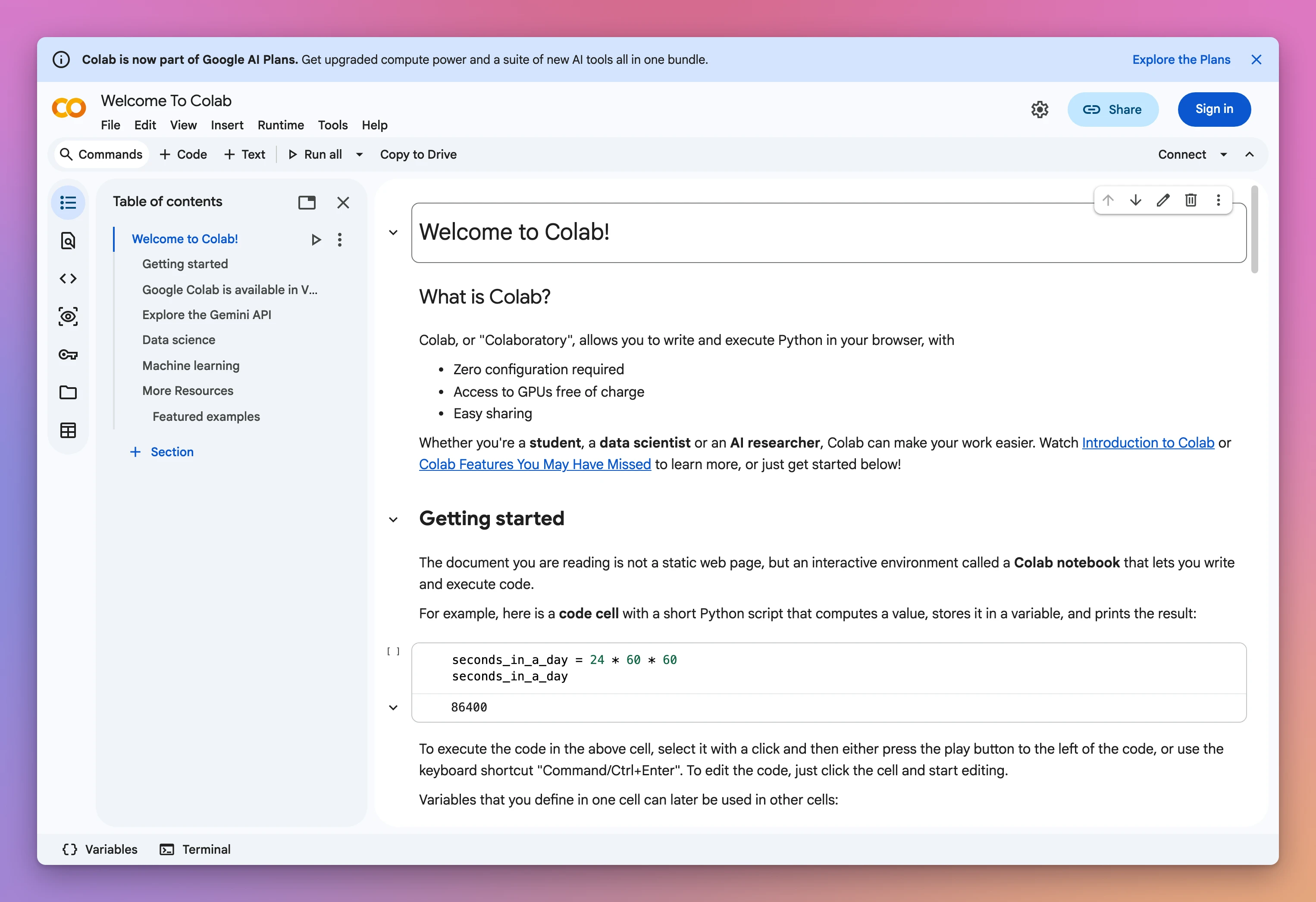
What Google Colab actually gives you
Under the hood, every Colab session is a hosted Linux VM with Python, CUDA, PyTorch, and common data libraries preinstalled, connected to a Jupyter kernel. When you stop the session, the VM goes away and /content is wiped. Anything you want to keep goes to Google Drive, Cloud Storage, or back to your own computer.
Instead of billing fixed dollars per hour, paid Colab plans use compute units. Each machine shape burns units at its own hourly rate while allocated.
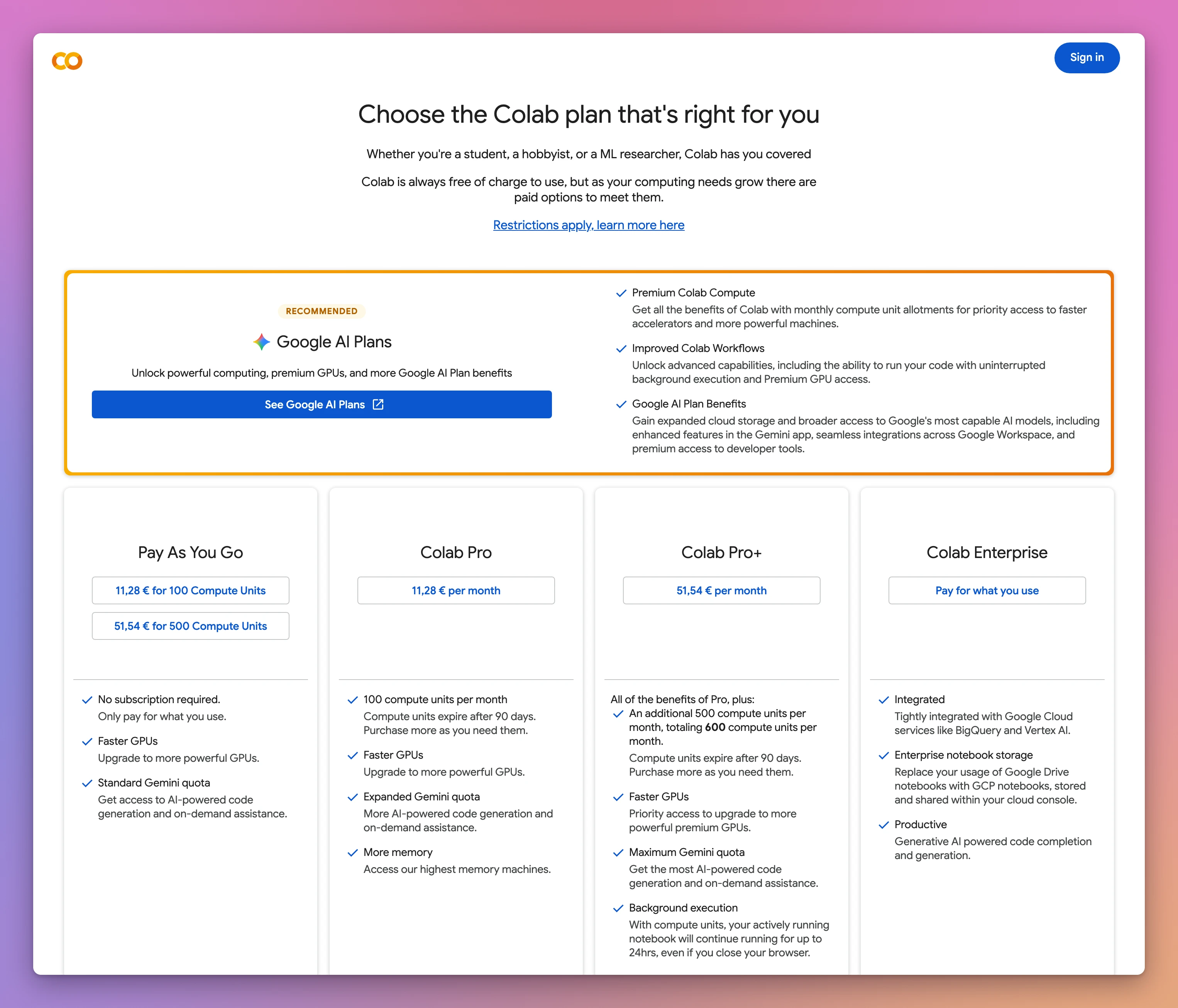
Here is how the plans compare on US list prices (in Italy, Pay As You Go 100 units and Colab Pro are €11.28, and Colab Pro+ is €51.54):
| Plan | Monthly price | Compute units | Rollover | Background execution |
|---|---|---|---|---|
| Free | $0 | Dynamic free quota | None | No |
| Pay As You Go | $9.99 / $49.99 once | 100 / 500 units | 90 days | No |
| Colab Pro | $9.99 | 100 / month | 90 days | No |
| Colab Pro+ | $49.99 | 600 / month | 90 days | Yes (up to 24h) |
| Google AI Pro | $19.99 | 200 / month | 90 days | No |
| Google AI Ultra (5x / 20x) | $99.99 / $199.99 | 2,000 / month | 90 days | Yes (up to 24h) |
Both Google AI Ultra tiers include the same 2,000 compute units per month, along with priority GPU access and 24-hour background execution. Unused units roll over and expire after 90 days (consumed oldest first), so two quiet months let you bank up to 6,000 units for a big burst.
What each GPU actually costs in compute units
Google adjusts exact burn rates over time, so I probed the runtimes directly on my Google AI Ultra account with google-colab-cli (v0.8.0) and checked colab usage and nvidia-smi while each VM was running:
| Runtime flag | GPU and VRAM | CPU / RAM / Disk | Live burn rate | Hours per 2,000 CU |
|---|---|---|---|---|
| (default CPU) | None | 2 cores, 12 GiB RAM, 242 GB disk | 0.08 CU/hr | ~25,000 hr |
--gpu T4 | Tesla T4 (15,360 MiB) | 2 cores, 12 GiB RAM, 253 GB disk | 1.15 CU/hr | ~1,739 hr |
--gpu L4 | NVIDIA L4 (23,034 MiB) | 12 cores, 52 GiB RAM, 253 GB disk | 1.94 CU/hr | ~1,030 hr |
--gpu G4 | RTX PRO 6000 Blackwell (97,887 MiB) | 48 cores, 176 GiB RAM, 253 GB disk | 10.05 CU/hr | ~199 hr |
A few surprises jump straight out of those measurements.
The L4 is the hidden sweet spot. It burns 1.94 CU/hr, less than 1.7x the T4 rate, yet it jumps from 2 CPU cores and 12 GiB RAM to 12 CPU cores, 52 GiB RAM, and 24 GB VRAM. On my first probe, it booted in 3.78 seconds.
The G4 is an NVIDIA RTX PRO 6000 Blackwell Server Edition with 96 GB of VRAM, 48 CPU cores, and 176 GiB of system RAM. At 10.05 CU/hr, your 2,000 monthly Ultra units buy roughly 199 hours of a 96 GB GPU every month.
Colab also offers --gpu A100, --gpu H100, --tpu v5e1, and --tpu v6e1, though availability depends on pool capacity at the moment you request them. During my probe, CPU, T4, L4, and G4 all allocated cleanly, while A100, H100, and TPU v5e1 timed out past 30 seconds. Ten minutes later, L4 also queued past 60 seconds and fell back to T4. Plan around dynamic capacity rather than assuming one specific card is always instant.
Four ways to drive Colab today
You no longer need to copy code into browser cells just to use a Colab GPU.
In the browser, Colab works well for interactive notebooks, sharing runnable links, and using Google’s built-in Data Science Agent, which takes a plain-English goal and a CSV file, writes the cleaning and plotting cells, runs them, and fixes its own errors.
In VS Code, the official Google Colab extension lets you open local .ipynb notebooks inside your normal Git repo and attach them to a remote Colab GPU kernel. Your files stay on your disk while heavy cells execute in the cloud.
From the terminal, google-colab-cli turns Colab into an on-demand GPU server. You can create named sessions (colab new -s work --gpu L4), upload files (colab upload), run local scripts against the remote kernel (colab exec), open an SSH shell with port forwarding (colab ssh), or run a one-shot script that boots a VM and destroys it the second the script exits (colab run). It even works as a script shebang (#!/usr/bin/env -S colab run --gpu T4).
Through coding agents, colab-mcp, the bundled CLI skill (colab skill), and the Google Colab skill inside Antigravity let an agent decide when to rent a GPU, send a training or processing script, inspect the output, and stop the VM afterward.
That last pattern is why people on X suddenly started rediscovering Colab. MiroBurn posted about connecting google-colab-cli to his agent on Google AI Ultra, discovering over 3,000 compute units waiting on his account, and immediately kicking off a custom TTS voice model trained on hours of his workshop recordings. Right after, Matt Van Horn shared that he was using his included Ultra GPU time in an autonomous Karpathy-style research loop to train a PR merge-probability classifier on 1,200+ open-source PRs his agents had opened across external repos.
What developers can use Google Colab for
If you build software on a MacBook or a workstation without a massive NVIDIA card, Colab covers a lot of ground beyond academic ML.
Train small, task-specific models on your own data
Large frontier models are expensive and slow when you need to score thousands of rows the same way every day. Matt Van Horn’s PR merge-probability classifier is a great example: take 1,200 historical records with a clear label (merged or closed), fine-tune a small encoder or gradient-boosted model on a T4 or L4 in minutes, and you get a fast specialist model trained on your actual workflow.
The same setup works for routing incoming emails, classifying blog posts or products into categories, spotting flaky CI logs, or ranking search results inside an app.
Run big open-weight LLMs you can’t fit on your laptop
A 96 GB G4 runtime fits a 27B to 32B open-weight model in full BF16 precision with room for a long context window, or a 70B quantized model (see how much VRAM an LLM needs and how to run an LLM locally).
With vLLM or Ollama running inside Colab and colab ssh --proxy-mode forwarding port 8000 over SSH to your Mac, you get a private http://localhost:8000/v1 endpoint you can test with curl or connect to a coding agent without exposing anything to the public internet. If you haven’t set up SSH port forwarding or ProxyCommand before, my free SSH Course walks through it step by step.
Offload one-shot batch jobs from your terminal
Sometimes you don’t need a GPU for AI training at all. You just need a fast throwaway Linux box with 12 to 48 CPU cores, 52 to 176 GiB of RAM, and 250 GB of scratch disk for twenty minutes.
Generating vector embeddings across a whole site, running GPU-accelerated FFmpeg transcodes, converting thousands of PDFs to Markdown, or benchmarking a heavy Python data pipeline all finish faster on an L4 or G4 while your laptop fan stays silent.
Give your coding agent a GPU sandbox
When an agent iterates on a training script, a CUDA kernel, or an evaluation suite, running it on your main machine either fails (no CUDA on Apple Silicon) or eats all your RAM. Pointing the agent at google-colab-cli gives it an isolated Ubuntu VM with CUDA 13 and PyTorch preinstalled, and colab stop wipes the whole environment when the experiment ends.
Share reproducible bug reports and runnable docs
If you maintain an open-source library or teach a concept, a Colab link lets anyone run your exact code and reproduce a bug or benchmark in one click without matching your Python version or installing CUDA drivers.
What experimenters and tinkerers can use it for
If you like trying new models and tools the week they drop, Colab removes the hardware bottleneck.
Fine-tune open-weight LLMs with Unsloth or TRL
LoRA and QLoRA fine-tuning runs eat VRAM fast once your training examples get long. On an L4 (24 GB) or G4 (96 GB), you can mount Google Drive for checkpoints, kick off a fine-tuning run with Unsloth, and close your laptop while background execution keeps the job alive for up to 24 hours.
Train custom voice and audio models
Open-source speech models like Chatterbox, F5-TTS, XTTS, and RVC rely heavily on NVIDIA CUDA. Training a custom voice model on your own recordings (like MiroBurn’s workshop TTS experiment) or testing speech-to-speech pipelines takes minutes to set up on a T4 or L4.
Run ComfyUI for heavy image and video models
Modern diffusion and video workflows in ComfyUI (Flux, Wan, ControlNet stacks, multi-stage upscalers) quickly run out of memory on 12 GB or 16 GB consumer cards, and they run much slower on Apple Silicon (I covered local hardware limits in the complete guide to AI image generation). On a 96 GB G4 runtime, you can load full unquantized weights and tunnel the ComfyUI web interface privately to your browser over SSH.
Try new GitHub ML repos in five minutes
Half the interesting AI repositories on GitHub assume Ubuntu, NVIDIA CUDA, and 24 to 80 GB of VRAM. Instead of renting a cloud instance, picking an AMI, and configuring firewall rules just to see if a paper’s demo actually works, you can clone the repo into Colab, run it, and throw the VM away ten minutes later.
What prosumers can use it for (even without writing much Python)
You don’t have to be an ML engineer to get real mileage out of included Colab units.
Batch transcribe podcasts, interviews, and videos for free
Running faster-whisper (large-v3) on a T4 or L4 transcribes hours of audio or video in minutes at 1.15 to 1.94 CU/hr. Your recordings stay between your Google Drive and a temporary VM, and you skip paying $0.10 to $0.25 per minute to transcription SaaS tools.
Crunch spreadsheets and exports that choke Excel or Google Sheets
When you have a 400 MB Stripe export, server log file, or multi-year analytics CSV, spreadsheets grind to a halt. Upload the file to a Colab notebook and let the built-in Gemini Data Science Agent clean the columns, group the numbers, spot outliers, and export clean charts or a summary CSV.
Upscale photos, split audio stems, and OCR scanned PDFs
If you have Google AI Ultra, your account also includes 20 TB to 30 TB of Google Drive storage. Mounting Drive inside Colab puts GPU compute right next to your files. You can batch-run open-source tools like Demucs (separating vocals, drums, and instruments from songs), Real-ESRGAN (upscaling old photos or video frames), or Docling / Marker (turning scanned PDFs into clean Markdown) on folders already sitting in Drive.
Learn Python and AI with zero setup
If you are still learning the basics from AI fundamentals or picking up Python, Colab skips the worst beginner hurdle: broken local installs, conflicting pip packages, and missing GPU drivers. It works the same way on an old laptop, a Chromebook, or an iPad.
Real example: auditing all 2,217 posts on this site on a Colab GPU
To put the CLI workflow through a real job instead of a toy benchmark, I exported the slug, title, and description of all 2,217 published posts on flaviocopes.com into a 616 KB JSON file (/tmp/flavio-posts.json) and sent it to a Colab GPU to embed every post and find near-duplicate articles across all 2,456,436 possible pairs.
First, install google-colab-cli (if you don’t have it yet) and check your current balance:
uv tool install google-colab-cli
colab usage
Output on my Google AI Ultra account:
Current balance: 2501.69 compute units
Usage rate: 0.00/hr
Active assignments: 0
Next, create a named GPU session and upload the post index. I asked for a T4 (1.15 CU/hr), uploaded the file, and checked the active burn rate:
colab new -s site-embed --gpu T4
colab upload -s site-embed /tmp/flavio-posts.json /content/flavio-posts.json
[colab] Creating session 'site-embed'...
[colab] Session READY.
[colab] Uploaded '/tmp/flavio-posts.json' to '/content/flavio-posts.json'Now save the embedding script locally as find_duplicates.py. It loads BAAI/bge-small-en-v1.5 on the GPU, embeds all 2,217 posts, multiplies the normalized matrix against its transpose to score all 2.45 million pairs, and times a 200-post CPU pass on the same VM for comparison:
import json
import time
import torch
from sentence_transformers import SentenceTransformer

posts = json.load(open('/content/flavio-posts.json'))
texts = [p['text'] for p in posts]
print(f'Loaded {len(posts)} posts on {torch.cuda.get_device_name(0)}')

t0 = time.perf_counter()
model_gpu = SentenceTransformer('BAAI/bge-small-en-v1.5', device='cuda')
load_s = time.perf_counter() - t0

# Warm up CUDA kernels before timing
_ = model_gpu.encode(texts[:16], batch_size=16, normalize_embeddings=True, show_progress_bar=False)
torch.cuda.synchronize()

t0 = time.perf_counter()
emb = model_gpu.encode(
  texts,
  batch_size=128,
  normalize_embeddings=True,
  convert_to_tensor=True,
  show_progress_bar=False,
)
torch.cuda.synchronize()
gpu_s = time.perf_counter() - t0

t0 = time.perf_counter()
sim = emb @ emb.T
sim.fill_diagonal_(-1.0)
n = len(posts)
triu_i, triu_j = torch.triu_indices(n, n, offset=1, device='cuda')
scores = sim[triu_i, triu_j]
top_scores, top_idx = torch.topk(scores, 10)
torch.cuda.synchronize()
sim_ms = (time.perf_counter() - t0) * 1000

model_cpu = SentenceTransformer('BAAI/bge-small-en-v1.5', device='cpu')
t0 = time.perf_counter()
_ = model_cpu.encode(texts[:200], batch_size=64, normalize_embeddings=True, show_progress_bar=False)
cpu_200_s = time.perf_counter() - t0
cpu_est_s = cpu_200_s * (len(posts) / 200)

print(f'Model load: {load_s:.2f}s')
print(f'GPU encode ({len(posts)} posts): {gpu_s:.2f}s ({len(posts)/gpu_s:.0f} posts/sec)')
print(f'GPU all-pairs similarity ({len(scores):,} pairs): {sim_ms:.1f} ms')
print(f'CPU encode (200 posts): {cpu_200_s:.2f}s (~{cpu_est_s:.1f}s for {len(posts)}, {cpu_est_s/gpu_s:.1f}x slower)')

for s, idx in zip(top_scores.tolist(), top_idx.tolist()):
  i = triu_i[idx].item()
  j = triu_j[idx].item()
  print(f'  {s:.4f}  /{posts[i]["slug"]}/  <->  /{posts[j]["slug"]}/')
Run the local script directly on the remote Colab VM, then shut the session down immediately so it stops burning units:
colab exec -s site-embed -f find_duplicates.py
colab stop -s site-embed
Here is the real output returned to my terminal:
Loaded 2217 posts on Tesla T4
Model load: 15.44s
GPU encode (2217 posts): 2.03s (1090 posts/sec)
GPU all-pairs similarity (2,456,436 pairs): 62.2 ms
CPU encode (200 posts on VM CPU): 7.48s (~82.9s for 2217, 40.8x slower)

Top 10 closest post pairs:
  0.9673  /javascript-object-defineproperties/  <->  /javascript-object-defineproperty/
  0.9603  /how-to-destructure-an-object-to-an-already-defined-variable/  <->  /javascript-destructure-object-to-existing-variable/
  0.9508  /javascript-string-trim/  <->  /javascript-string-trimend/
  0.9508  /javascript-casting/  <->  /javascript-type-conversion/
  0.9434  /ai-workshop-jul-2026/  <->  /ai-workshop-may-2026/
  0.9430  /javascript-string-tostring/  <->  /javascript-string-valueof/
  0.9411  /javascript-object-getownpropertydescriptor/  <->  /javascript-object-getownpropertydescriptors/
  0.9396  /fix-the-objects-are-not-valid-as-a-react-child-error/  <->  /fix-uncaught-error-objects-are-not-valid-as-a-react-child/
  0.9384  /javascript-object-prototype-valueof/  <->  /javascript-string-valueof/
  0.9372  /how-to-check-string-starts-with/  <->  /javascript-string-startswith/
Embedding all 2,217 posts took 2.03 seconds on the cheapest Colab GPU (40.8x faster than CPU), scoring 2.45 million pairs took 62.2 milliseconds, and it immediately surfaced real overlapping posts on my site like /javascript-casting/ vs /javascript-type-conversion/ and two separate posts about the same React child error.
One real CLI gotcha popped up in stderr during that run:
Error while fetching `HF_TOKEN` secret value from your vault:
'Requesting secret HF_TOKEN timed out. Secrets can only be fetched when running from the Colab UI.'
Colab’s built-in Secrets sidebar only answers requests from a browser tab. When you run headlessly through google-colab-cli, pass tokens with --env HF_TOKEN=... on colab exec or colab run instead (a flag Matt Van Horn actually contributed to google-colab-cli).
After colab stop -s site-embed, my balance was still 2501.69 compute units because the whole run used under 0.02 compute units.
The catches and when NOT to use Colab
Before you move workloads onto Colab, know its hard boundaries:
- 24-hour maximum session length. Even on Google AI Ultra or Colab Pro+ with background execution enabled, a single VM caps out at 24 hours. Save checkpoints and artifacts to Google Drive or download them as you go, because
/contentdisappears when the VM recycles. - No guaranteed hardware reservation. Every GPU comes from a shared dynamic pool. T4 and L4 are usually quick, while G4, A100, and H100 can queue or time out during peak hours.
- Idle VMs still burn units. If you leave a G4 session open at 0% GPU utilization, it still drains
10.05 CU/hr. Always callcolab stop, or prefercolab runso the VM tears itself down the second your script finishes. - Free tier restrictions vs paid tier. The Colab FAQ blocks SSH shells, remote desktops, and web UIs on the free tier, then lifts those limits once you have a positive paid compute unit balance. Crypto mining, public file hosting, deepfakes, and reselling Colab compute as a third-party API remain banned on every tier.
- Not a production server. Colab has no uptime SLA, no fixed public HTTPS domain, and no always-on daemon mode. For a live API or webhook, deploy to Cloud Run, a VPS, or a dedicated inference host instead (if you’re new to Linux servers, start with my free Linux Basics Course).
- No family sharing on Ultra units. Even though Google AI Ultra shares 20 to 30 TB of storage and YouTube Premium with up to five family members, the 2,000 monthly Colab compute units stay locked to the primary account.
How I plan to use it (and where I’ll skip it)
I work on a Mac without a discrete NVIDIA GPU, and I already pay for Google AI Ultra 20x for Gemini 4, Antigravity, 30 TB of storage, and YouTube Premium Family. Having 2,000 Colab compute units included each month means I can stop pretending I need a noisy Linux tower with a $4,000 to $8,000 GPU under my desk.
Here is where I am going to use it:
- One-shot site and content audits. Jobs like the 2,217-post embedding audit above, semantic clustering, or building search indexes across my articles and courses using
colab run --gpu T4orL4. - Batch audio and video processing. Running
faster-whisperon course recordings and YouTube drafts, plus GPU-accelerated video experiments, without tying up my MacBook. - Testing new open-weight models and ComfyUI pipelines. Whenever a new 27B to 70B open model or video generator releases, spinning up a G4 over
colab sshfor two hours beats fighting local quantization limits (for day-to-day local chat on a Mac, I still stick to Ollama or coding agents without a subscription). - Agent-driven experiments. Letting coding agents use
google-colab-clior the Antigravity Colab skill to train small classifiers, run evaluation sweeps, and shut down the VM when finished.
Where I will skip Colab:
- Quick local scripts. If a script runs in two seconds on my Mac, waiting 4 to 45 seconds for a remote VM to boot is wasted time.
- Anything that needs to stay online 24/7. Cron jobs, webhooks, and public web apps belong on a real server or serverless platform, not a 24-hour notebook VM.
- Sensitive private files. I won’t upload tax documents, client credentials, or private databases to a hosted notebook VM when a local tool handles them fine.
If you already pay for Google AI Pro or Ultra, run colab usage once in your terminal. You might be surprised by how much GPU time is already sitting in your account.
Want me to talk about your product? You can sponsor this site.
Related posts about ai: