Kitesurf: Cloudflare's browser built for AI agents
By Flavio
Updated
Tagged: Cloudflare
Kitesurf is Cloudflare's open source browser for AI agents. Learn how it runs on Workers, how it compares to Chromium, and how to run your own.
Kitesurf is a new browser built for AI agents.
It runs entirely on Cloudflare Workers, without Chromium behind the scenes. Kitesurf uses V8 isolates, WebAssembly, Rust, and selected parts of existing browser engines.
The result is a browser that uses much less CPU and memory than Chromium, at the cost of slower page loads and lower compatibility.
Since November 13, 2026 it is also open source, under the Apache 2.0 license. You can run your own Kitesurf on your computer or in your Cloudflare account.
I find this project interesting because Cloudflare started with a better question: what does an AI agent actually need from a browser, instead of how to put Chrome in the cloud?
For the agent that drives the browser, see browser agents in AI coding.
Why build another browser?
Chrome, Firefox, and Safari are built for people.
They need tabs, extensions, themes, video, audio, smooth animations, accessibility features, developer tools, and pixel-perfect rendering. They also need to keep working while a person leaves dozens of tabs open for hours.
An agent usually has a smaller job:
- open a page
- run its JavaScript
- inspect the DOM
- click a button
- fill a form
- extract some data
- take a screenshot
- create a PDF
The browser might only exist for a few seconds. Once the task is done, the entire session can disappear.
Running a full copy of Chromium for every short task works, but it is expensive. A browser process consumes a lot of memory before the agent has done anything useful. Starting thousands of isolated sessions also gets complicated.
Kitesurf removes the parts an agent rarely needs and optimizes for short, isolated jobs. It is a browser engine with different priorities, not a lightweight Chrome.
How Kitesurf works
Kitesurf splits a browser session across several Workers.
The Engine coordinates the session and keeps its state. PageScript runs the page, while PageRenderer turns it into pixels or a PDF. SandboxOutbound is the only component allowed to access the network.
Every component except the Engine is stateless and disposable.
The Engine controls the session
The Engine is the public entry point.
It accepts REST API requests and Chrome DevTools Protocol connections. If you connect with Playwright, Puppeteer, Chrome DevTools, or an MCP client, you are talking to the Engine.
It also stores the current browser session state and coordinates calls to the other Workers.
This is the only stateful part of the architecture. That makes everything else easier to replace when it fails.
PageScript runs the website
Kitesurf creates a PageScript Worker for each page and out-of-process iframe.
That Worker gets a clean globalThis, a DOM, and the Web APIs needed by the page. It parses HTML and CSS, builds the document, and runs the site’s JavaScript and WebAssembly.
Page JavaScript runs inside the same V8 isolate as the page implementation. There is no separate operating system process for every tab.
Workers blocks eval() and similar dynamic code generation for security reasons. Some websites depend on it, so Kitesurf currently uses Boa, a JavaScript engine written in Rust, for those cases.
That is a workaround, and it has a cost. Code that goes through Boa will not have the same performance as code running directly in V8. But it lets more sites work while keeping the Workers security model intact.
SandboxOutbound owns the network
A browser runs untrusted code from the web. Giving every page unrestricted network access would be dangerous.
Kitesurf solves this by routing outbound requests through a separate SandboxOutbound Worker.
It handles the main document, scripts, images, fonts, CSS, and requests made with fetch(). It also:
- applies browser request headers
- enforces CORS
- filters requests and responses
- manages a separate cookie jar for each page
- returns a
403response when a request breaks a policy
Cloudflare uses Dynamic Workers to enforce the boundary. The PageScript Worker cannot quietly bypass SandboxOutbound and make its own network request.
An agent will eventually visit a broken or hostile page, so the browser treats every page as untrusted from the beginning.
PageRenderer produces the output
PageRenderer turns the page into something we can see.
It receives a representation of the page from PageScript, loads the necessary fonts and images, lays everything out, and returns a PNG, JPEG, or PDF.
The components communicate using Workers RPC. The Engine can call a method such as renderFrame() and receive the rendered image as the result.
The renderer is stateless. If it gets stuck, Kitesurf can kill it and create another one without losing the entire browser session.
One bad page might produce a blank frame or a missing element. It should not take down a long-running browser service.
If you want to understand the runtime underneath this architecture, start with the official workerd repository.
Kitesurf reuses focused browser components
Building a modern browser engine from zero would take years.
Kitesurf combines parts from existing projects instead.
It uses Blitz for HTML parsing, layout, and rendering. Blitz is built on Servo components and uses Stylo, the CSS engine used by Firefox.
Text layout and 2D graphics come from the Linebender libraries, and Krilla generates the PDFs.
Those parts are written in Rust and compiled to WebAssembly so they can run inside Workers.
This is quite different from putting a Linux container around a browser binary. Kitesurf is assembled to fit the Workers runtime.
The trade-off is compatibility. Chromium has decades of work behind it. Kitesurf is new and implements the parts of the platform that matter most for agent tasks first.
How Cloudflare tests browser compatibility
Cloudflare uses Web Platform Tests, the shared test suite used by browser vendors.
Kitesurf currently passes more than 235,000 subtests. Its strongest areas include DOM, HTML, selection, SVG, encoding, CORS, and XHR.
The current coverage reported by Cloudflare includes:
| Area | Coverage |
|---|---|
| DOM | 97% |
| HTML | 96% |
| Selection | 99% |
| SVG | 97% |
| Encoding | 99% |
| CORS | 95% |
| XHR | 95% |
| URL | 83% |
Those numbers are encouraging, but they do not mean 97% of websites will work.
A standards test checks one small behavior at a time. A real website combines thousands of behaviors, third-party scripts, fonts, unusual CSS, browser detection, and sometimes anti-bot systems.
The practical compatibility test is simple: open the site in Kitesurf and try the exact task your agent needs to perform.
How Cloudflare used AI to build it
There is another agent story inside Kitesurf: Cloudflare used coding agents to help build the browser itself.
The project started from an experimental browser called Obscura. The team then gave the coding agent a clear architecture and a large set of tests to work against.
Web Platform Tests provided small, objective targets. Cloudflare also used Puppeteer integration tests on real websites and visual regression tests for rendered output.
Giving the agent an architecture and tests works much better than asking it to “build a browser” and hoping for the best.
The plan defines the boundaries. The tests show whether each implementation works. Human review still owns the architecture and decides which trade-offs are acceptable.
It is also why a browser is an interesting agent project. A browser has hundreds of thousands of existing standards tests. The agent can make one small improvement, run the relevant tests, and see a concrete result.
Cloudflare still expects failures. The architecture is designed so that a bad renderer or unsupported element degrades one page without taking the whole service down.
Kitesurf compared to Chromium
Cloudflare tested Kitesurf against a warm Chromium pool using 14 URLs.
These are the median results from five runs:
| Task | Kitesurf | Chromium | Difference |
|---|---|---|---|
| Screenshot CPU | 380 ms | 1,173 ms | 3.1x less CPU |
| HTML extraction CPU | 229 ms | 877 ms | 3.8x less CPU |
| Screenshot memory | 57.8 MiB | 271 MiB | 4.7x less memory |
| HTML extraction memory | 39.4 MiB | 273.7 MiB | 7x less memory |
| Screenshot wall time | 1,148 ms | 637 ms | 1.8x slower |
| HTML extraction wall time | 820 ms | 472 ms | 1.7x slower |
Kitesurf uses much less CPU and memory, but a warm Chromium session finishes sooner.
For one screenshot, Chromium’s lower wall time might be more valuable. For thousands of short and independent tasks, Kitesurf’s lower resource use could let you run many more sessions at once.
Kitesurf is optimized for throughput and isolation, not for winning every individual speed test.
How I would use Kitesurf
I would not move an entire browser automation system to Kitesurf on day one.
I would start with one small, disposable task. I would test it on the real sites I need, measure failures, and keep Chromium as a fallback.
Here is the workflow I would use.
1. Test the target site in the playground
The fastest starting point is the Kitesurf playground.
Enter a URL and let Kitesurf render it. The playground includes Chrome DevTools, so you can inspect:
- the DOM
- console errors
- network requests
- the WebAssembly memory used by each isolate
Do not just look at the screenshot. Inspect the DOM when the agent needs to find a button, and check the console and network panels for tasks that depend on JavaScript. For a form, try filling and submitting it.
This takes a couple of minutes and tells you much more than a compatibility percentage.
2. Create a Browser Run API token
For REST or CDP access, create a Cloudflare API token with the Browser Rendering - Edit permission.
You will also need your Cloudflare account ID.
Store both values in environment variables rather than putting them in a script:
export CLOUDFLARE_ACCOUNT_ID='<YOUR_ACCOUNT_ID>'
export CLOUDFLARE_API_TOKEN='<YOUR_API_TOKEN>'
Kitesurf is free during the beta, subject to the Browser Run per-account limits.
3. Use a Quick Action for one-shot work
For screenshots, HTML, Markdown, PDFs, links, or other one-step jobs, I would use a Quick Action.
Here is a screenshot request:
curl -X POST \
  "https://api.cloudflare.com/client/v4/accounts/$CLOUDFLARE_ACCOUNT_ID/browser-run/screenshot?browser=kitesurf" \
  -H "Authorization: Bearer $CLOUDFLARE_API_TOKEN" \
  -H 'Content-Type: application/json' \
  -d '{"url":"https://flaviocopes.com"}' \
  --output kitesurf.png
The browser=kitesurf query parameter selects Kitesurf. Without it, Browser Run uses its default Chromium browser.
This API also has actions for rendered HTML, Markdown, PDFs, accessibility trees, scraping, structured JSON, links, and crawling.
That means I would not launch a Playwright session just to turn one URL into Markdown. The smaller HTTP interface is easier to run, retry, log, and place behind a queue.
For example, this returns the rendered page as Markdown inside the response’s result field:
curl -X POST \
  "https://api.cloudflare.com/client/v4/accounts/$CLOUDFLARE_ACCOUNT_ID/browser-run/markdown?browser=kitesurf" \
  -H "Authorization: Bearer $CLOUDFLARE_API_TOKEN" \
  -H 'Content-Type: application/json' \
  -d '{
    "url": "https://flaviocopes.com",
    "gotoOptions": {
      "waitUntil": "networkidle2"
    }
  }'
networkidle2 waits until the page has almost finished its network activity. When I know the page, I prefer waiting for a specific CSS selector because it is faster and more precise.
Quick Actions also return an X-Browser-Ms-Used header. I would record it together with the URL, result, and selected browser. This gives me real usage data instead of guessing which engine is cheaper for my workload.
4. Use Playwright for a multi-step task
If the job needs navigation, clicks, form input, or several reads from the same page, I would connect with Playwright over the Chrome DevTools Protocol.
Install the package without a bundled browser:
npm install playwright-coreCreate kitesurf.mjs:
import { chromium } from 'playwright-core'

const accountId = process.env.CLOUDFLARE_ACCOUNT_ID
const apiToken = process.env.CLOUDFLARE_API_TOKEN

if (!accountId || !apiToken) {
  throw new Error('Set CLOUDFLARE_ACCOUNT_ID and CLOUDFLARE_API_TOKEN')
}

const endpoint =
  `wss://api.cloudflare.com/client/v4/accounts/${accountId}` +
  '/browser-run/devtools/browser?browser=kitesurf'

const browser = await chromium.connectOverCDP(endpoint, {
  headers: {
    Authorization: `Bearer ${apiToken}`,
  },
})

try {
  const context = browser.contexts()[0]
  const page = context.pages()[0] || await context.newPage()

  await page.goto('https://flaviocopes.com', {
    waitUntil: 'domcontentloaded',
  })

  console.log(await page.title())

  await page.screenshot({
    path: 'flaviocopes.png',
    fullPage: true,
  })
} finally {
  await browser.close()
}
Run it:
node kitesurf.mjsThis is normal Playwright code. The only Kitesurf-specific part is the WebSocket endpoint and its browser=kitesurf query parameter.
Existing CDP tools can use Kitesurf without learning a new automation library. I think that was one of Cloudflare’s best choices.
There will still be differences. CDP compatibility does not make Kitesurf behave exactly like Chromium. Selectors, DOM operations, and many navigation tasks can work while a complex rendering feature does not.
5. Give an agent browser tools through MCP
Kitesurf can also sit behind an MCP server.
Cloudflare documents a setup using chrome-devtools-mcp. The MCP server connects to Kitesurf’s CDP endpoint and exposes browser tools to the agent.
The command looks like this inside an MCP client configuration:
{
  "mcp": {
    "kitesurf": {
      "type": "local",
      "command": [
        "npx",
        "-y",
        "chrome-devtools-mcp@latest",
        "--wsEndpoint=wss://api.cloudflare.com/client/v4/accounts/<ACCOUNT_ID>/browser-run/devtools/browser?browser=kitesurf",
        "--wsHeaders={\"Authorization\":\"Bearer <API_TOKEN>\"}"
      ],
      "enabled": true
    }
  }
}
The exact outer configuration format depends on the MCP client. The important part is the CDP WebSocket endpoint and the authorization header.
Do not commit the real token. If the client supports environment variables or a secret store in its MCP configuration, use that instead of writing the token directly in a tracked file.
I would use this for agent tasks where browsing is a tool, not the whole application. For example, an agent could inspect a documentation page, read a JavaScript-rendered table, or take a screenshot while working on another task.
I would give it narrow instructions and a short session. Kitesurf is designed for an agent that arrives, does one job, and leaves.
6. Keep Chromium as a fallback
For production, I would use Kitesurf as the first attempt for known-compatible tasks.
If the page fails to load, an expected selector is missing, the console reports an unsupported feature, or the result fails validation, I would retry with Chromium.
The flow would be:
try Kitesurf
  -> validate the result
  -> return it if valid
  -> retry with Chromium if invalid
Validate the result based on the task. An extraction needs its required fields. For screenshots, check the response and image dimensions. Automation should end at the expected URL or confirmation element.
This fallback approach gives Kitesurf a useful role today without pretending it has Chromium’s compatibility.
I would also keep a small set of real URLs as a canary suite. Run the same tasks periodically. Kitesurf is changing quickly, and the websites are changing too.
Run your own Kitesurf
Cloudflare published the code in the cloudflare/kitesurf repository, as it had promised since the first announcement.
So next to Browser Run there is now a second way to use Kitesurf: build the engine and run it yourself.
| Browser Run | Your own Kitesurf | |
|---|---|---|
| Setup | An API token | Clone, build, deploy |
| Who runs it | Cloudflare | You, on your computer or in your account |
| Interface | Quick Actions and CDP | CDP only |
| Authentication | The API token | None, you add Cloudflare Access |
| Cost | Free during the beta | Free locally, Workers Paid plan to deploy |
| Chromium fallback | Remove browser=kitesurf | You run Chromium somewhere else |
| Can you change the engine? | No | Yes |
The packages folder follows the architecture I described above. engine is the Worker that speaks CDP, page-script runs the page, page-renderer draws it, and core holds the Rust code for layout, paint and the JavaScript engine.
Run it on your computer
You need Node.js 22 or newer, pnpm 9.15.4, and Bazelisk installed as bazel. Bazel downloads the Rust toolchain on its own.
On a Mac you also need GNU tar:
brew install gnu-tarThen clone the repository, install the dependencies and start the engine:
git clone https://github.com/cloudflare/kitesurf.git
cd kitesurf
pnpm install --frozen-lockfile
pnpm run dev
The first build compiles the Rust core to WebAssembly, so it takes a while. Then Wrangler starts the engine on http://127.0.0.1:8787.
Open that address in Chrome and enter a URL. Chrome DevTools opens on the page as Kitesurf rendered it, the same thing the playground does.
Check that it is running
The engine has two small HTTP endpoints for that. /health answers kitesurf: OK, and /json/version says what you are talking to.
The playground at kitesurf.dev answers them too, so you can try them before building anything:
curl https://kitesurf.dev/json/version{
"Browser": "Kitesurf/0.0.1",
"Protocol-Version": "1.3",
"User-Agent": "Mozilla/5.0 (X11; Linux x86_64) AppleWebKit/537.36 (KHTML, like Gecko) Chrome/145.0.0.0 Safari/537.36",
"V8-Version": "12.0.0",
"WebKit-Version": "537.36",
"webSocketDebuggerUrl": "wss://kitesurf.dev/devtools/browser"
}On your computer, replace https://kitesurf.dev with http://127.0.0.1:8787.
Everything else goes through CDP. The Quick Actions belong to Browser Run and are not part of the open source engine.
The playground has its own shortcuts, which are not in the repository either. This saves a screenshot of my homepage without an account:
curl -o home.png 'https://kitesurf.dev/screenshot?url=https://flaviocopes.com'I got a 1920 by 1080 PNG back in 2.6 seconds. /pdf?url= returns a PDF, and /html?url= returns the HTML after the page’s JavaScript ran.
Connect Puppeteer
CDP clients connect to /devtools/browser. Unlike Browser Run, the engine asks for no token.
I ran this against the playground, and the only thing that changes with your own engine is the address.
Install puppeteer-core, which is Puppeteer without the bundled Chrome:
npm install puppeteer-coreThis script opens my homepage and takes a screenshot:
import puppeteer from 'puppeteer-core'

const browser = await puppeteer.connect({
  browserWSEndpoint: 'wss://kitesurf.dev/devtools/browser',
})

try {
  const page = await browser.newPage()
  await page.setViewport({ width: 1280, height: 800 })
  await page.goto('https://flaviocopes.com/')

  console.log(await page.title()) //Flavio Copes

  await page.screenshot({ path: 'flaviocopes.png' })
} finally {
  await browser.disconnect()
}
It took 1.9 seconds from goto() to the saved file, and this is the screenshot:
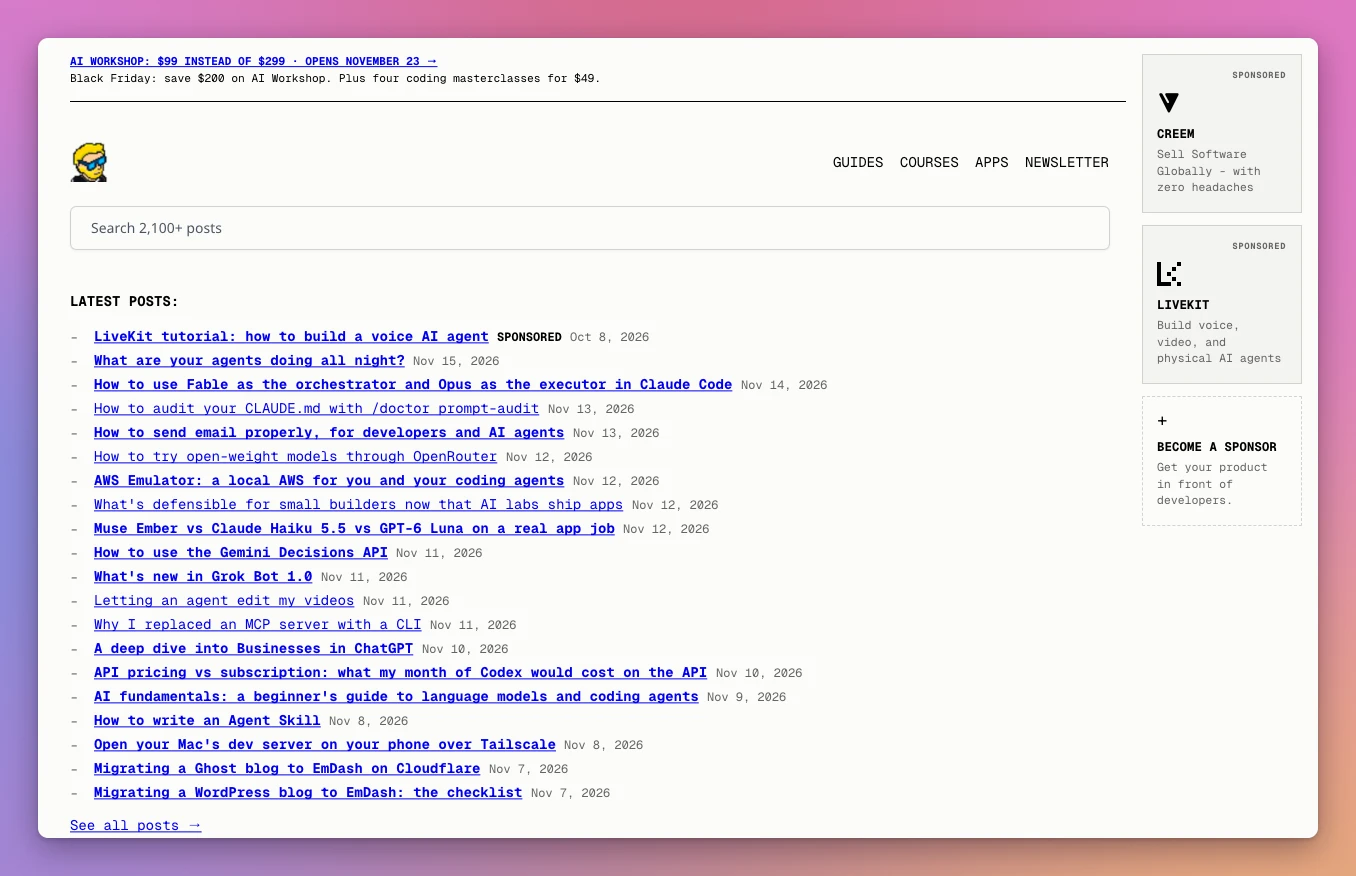
The web fonts, the images and the two-column layout all came out right.
Be careful with deviceScaleFactor. I set it to 2 to get a sharper image, and the screenshot was still 1280 by 800 pixels.
For the engine on your computer, the address is ws://127.0.0.1:8787/devtools/browser.
Deploy it to your Cloudflare account
One command builds the engine and uploads it with Wrangler:
pnpm run deployThe Worker is called kitesurf, so it ends up at kitesurf.<your-subdomain>.workers.dev.
You need the Workers Paid plan. Kitesurf starts a separate Worker for each page and each renderer using Dynamic Workers, and those have their own pricing.
Be careful: the engine has no authentication. Anyone who has the URL can browse the web through it, connect Puppeteer, send requests that come from your account, and use CPU time that you pay for. The workers.dev address is public by default, and with a name like that it is easy to guess.
Put Cloudflare Access in front of the Worker. My advice is to turn Access on for all the Workers in the account before you deploy, because otherwise the engine is public between the deploy and the moment you protect it.
Once Access is there, Chrome asks you to sign in. A script can’t do that, so create an Access service token, allow it with a Service Auth policy, and send it as two headers:
const browser = await puppeteer.connect({
  browserWSEndpoint: 'wss://kitesurf.<your-subdomain>.workers.dev/devtools/browser',
  headers: {
    'CF-Access-Client-Id': process.env.CF_ACCESS_CLIENT_ID,
    'CF-Access-Client-Secret': process.env.CF_ACCESS_CLIENT_SECRET,
  },
})
Should you run your own?
For real work I would stay on Browser Run. It has the Quick Actions, Chromium is one query parameter away when a page fails, and Cloudflare keeps the engine updated.
The repository is for a different job. You can read how a browser is put together, find out why a page renders wrong, or change the engine and send the fix back.
If you want to contribute, open an issue first, with a small page that reproduces the problem. A maintainer has to vouch for you before you can open a pull request.
When I would choose Kitesurf
I would choose Kitesurf for short, isolated tasks on sites I have already tested:
- rendering JavaScript before extracting content
- taking screenshots for previews or reports
- generating PDFs
- inspecting the DOM, console, or network activity
- reading pages through an agent
- running many independent jobs in bursts
I would choose Chromium when I need:
- video or WebGL
- pixel-perfect rendering
- a real browser TLS fingerprint for a bot challenge
- a long authenticated session with persistent state
- the highest possible compatibility with an unknown website
Kitesurf is not a tool for bypassing bot protection. A custom user agent string does not turn it into a normal person’s browser, and Cloudflare explicitly says it cannot yet complete bot-challenge handshakes that depend on real TLS fingerprints.
I would also be careful with automated browsing in general. Respect site terms, robots rules, private data, and reasonable rate limits. Lower resource use makes it easier to run more sessions, but it does not make every use acceptable.
The bigger idea
Kitesurf is part of a wider change at Cloudflare.
Temporary accounts let agents deploy without stopping for signup. Cloudflare Artifacts gives agents isolated Git repositories. Kitesurf gives them a browser designed around their work.
Platforms have always assumed the user is a person looking at a screen. Agents are becoming another kind of user, with different strengths and different limits.
Kitesurf is not trying to replace Chrome. It shows how we can build tools without pretending an agent is a tiny human clicking around a desktop.
If you control the site, you can also expose actions directly with WebMCP instead of making the agent click through the UI.
Kitesurf is still experimental, and now you can read every line of it. Today I would use it selectively, measure it, and keep a fallback. Its architecture makes sense to me because it uses small isolated components, explicit network access, and disposable sessions. Compatibility work can then focus on the jobs agents actually perform.
If you want to learn the platform underneath it, start with my free Cloudflare Workers course.
Want me to talk about your product? You can sponsor this site.
Related posts about cloudflare: