Open your Mac's dev server on your phone over Tailscale
By Flavio
Tagged: Security
Test a local site on a real phone through the tailnet with HTTPS, no ngrok and no public URL. Builds on the Tailscale tutorial for your Mac and a server.
The responsive mode in Chrome DevTools gets you most of the way, but Safari on a real iPhone, with its toolbar, its keyboard and your thumb, is a different thing. To test there, the phone has to reach the dev server running on your Mac.
You can type the Mac’s LAN IP, which gives you plain HTTP and only works at home. Or you put the site on a public URL with ngrok or a Cloudflare quick tunnel, and your unfinished site is on the internet while you work.
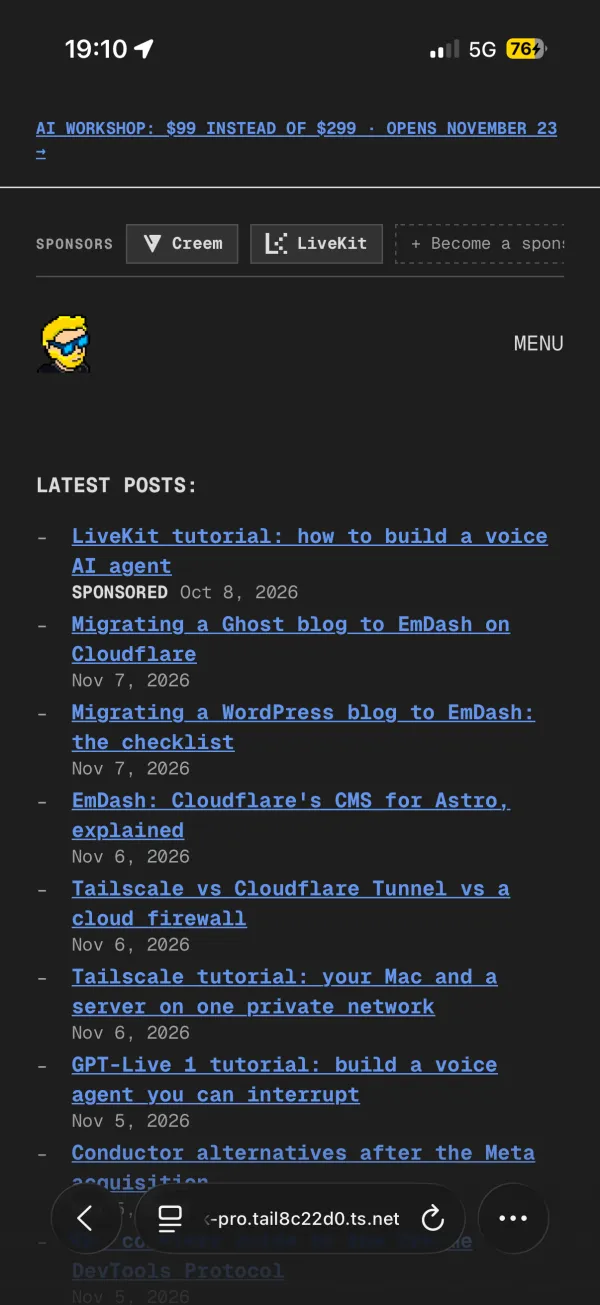
If your Mac and your phone are in the same tailnet, there’s a third option. tailscale serve gives the dev server an HTTPS address with a real certificate, like https://macbook-pro.tail8c22d0.ts.net:8443, and only your own devices can open it, at home or on 5G.
I set it up for this post with the dev server of this site, an Astro 7 project, on my MacBook Pro and my iPhone. It took one command to start, and then four things broke on the way. All four are in here, because you’ll probably hit at least one.
This builds on the Tailscale tutorial, where the Mac joined the tailnet flaviocopes.github. If you haven’t set up Tailscale yet, start there.
How it works
tailscale serve runs a small reverse proxy inside Tailscale on your Mac. It listens on the Mac’s tailnet address, handles HTTPS with a Let’s Encrypt certificate for the Mac’s tailnet name, and forwards each request to your dev server on localhost.
The dev server itself doesn’t change. It still listens on localhost only, and the only thing exposed is the port Tailscale serves, on the tailnet.
Add the phone to the tailnet
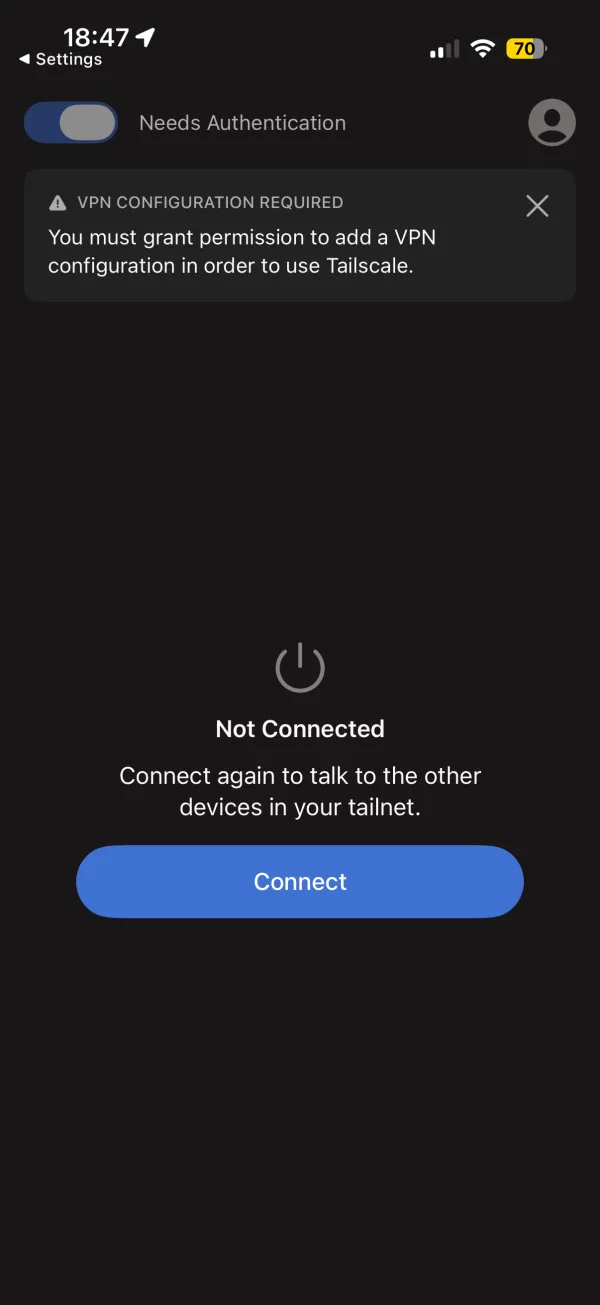
Install Tailscale from the App Store and open it. Before it can connect, it asks you to allow a VPN configuration, which is how iOS lets an app route traffic:
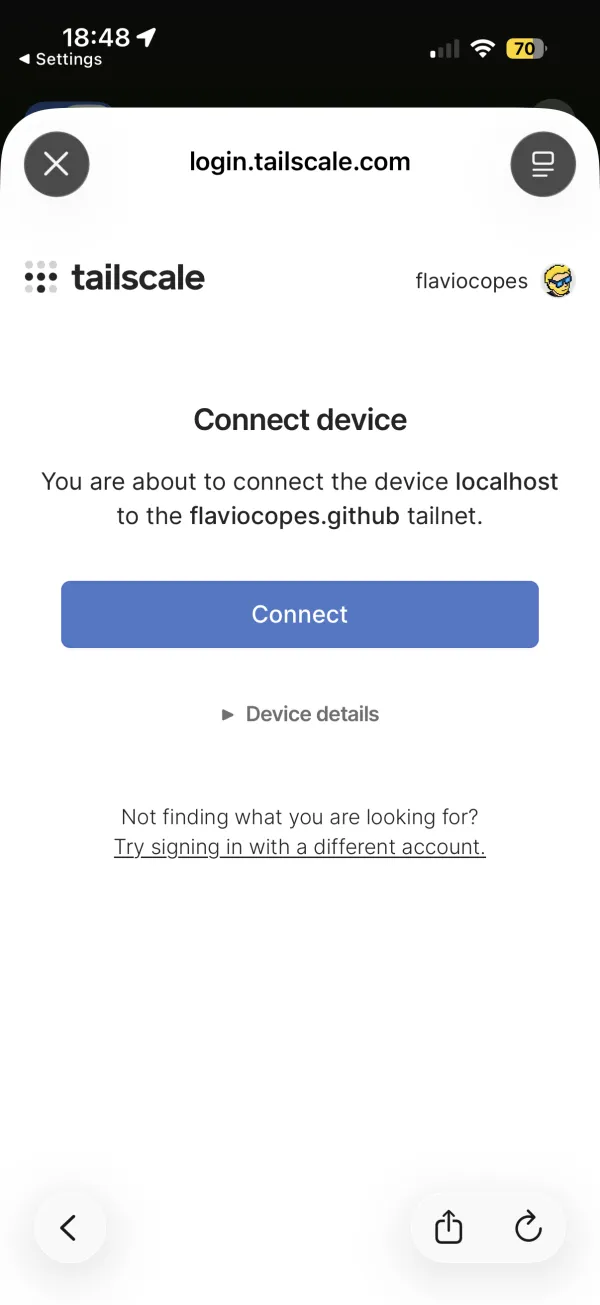
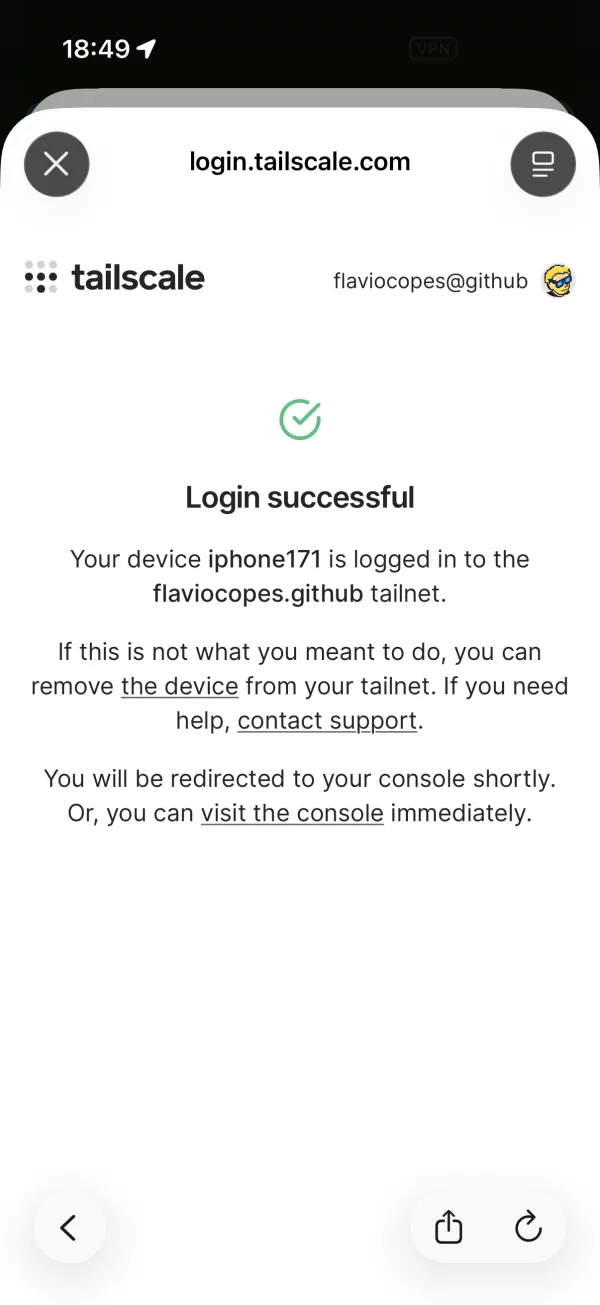
Then sign in with the same account you used on the Mac. I used GitHub. The phone doesn’t have a name yet when you confirm, so the page calls it localhost. Once it’s in, it gets its real name, and mine joined flaviocopes.github as iphone171:
On the Mac, tailscale status lists it:
$ tailscale status
100.84.21.17  macbook-pro  flaviocopes@  macOS  -
100.71.53.9     iphone171    flaviocopes@  iOS    -
And tailscale ping shows a direct path over my home Wi-Fi:
$ tailscale ping iphone171
pong from iphone171 (100.71.53.9) via 192.168.1.31:41641 in 24ms
Serve the dev server
My dev server was running on port 4400. The first time you run tailscale serve on a tailnet, it stops and asks you to turn the feature on:
$ tailscale serve --bg 4400
Serve is not enabled on your tailnet.
To enable, visit:

         https://login.tailscale.com/f/serve?node=nhmfoyG8aX11CNTRL
The link opens the admin console, where you enable Serve and HTTPS certificates for the tailnet. Then the same command works:
$ tailscale serve --bg 4400
Available within your tailnet:

https://macbook-pro.tail8c22d0.ts.net/
|-- proxy http://127.0.0.1:4400

Serve started and running in the background.
To disable the proxy, run: tailscale serve --https=443 off
--bg keeps it running after you close the terminal, and across reboots. Without it, the proxy stops when you press Ctrl-C.
The certificate is a real one, issued by Let’s Encrypt for the Mac’s full tailnet name and valid for 90 days. tailscale cert writes a copy to disk, so you can look at it:
$ tailscale cert macbook-pro.tail8c22d0.ts.net
Wrote public cert to macbook-pro.tail8c22d0.ts.net.crt
Wrote private key to macbook-pro.tail8c22d0.ts.net.key
$ openssl x509 -in macbook-pro.tail8c22d0.ts.net.crt -noout -issuer -subject -dates
issuer=C=US, O=Let's Encrypt, CN=YE2
subject=CN=macbook-pro.tail8c22d0.ts.net
notBefore=Nov  7 16:51:18 2026 GMT
notAfter=Feb  5 16:51:17 2027 GMT
Be aware that every Let’s Encrypt certificate goes into the public Certificate Transparency logs. Your machine name and your tailnet’s random name, tail8c22d0, become public. Nobody can connect with them, but if your machine is called acme-secret-project, rename it before you turn on HTTPS.
That was the happy path. Here’s what happened next.
Problem 1: port 443 was taken
I opened the URL from the Mac itself and got this:
$ curl https://macbook-pro.tail8c22d0.ts.net/
curl: (35) LibreSSL/3.3.6: error:1404B438:SSL routines:ST_CONNECT:tlsv1 alert internal error
tailscale debug daemon-logs streams the logs of the Tailscale daemon, and it had the reason:
localListener failed to listen on 100.84.21.17:443, backing off: listen tcp4 :443: bind: address already in useSomething else on my Mac already listened on port 443:
$ lsof -nP -iTCP:443 -sTCP:LISTEN
COMMAND  PID        USER   FD   TYPE             DEVICE SIZE/OFF NODE NAME
caddy   4594 flaviocopes   10u  IPv6 0xc0c3078e4539343e      0t0  TCP *:443 (LISTEN)
That’s Caddy, which I run to give my projects .localhost names with HTTPS. It listens on port 443 on every address, the tailnet one included. Anything else that serves HTTPS locally on port 443 gets in the way the same way.
The fix is to serve on another port. --https=8443 does it:
tailscale serve --bg --https=8443 4400Problem 2: a 502 from the proxy
The handshake worked on 8443, and the response was empty:
$ curl -i https://macbook-pro.tail8c22d0.ts.net:8443/
HTTP/2 502
content-length: 0
Look at the line proxy http://127.0.0.1:4400 in the output of tailscale serve. When you give it only a port, it forwards to 127.0.0.1, the IPv4 loopback address. My dev server listened on the IPv6 one:
$ lsof -nP -iTCP:4400 -sTCP:LISTEN
COMMAND   PID        USER   FD   TYPE             DEVICE SIZE/OFF NODE NAME
node    71819 flaviocopes   15u  IPv6 0x70aa352b5c2ad048      0t0  TCP [::1]:4400 (LISTEN)
Vite, and so Astro, binds to whatever localhost resolves to first, and on macOS that’s ::1. A request to 127.0.0.1:4400 gets refused, and the proxy turns that into a 502.
Give tailscale serve the full URL with localhost instead of a bare port:
tailscale serve --bg --https=8443 http://localhost:4400Problem 3: Vite blocks the hostname
Now the dev server answered, with a 403:
$ curl -i https://macbook-pro.tail8c22d0.ts.net:8443/
HTTP/2 403
content-type: text/plain

Blocked request. This host ("macbook-pro.tail8c22d0.ts.net") is not allowed.
To allow this host, add "macbook-pro.tail8c22d0.ts.net" to `server.allowedHosts` in vite.config.js.
Vite only answers requests whose Host header is localhost, an IP address, or a name you allowed. It protects you from DNS rebinding attacks, where a malicious page tricks your browser into reading your dev server. tailscale serve keeps the original Host header, so Vite sees the tailnet name.
In Astro, allow your tailnet’s domain in astro.config.mjs:
export default defineConfig({
  server: {
    allowedHosts: ['.tail8c22d0.ts.net'],
  },
})
The leading dot allows every device in the tailnet. To try it without touching the config, Astro has a flag:
npx astro dev --port 4400 --allowed-hosts .tail8c22d0.ts.netIn a plain Vite project it’s the same server.allowedHosts key in vite.config.js. Next.js has a similar option called allowedDevOrigins.
After that, the Mac got the page through the tailnet:
$ curl -s -o /dev/null -w "%{http_code} %{time_starttransfer}s\n" https://macbook-pro.tail8c22d0.ts.net:8443/
200 0.026370s
$ curl -s -o /dev/null -w "%{http_code} %{time_starttransfer}s\n" http://localhost:4400/
200 0.012480s
26 milliseconds through Tailscale’s proxy, 12 straight to the dev server. You won’t notice the difference.
Problem 4: the phone can’t find the server
On the Mac everything worked. On the iPhone, Safari said it couldn’t establish a secure connection, and then, once I’d changed a couple of settings, that it couldn’t find the server.
The tunnel was fine. tailscale ping got answers, and a raw TCP forward I set up on http://100.84.21.17:8081, which needs no name, loaded on the phone. The phone couldn’t resolve macbook-pro.tail8c22d0.ts.net, because that name only exists in MagicDNS. Public DNS has no record for it:
$ dig +short macbook-pro.tail8c22d0.ts.net @1.1.1.1

$ dig +short macbook-pro.tail8c22d0.ts.net @100.100.100.100
100.84.21.17
The phone wasn’t asking 100.100.100.100. Three settings on my iPhone sent DNS somewhere else, and I had to fix all three:
- iCloud Private Relay. It sends Safari’s traffic through Apple’s relays, which do their own DNS. With it on, Safari reported a failed secure connection.
- Use Tailscale DNS, in the Tailscale app’s settings, was off.
- A NextDNS profile. A DNS profile wins over the DNS that Tailscale sets up. With the other two fixed, this is what still made Safari say it couldn’t find the server.
Once I turned off the NextDNS profile in Settings, under General, VPN & Device Management, DNS, the page loaded.
If you get “can’t find the server”, go through these on the phone:
- In the Tailscale app, check that Use Tailscale DNS is on.
- In Settings, General, VPN & Device Management, look for a DNS profile from NextDNS, AdGuard, Cloudflare 1.1.1.1 or similar.
- Turn off iCloud Private Relay, or at least check that the problem isn’t there.
- In Settings, VPN, make sure Tailscale is the only VPN connected.
Something I tried along the way: opening https://100.84.21.17:8443, the IP instead of the name, doesn’t work either. The daemon logged this:
http: TLS handshake error from 100.71.53.9:62314: no SNI ServerNameSafari doesn’t send a hostname in the TLS handshake when you type an IP address, and tailscale serve uses that hostname to pick the certificate. With HTTPS you always use the name.
Away from home
With Wi-Fi off, the same URL works on 5G. The phone reaches the Mac through Tailscale, and the home network isn’t involved:
Live reload
Vite reloads the page when you save a file, through a WebSocket back to the dev server. The Vite client opens that socket on the same host and port as the page, so on the phone it goes to wss://macbook-pro.tail8c22d0.ts.net:8443, through tailscale serve. Serve proxies WebSockets too, so there’s nothing to configure.
To check it, I connected to the socket from the Mac the way the Vite client does. Vite wants a token in the URL, which it puts in /@vite/client:
const host = 'macbook-pro.tail8c22d0.ts.net:8443'
const client = await (await fetch(`https://${host}/@vite/client`)).text()
const token = client.match(/const wsToken = "([^"]+)"/)[1]

const ws = new WebSocket(`wss://${host}/?token=${token}`, 'vite-hmr')
ws.onmessage = (e) => console.log(new Date().toISOString(), e.data)
Then I saved a change to the homepage at 08:18:27.878:
2026-11-08T08:18:19.867Z {"type":"connected"}
2026-11-08T08:18:28.005Z {"type":"full-reload"}
The reload message arrived 127 milliseconds after the save. Safari on the phone gets the same message through the same proxy and reloads the page.
Why HTTPS matters on the phone
On your Mac, http://localhost counts as a secure context, so every browser API works there. On the phone, http://192.168.1.20:4400 doesn’t. A page loaded that way can’t register a service worker, read the clipboard with navigator.clipboard, ask for the camera with getUserMedia, get the location, or use crypto.subtle. If your site uses any of those, testing over plain HTTP on the LAN shows you a broken page that works fine in production.
The LAN IP didn’t work for me at all anyway. The dev server only listens on ::1, so a request to the Mac’s Wi-Fi address got refused:
$ curl http://192.168.1.20:4400/
curl: (7) Failed to connect to 192.168.1.20 port 4400 after 0 ms: Couldn't connect to server
Safari on the phone got the same answer:
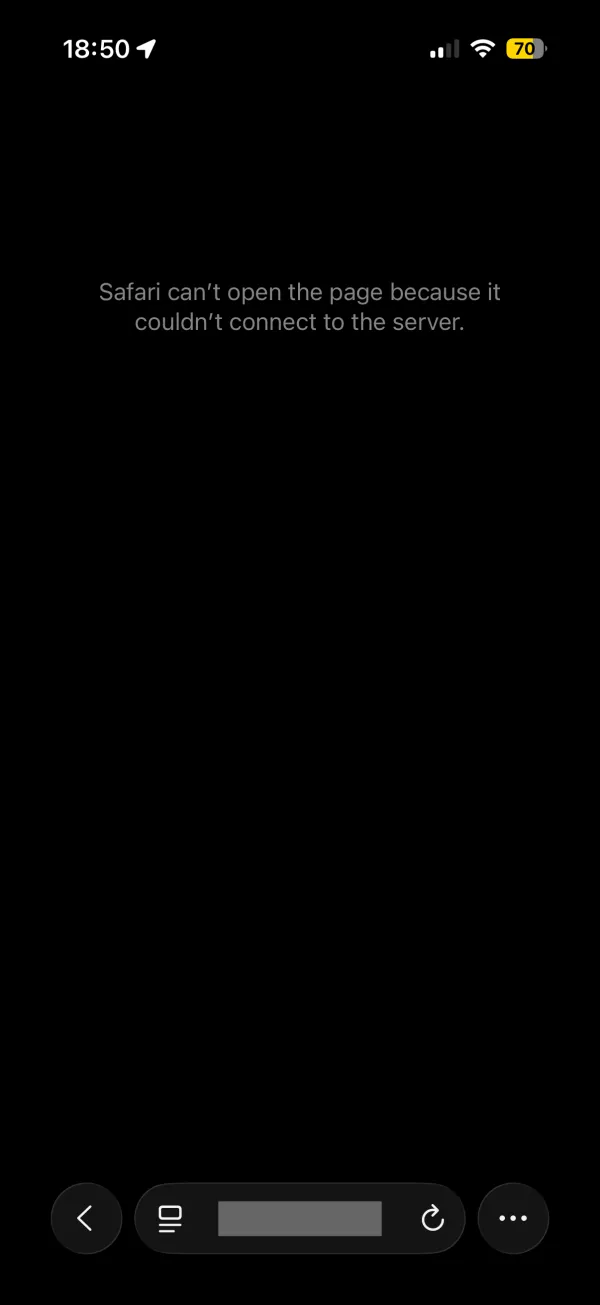
To fix that you start the dev server with --host, which opens it to everyone on the same Wi-Fi.
Compared to the other options
| LAN IP | tailscale serve |
Cloudflare quick tunnel | ngrok, free plan | |
|---|---|---|---|---|
| HTTPS | No | Yes, Let’s Encrypt | Yes | Yes |
| Who can open it | Anyone on your Wi-Fi | Only your tailnet | Anyone with the URL | Anyone with the URL |
| Works away from home | No | Yes | Yes | Yes |
| URL | Changes with your network | Same every time | Random every run | One static dev domain |
| Account | None | Tailscale | None | ngrok |
| Dev server needs | --host |
allowedHosts |
allowedHosts or --http-host-header |
allowedHosts or --host-header |
The Cloudflare quick tunnels guide has the numbers for that one. The name took 3 to 33 seconds to become reachable after cloudflared printed it, and ngrok’s free plan shows visitors a warning page before your site.
A quick tunnel is still the easy way to show a work in progress to someone else, because they don’t need Tailscale. For testing on your own devices, tailscale serve fits better. The URL stays the same, so you can bookmark it on the phone, and nobody else can load it.
Turn it off
tailscale serve status lists what’s being served:
$ tailscale serve status
https://macbook-pro.tail8c22d0.ts.net:8443 (tailnet only)
|-- / proxy http://localhost:4400
Turn off one port, or everything:
tailscale serve --https=8443 off
tailscale serve reset
(tailnet only) in that output is the difference with Tailscale Funnel, which uses the same proxy but puts the site on the public internet. Funnel is what you’d use for a webhook. For testing on your phone, Serve is enough.
Want me to talk about your product? You can sponsor this site.
Related posts about security: