A deep dive into 1Password Developer Environments
By Flavio Copes
Learn how 1Password Developer Environments store, share, mount, and inject project secrets, including their security model and practical limits.
Most applications need secrets.
A database URL. An API token. A signing key. A password for a third-party service.
We usually put those values in a .env file during local development. It is convenient, and almost every framework knows how to read it.
But a .env file is still a plaintext file.
It can be committed to Git, copied into a backup, indexed by another application, or left on an old computer. Adding it to .gitignore prevents one common mistake, but it does not turn the file into a secret store.
1Password Developer Environments try to keep the familiar environment-variable workflow while removing the plaintext file from disk.
You store the variables in 1Password. You can then mount them at a local .env path, inject them into a command, read them through an SDK, share them with a team, or sync them to AWS Secrets Manager.
Let’s see how the whole system works.
What a 1Password Environment is
A 1Password Environment is a collection of key-value pairs for one project or one stage of a project.
For example, a web application might have three Environments:
shop-developmentshop-stagingshop-production
Each one can contain variables such as:
DATABASE_URL
RESEND_API_KEY
STRIPE_SECRET_KEY
SESSION_SECRET
The names look like normal environment variables because that is exactly what they become when your program reads them.
The important difference is where the values live before the program starts.
With a normal .env file, the values sit in plaintext on disk. With 1Password Environments, 1Password stores and manages them separately from your normal vault items.
An Environment is not a vault and it is not a Login item with many custom fields. It is a dedicated object made for application configuration.
This makes it easier to keep a complete set of variables together, switch between development stages, and give a person or service account access to one Environment without giving it access to everything else in 1Password.
Environment variables are not a vault
There is one distinction worth making early.
Environment variables are a delivery mechanism. They are not a secure vault by themselves.
Once a secret becomes an environment variable, the running process can read it. Child processes may inherit it. Debug tools, crash reports, logs, and dependencies may expose it.
1Password improves the part before that moment:
- the values do not need to live in a plaintext project file
- access can be limited to a specific Environment
- team members can share one managed copy
- values can be supplied only when a command runs
- secret output can be masked by the 1Password CLI
It cannot make a secret invisible to the application that needs to use it.
This is the right mental model for the rest of the article. 1Password Environments reduce storage and sharing risks. They do not make every process on your computer trustworthy.
If environment variables are new to you, first read my guide to setting environment variables in Bash and zsh.
Create your first Environment
You manage Environments in the 1Password desktop application.
Before you start, an Owner or Administrator must enable the Environments policy for the account. You also need the 1Password desktop application on Mac, Windows, or Linux.
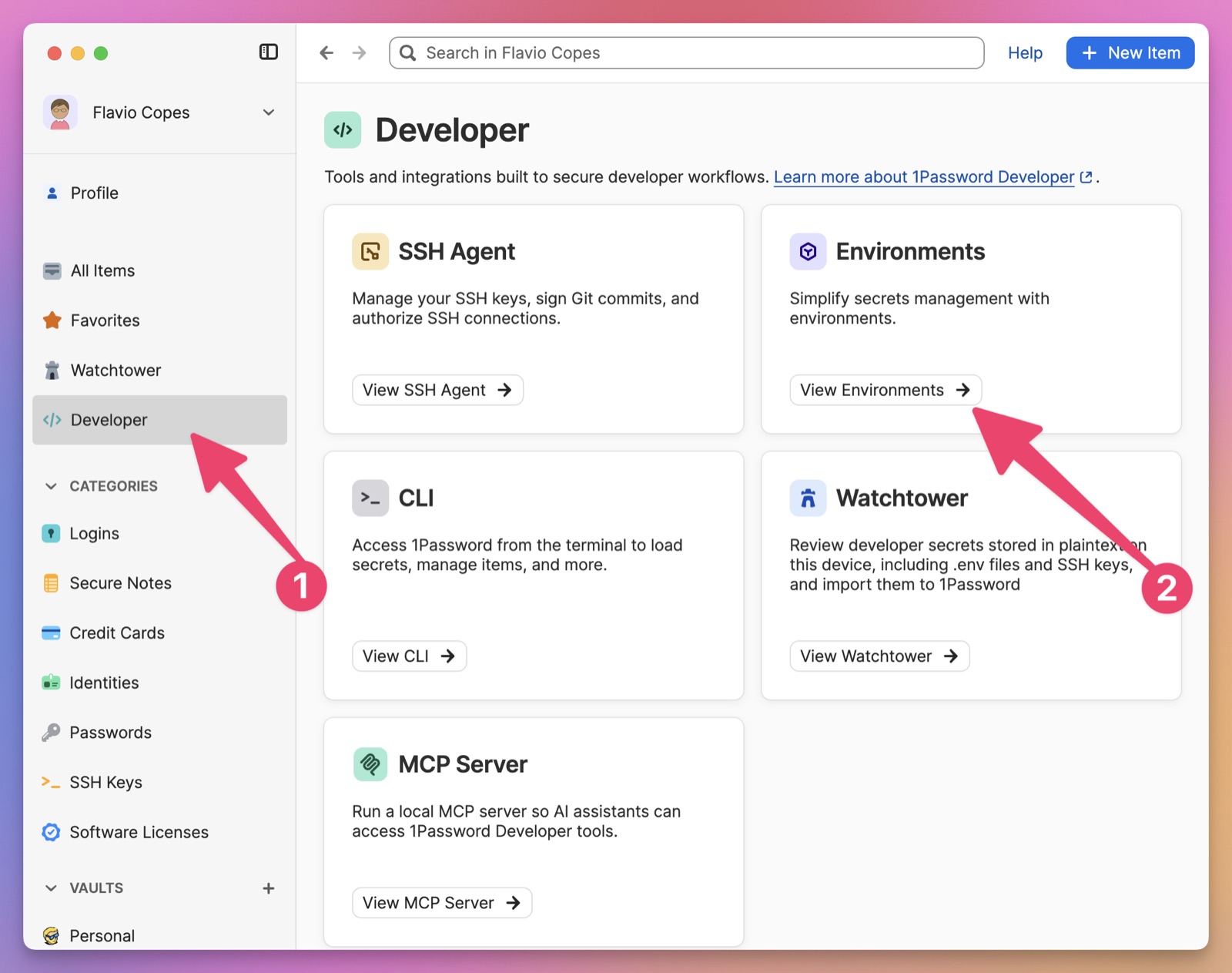
Open 1Password. Select Developer in the sidebar, then select View Environments:
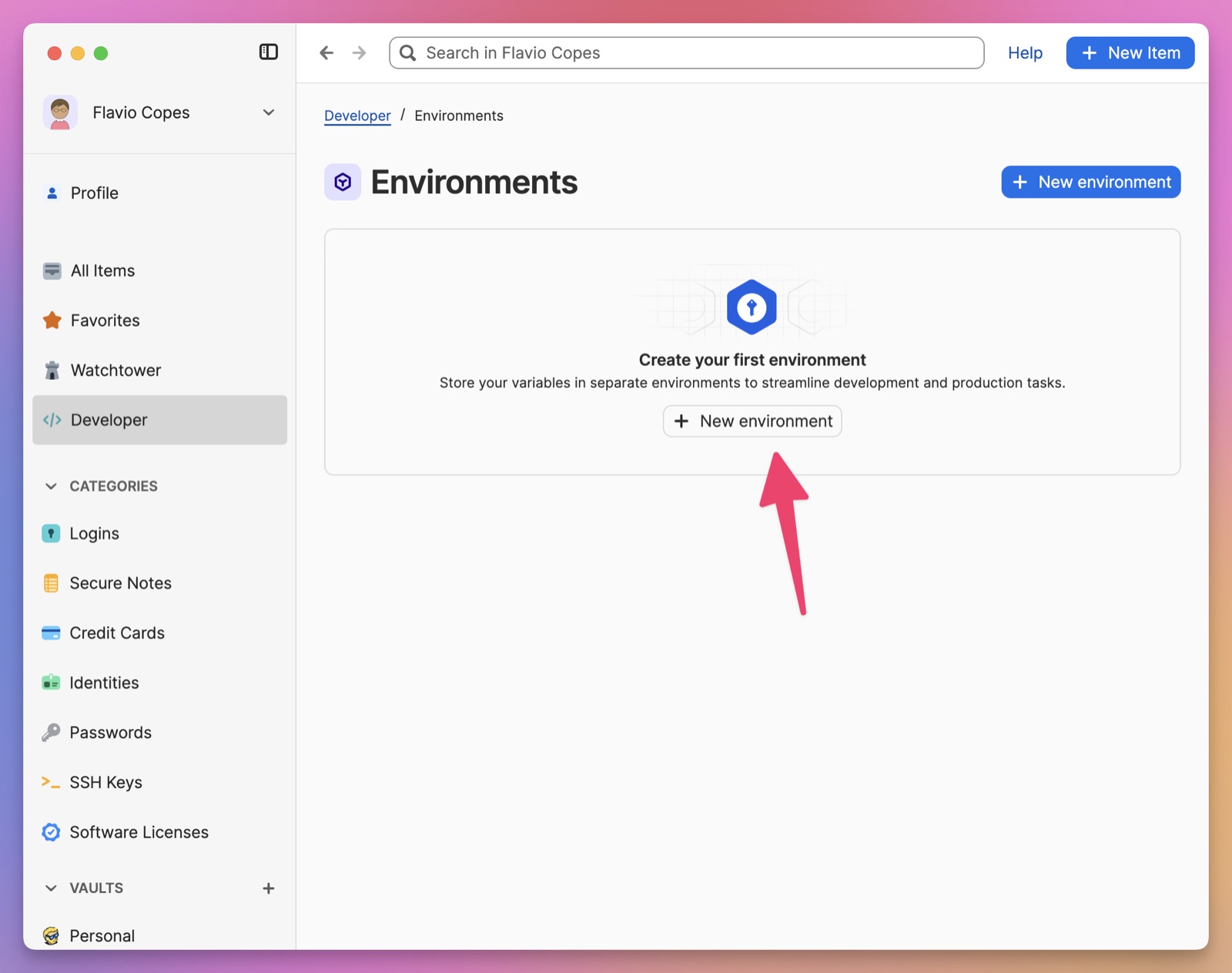
Select New environment:
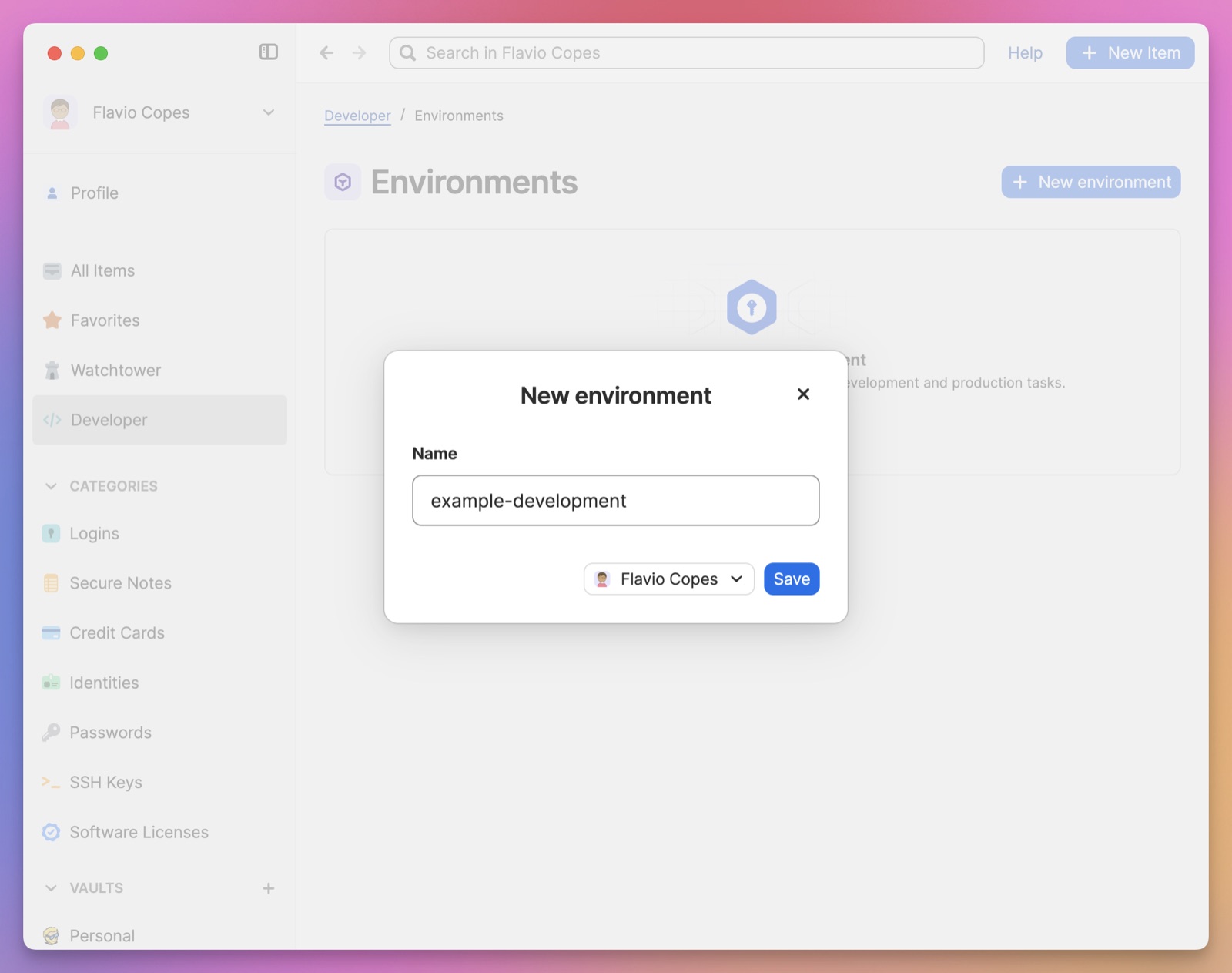
Give it a clear name, such as example-development. Choose the 1Password account where it should live, then select Save:
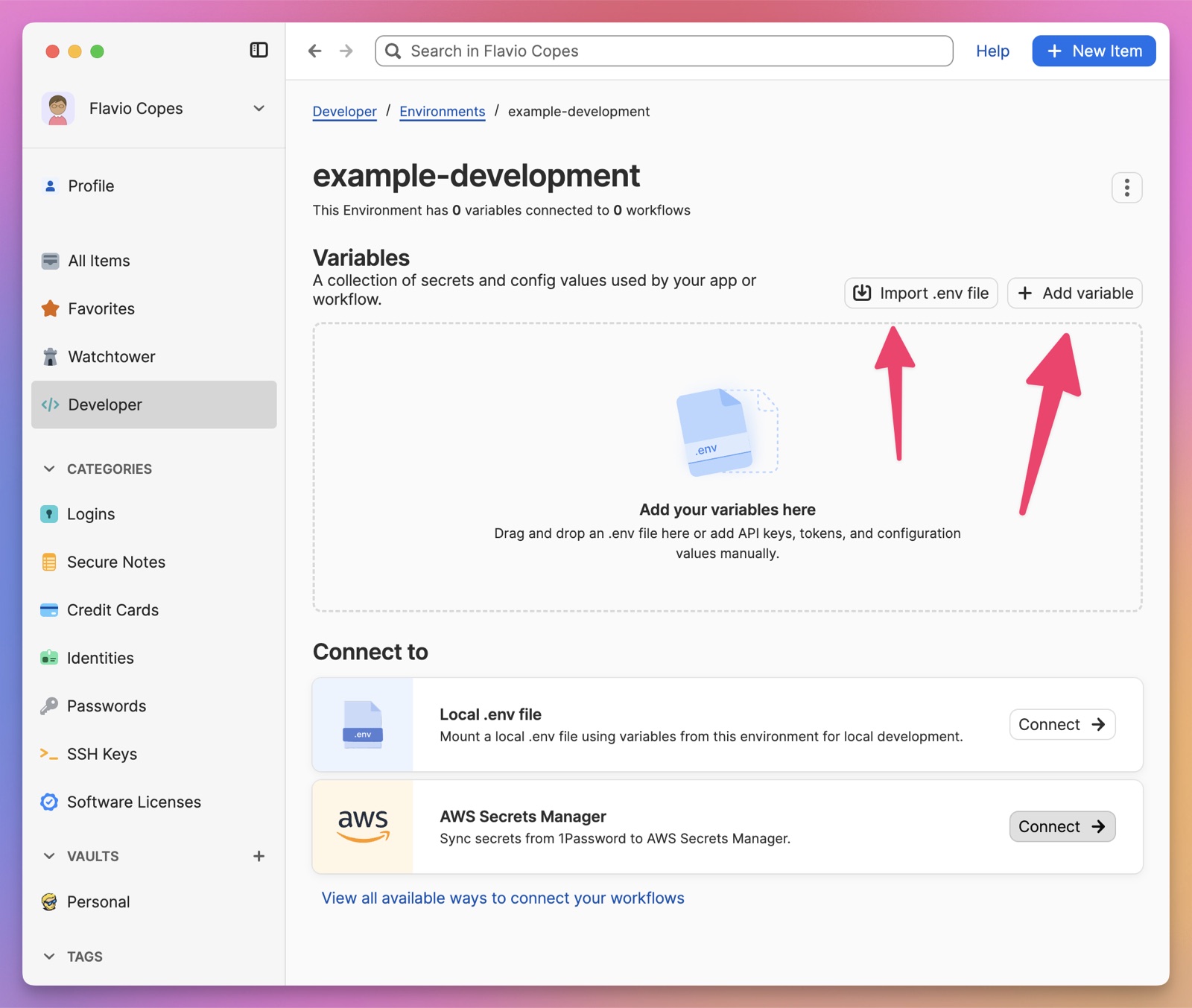
Now add the variables.
You can create them one at a time, or import an existing .env file. The import reads the key-value pairs and creates variables for you:
To add a variable manually, enter its name and value, then select Save:
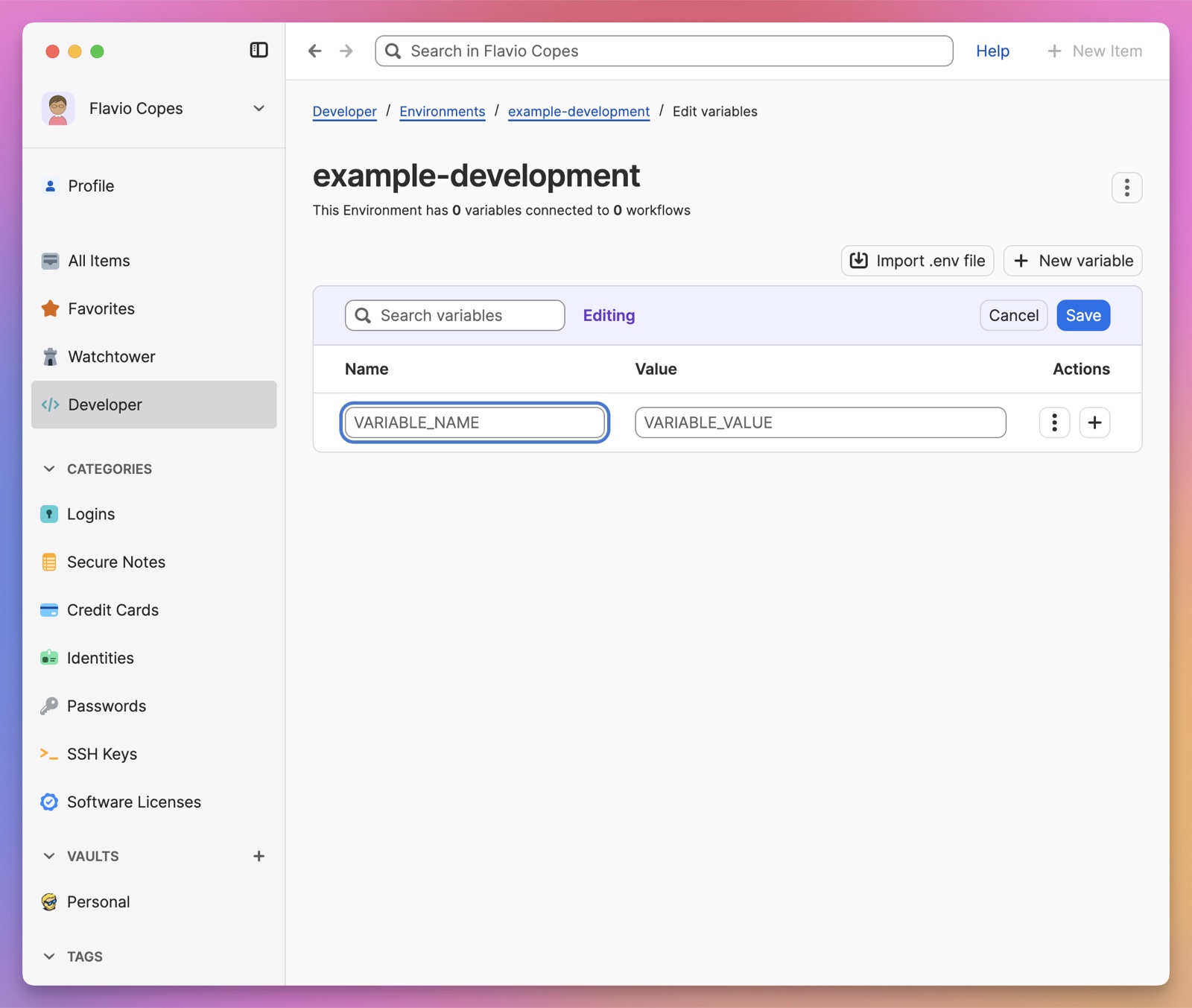
A small example might look like this:
API_BASE_URL=https://api.example.test
API_TOKEN=replace-me
LOG_LEVEL=debug
1Password hides values by default in its interface. You can choose to show a value by default when it is ordinary configuration rather than a secret.
That distinction is useful. Not every environment variable is sensitive. LOG_LEVEL=debug is configuration. API_TOKEN is a secret. Keeping both in one Environment is convenient, but you should still know which values need protection.
1Password Developer Watchtower can also find plaintext .env files on your device and help import them. This is useful when you already have many projects and do not remember where every file lives.
After you have imported a file, do not leave the old plaintext copy beside the new Environment. Verify the imported variables, then remove the old file safely.
Four ways to use an Environment
Storing the variables is only the first part. Your application still needs a way to receive them.
1Password currently provides four main paths:
- Mount the Environment as a local
.envfile. - Inject the variables into a command with 1Password CLI.
- Read the variables from application code with a 1Password SDK.
- Sync the Environment to AWS Secrets Manager.
The best option depends on where the program runs.
Mount an Environment as a local .env file
The local mount is the easiest option for an existing project that already reads .env.
Open the Environment in 1Password. Under Connect to, select Connect beside Local .env file. Choose the path in your project, then mount it.
Your project now has a path named .env, but 1Password does not write the secret values to that path.
The path is a Unix named pipe, also called a FIFO.
The flow is:
application opens .env
        ↓
1Password asks you to authorize the read
        ↓
1Password sends the values through the pipe
        ↓
the application receives normal KEY=VALUE lines
The plaintext contents pass directly to the process that reads the pipe. They are not stored in the mounted file.
This is a clever compatibility layer. A framework can keep reading .env without knowing anything about 1Password.
You can test the mount from the terminal:
cat .env1Password asks you to authorize the read. After approval, the terminal receives the variables.
You can also verify that the path is a named pipe:
test -p .env && echo "1Password mount is active"Do not use test -f for this check. A named pipe is not a regular file.
The local mount works with common dotenv libraries and tools, including Node.js dotenv, Python python-dotenv, Docker Compose, Go godotenv, PHP phpdotenv, and several others.
There are two platform details to know:
- creating and managing Environments works on Mac, Windows, and Linux
- local
.envmounts currently work only on Mac and Linux
Windows users can still use other 1Password developer tools, but not this local mount workflow.
Migrate an existing Git project carefully
If .env was never tracked by Git, the migration is simple:
- Import the file into a 1Password Environment.
- Check that every variable was imported correctly.
- Delete the plaintext
.envfile. - Mount the Environment at the same path.
- Keep
.envin.gitignoreas a clear project rule.
If Git already tracks the file, remove it from the repository and commit that removal before creating the mount.
This order matters. Git may otherwise continue treating the path as a tracked change, even though the new path is a named pipe and its secret contents cannot be staged normally.
Removing the current file does not remove a secret from Git history. If a real secret was committed at any point, treat it as exposed. Rotate it, then decide whether the repository history also needs to be cleaned.
The rotation is the important security action. Rewriting history only removes an old copy from normal access paths.
Inject variables with 1Password CLI
A mounted file is convenient for local development. For scripts, task runners, CI, or one-off commands, I prefer explicit injection.
1Password CLI can run a child process with variables from an Environment:
op run --environment <environment-id> -- node app.jsThe variables exist in the child process for the duration of that command.
Your application reads them normally:
const apiBaseUrl = process.env.API_BASE_URL
const apiToken = process.env.API_TOKEN
You can copy an Environment ID from Manage environment in the desktop application.
You can also inspect an Environment from the terminal:
op environment read <environment-id>Be careful with that command because it returns the Environment as KEY=VALUE lines. Avoid piping it into logs or saving its output to a temporary file.
When op run sees a variable marked as hidden, it masks the value in standard output and standard error by default. That protection helps with accidental logging, but it is not a permission boundary. The program still receives the real value.
The Environment commands in 1Password CLI are currently beta features. Use the latest beta CLI build if you want this workflow, and check the current CLI instructions before adding it to an important pipeline.
For automation, authenticate with a service account that can read only the Environments the job needs. Do not give a CI job access to your personal 1Password account or every production secret.
The service account token becomes the bootstrap secret. Store it in the CI platform’s protected secret store, limit who can change it, and rotate it when needed.
Read variables with a 1Password SDK
1Password also provides SDKs for Go, JavaScript, and Python.
An application can authenticate with the local desktop app or a service account, then request all variables from an Environment by its ID.
This is useful when you are building a native integration and do not want to wrap every command with op run.
It also changes the architecture.
Your application now depends on the 1Password SDK and authentication flow. Secret retrieval becomes part of application startup. You need to decide what happens if 1Password is unavailable, access is removed, or the Environment contains a bad value.
I would use the SDK when 1Password is a real part of the application design. I would not add it to a small application only to avoid one startup command.
The programmatic access guide contains current examples for all three languages.
Sync an Environment to AWS Secrets Manager
For applications running on AWS, 1Password can sync an Environment to AWS Secrets Manager.
This lets the application use AWS’s normal runtime integrations while the team manages the source Environment in 1Password.
The sync is one way:
1Password Environment → AWS Secrets Manager → AWS applicationChanges made in AWS do not flow back to 1Password.
The integration is currently beta. It also has limits: it does not replace AWS-managed secret rotation, and a synced Environment is limited by the size of an AWS Secrets Manager secret.
If AWS rotates a secret automatically, keep AWS as the authority for that secret. Two systems independently changing the same value will eventually disagree.
The AWS Secrets Manager integration guide explains the required SAML provider, IAM role, permissions, and sync setup.
Share Environments with a team
A shared Environment can remove a lot of onboarding work.
Instead of sending a .env file through chat, each person gets access through 1Password. When a value changes, the Environment becomes the shared source instead of another file attachment.
Access is granted per Environment. A person or group can be allowed to view, edit, or manage it.
This makes stage separation important.
A developer who needs local test credentials may get access to shop-development without receiving shop-production. A deployment service account may read the production Environment without being able to edit it.
Do not put every project and stage into one giant Environment. Smaller boundaries make permissions, rotation, and auditing easier to understand.
Also remember that 1Password returns exactly what is stored. Sharing an Environment does not validate that a URL, shell fragment, or configuration value is safe. Review changes before using a shared Environment in a sensitive workflow.
What happens when the local mount is unlocked
The local .env mount has an important security boundary.
When the first process reads it, 1Password asks for authorization. That authorization lasts until 1Password locks or you disable the mount.
During that time, 1Password does not distinguish between processes.
Every process running as you can read the mounted file while it is available.
This means the authorization prompt is not approval for one specific command. It unlocks the mount for your local session.
If you run an untrusted package, script, editor extension, or AI tool during that window, it may be able to read the same secrets.
The practical rules are simple:
- mount only the variables the project needs
- do not mix development and production secrets
- lock 1Password when you finish sensitive work
- avoid running untrusted code with a powerful Environment available
- rotate a secret if you think a process may have read it
1Password also provides an agent validation hook for Cursor, Claude Code, GitHub Copilot, and Windsurf. The hook checks that required mount paths exist, are enabled, and are valid named pipes before the agent runs shell commands.
That hook validates the setup. It does not prevent an authorized process from reading the values.
Local mount limitations
The named-pipe design avoids a plaintext file, but it is not identical to a regular file.
Concurrent reads can fail
The mount is not designed for many processes reading it at the same time.
If an editor has the pipe open while a dev server tries to read it, the first reader may succeed and the second may fail or wait.
Do not keep the mounted .env open in an editor.
File watchers can restart forever
Some tools watch .env and restart when it changes. Opening and closing a FIFO can emit filesystem events even when no variable changed.
Vite may interpret those events as changes and enter a restart loop.
If your project does not need .env hot reloading, ignore the mounted path in Vite:
import { defineConfig } from 'vite'

export default defineConfig({
  server: {
    watch: {
      ignored: ['**/.env'],
    },
  },
})
Normal source-file hot reloading continues to work.
Offline access uses the latest local state
When you are offline, you can access the latest Environment contents synced to the device, plus local changes you have made.
You will not receive changes made by another team member until 1Password can sync again.
A device can have up to ten enabled mounts
Ten is enough for many developers, but it discourages mounting every stage of every project at once.
Enable the mounts you are actively using. Disable old ones.
How I would use 1Password Environments
I would start with local development.
For each active project, I would create one development Environment and mount it at the path the project already expects. I would keep only the variables needed to run that project.
I would not put production keys in the development Environment for convenience.
For commands that handle more sensitive values, I would prefer op run over a long-lived mount. The command makes the moment of injection visible:
op run --environment <environment-id> -- npm run taskFor a team project, I would create separate development, staging, and production Environments. People would receive access to the smallest set they need. Automated jobs would use narrowly scoped service accounts.
For my Cloudflare Pages projects, I would keep runtime secrets in Cloudflare’s protected secret store. If 1Password were the source used by the team, I would make the copy into Cloudflare a deliberate deployment step and document which system is authoritative during rotation.
I would not make every application request call 1Password. Secrets should normally be loaded at startup or supplied by the deployment platform.
On AWS, I would consider the native sync because it gives the application an AWS-native runtime path. I would not use it for secrets that AWS rotates independently.
I would also keep the setup boring. One Environment per clear boundary. Familiar variable names. No shell code hidden in values. No giant collection shared with everyone.
When I would not use it
1Password Environments are a poor fit when:
- the team does not already use 1Password
- local development happens mainly on Windows and requires mounted
.envfiles - the toolchain constantly or concurrently reads
.env - the runtime already has a well-managed native secret store and adding another source creates confusion
- the application needs a KMS or HSM that performs cryptographic operations without exposing key material
- a tiny project contains only public configuration and no secrets
The feature is most useful when .env is already the interface, the values are sensitive, and you want one controlled place to manage them.
The main idea
1Password Developer Environments do not replace environment variables.
They replace the plaintext file and the informal sharing process around them.
Your application can keep reading the same names. Your team gets clearer access boundaries. Local mounts avoid storing the values on disk. CLI and SDK access make the same Environment usable in scripts and applications. AWS sync connects it to a native cloud secret store.
The remaining rule is still the most important one: once a secret is given to a process, that process can use it.
Use 1Password to control where the secret waits, who can retrieve it, and when it enters the program. Then keep the runtime boundary as small as you can.
Want me to talk about your product? You can sponsor this site.
Related posts about security: