How to trim a video on a Mac without iMovie
By Flavio
QuickTime Player's Edit › Trim… and the trim button in Quick Look cut the start and the end of a video for free, and both save a new copy. Here's how each one works and where the new video really starts.
You want to cut the first second and the last two seconds off a video: the part where you’re still pointing the phone at the floor. You don’t need iMovie for that.
Two things on every Mac do it for free. QuickTime Player has Edit › Trim…, and Quick Look, the preview you get by pressing Space on a file in the Finder, has a trim button. Both save a new video and leave the original alone if you ask them to. For most trims, they’re all you need.
The video here is a made-up 12-second clip: four colored corners and a gray square that changes brightness every frame, so it’s easy to check where a trimmed copy starts. Each trim below keeps 1.5 seconds to 10 seconds, and the screenshots are from macOS 15 Sequoia.
How do I trim a video in QuickTime Player?
- Open the video in QuickTime Player.
- Choose Edit › Trim… (Command-T). A yellow bar with the video’s frames appears at the bottom.
- Drag the left handle to where the video should start and the right handle to where it should end.
- Click Trim.
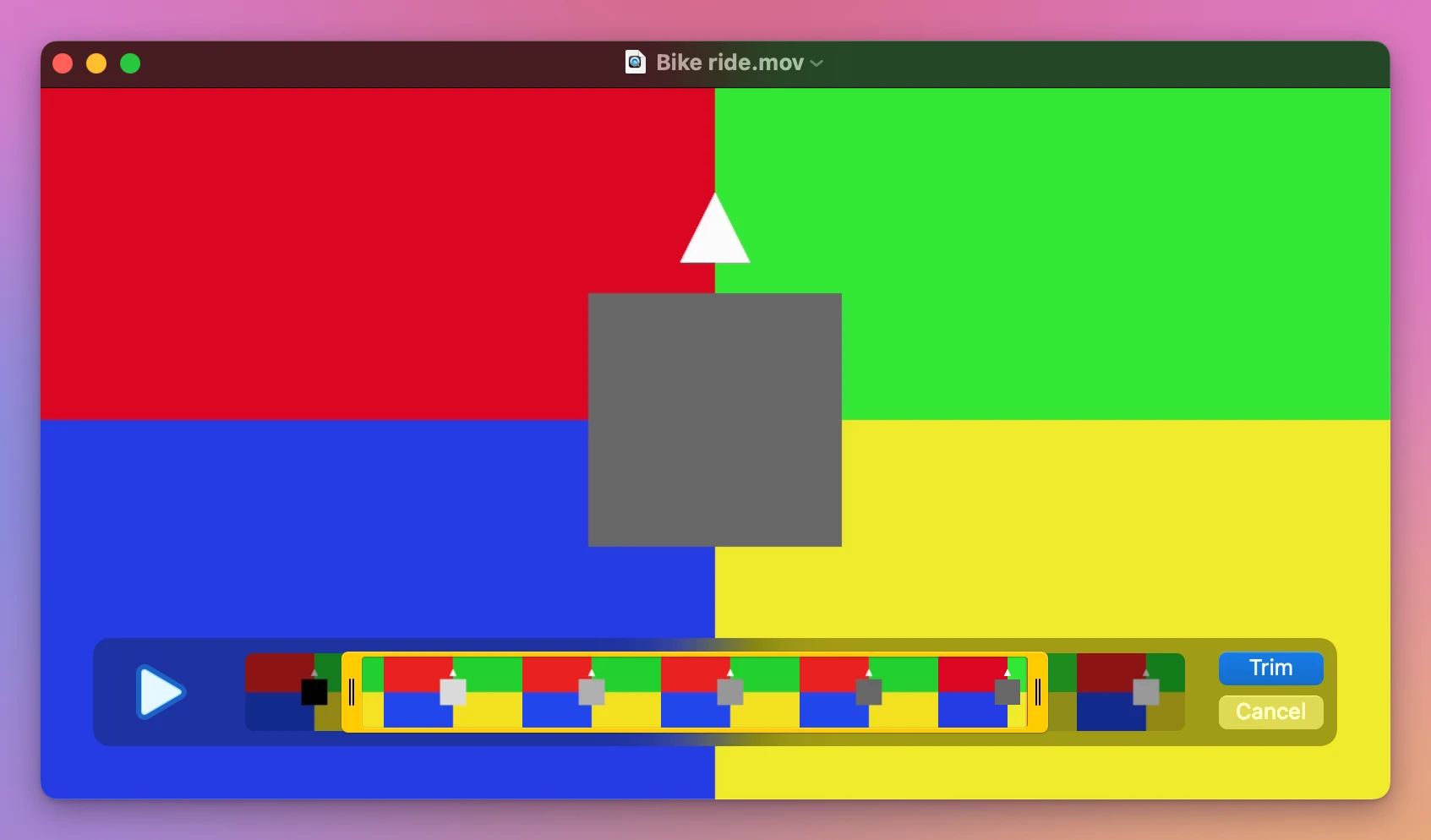
The window is now called “Untitled”. Choose File › Save…, type a name in Export As, pick the folder in Where, and click Save. There was no format to choose this time, unlike after a turn in the tutorial about rotating a video, and the new video was there a few seconds later. QuickTime can also put clips together, as the tutorial about joining videos in QuickTime Player shows.
The new file, Bike ride trimmed.mov, was 8.5 seconds long and started at 1.5 seconds, the frame under the handle. Its date in the Finder was today’s.
How do I trim a video with Quick Look?
This one doesn’t even open an app.
- Select the video in the Finder and press Space.
- Click the trim button at the top of the window, the one left of the rotate button.
- Drag the yellow handles, then click Done.
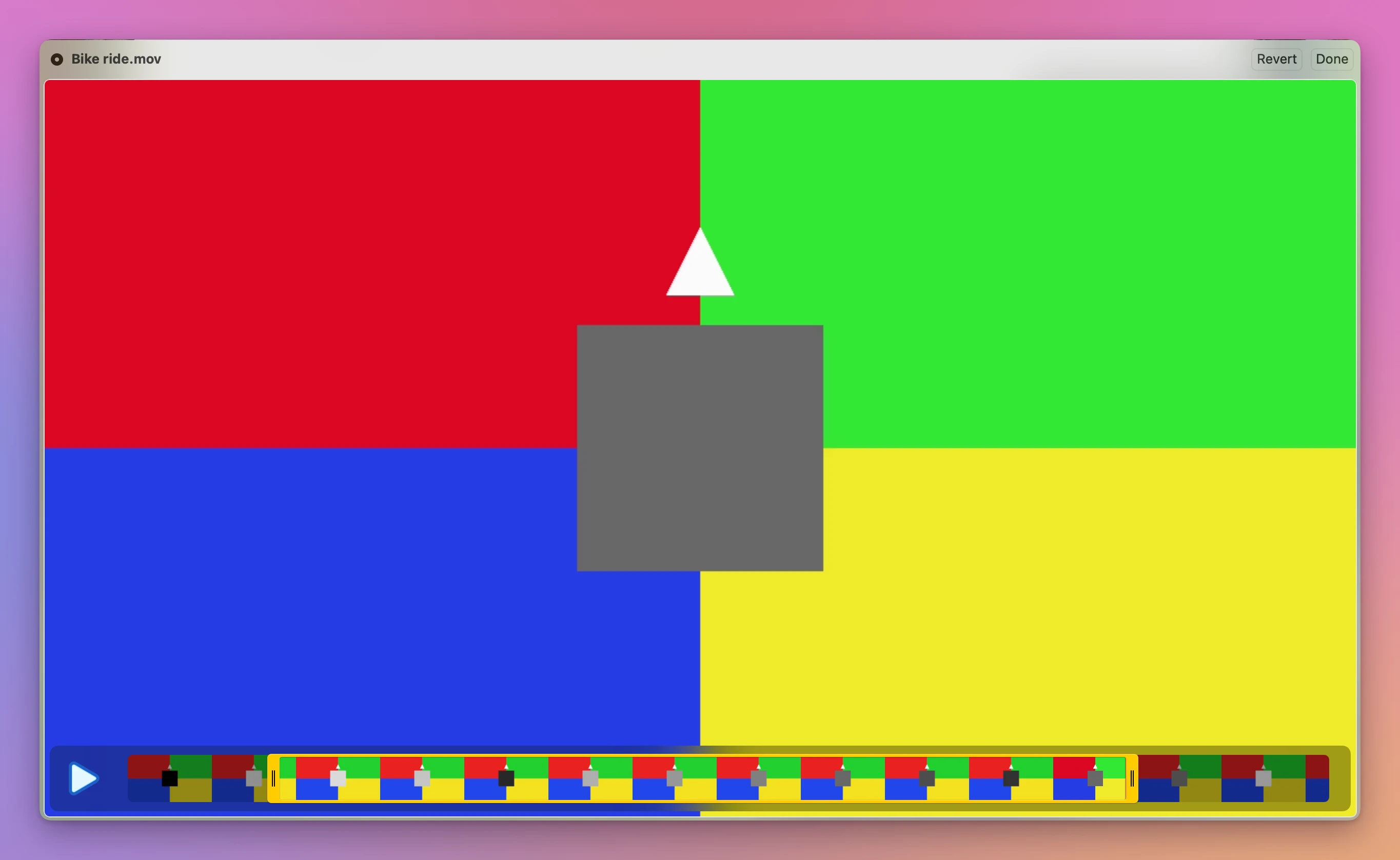
Quick Look then asks what to do with the change:
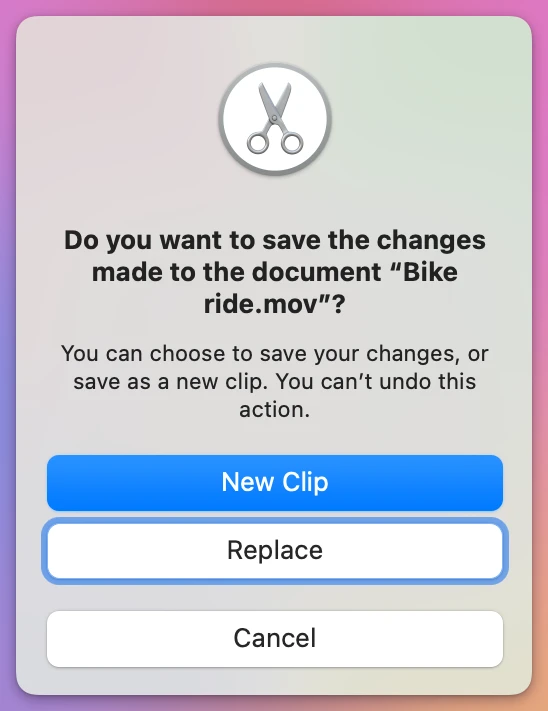
Replace cuts the original file, and the message says you can’t undo it. New Clip asks for a name and a folder (it started on Documents here) and saves a copy. With New Clip, Bike ride clip.mov was 8.5 seconds long, started at 1.53 seconds, and was dated today.
Where does the trimmed video start?
Both start where you put the handle, and the picture isn’t saved again, so it looks the same. There is one detail. A video only has a full picture every so often, about once a second in this one (at 0.97, 1.93, 2.90 seconds and so on). The frames in between only hold what changed. So QuickTime and Quick Look keep the picture from 0.97 seconds in the new file, and tell the player to skip to 1.5 seconds. A player that follows that starts at 1.5 seconds. One that ignores it starts at 0.97 seconds, with an extra half second at the start.
Here are the four trims side by side, each from the same original:
| Way | Starts at | Original changed | New file’s date |
|---|---|---|---|
| QuickTime Player, Trim and Save… | 1.50 s, the handle | No | Today |
| Quick Look, New Clip | 1.53 s, the handle | No | Today |
| Sideways Video Fixer, Fast, no quality loss | 0.97 s, the full picture before the handle, in every player | No | The original’s |
| Sideways Video Fixer, Most compatible | 1.50 s, the handle, in every player | No | The original’s |
Trimming with Sideways Video Fixer
Sideways Video Fixer is a Mac app I made to turn videos that play sideways, and it trims too, with the same two handles. It costs $20, paid once, and it isn’t made by, affiliated with or endorsed by Apple or Dolby. For a video that’s already the right way up, QuickTime and Quick Look are enough. The app is for when you’re also turning it, or want to know exactly where the new one starts.
Open the video with Choose Videos…, then drag the handles under the picture. With Fast, no quality loss picked, an orange mark shows where the new video will really start, and the window says it in words:
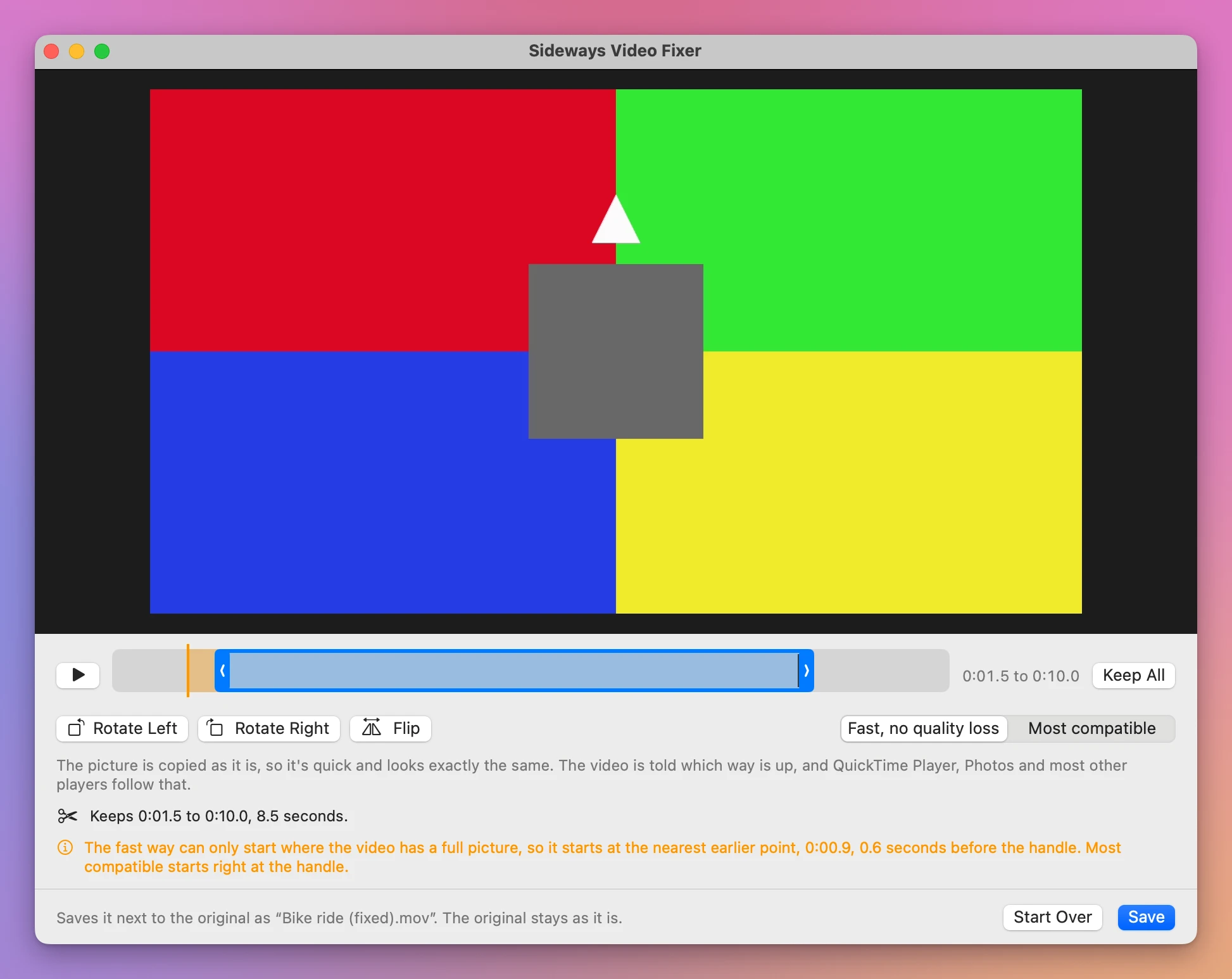
The fast way doesn’t hide frames: it starts the new file at the full picture before the handle, so every player starts on the same frame. You get a little more than you asked for at the start, never less. The end is where the handle is. Click Save and the report says it again:
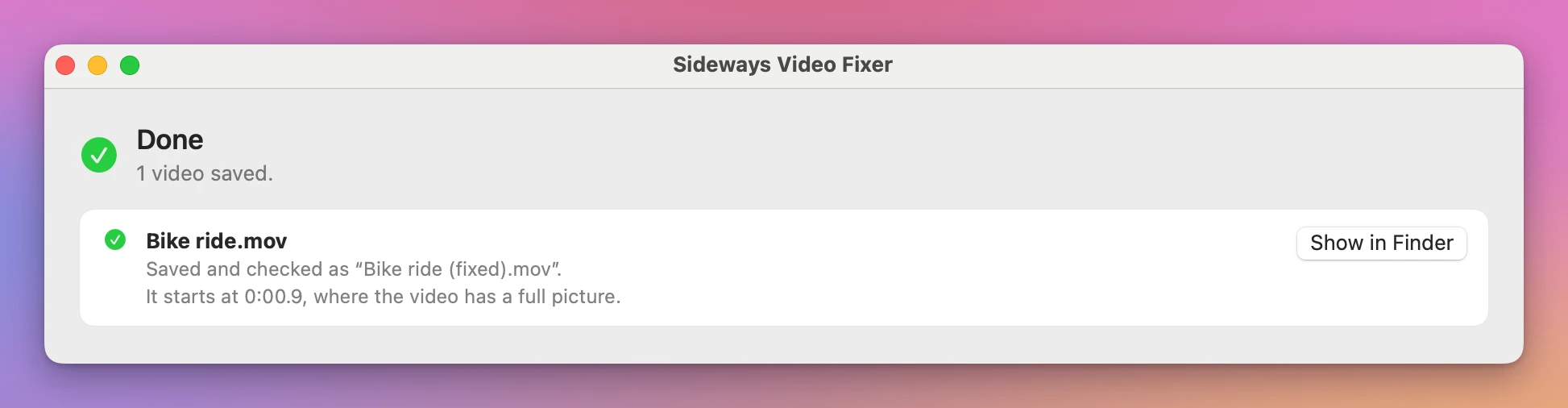
For a start on the exact frame, click Back to the Videos, pick Most compatible, and save again. That way the picture is saved again, so it can start anywhere. Bike ride (fixed 2).mov started at 1.50 seconds and was 8.5 seconds long. Both new files kept the original’s date in the Finder.
Get Sideways Video Fixer
Turn a video that plays sideways or upside down the right way up. Rotate, flip and trim it, and save a checked copy next to the original, the fast way with no quality loss or upright for every TV and player.
See Sideways Video Fixer → · Read the docs · $20. See the app page for tax details.
Want me to talk about your product? You can sponsor this site.