How to use Grok Build
By Flavio Copes
A detailed Grok Build tutorial covering installation, prompts, plans, permissions, tests, Git, skills, MCP, subagents, sessions, and headless automation.
Grok Build is a coding agent you run from your terminal. You open a project, describe a task, and it can inspect the code, edit files, run tests, and use external tools.
You can ask it a question about a function. You can also give it a larger job and let it work through the implementation. The useful part is that it can check the result against the actual project files and command output.
The commands and product behavior below follow the official Grok Build documentation checked on October 25, 2026. The screenshots show installation, sign-in, and Grok diagnosing the JavaScript exercise on October 26. The later fix and advanced examples are steps you can follow; the screenshots don’t show those completed.
We’ll start with installation and a first bug fix, then cover the features you need for everyday work and automation. You don’t need to configure every feature before using the agent.
What Grok Build does
Grok Build combines a language model with tools that operate on your computer. The model decides which files to inspect and what changes to propose. The application runs the tools, handles permissions, and sends their results back to the model.
For example, a request to fix a broken calculation can involve searching for the function, reading its callers, changing the implementation, and running the test suite. There can be several rounds of tool calls before you see the final response.
That access makes it useful for existing projects. It also means you need to understand what you authorize. A shell command can install dependencies or push code as easily as it can run a test.
There are several Grok products, and their names can make the starting point confusing:
| Product | What you use it for |
|---|---|
| Grok chat | A conversation in the Grok application |
| Grok Build | A coding agent working through a terminal or an integration |
| Grok Bot | An AI teammate with a persistent cloud computer |
| xAI API | Calling models from software you write |
I cover Grok Bot separately. Here we’re using the grok command in a local project.
What you need
You’ll need a terminal and an account you can use to authenticate. For the exercise, install a current Node.js LTS release and Git too.
Node.js runs our sample project. It isn’t a prerequisite established by the native Grok Build installer.
You should be comfortable opening a directory and running a command. If the JavaScript examples are unfamiliar, the free JavaScript course and Node.js course cover those foundations.
Access, subscriptions, and billing
Check the current pricing page before choosing a plan. It lists limited Grok Build access on the free tier and larger shared AI usage pools on paid tiers.
The pricing page checked for this guide lists these individual monthly prices, before applicable taxes and fees:
| Plan | Listed monthly price | Listed usage level |
|---|---|---|
| Free | $0 | Limited |
| Plus | $8 | Basic shared AI usage |
| Premium | $30 | 4 times Plus usage |
| Super | $100 | 15 times Plus usage |
| Ultra | $200 | 50 times Plus usage |
These aren’t fixed numbers of coding tasks. Reading a large repository, running subagents, and repeatedly repairing a test can consume different amounts of usage.
The pricing FAQ says paid plans include API access, but API usage is billed separately at model rates and doesn’t draw from the subscription pool. Don’t assume that signing in with an API key spends the same allowance as your browser-authenticated session. Check /usage and the billing account associated with your authentication method.
Install Grok Build
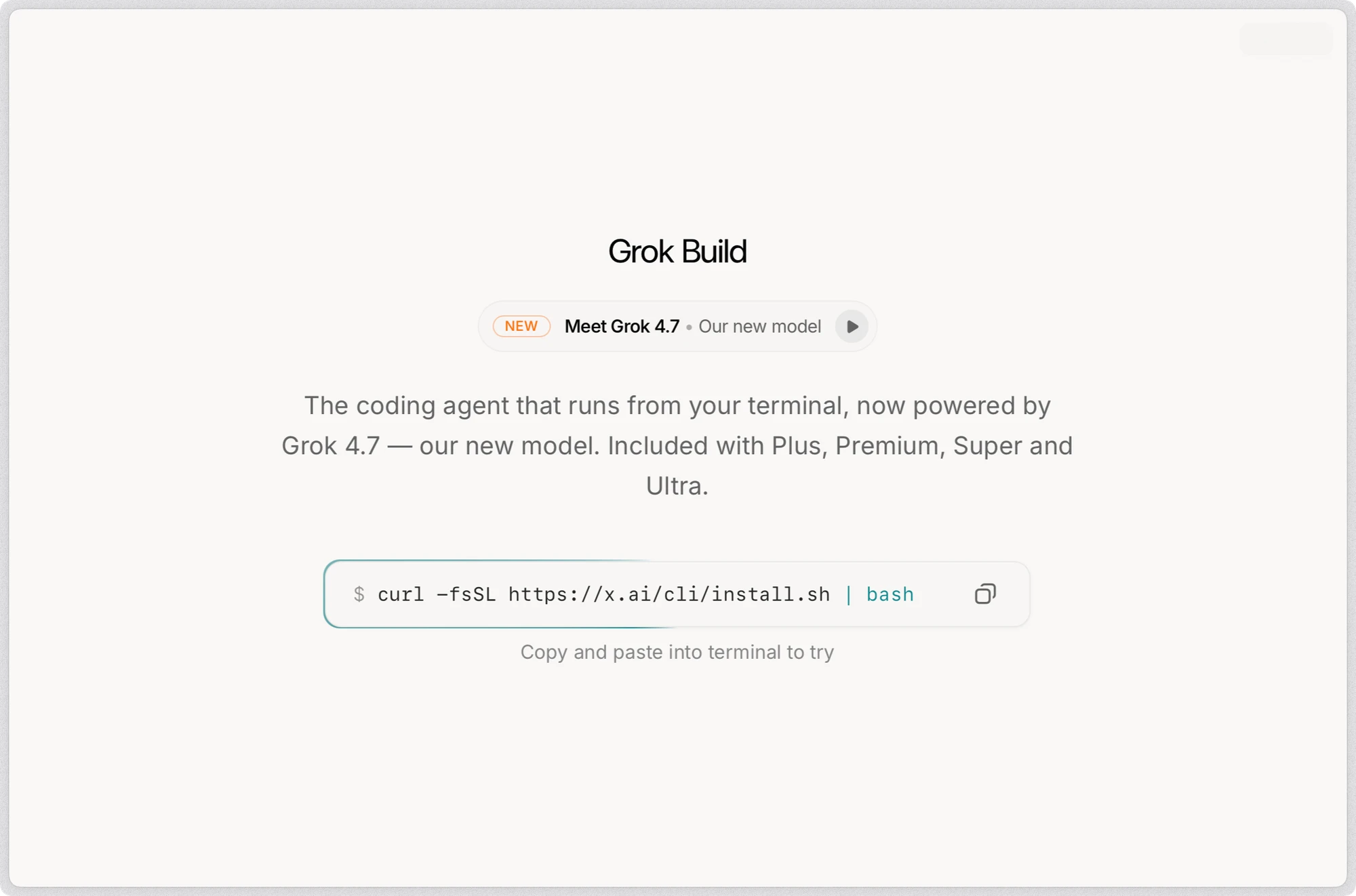
The official installer supports macOS, Linux, and WSL through this command:
curl -fsSL https://x.ai/cli/install.sh | bash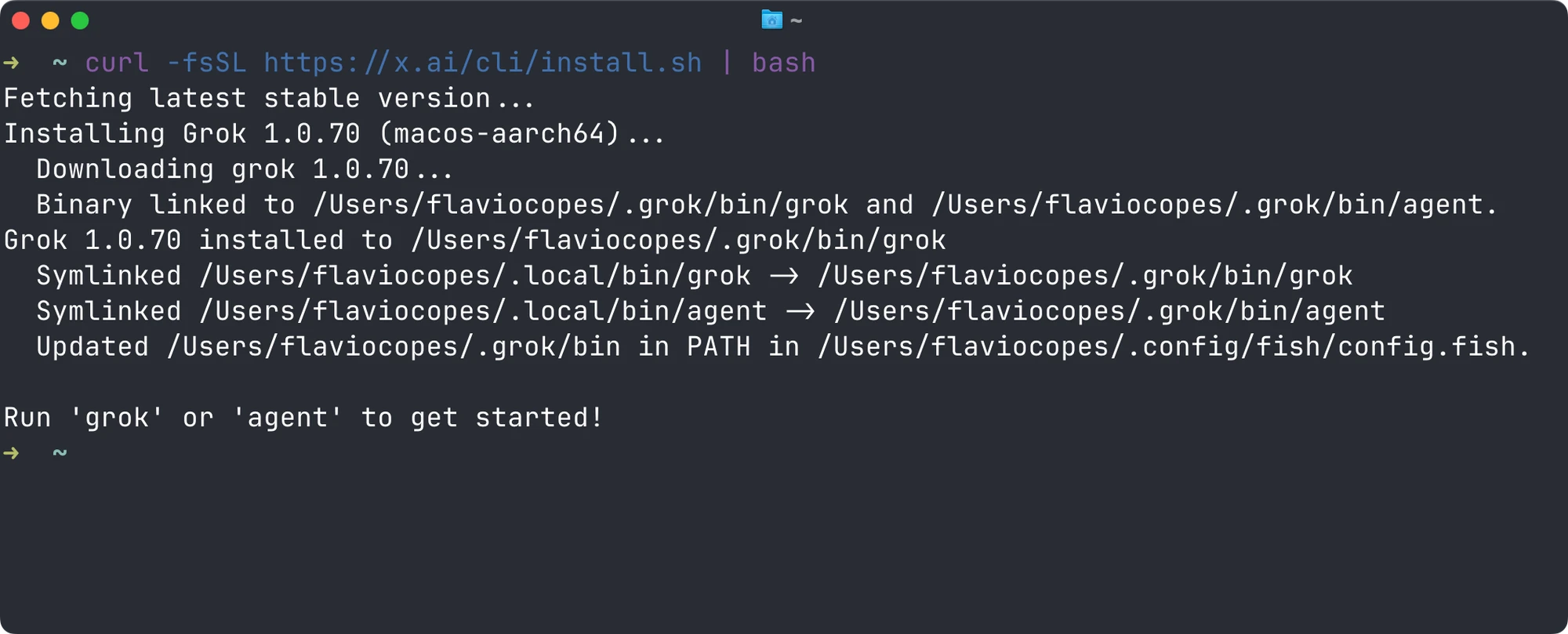
It downloads a shell script and executes it. If you want to inspect the script first, download it to a file, read it, then run that file:
curl -fsSL https://x.ai/cli/install.sh -o /tmp/grok-install.sh
less /tmp/grok-install.sh
bash /tmp/grok-install.sh
On Windows, the documented PowerShell installer is:
irm https://x.ai/cli/install.ps1 | iexAfter installation, check that the command is available:
grok version
grok --help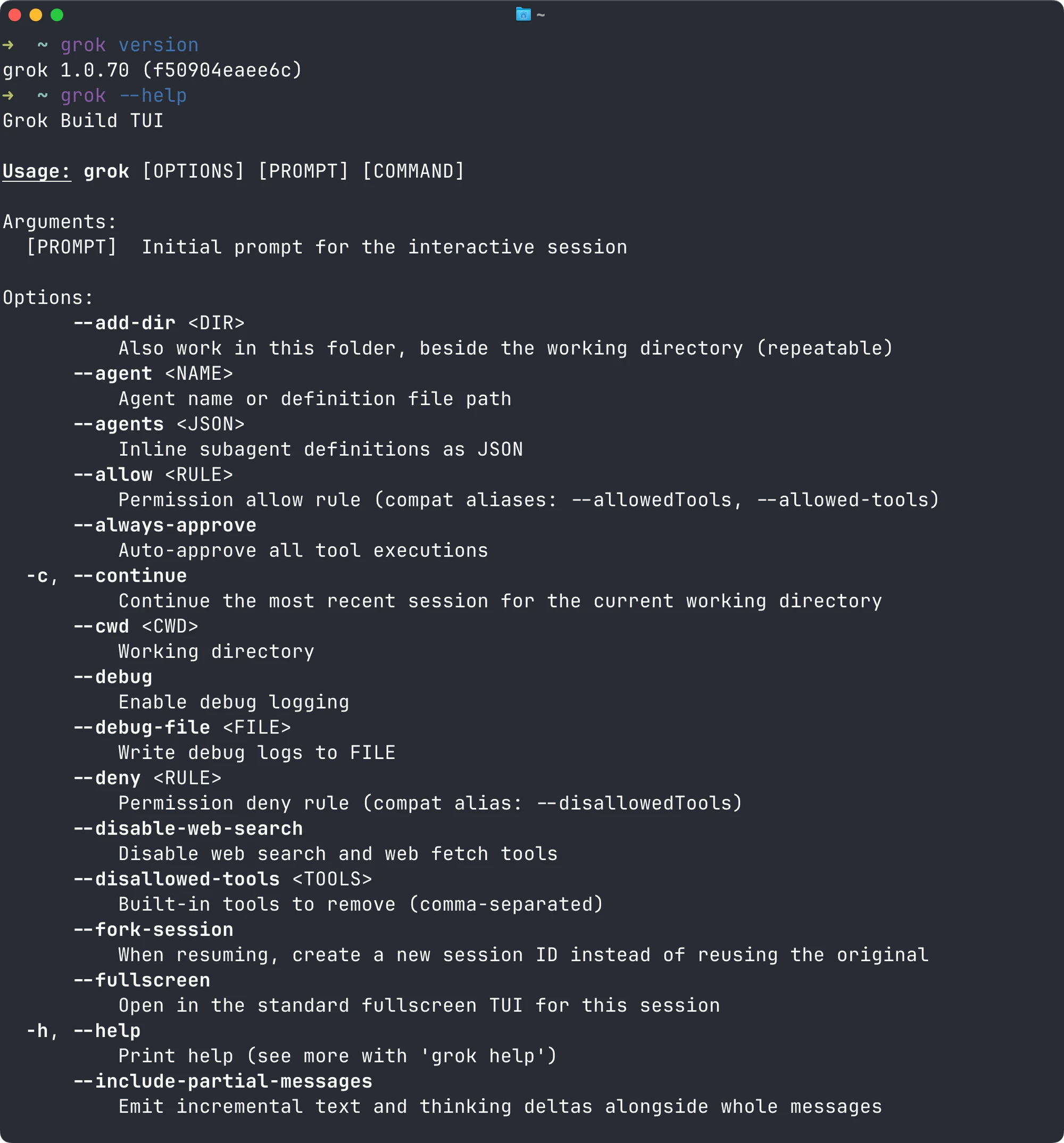
If your terminal can’t find grok, reopen the terminal and follow any PATH instructions printed by the installer. Avoid downloading an unrelated package just because its executable has the same name.
You can check for an update later with:
grok update --checkTo update, run:
grok updateUse the installation guide as the source for changes to platform support or installation commands.
Sign in
Starting grok for the first time opens browser authentication. You can also start the login explicitly:
grok loginThe login flow prints a browser URL and a code to confirm, then reports when sign-in succeeds:
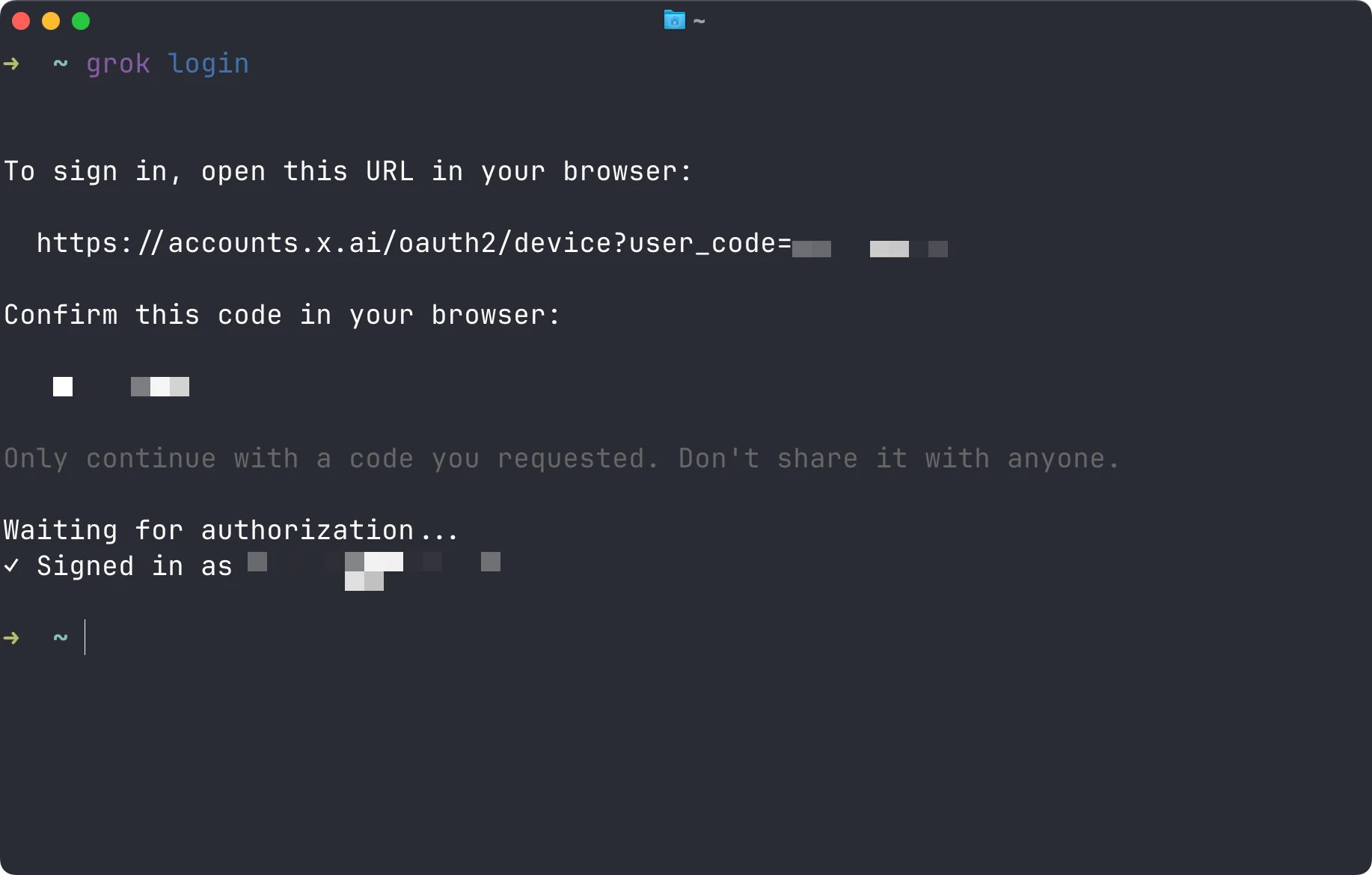
On a remote machine where opening a local browser is awkward, the CLI supports device-code authentication:
grok login --device-authFor scripts or environments using an xAI API key, set XAI_API_KEY in the process environment before starting Grok. Supply the value through your shell’s secure input, password manager, or CI secret store. Keep it out of project files and command history.
To sign out and clear cached credentials:
grok logoutDon’t copy the contents of ~/.grok/ into a public repository. That directory holds personal configuration and session data, and MCP authentication can also store credentials there.
Create a small project to work on
We’ll use a median calculation as our teaching example.
The median is the middle number in a sorted list. For an even number of values, it is the average of the two middle numbers. The median of [10, 2, 3] is 3. The median of [1, 2, 10, 20] is 6.
Our initial function has several bugs. Grok’s job will be to identify them and produce a fix we can verify.
Create a directory and initialize Git:
mkdir grok-build-demo
cd grok-build-demo
git init
Create package.json in that directory:
{
  "name": "grok-build-demo",
  "private": true,
  "type": "module",
  "scripts": {
    "test": "node --test"
  }
}
The project uses Node’s built-in test runner and needs no dependencies.
Create median.js:
export function median(values) {
  values.sort()
  return values[values.length / 2]
}
Now create median.test.js beside it:
import test from 'node:test'
import assert from 'node:assert/strict'
import { median } from './median.js'

test('finds the middle value with numeric sorting', () => {
  assert.equal(median([10, 2, 3]), 3)
})

test('averages the two middle values', () => {
  assert.equal(median([1, 2, 10, 20]), 6)
})

test('keeps the input array unchanged', () => {
  const values = [3, 1, 2]
  median(values)
  assert.deepEqual(values, [3, 1, 2])
})

test('rejects an empty array', () => {
  assert.throws(() => median([]), RangeError)
})

test('supports one value', () => {
  assert.equal(median([7]), 7)
})

test('supports negative and duplicate values', () => {
  assert.equal(median([-5, -1, -1, 8]), -1)
})
Run the tests:
npm test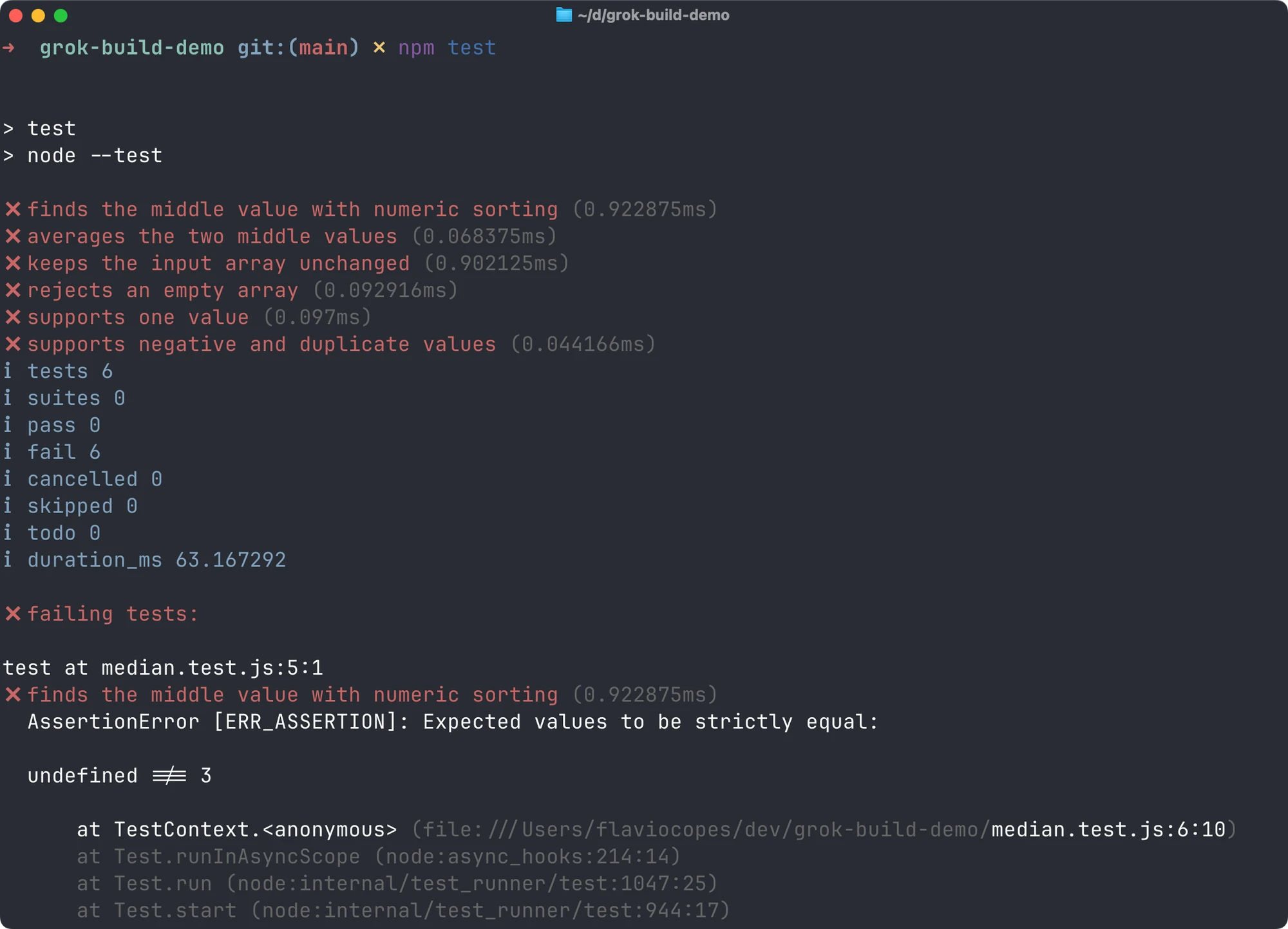
The starting implementation fails. We now have an observable problem, including a test that catches changes to the caller’s input.
Save this starting point in Git so we can inspect everything that changes:
git add package.json median.js median.test.js
git commit -m 'Add median exercise with failing tests'
Committing failing tests is useful for this isolated exercise. In a shared project, follow the team’s rules for branches and passing checks.
Start your first session
Launch Grok inside grok-build-demo:
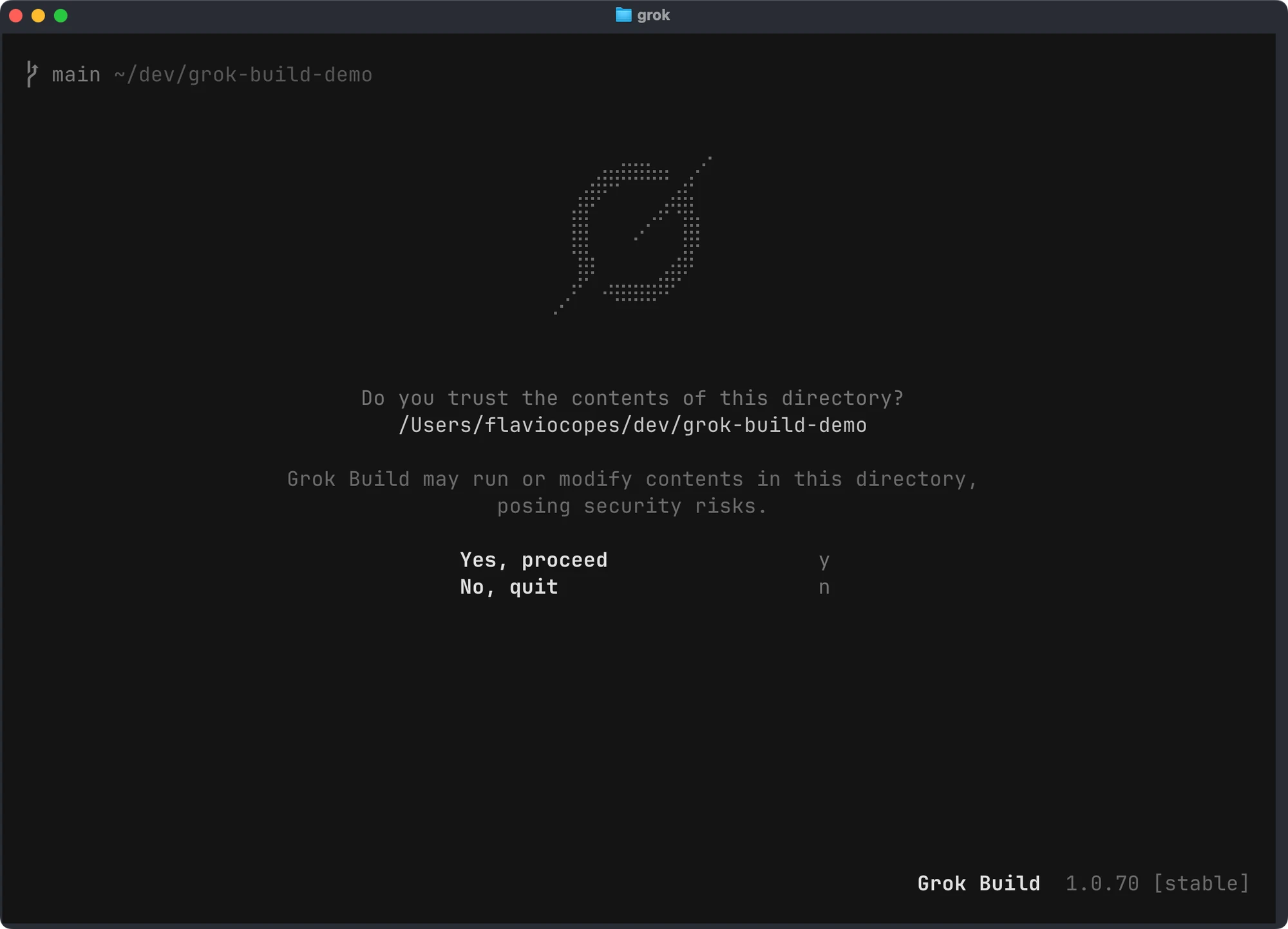
grok --sandbox workspaceOn first opening the directory, Grok asks whether you trust its contents:
After you proceed, the welcome screen appears:
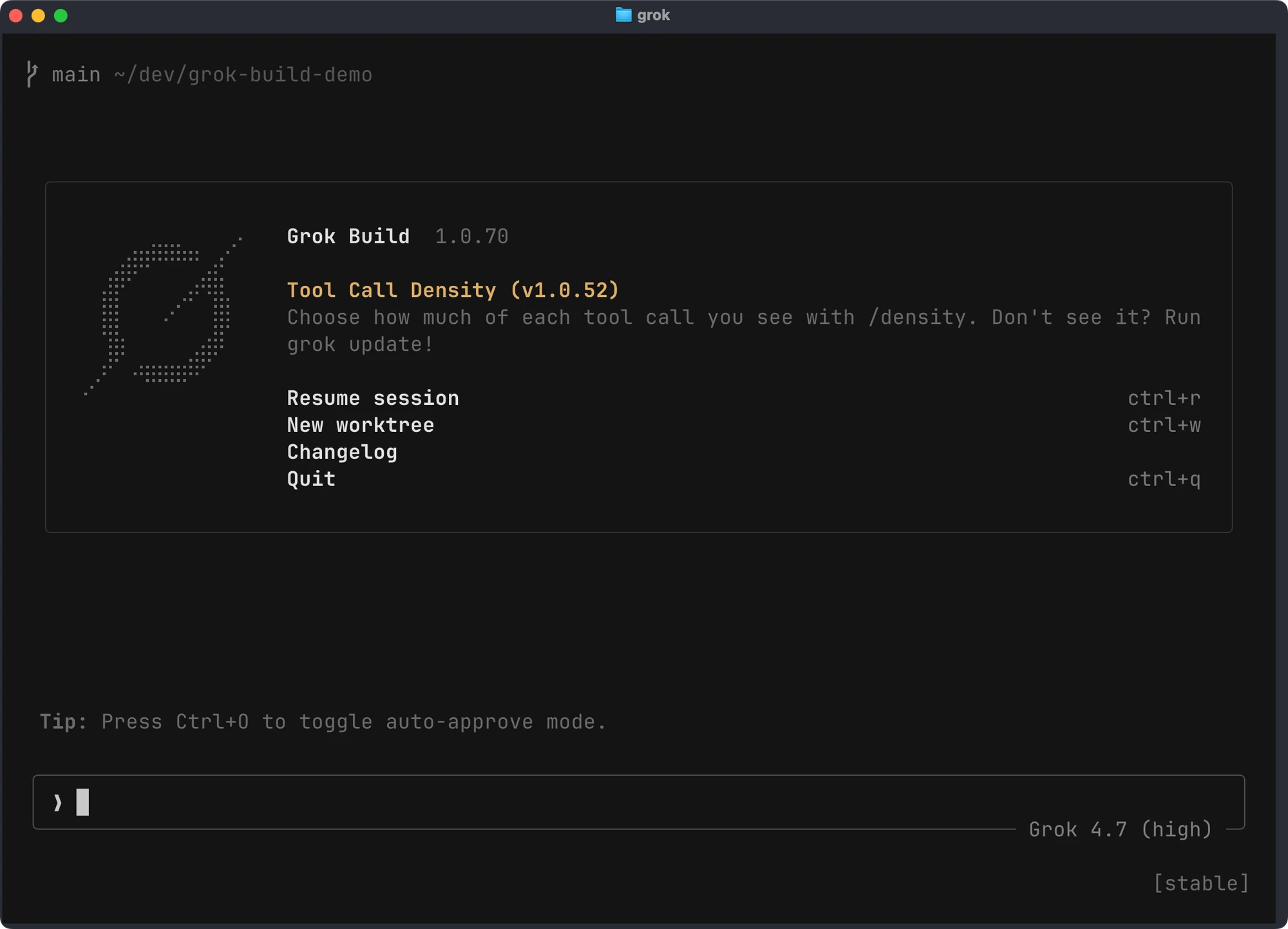
The workspace profile limits filesystem writes to the working directory, Grok’s home directory, and temporary paths. We’ll look at its limits shortly.
Start by asking a question:
Explain this project and why npm test fails.
Inspect median.js and median.test.js.
Don't edit files or run commands that change project state.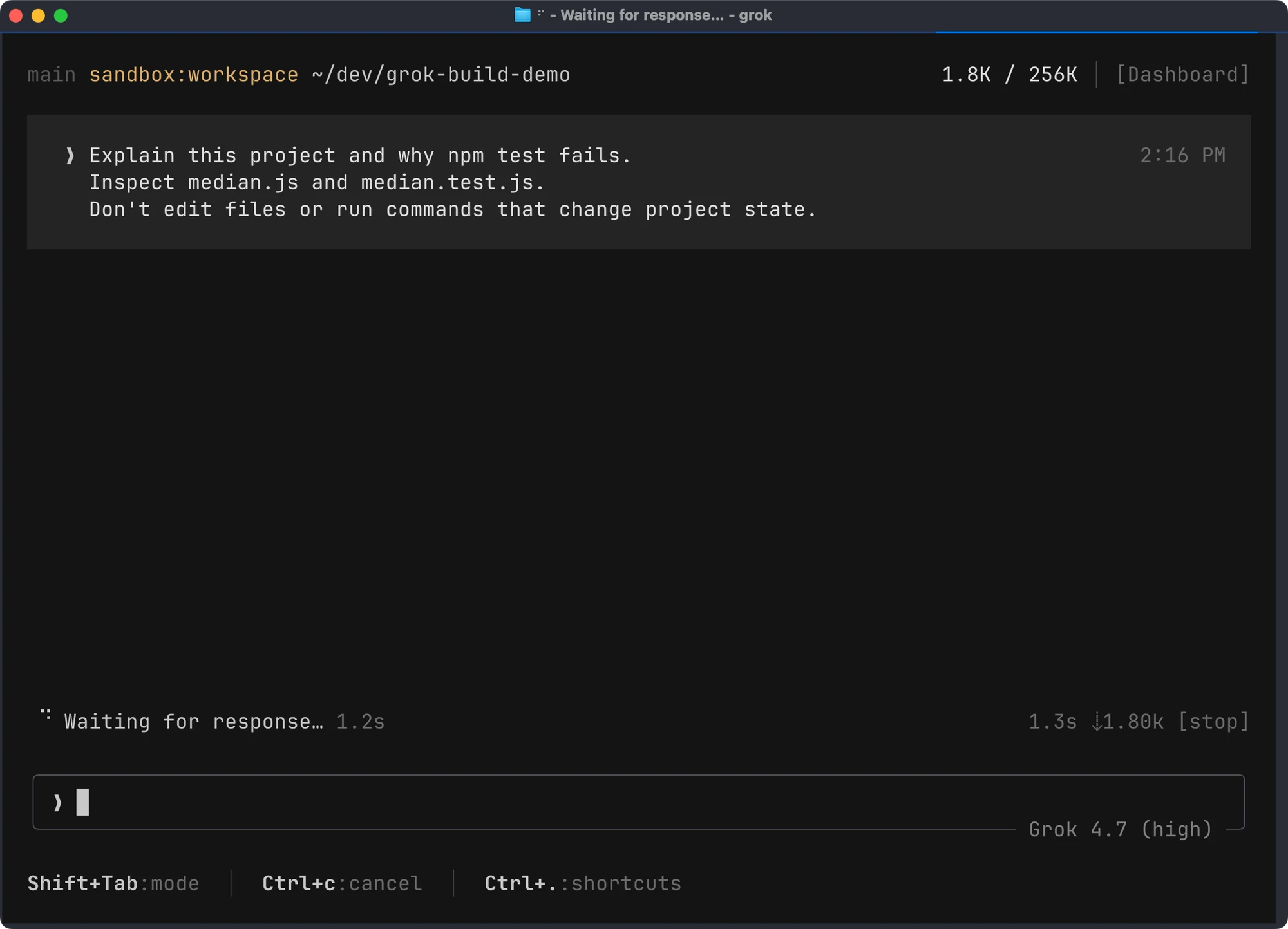
This gives you a chance to see how it reads files and presents findings. A prose instruction expresses the task boundary; permission settings and sandbox controls enforce separate limits.
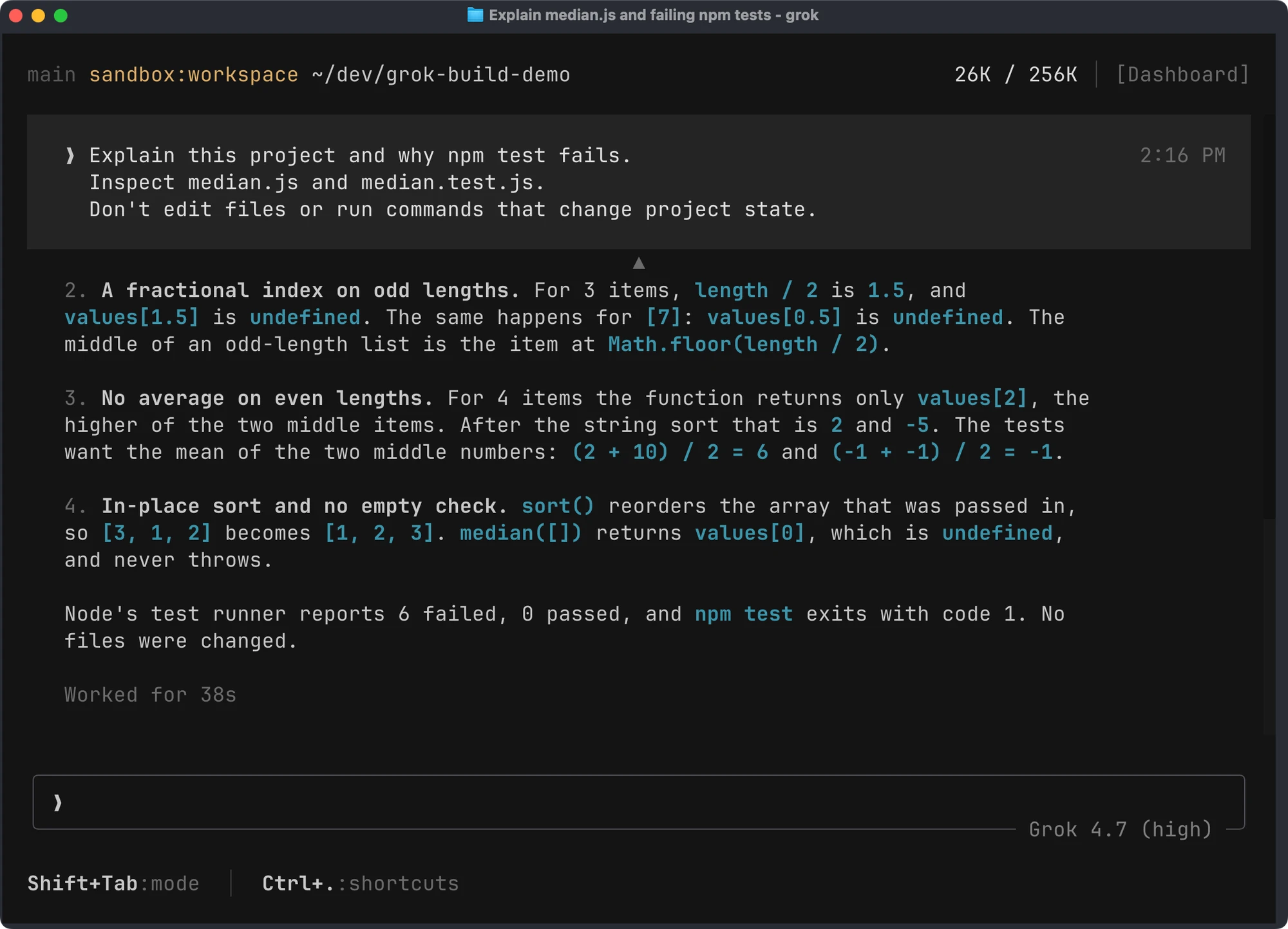
In this session, Grok identified the fractional array index, the missing average for even-length arrays, and the in-place sort. It also noted the missing empty-array check and reported that no files were changed:
You can refer to a file directly with @:
@median.js Explain each bug in this implementation.The documentation uses this form for file references. In a larger repository, pointing at a file can reduce the amount of searching needed.
Ask for the fix
Once you understand the diagnosis, give it a bounded task:
Fix median.js so all existing tests pass.
Keep the input array unchanged and throw RangeError for an empty array.
Don't change the tests or add dependencies.
Run npm test, then explain the diff and any remaining limitations.
Don't commit or push.
Notice that we specify behavior, the files it may change, and the verification command. We also say what should happen with Git.
When a permission prompt appears, read the requested action. Approving npm test permits the project’s test script to run. In an unfamiliar repository, inspect that script before approving it.
The response should give you evidence of what happened. If it says the tests passed, look for the command output in the transcript. If it couldn’t run them, that should be explicit.
What a correct implementation can look like
For the contract in our tests, this implementation works:
export function median(values) {
  if (values.length === 0) {
    throw new RangeError('Cannot calculate the median of an empty array')
  }

  const sorted = [...values].sort((a, b) => a - b)
  const middle = Math.floor(sorted.length / 2)

  if (sorted.length % 2 === 1) {
    return sorted[middle]
  }

  return (sorted[middle - 1] + sorted[middle]) / 2
}
The spread syntax copies the array. The sort callback compares numbers numerically. Math.floor() gives us an integer index, and the even-length case uses both middle values.
Our contract assumes an array of finite numbers whose arithmetic fits the application. We haven’t defined behavior for strings, NaN, infinities, sparse arrays, or extreme numeric values. Add validation and tests if your real application accepts untrusted input.
Grok may produce a different correct implementation. Review it against the required behavior rather than expecting this exact source text.
Review changes before saving them
Use another terminal, or quit Grok with /quit, and inspect the result yourself:
git status --short
git diff -- median.js median.test.js package.json
npm test
The tests and package file should be unchanged under our request. Check that the implementation doesn’t add a dependency or quietly remove a difficult case.
For a real application, also use the changed flow. Passing unit tests doesn’t tell you whether a form displays an error correctly or whether a caller supplies the right input.
When you are satisfied, commit the specific file:
git add median.js
git commit -m 'Fix median calculation'
You can ask Grok to do these steps too. My preference for a first session is to keep the final review and commit visible so you learn what the agent changed.
Write prompts with a clear finish line
A useful task includes enough context to avoid guessing.
For a bug, tell Grok what you observed, what should happen, where to start looking, and how to check the fix. Add constraints that matter to the project.
For example:
The total on the checkout page changes when an item has quantity 2.
The total should be the sum of unit price times quantity, in cents.
Start with src/cart/total.js and its callers.
Add a regression test, then run the cart tests.
Keep the checkout API response shape unchanged.
Stop before deployment.
This is easier to verify than “fix checkout.” It also leaves room for the agent to discover that your first guess about the cause is wrong.
For a feature, describe the behavior users will see. Say what happens when data is missing, invalid, or unavailable. Those cases are easy to leave out when the prompt only describes a successful path.
Give the agent one coherent job. If the implementation reveals a separate problem, have it report that problem before expanding the change.
Use Plan mode for larger changes
A small function fix usually doesn’t need a formal plan. A migration or a feature spanning several modules benefits from one.
Enter Plan mode with a task:
/plan Add input validation to the median function. Preserve its current numeric behavior, define how invalid values are handled, and propose tests before implementation.Grok explores the project and writes a plan. Use /view-plan to reopen the preview.
In the plan preview:
| Key | Action |
|---|---|
a | Approve and start building |
s | Request changes |
c | Comment on a line or range |
q | Quit the plan and turn Plan mode off |
Tab | Move focus between the preview and prompt |
Approval isn’t skipped just because Auto or Always-approve is active.
Read the plan for missing requirements. If we decide to reject non-finite values, for example, it should cover NaN and infinity explicitly. “Validate input” leaves that behavior unsettled.
Plan mode has a limited edit gate
The Plan mode documentation makes an important distinction: only the session plan file may be changed through edit tools before approval, but shell commands still follow the permission mode. A shell command can write files through redirection or other programs.
Subagents also aren’t covered by the parent’s plan edit gate. They inherit the permission mode.
For an inspection task where writes would be a problem, choose an appropriate sandbox and tool permissions too. Plan mode helps you review an implementation approach; its edit gate doesn’t make every available tool read-only.
Understand permissions and the sandbox
These controls operate at different points.
Permissions decide whether a tool call can run. The sandbox limits filesystem and network access for the process and its children.
| Permission mode | Behavior |
|---|---|
| Ask | Prompts for actions that aren’t already allowed; the default |
| Auto | A classifier can approve safe calls; dangerous actions may prompt |
| Always-approve | Skips permission prompts, while deny rules and applicable hooks still apply |
Auto is available when its feature is enabled. Use /auto to toggle it. /always-approve toggles the broader mode. Shift+Tab cycles through the available modes, including Plan.
For your first project, Ask gives you a chance to see which actions the agent requests. Repeatedly approving familiar commands can become tedious; add narrow rules once you understand them.
Turn on a sandbox deliberately
According to the sandbox documentation, the sandbox is off by default.
The built-in profiles have different boundaries:
| Profile | Reads | Writes | Child-process network |
|---|---|---|---|
off | Unrestricted | Unrestricted | Allowed |
workspace | Everywhere | Working directory, Grok home, temp | Allowed |
read-only | Everywhere | Grok home and temp | Blocked on Linux |
strict | Working directory and system paths | Working directory, Grok home, temp | Blocked on Linux |
devbox | Everywhere | Top-level directories except /data | Allowed |
A review session can start with:
grok --sandbox read-only --no-subagentsThe name read-only still permits Grok’s session files and temporary writes. It also allows reads outside the repository.
The docs say child-network restrictions for read-only and strict are a no-op on macOS. Model API calls and in-process web tools aren’t blocked by those child-network settings either. Don’t treat the table as a promise of complete network isolation.
The built-ins also don’t permanently protect credential paths such as ~/.ssh. Use a custom deny list when you need to exclude sensitive files.
Add narrow permission rules
Project rules can live in .grok/config.toml. For our demo, this example allows ordinary inspection and the test command while denying two direct Git actions:
[permission]
rules = [
  { action = "allow", tool = "bash", pattern = "git status*" },
  { action = "allow", tool = "bash", pattern = "git diff*" },
  { action = "allow", tool = "bash", pattern = "npm test" },
  { action = "deny", tool = "bash", pattern = "git push*" },
  { action = "deny", tool = "bash", pattern = "git reset --hard*" },
]
Deny rules take precedence over allow rules. These patterns cover the commands they match; they aren’t a complete policy against every possible way to publish or discard files.
Avoid an allow rule for git * when your intention is only to inspect changes. It also matches commands that modify or publish them.
See Permissions for the supported rule forms and how remembered approvals differ from explicit allow rules.
Teach Grok the project’s conventions with AGENTS.md
You shouldn’t have to explain the same test command every session.
Create an AGENTS.md file at the repository root. For our exercise, it could contain:
# Project instructions

This is a dependency-free JavaScript package using ES modules.

Run tests with `npm test`.
Keep public functions free of input mutations.
Use two spaces, single quotes, and no semicolons.

When fixing a bug, keep existing regression tests.
Add tests for newly specified behavior.
Do not add dependencies without explaining why they are needed.
Do not commit, push, or publish unless the user asks.
Keep it specific to the repository. A short list of commands and constraints is easier to maintain than a long collection of generic coding advice.
Grok reads instructions from global files and from the repository tree down to the working directory. Deeper instruction files take precedence on conflicts. It also recognizes several compatible instruction filenames, including CLAUDE.md, and rule directories from other agents.
Use this command to see what it discovered:
grok inspectThat becomes especially useful if you already have Cursor or Claude Code configuration. Imported rules, hooks, and MCP servers can affect a session even when you didn’t create a .grok directory yourself.
My AGENTS.md guide goes into how to structure these instructions and keep them useful.
Resume sessions and manage context
Grok saves sessions automatically under ~/.grok/sessions/, associated with the working directory. The saved content includes prompts, responses, tool calls, and file snapshots.
Quit and continue the most recent session for the current directory with:
grok -cTo choose a previous session in the interface, use /resume. From the shell, list sessions:
grok sessions listThen pass an actual session ID from that output to grok --resume.
--session-id is for supplying a UUID for a new session. The sessions documentation explicitly says it doesn’t resume an existing one. Use --resume when continuing saved work.
Compact a long conversation
Check context usage with /context. When a session becomes long, you can compact it while saying what should survive:
/compact Preserve the median contract, the files changed, the test results, and the unresolved input-validation decision.Compaction reduces conversation history to make room. Grok can also compact automatically. Keep important decisions in project files so a summary isn’t their only record.
Cross-session memory is separate from resuming a saved session. It’s off by default in the settings reference. You can enable it with --experimental-memory, and manage notes through commands such as /remember and /memory when available.
Rewind carefully
/rewind restores files to a previous prompt’s state and truncates the conversation. The docs warn that reverted changes are lost unless committed to Git.
Before rewinding, inspect any changes you made manually during the same session. A rewind can affect files on disk; don’t treat it as only deleting chat messages.
Exporting a session is useful when you need a record, but review the transcript for private code and tool output before sharing it. /share creates a URL for the session, so inspect what you’re about to expose.
Choose models and reasoning effort
List the available models with:
grok models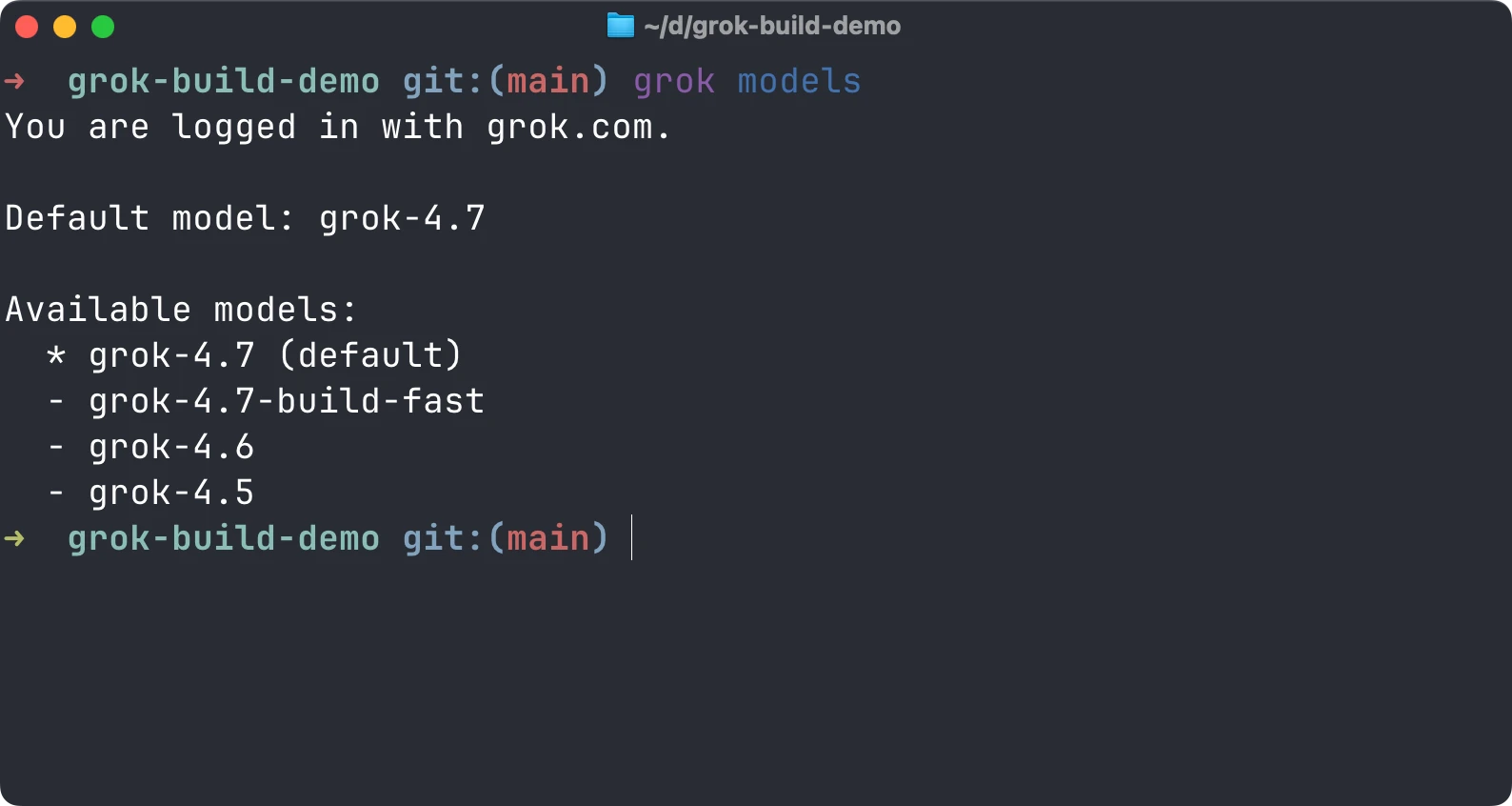
Inside a session, /model lets you switch models, and /effort changes the reasoning effort for the current model when supported.
Start with the default coding model. If a task needs more reasoning, change the effort and compare the result against the tests or other evidence. A longer answer doesn’t establish correctness.
Grok also supports custom model endpoints through ~/.grok/config.toml. The relevant fields include model, base_url, env_key, and api_backend. The backend can be an OpenAI-compatible protocol or Anthropic Messages, according to the settings reference.
Use environment-based credentials rather than inline API keys. Check the provider’s tool-call support and billing before making a custom endpoint your default. An endpoint accepting text requests doesn’t guarantee that every agent feature works with it.
The settings reference documents those fields. grok inspect helps confirm which configuration was loaded.
Create a reusable skill
An AGENTS.md file describes the project. A skill describes a repeatable task the agent can carry out when needed.
For example, suppose you want the same review process for every numeric utility. Create this directory:
mkdir -p .grok/skills/review-numeric-functionSave the following as .grok/skills/review-numeric-function/SKILL.md:
---
name: review-numeric-function
description: Review a numeric utility for input mutation and edge cases.
user-invocable: true
disable-model-invocation: true
---

Read the requested function and its callers.
Identify the input contract before proposing a change.
Check empty input, one item, duplicates, negative values, and invalid values.
Look for input mutations and implicit string sorting.

Report concrete findings with file locations and a reproducing input.
Do not edit files unless the user asks for a fix.
Open /skills to inspect the discovered skills. A user-invocable skill can appear as a slash command:
/review-numeric-function Review median.jsdisable-model-invocation: true makes this a command you invoke deliberately. Leave it false or omit it if you want the model to select the skill automatically when appropriate.
Grok discovers project skills under .grok/skills/, personal skills under ~/.grok/skills/, and skills bundled by enabled plugins. It also reads user-level ~/.agents/skills/ and compatible Claude Code configuration.
One subtle point from the docs: a skill’s allowed-tools field doesn’t grant or restrict tool access in Grok. Use the permission system for that. A skill asking the agent to only read files is a workflow instruction, not a security boundary.
Add plugins and marketplaces
A plugin can bundle skills, agent definitions, hooks, MCP servers, and language-server integrations. A marketplace is a source from which you discover and install plugins.
Open /plugins or /marketplace in the interface. /hooks, /skills, and /mcps open other tabs in the same extensions modal.
For CLI management, start with:
grok plugin list
grok plugin marketplace list
Use grok plugin --help and the help for the specific subcommand before installing from a source. Don’t assume a plugin identifier from another agent uses the same install syntax.
Inspect what a plugin includes before enabling it. A bundle containing a hook or a local MCP server can execute code; it does more than add a text prompt.
Grok reads compatible Claude Code marketplaces, plugins, and other configuration automatically. Run grok inspect before adding another copy of an extension you may already have.
The skills and plugins documentation lists discovery paths and compatibility behavior.
Connect external tools with MCP
MCP, the Model Context Protocol, lets an agent call tools exposed by another application or server. A server might provide documentation lookup, issue tracking, or database operations.
The tool’s permissions depend on the service and account you connect. A server that can modify tickets or write data gives the agent different capabilities from a documentation search server.
I explain the protocol in What is MCP.
Add a remote server
The Grok docs use Linear as a remote HTTP example:
grok mcp add --transport http linear https://mcp.linear.app/mcpFor an OAuth-protected server, Grok starts browser authentication when needed. Follow the service’s account selection and consent flow.
Then inspect the connection:
grok mcp list
grok mcp doctor linear
Only add this if you want to connect Linear. Our median exercise doesn’t need an external service.
You can add a server with project scope using --scope project; that writes project configuration into .grok/config.toml. Share connection settings without embedding credentials in the repository.
Add a local server
A local stdio server runs as a process on your computer. The documented filesystem server can expose a chosen directory:
grok mcp add filesystem -- npx -y @modelcontextprotocol/server-filesystem "$PWD"Run that from the directory you intend to expose. It requires Node.js and npx, and can download and execute the server package. Grok already has local file tools, so this is an example of stdio configuration rather than a requirement for reading our project.
For project hooks, MCP servers, and LSP servers, the docs describe a shared trust decision. Inspect unfamiliar repository configuration before granting trust.
In the TUI, /mcps opens the server list. You can toggle a server with Space, refresh with r, and start OAuth authentication with i.
If a server fails, use grok mcp doctor. The docs also identify ~/.grok/logs/mcp/ as the location for captured stdio server errors. See the MCP guide for configuration fields and secret expansion.
Run hooks at specific events
A hook runs a command or calls an HTTP endpoint at a defined moment, such as before a tool executes or after a turn ends.
Use hooks for mechanical tasks: recording an event, checking a proposed action, or triggering a notification. A skill tells the agent how to work through a task; a hook runs at an event whether the model remembers to ask for it or not.
Personal hook files live in ~/.grok/hooks/. Project hook files live in .grok/hooks/ and require trust before they run.
This example appends a timestamp when an agent turn stops. Save it as .grok/hooks/turn-log.json:
{
  "hooks": {
    "Stop": [
      {
        "hooks": [
          {
            "type": "command",
            "command": "date -u >> /tmp/grok-build-turns.log",
            "timeout": 5
          }
        ]
      }
    ]
  }
}
This is a macOS/Linux shell example. It writes a local log and doesn’t transmit the conversation. Inspect the file, then grant project trust with /hooks-trust if you want to enable it.
Open /hooks to inspect loaded hooks. Send a short prompt such as Explain median.js without editing it and wait for the turn to finish. In another terminal, inspect the log:
cat /tmp/grok-build-turns.logYou should see a timestamp for the completed turn. If the file is missing, check the hook in /hooks, project trust, and any hook errors in the session. Remove the example hook when you’ve finished trying it.
A hook process receives event JSON on standard input, plus environment variables identifying the session and workspace.
Blocking hooks can fail open
PreToolUse is the blocking event. It can return a denial decision or exit with code 2 to stop a tool call.
The hook contract says timeouts, crashes, and malformed output fail open: the error is recorded, and the tool can proceed. This is a material limit if you are relying on a hook to prevent an action.
Keep hook scripts small and test their allow and deny behavior. For firm filesystem restrictions, use the sandbox controls too.
Delegate work to subagents
Subagents are independent child sessions with their own context. They return a summary to the parent when finished. Grok enables them by default unless configured otherwise.
The built-in types have different capabilities:
| Type | Intended job | Tool boundary described in the docs |
|---|---|---|
general-purpose | Work on a delegated task | Full-capability child |
explore | Inspect and search the project | No shell or edits |
plan | Draft an implementation plan | No shell or edits |
You can ask for a narrow delegation:
Use an explore subagent to inspect callers of median().
Have it report assumptions about empty input and input mutation.
Don't change files. Use the findings to suggest missing tests.
The exercise is small enough that delegation adds overhead. In a larger repository, a separate exploration task can keep a long search out of the main session’s context.
Be careful with parallel implementation. Two agents editing the same module can undo each other’s assumptions. Give each a narrow scope and decide who owns any shared interface before starting.
Manage agent definitions with /config-agents. /personas manages behavioral overlays; a persona changes focus or instructions rather than creating an independent permission boundary.
Worktrees for separate sessions
Grok also supports Git worktrees for sessions that need their own checkout. This is useful when you deliberately want parallel branches without having agents edit the same files.
The documented entry point is:
grok -wThe worktree guide says a session starts from the current HEAD and includes uncommitted changes, unless you choose a clean ref with --ref. Inspect the starting files before assuming it is a clean copy of the branch.
Worktrees persist after a session ends. Use grok worktree list to inspect them and the documented management commands when you are ready to remove them. Land changes through ordinary Git review.
You don’t need a worktree for the sequential median exercise.
Keep track of background work
A dev server keeps running while you ask the agent another question. A long build can run in the background while the agent inspects another file.
Ask for the behavior directly:
Run the development server in the background.
Tell me the local URL and report startup errors.
Use this in an application that actually has a development server; our dependency-free median project only has tests.
Ctrl+B sends a running foreground command to the background. Ctrl+G opens the tasks pane, and /tasks prints a snapshot. A selected background task can be killed with x in the scrollback.
The todo list is separate. Ctrl+T shows planned work, while the tasks pane shows running commands, subagents, and scheduled work.
Queue a follow-up
If you type another prompt while Grok is working, Enter normally queues it. Use /queue to inspect queued prompts.
If you need the current turn to stop, use Ctrl+C. The keyboard docs say Esc doesn’t cancel a running turn. When text is focused, the first Ctrl+C can clear that text instead, so check the session state.
You can use /btw for a side question without interrupting the main task:
/btw Why does Array.sort() need a comparison function for numbers?Repeat a bounded check
When the feature is available, /loop schedules a recurring prompt:
/loop 5m Run npm test and report only new failures. Don't edit files.It fires immediately and then repeats. The docs say intervals have a minimum of 60 seconds, loops expire after seven days, and at most 50 scheduled tasks can be active.
Each firing is another agent turn and can consume usage. Cancel the loop from the tasks pane when you no longer need it. Don’t assume an in-session loop is a durable service that survives every terminal or machine shutdown; use an external scheduler for a job that needs that guarantee.
Use goals for a longer task
/goal lets Grok work toward an objective across multiple rounds.
A good goal has a result that can be checked:
/goal Add finite-number input validation to median(), keep existing valid-input behavior, and finish when regression tests and new invalid-input tests pass. Don't change unrelated files or publish anything.The docs say reviewer subagents check a goal’s apparent completion. If they find gaps, Grok continues or pauses when it gets stuck. That review can help, but you should still inspect the final implementation yourself.
Use /goal status to check the current state, /goal pause to pause, /goal resume to continue, and /goal clear to remove it.
You can add --budget <tokens> to the goal command to cap token spending. Choose a budget appropriate to the task rather than leaving a broad objective running indefinitely.
Goals are useful when there is a clear finish line and several repair rounds may be needed. For “what does this function do?”, an ordinary prompt is enough.
Save a workflow you want to repeat
A workflow coordinates a bounded group of subagents and verification steps. It is different from an open-ended goal or a single skill’s instructions.
You can ask Grok to create one:
/create-workflow Review the current branch for correctness bugs, verify each finding with code or a reproducing test, and return only actionable findings. Don't edit project source.The authoring flow asks about scope, delegation, and verification. It saves a workflow under .grok/workflows/ for the project or ~/.grok/workflows/ for personal use. The documented file format uses .rhai files.
Inspect the generated file before relying on it. A workflow is executable orchestration, and a vague review request can produce unnecessary parallel work.
Launch a saved workflow with /workflow followed by its actual saved name. /workflows opens the live run dashboard; it lists runs rather than the saved workflow files.
A built-in /deep-research command starts a background research workflow. Use it when you need a research result alongside coding, and check the cited evidence before turning that result into implementation requirements.
Run Grok from a script
Headless mode sends a prompt without opening the fullscreen terminal interface:
grok --no-auto-update --sandbox read-only --no-subagents -p 'Explain median.js and identify gaps in its tests. Do not edit files.'Headless mode can inspect the project and use tools while answering. The sandbox, permissions, authentication, and loaded extensions still apply.
Choose an output format based on what consumes the result:
| Format | Output |
|---|---|
plain | Human-readable text |
json | One JSON object at the end |
streaming-json | Newline-delimited JSON events as work progresses |
For a report you want to save:
grok --no-auto-update --sandbox read-only --no-subagents \
  -p 'Review median.js for correctness issues. Do not edit files.' \
  --output-format json > median-review.json
The shell creates median-review.json; Grok’s read-only profile doesn’t constrain the parent shell’s redirection. Review the report before committing it, since it can contain source excerpts or local paths.
For streaming consumers:
grok --no-auto-update --sandbox read-only --no-subagents \
  -p 'Explain the project architecture without editing files.' \
  --output-format streaming-json
Parse that as one JSON event per line. Don’t call JSON.parse() once on the entire stream and expect one object.
Call it from JavaScript
We can launch the CLI with Node’s spawn(). Passing arguments as an array avoids constructing a shell command from the prompt.
Save this as review.mjs in the demo directory:
import { spawn } from 'node:child_process'

const child = spawn('grok', [
  '--no-auto-update',
  '--sandbox', 'read-only',
  '--no-subagents',
  '--max-turns', '8',
  '-p', 'Review median.js for correctness bugs. Do not edit files.',
  '--output-format', 'json'
], {
  cwd: process.cwd(),
  stdio: ['ignore', 'pipe', 'inherit']
})

let output = ''

child.stdout.setEncoding('utf8')
child.stdout.on('data', chunk => {
  output += chunk
})

child.on('error', error => {
  console.error(error.message)
  process.exitCode = 1
})

child.on('close', code => {
  if (code !== 0) {
    console.error(`Grok exited with code ${code}`)
    process.exitCode = 1
    return
  }

  try {
    console.log(JSON.parse(output))
  } catch {
    console.error('Grok did not return a valid JSON report')
    process.exitCode = 1
  }
})
Run it after authenticating the CLI or supplying credentials through the environment:
node review.mjsThe script prints the whole JSON object rather than assuming a response field that may differ across CLI releases. For a production integration, validate the observed output schema and add a wall-clock timeout and output-size limit.
Don’t replace spawn() with a shell string containing untrusted user input. You don’t need a shell to pass a prompt to an executable.
Use it in CI deliberately
CI needs a noninteractive authentication method, a known working directory, and explicit rules for allowed actions.
The headless guide recommends --no-auto-update for scripted or ACP runs. Keep the executable managed by the job so the behavior doesn’t change partway through it.
Use --max-turns to bound agent rounds. It isn’t a dollar budget or a time limit.
Don’t add --always-approve to a CI job just to eliminate a prompt you haven’t investigated. Inspect the required tools and configure a narrow policy. An untrusted pull request can modify scripts and configuration that an agent might execute with CI credentials.
For teams that need enforced unattended permission policies, the docs cover managed requirements and headless modes under Enterprise Deployments.
Integrate with an editor through ACP
ACP stands for Agent Client Protocol. It lets an editor or another client communicate with a coding agent.
Grok’s entry point is:
grok agent stdioIt uses JSON-RPC over standard input and output. Your editor needs an ACP client integration configured to launch that command.
This is separate from MCP. ACP connects the editor to the agent. MCP connects the agent to external tools.
For a custom client, the headless documentation shows initialization, authentication, creating a session, and sending a prompt. Assistant text arrives through session/update notifications; session/prompt returns completion metadata. A client waiting only for the prompt response can miss the answer text.
You don’t need to implement this protocol to use the terminal interface or the Node script above.
Adjust the interface and configuration
/settings is the easiest starting point for everyday interface preferences. /theme changes the theme, /density changes how much tool detail the transcript displays, and /terminal-setup checks terminal and clipboard behavior.
Personal defaults live in ~/.grok/config.toml. For example:
[sandbox]
profile = "workspace"

[ui]
permission_mode = "ask"
theme = "auto"

[cli]
auto_update = true
Merge these sections into an existing file rather than adding duplicate TOML tables.
Project .grok/config.toml supports a smaller scope: MCP servers, plugins, and permission rules. Put sandbox defaults and UI settings in the user file. Copying the full user configuration into the repository doesn’t make every section project-scoped.
Managed configuration and requirements can impose organizational policy. If a flag doesn’t take effect on a work machine, inspect the effective configuration before assuming the CLI ignored it.
Troubleshoot common problems
The agent is in the wrong project
Check your shell directory and Git root before launching. You can set the directory explicitly with --cwd.
Inside a confusing session, ask Grok to report the working directory and repository root before making changes. Then use grok inspect from that directory to see the loaded rules.
A rule or skill isn’t being picked up
Confirm the file’s name and discovery path. Run grok inspect, then inspect /skills or the relevant extensions tab.
The project-rules guide says gitignored instruction files are skipped. Skill frontmatter also matters: user-invocable: false hides a skill from both the user and the model in Grok’s documented behavior. Use the literal YAML true when you want it invocable.
Commands keep asking for approval
Check which permission mode is active. A remembered “always allow” grant can still prompt for dangerous patterns; explicit configuration rules behave differently.
Read the exact requested command and add a narrow rule if appropriate. A wider mode changes more than the one prompt currently slowing you down.
A command fails under the sandbox
Check whether it needs to write outside the working directory or use blocked child-process network access. Package managers and language tools can use caches outside your project.
Use a custom profile with the specific paths the task needs. The sandbox guide documents additional read-only and read-write paths and deny patterns.
An MCP server doesn’t start
Run grok mcp doctor. Check the server command, its credentials, and its startup error log. A first npx launch may need time to download the package, which the docs identify as a reason to increase startup_timeout_sec.
Keyboard shortcuts act differently
Shortcuts vary by terminal. VS Code-family terminals use different chords for some actions, and Apple Terminal has its own limitations.
Use /help, /terminal-setup, and the keyboard reference. If a shortcut isn’t arriving, the slash command is often the clearest way to perform the action.
The agent says it is finished, but the result is wrong
Ask for the exact verification command and its output. Check the diff for changed expectations, skipped tests, or unrelated edits.
If the test only covers the happy path, add a case that reproduces the failure you observed. Then give Grok that concrete failure and ask for the smallest correction.
How I would use Grok Build
I would start in an existing repository with grok inspect, then give it a small bug with a regression test. That tells me how it follows local instructions, how much permission management it needs, and whether its final report matches the command output.
For a larger change, I would use Plan mode to settle the scope before implementation. I’d keep project conventions in AGENTS.md, and turn a review routine into a skill only after using it enough to know what belongs there.
I would add MCP servers as a task needs them. Connecting every account at the beginning adds capabilities and configuration I then have to understand.
The parts I would watch most closely are the sandbox defaults and inherited extensions. The sandbox starts off, Plan mode has limits, and compatibility scanning can bring in hooks or servers from tools you already use. grok inspect deserves a place early in the workflow.
If you already use Codex CLI or another local coding agent, try the same bounded task in a clean starting state. Compare the resulting diff, tests, interruptions, and usage. Choose based on the work you need it to do.
I wouldn’t use a coding agent for a deterministic job that a short script already handles reliably. I would also keep production changes behind a separate review step until the workflow has enough safeguards and evidence for that access.
For a first exercise, stop after the median fix. Review the implementation, run the tests yourself, and save the result in Git. Once that cycle feels familiar, add a skill or try a headless report on a project you know well.
Want me to talk about your product? You can sponsor this site.
Related posts about ai: