Switch macOS users with a different Touch ID finger
By Flavio
Tagged: Mac
Switch macOS user accounts with a different Touch ID finger for cleaner work or recording setups, or to isolate AI coding agents in a Standard user.
Almost nobody knows that macOS lets you switch user accounts by pressing Touch ID with a different finger.
I first heard about it on Mostly Technical episode 123 (Isolate The Claude), around 47:36 on YouTube, where Ian Landsman described how he isolates Claude Code in a separate Standard macOS user account and jumps back and forth with Touch ID. When I tweeted about it, Ian replied that it is barely documented, and later shared his full setup notes on X.
Even Apple’s own Fast User Switching guide mentions Touch ID switching in a couple of lines, so most Mac users never discover it. Once you set it up, it turns multiple macOS accounts from a chore into something you can flip between in about a second.
That makes it useful both for everyday Mac workflows (work vs. personal, clean screen recordings, focus spaces) and as a practical OS-level boundary for AI coding agents.
How per-finger Touch ID switching works
According to Apple’s Touch ID documentation, a Mac can store up to three fingerprints per user account and five fingerprints total across the machine.
When two accounts are both logged in at the same time (Fast User Switching keeps both sessions alive in the background), each account can claim its own finger:
- Right index finger for your main Admin account
- Right middle finger (or left index finger) for your second account
To switch from one desktop to the other, you do not open the menu bar or visit the lock screen. Rest the other account’s finger on the Touch ID sensor for about half a second so macOS reads the print, then press the Touch ID button down until it clicks. macOS jumps straight to that user’s desktop.
Do not register the same finger on both accounts. Each account stores its own fingerprint template in the Secure Enclave, so enrolling one finger twice confuses the matcher and makes switching unreliable.
Touch ID still follows macOS’s normal password rules: you have to type the password once after restarting or logging out, after 48 hours without unlocking, or after five failed reads. Once both users are logged in, Touch ID handles every switch after that.
Everyday ways to use a second Mac account
Before getting into AI agents, fast per-finger switching makes several regular Mac setups much cleaner:
- Personal vs. work on one machine. Separate browser profiles, email, Slack, calendar notifications, and Dock layouts, without paying for a second laptop.
- Clean screen recordings and demos. Keep a Standard account with a clean wallpaper, larger UI scaling, no personal notifications, and no private bookmarks. One finger press switches you into recording mode.
- Distraction-free focus. Set up an account that has your editor, terminal, and browser docs, with no email client, chat apps, or social logins.
Normally, people avoid a second macOS user because clicking through the menu bar and typing a password every time gets old fast. Binding each account to a different finger removes almost all of that friction.
Why it works well for isolating AI coding agents
If you run Claude Code (covered in the Claude Code Handbook) or Codex (covered in the OpenAI Codex Handbook) every day, approving every shell command gets tiring quickly. On the other hand, running an agent with fewer prompts inside your main Admin account gives every test runner and subprocess access to your personal files, your ~/.ssh keys, your browser cookies, your macOS Keychain, and your password manager.
Moving your coding agents and dev apps into a dedicated Standard (non-admin) macOS account creates a real Unix boundary enforced by macOS itself:
- The Standard user is not in the
admingroup and cannot runsudo. - It has its own home folder, its own login Keychain, its own browser profiles, and its own clipboard.
- You do not sign in to 1Password, personal email, banking, or cloud billing dashboards in that user. If an agent needs limited site credentials, keep them scoped rather than exposing your full vault, as I covered in how AI agents can log in without seeing your passwords.
Because both accounts run natively on your Mac, Xcode, Swift toolchains, local browsers, and Apple Silicon performance all work at full speed with zero container or VM translation overhead.
Step-by-step setup
1. Create a Standard user account
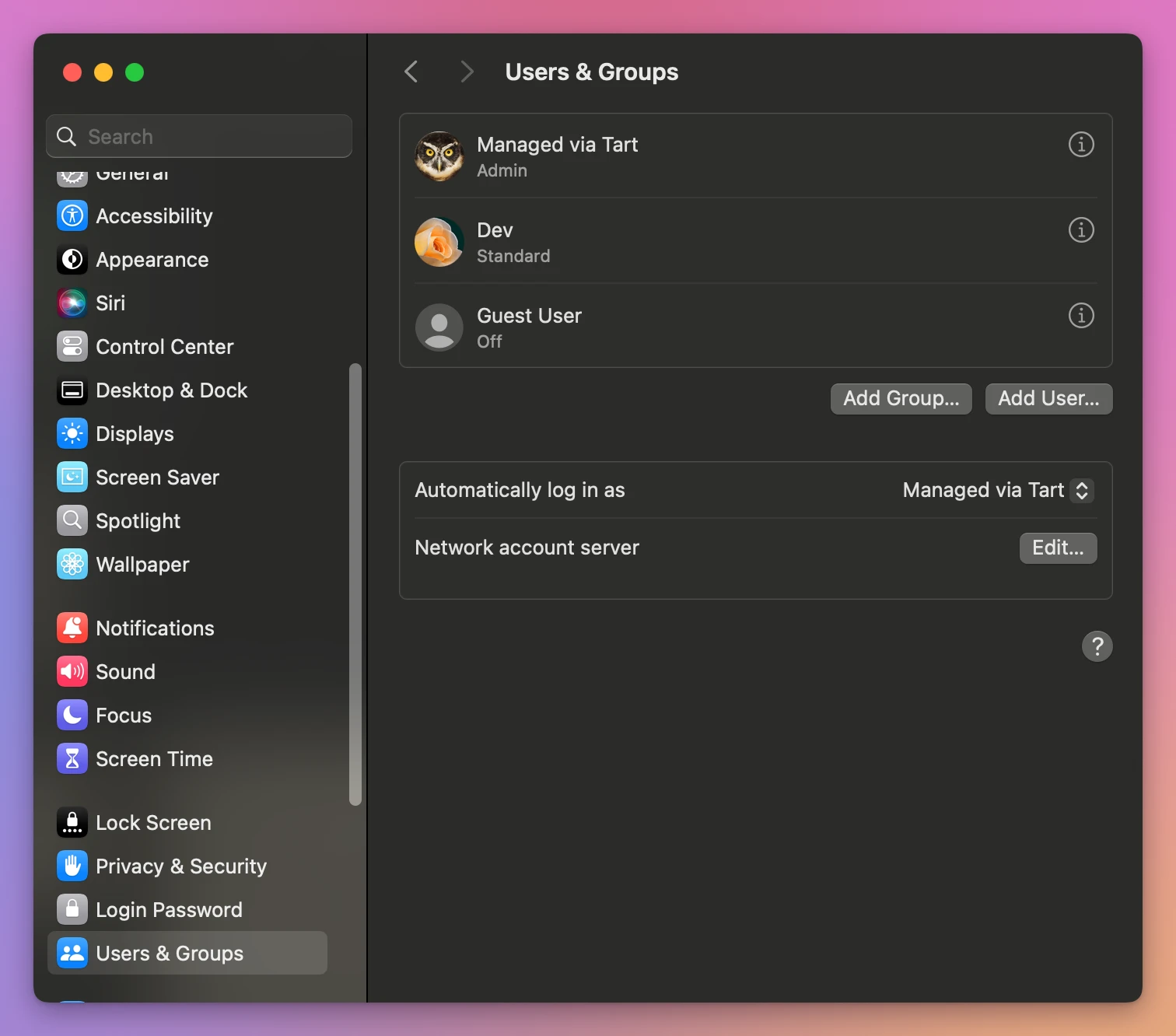
Open System Settings → Users & Groups and click Add User….
Choose Standard (not Administrator) as the account type, give it a short name like Dev or Recording, and set a password.
2. Enable Fast User Switching
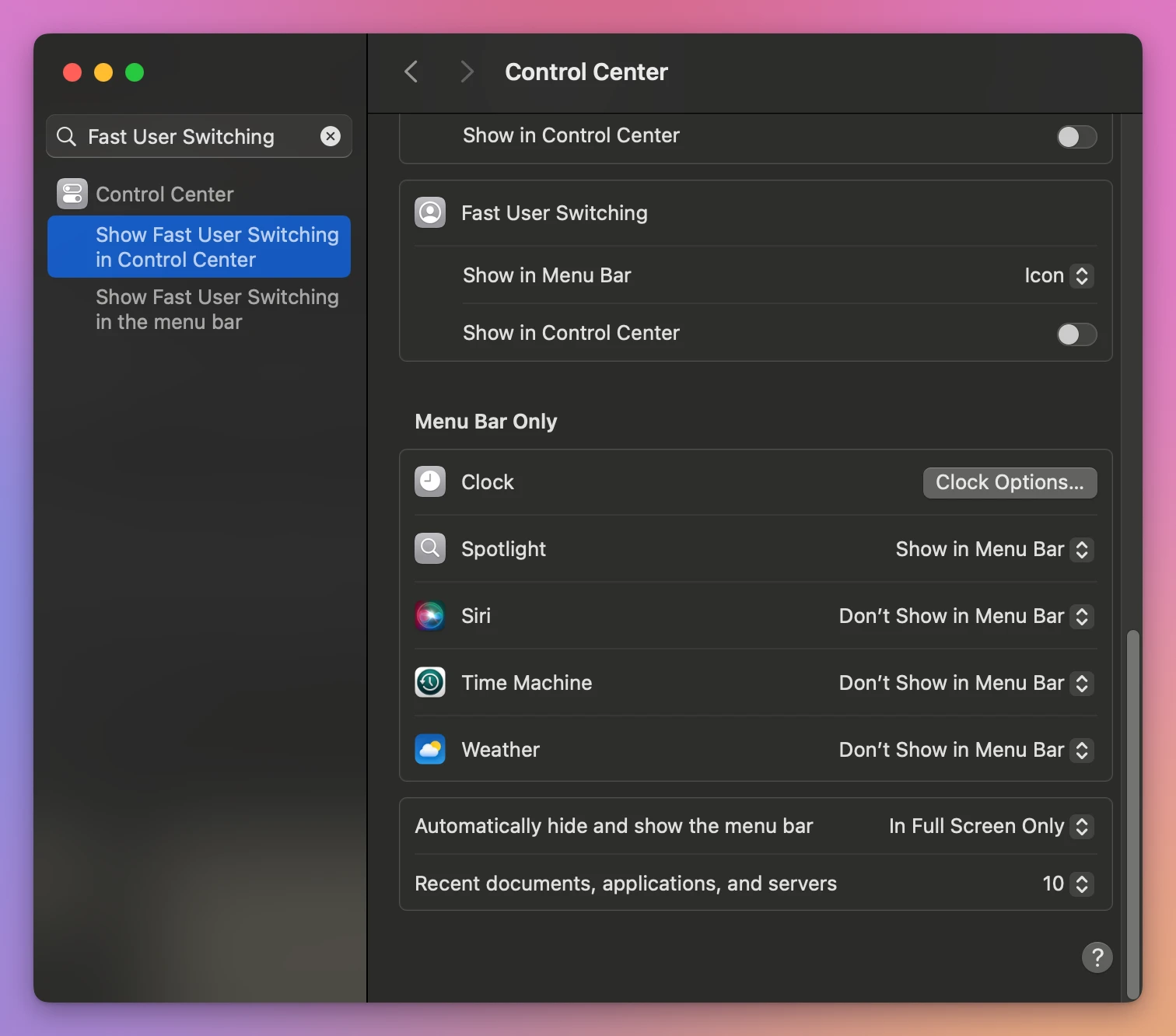
Open System Settings → Control Center, scroll down to Fast User Switching, and set Show in Menu Bar to Icon (or turn on Show in Control Center). You will need the menu bar switcher for the first login after a reboot, before Touch ID takes over.
3. Enroll a different finger in each account
Switch to the new Standard user from the menu bar and log in with its password.
Open System Settings → Touch ID & Password, click Add Fingerprint, and enroll a finger you have not registered in your main account. Keep your main Admin account on one finger (for example, your right index finger) and the Standard account on another (for example, your right middle finger or left index finger).
4. Test the press-and-click motion
Stay logged into both accounts. From your Admin desktop, rest your Standard account’s finger on the Touch ID sensor for half a second, then press the button down until it clicks. macOS switches directly to the Standard desktop. Do the same with your Admin finger to jump back.
If you tap too fast without letting the sensor read the fingerprint first, macOS locks the screen instead of switching. Resting for half a second before clicking is the trick that makes it consistent.
What macOS isolates (and one default gap you should close)
I tested a fresh Standard user (dev) against an Admin user (admin) on macOS 15.7.7 to see what macOS blocks out of the box and what stays visible.
First, dev has no admin group membership and cannot run sudo:
dseditgroup -o checkmember -m dev admin
# no dev is NOT a member of admin

sudo -u dev sh -c 'echo devpass | sudo -S id'
# dev is not in the sudoers file.
# This incident has been reported to the administrator.
Second, macOS protects every standard personal subfolder inside your Admin home directory with 700 (drwx------) permissions:
ls -ld /Users/admin /Users/admin/Desktop /Users/admin/Documents /Users/admin/Downloads /Users/admin/Library /Users/admin/Library/Keychains /Users/admin/.ssh /Users/Shareddrwxrwxrwt 5 root wheel 160 Jun 4 06:00 /Users/Shared
drwxr-x---+ 174 admin staff 5568 Nov 28 07:50 /Users/admin
drwx------ 5 admin staff 160 Nov 28 07:50 /Users/admin/.ssh
drwx------+ 12 admin staff 384 Nov 28 07:50 /Users/admin/Desktop
drwx------+ 32 admin staff 1024 Nov 28 03:52 /Users/admin/Documents
drwx------+ 5 admin staff 160 Nov 23 18:44 /Users/admin/Downloads
drwx------@ 84 admin staff 2688 Nov 21 23:56 /Users/admin/Library
drwx--x--x 7 admin staff 224 Nov 28 07:19 /Users/admin/Library/KeychainsWhen dev tries to read Desktop, Documents, .ssh, or Library/Keychains, macOS denies every one of them.
Look closely at the /Users/admin line above, though: drwxr-x---+ owned by admin:staff. Every Standard user created on macOS is also a member of the staff group (gid=20). That means any file or custom folder sitting directly in /Users/admin with default 644 or 755 permissions is readable by dev, including .gitconfig, .zshrc, .config, .npm, and any custom ~/dev or ~/www folder you keep outside Documents.
When I ran sudo -u dev head -n 2 /Users/admin/.gitconfig, dev read the file cleanly. Running chmod 700 /Users/admin closed that hole right away:
chmod 700 /Users/admin
sudo -u dev head -n 2 /Users/admin/.gitconfig
# head: /Users/admin/.gitconfig: Permission denied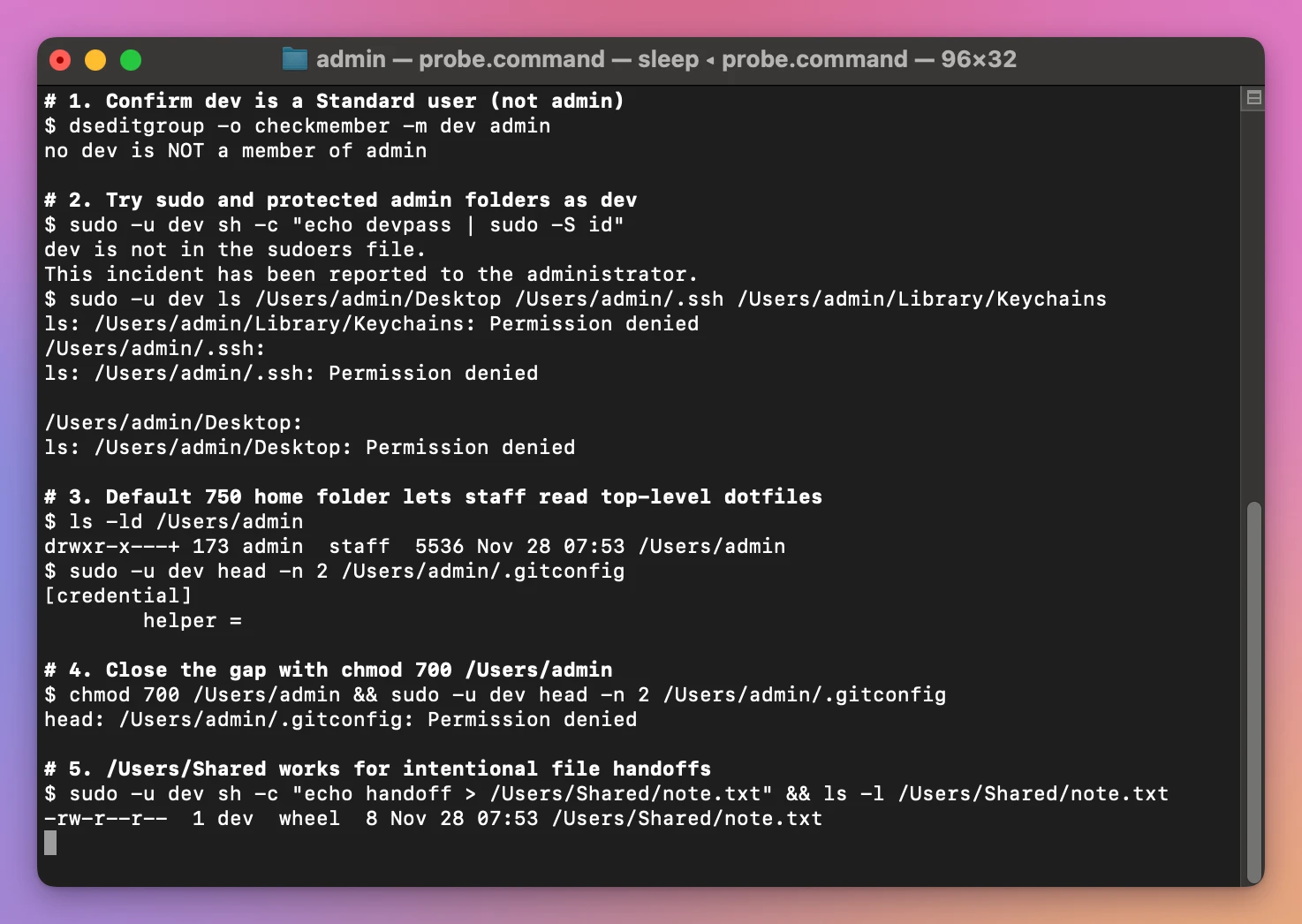
If you use a Standard user to isolate coding agents, run chmod 700 ~ from your Admin account so your top-level dotfiles and project folders are not exposed through the shared staff group. (That also blocks other users from reaching your ~/Public folder, which is fine because /Users/Shared is a better handoff spot anyway.)
| Surface | Default Standard user | After chmod 700 /Users/<admin> |
|---|---|---|
sudo and system settings | Blocked (not in the sudoers file) | Blocked |
Desktop, Documents, Downloads, Library, .ssh | Blocked (700) | Blocked |
| Admin login Keychain & 1Password | Isolated (separate Keychain) | Isolated |
| Clipboard between GUI sessions | Isolated (separate pasteboard) | Isolated |
Top-level Admin dotfiles (~/.gitconfig, ~/.zshrc, ~/dev) | Readable via staff group (750) | Blocked (700) |
/Users/Shared | Shared read/write (1777) | Shared read/write (1777) |
/Applications, network, macOS kernel | Shared | Shared |
Because macOS isolates the clipboard between logged-in GUI sessions, copy-and-paste does not carry across when you switch users. If you want a quick way to pass a snippet or file between accounts, keep a scratch file or folder in /Users/Shared.
Standard user vs. VMs, Docker, and a second Mac
A Standard macOS user is not a full security sandbox, and it is not meant to replace one. It sits right between running everything in your Admin account and spinning up a container or virtual machine.
| Isolation option | Switch speed | Native Mac / Xcode tools | Hides ~/.ssh, Keychain, 1Password | Blocks outbound network / kernel | Memory overhead |
|---|---|---|---|---|---|
| Main Admin account | Instant | Yes | No | No | None |
| Standard macOS user + Touch ID | ~1 second | Yes | Yes (with chmod 700 ~) | No | Moderate (two macOS sessions in RAM) |
| Docker Sandboxes | Seconds | No (Linux VM) | Yes | Yes (network & VM boundary) | Low to moderate |
| Headless macOS VM (Tart) | SSH / viewer | Yes | Yes | Strong (separate guest OS) | High (8 GB+ RAM, 25 GB+ disk) |
| Dedicated Mac mini | Separate machine / SSH | Yes | Yes | Strong (separate hardware) | Separate machine |
How I would use this, and where it falls short
My own setup already relies on guardrails for unattended coding agents (scoped tokens, hooks, and read-only modes) plus a headless macOS VM with Tart whenever an agent needs to launch and click through a Mac app without hijacking my screen.
Where I would add a second Standard user with Touch ID switching is for two things:
- A clean recording and demo account. Having a separate macOS desktop with zero notifications, clean browser tabs, and big readable fonts that I can jump into with one finger press beats toggling Focus modes and hiding windows every time I record a video.
- A daily Standard dev account when working on less trusted repos or running agents with looser local approvals. Running
chmod 700 ~on my Admin home folder keeps my personal 1Password, email, hardware-key-protected admin accounts (which I lock down with hardware security keys), and~/.sshout of reach, while keeping native macOS speed.
There are also clear cases where this setup is the wrong tool:
- Untrusted code that could exfiltrate data or exploit the OS. A Standard user still shares the macOS kernel, your local network, and
/Applications. For untrusted third-party repositories, use Docker Sandboxes or a disposable VM instead. - Tight RAM budgets. Fast User Switching keeps both desktop sessions alive in memory. On a 32 GB or 48 GB Mac that is barely noticeable; on a 16 GB Mac running browsers and an IDE in both sessions, memory pressure climbs fast.
- Workflows that need
sudoor shared local services. Installing Homebrew packages or running services that bind to privileged ports inside a Standard account takes extra work, which is why Ian noted he still runs PHP/Valet from his Admin account over a shared folder.
Even if you never isolate an AI agent with it, setting up per-finger Touch ID switching takes five minutes and makes multiple macOS user accounts genuinely pleasant to use.
Want me to talk about your product? You can sponsor this site.
Related posts about mac: