How to host a Web Application using DigitalOcean Apps
By Flavio Copes
Learn how to deploy and host a web app on the DigitalOcean App Platform by pushing to a GitHub repo, letting the platform handle the server for you.
I was searching for the perfect place where to host a new app I’m building when I decided to try DigitalOcean Apps.
DigitalOcean is one of the giants in the VPS space, and you can read my tutorial on it in how to create your first VPS on DigitalOcean.
I thought about Heroku, which is a solid choice. But I also remembered about DigitalOcean Apps, the new offering by DigitalOcean that lets you run an app just by pushing it to a GitHub repo.
Sign up for DigitalOcean with my referral link and you get $200 in credit for 60 days. This is an affiliate link: if you sign up through it and then spend $25, I get $25 in DigitalOcean credit.
DigitalOcean Apps are attractive because instead of managing a server, worrying about its security, updates and maintenance, you just worry about your app and you let the DigitalOcean team worry about everything else.
You have to pay more dollars, in comparison to running your own server, but you don’t have to pay more time. It’s up to you to decide which is the resource that’s more scarce in your situation.
But before deciding you can always try it first. Let’s try the DigitalOcean Apps workflow.
Head to https://cloud.digitalocean.com/apps/
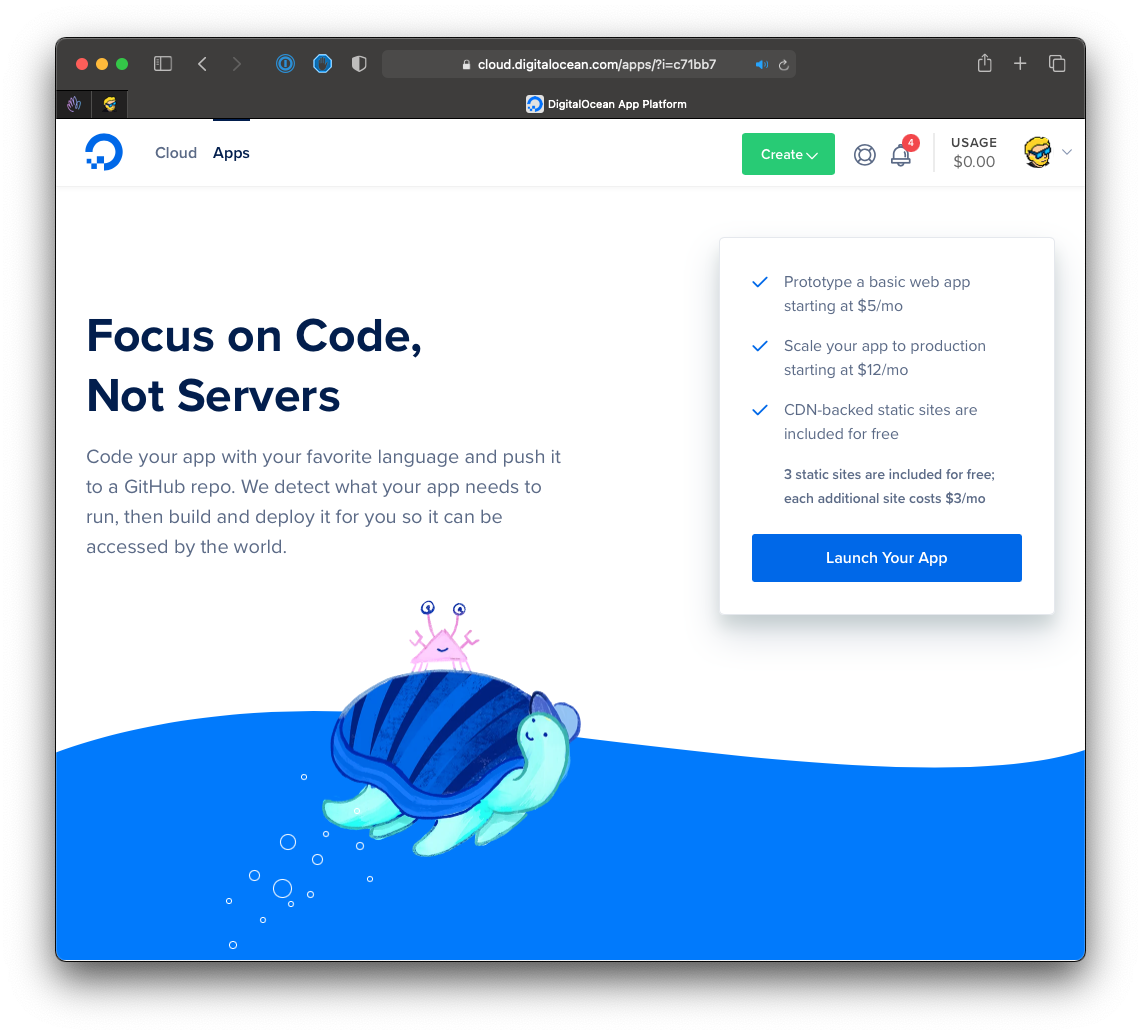
On this page, click the “Launch Your App” button.
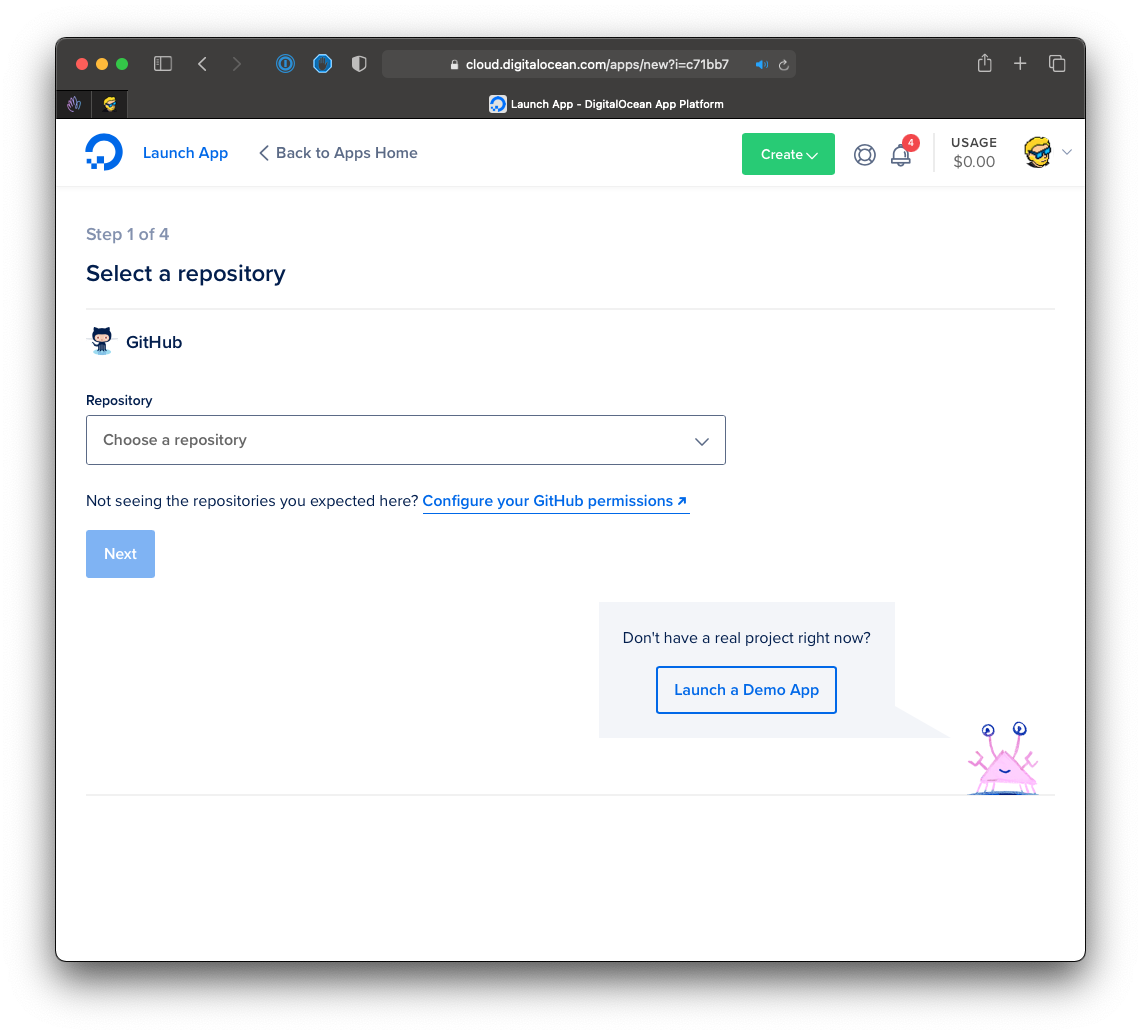
From here you can deploy an app from a GitHub repository, or you can launch a demo app. We’re going to do the latter by clicking the Launch a Demo App button, which shows us a big list of options:
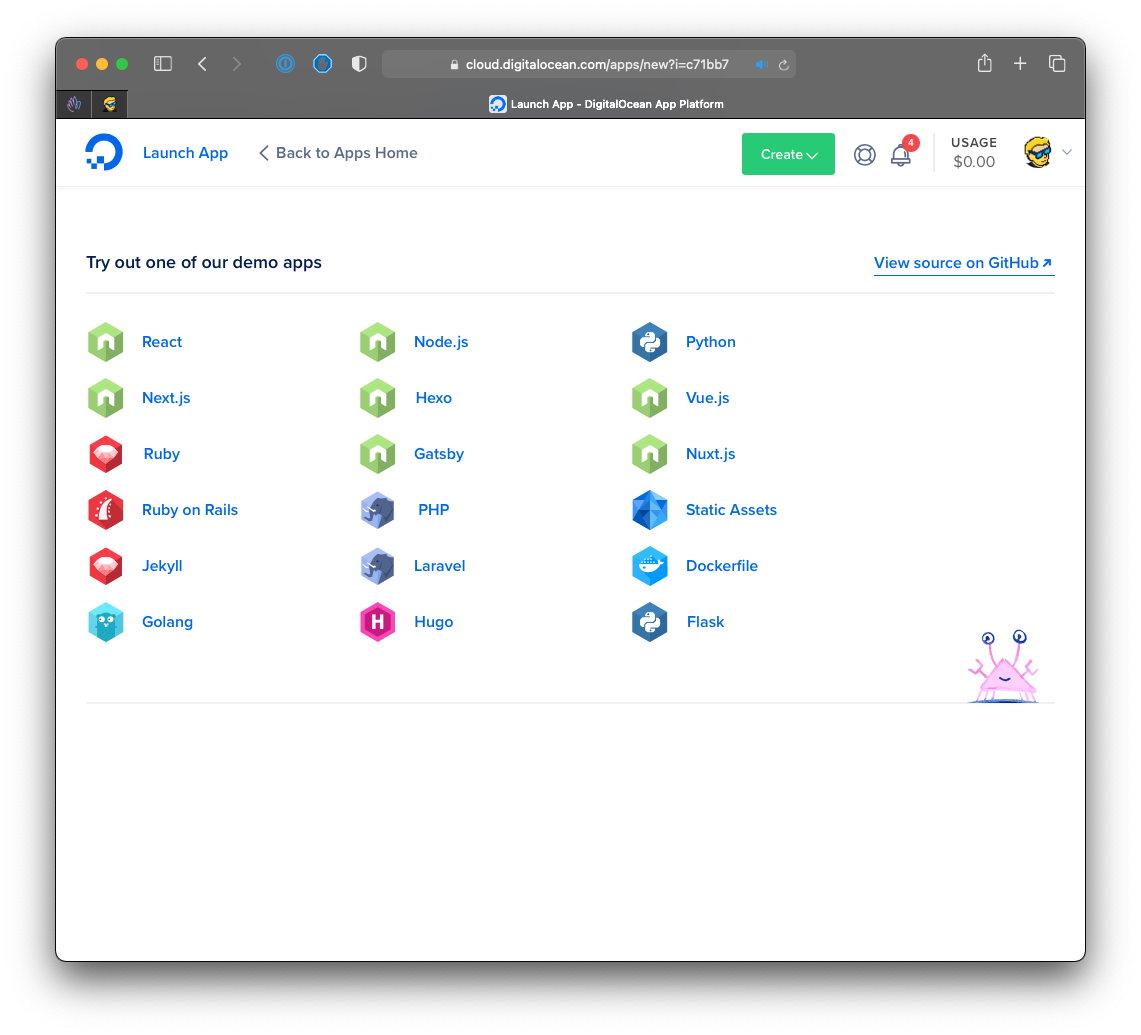
I click “Ruby on Rails” (but the process is the same for any other tool, language or framework listed).
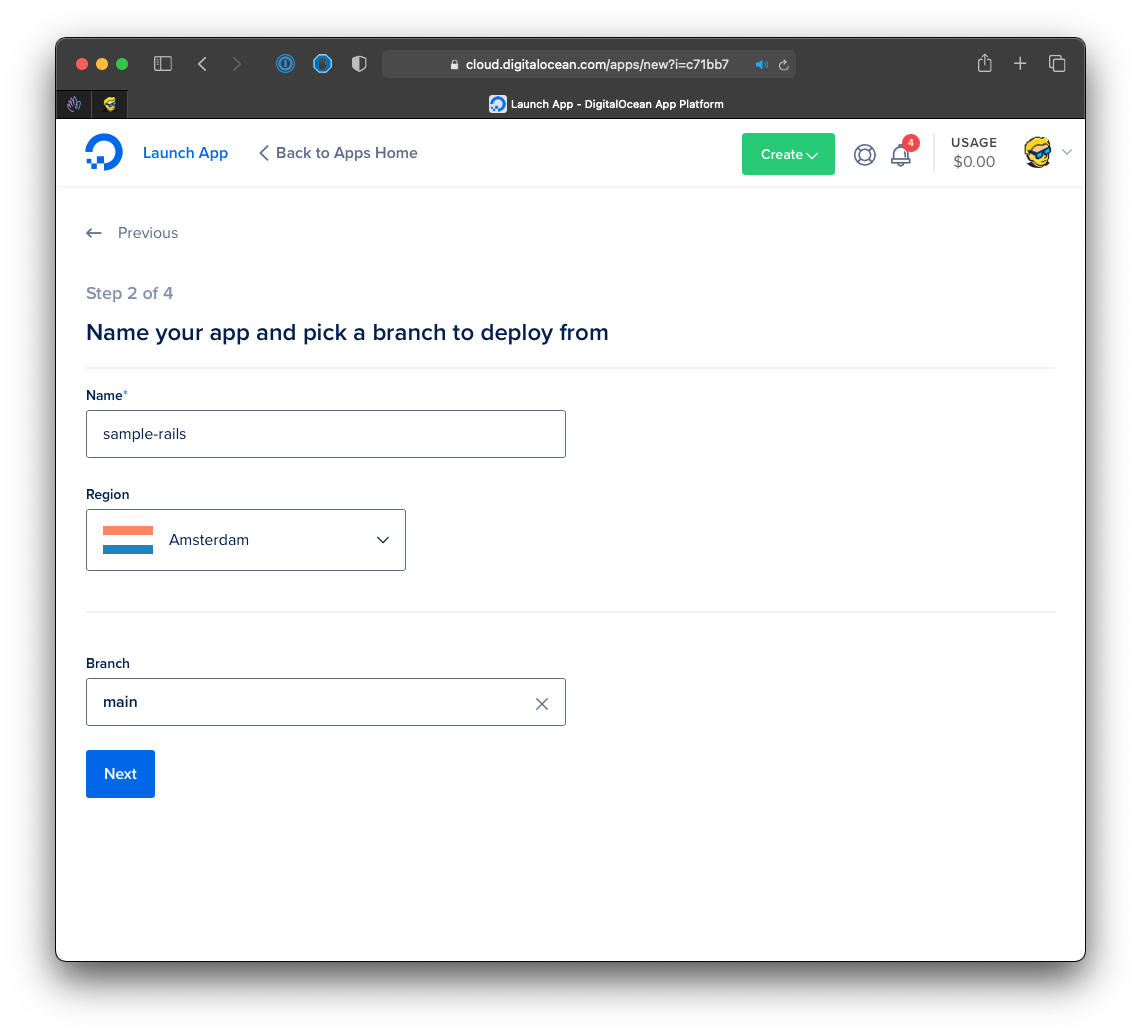
Now I can choose a name for the app, a region to deploy, and the branch to use (main is the default):
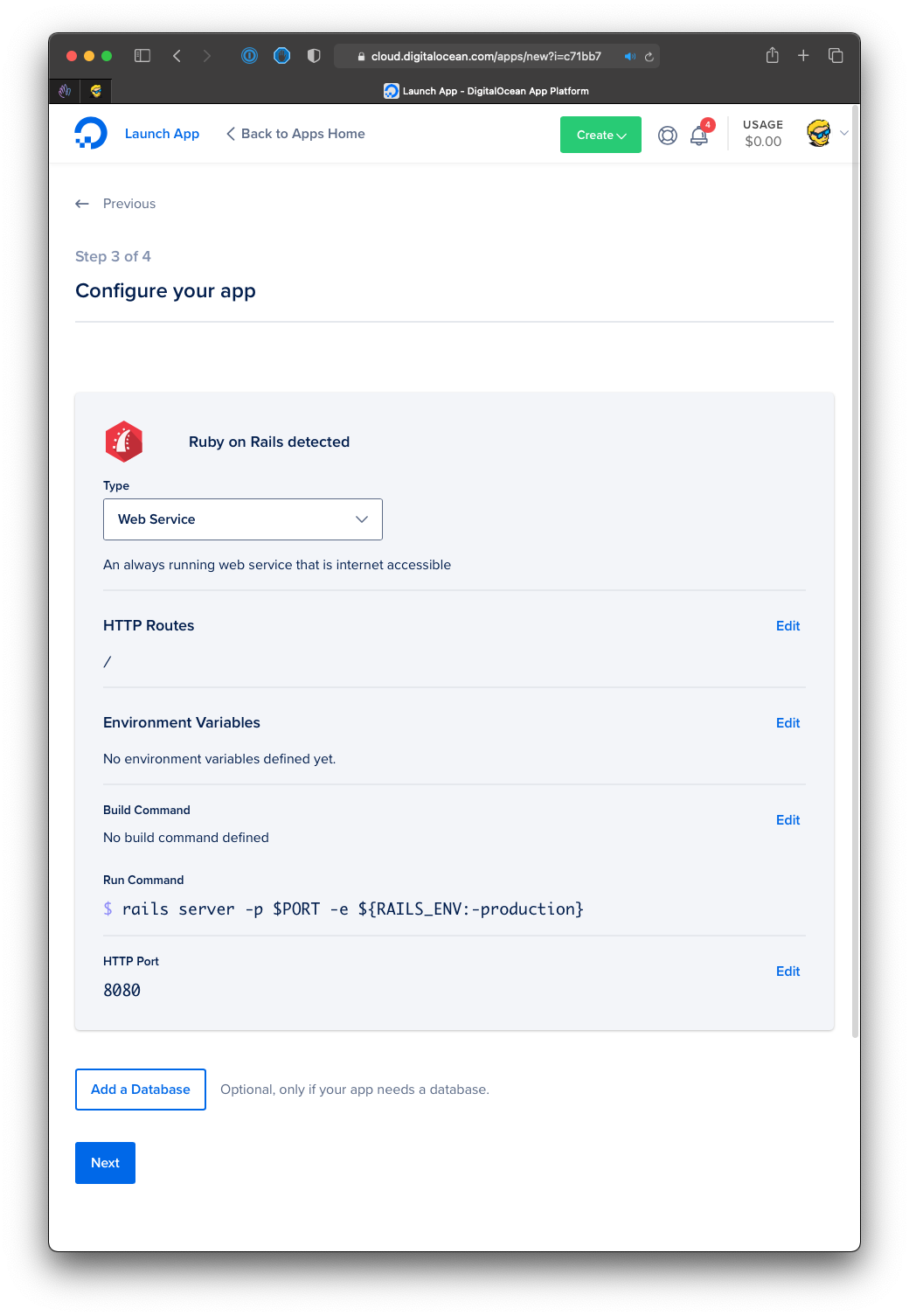
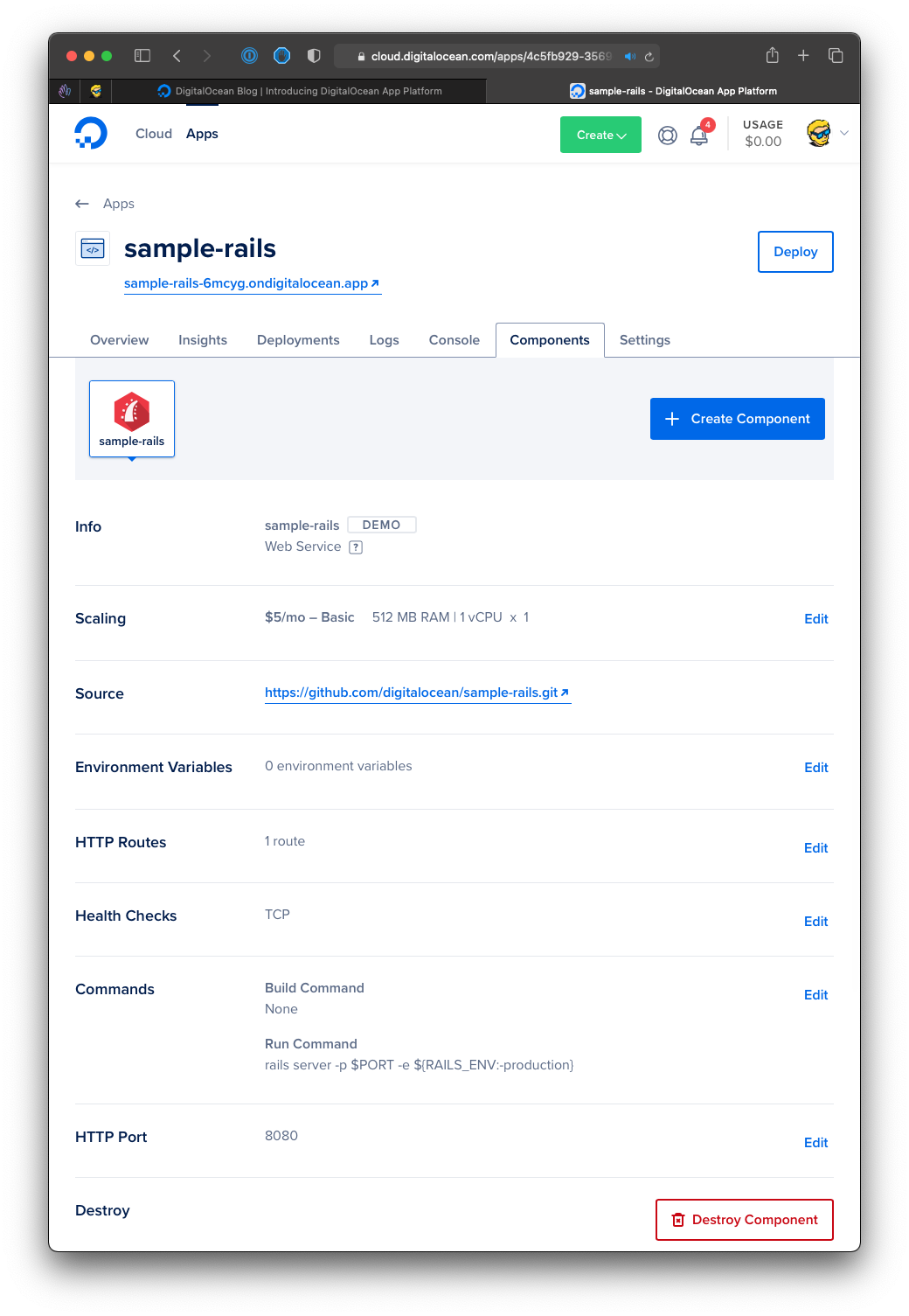
Here comes the app configuration page, that depends on the option you chose before. We can choose the type of app (“Web Service” is the only option here), a path where this component will listen for HTTP requests, we can set environment variables, we can define a build command, we can choose the HTTP port to run on.
We can also add a database, starting at an additional $7/m, if our app needs one.
When we’re ready we click Next and we can choose the plan we want to host this app on. DigitalOcean Apps can run static sites for free, but we chose a server-rendered application, so our options start at $5/m for the Basic plan, with a Pro plan at $12/m:
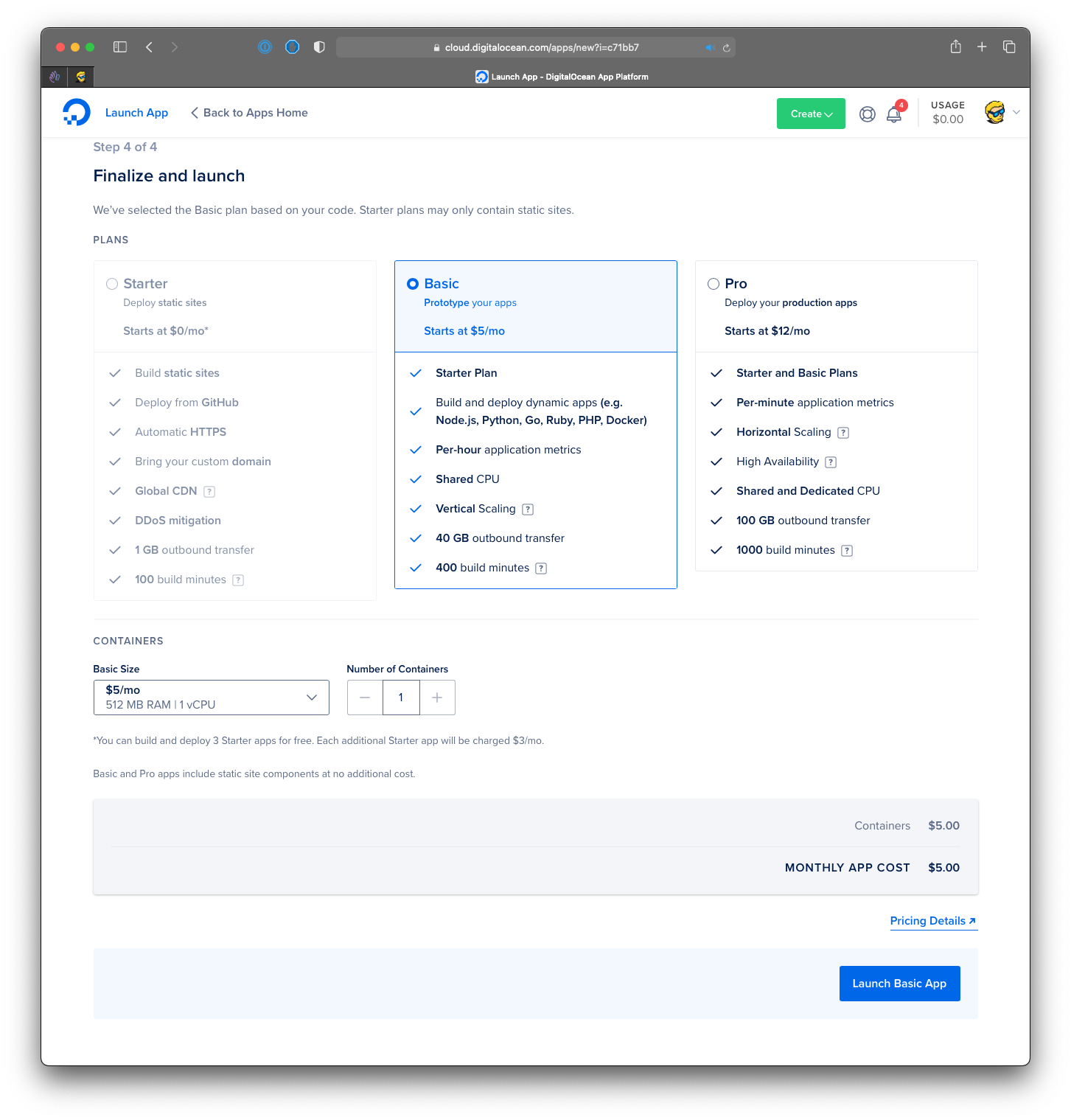
Prices should be billed by the hour, like DigitalOcean droplets. You can quickly spin up an app to try it, and pay next to nothing.
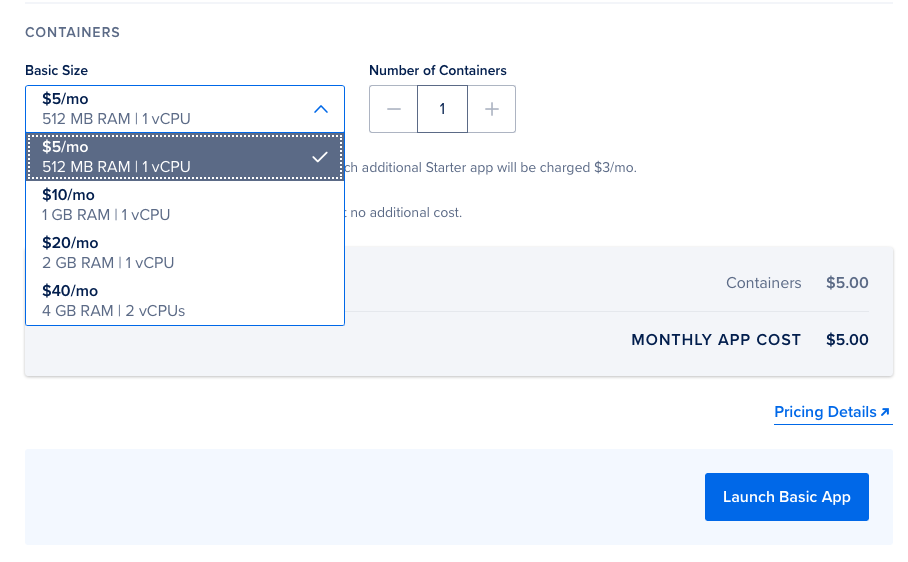
The final price lists $10 because it auto-selected the $10 container. It’s a common default choice for DigitalOcean (that I don’t understand) to show a more pricey option, also for normal DigitalOcean droplets.
I recommend starting with the most basic options and then scale up as needed. When that moment comes, I built a free scaling helper that suggests a strategy based on where your bottleneck is.
Just choose the $5/m option to get the 512MB RAM container, and you can click the Launch Basic App button:
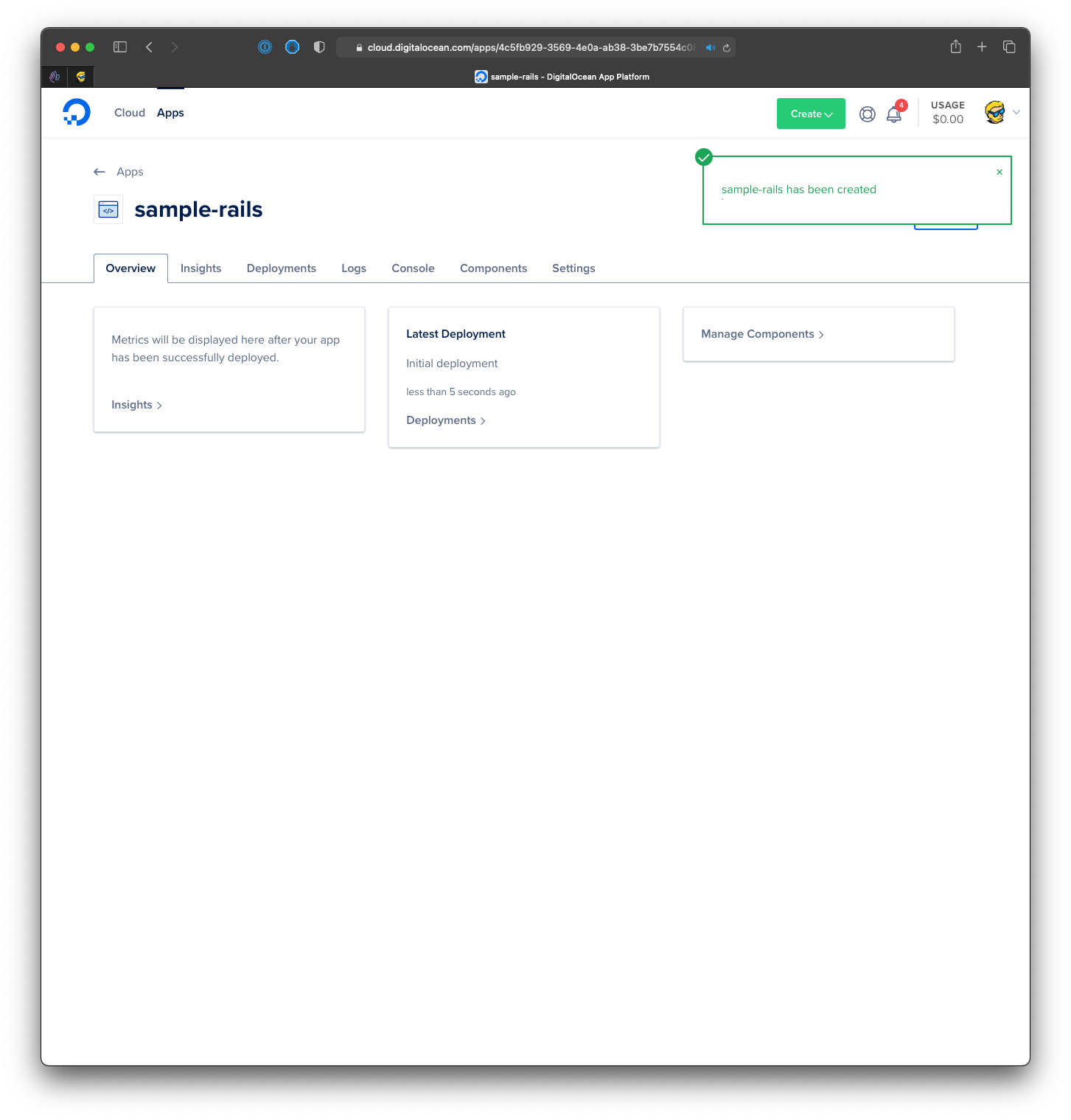
The interface switches to the app dashboard:
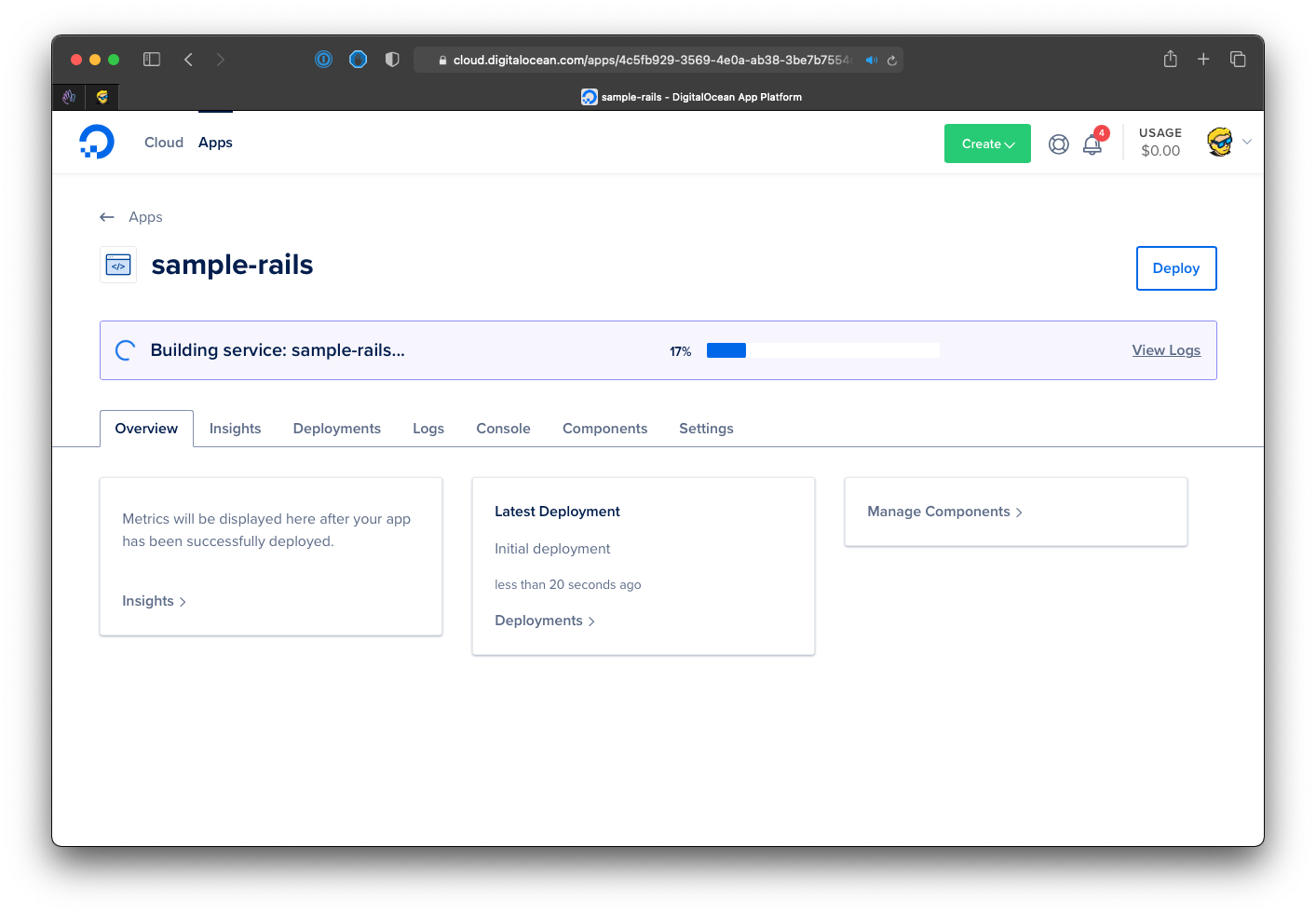
and the build process starts:
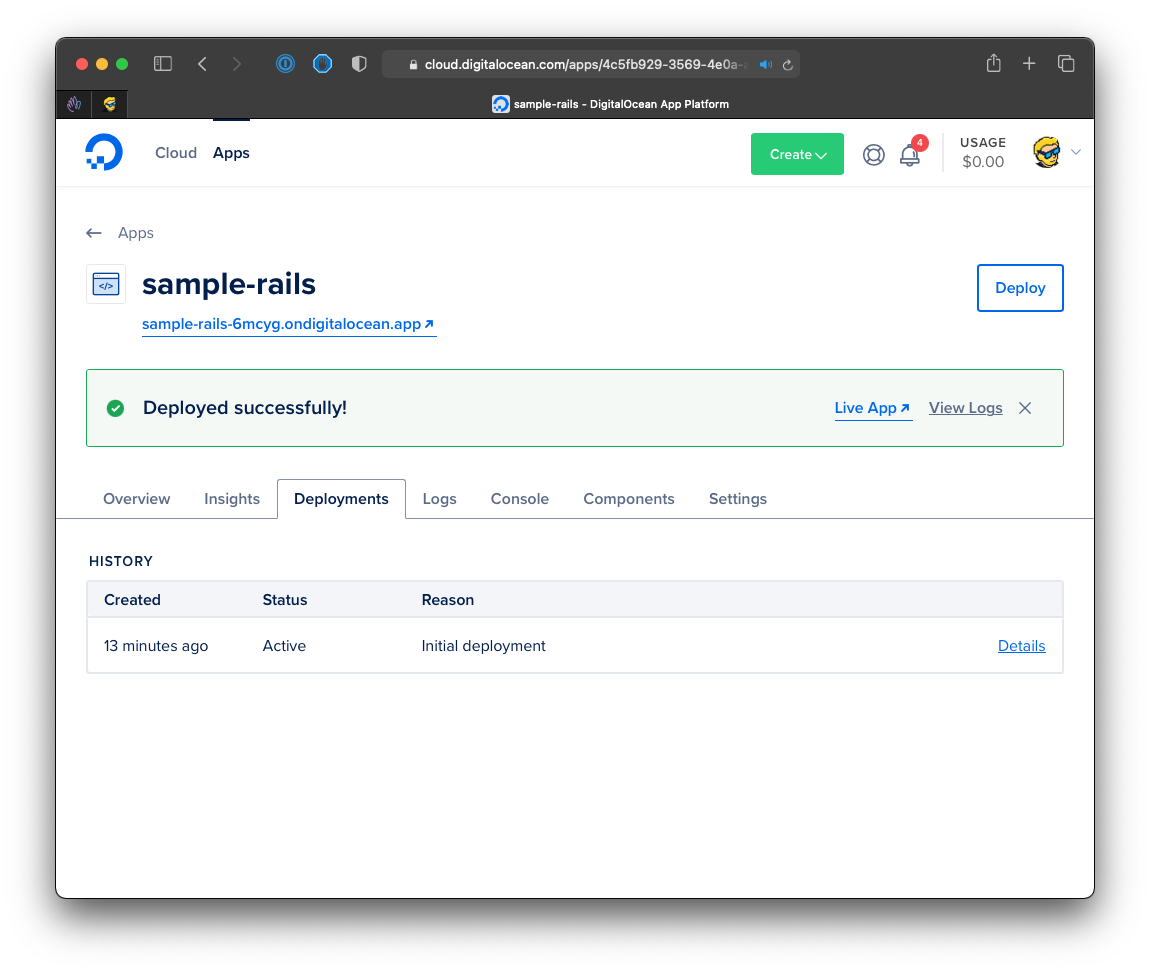
After a while you will get the “Deployed successfully!” message:
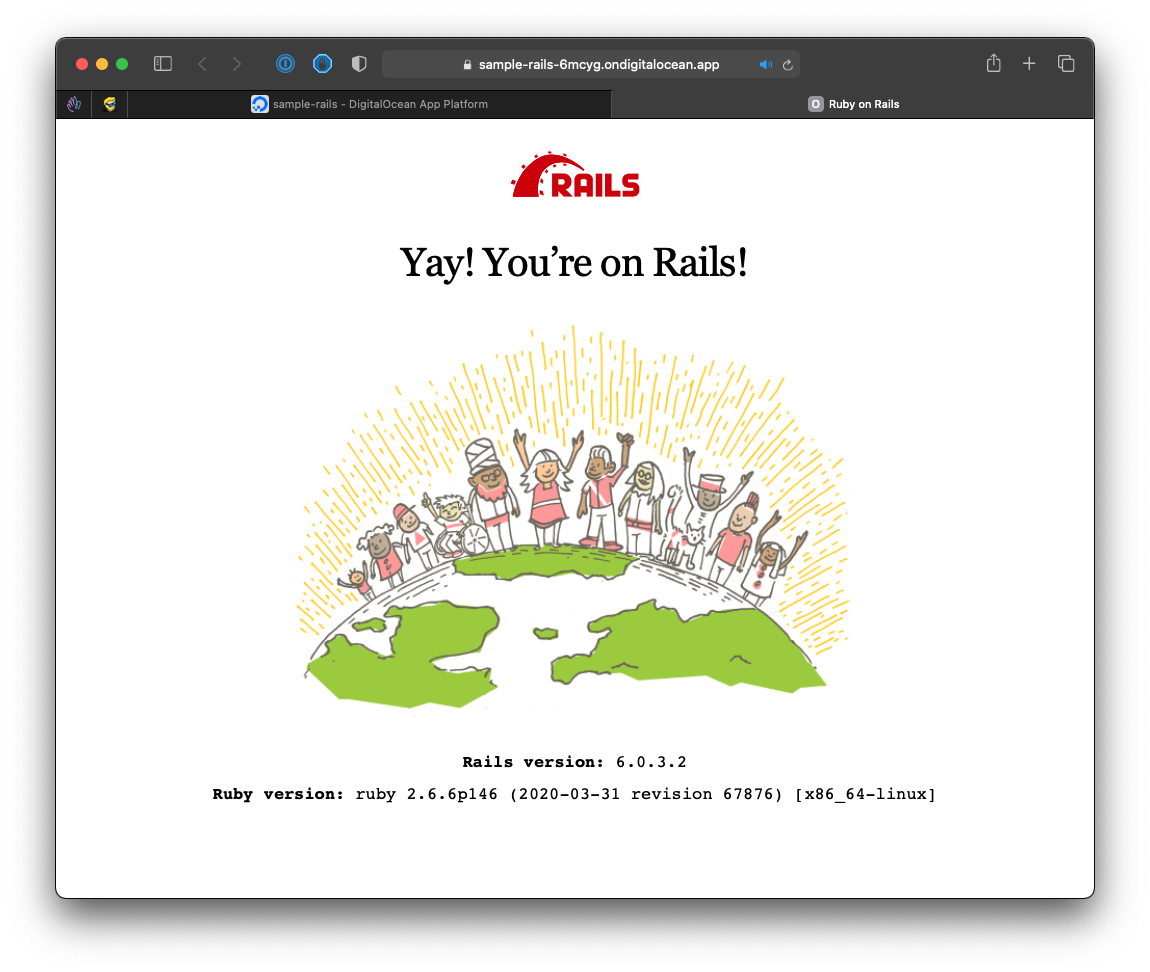
Click the Live App link to see the app running:
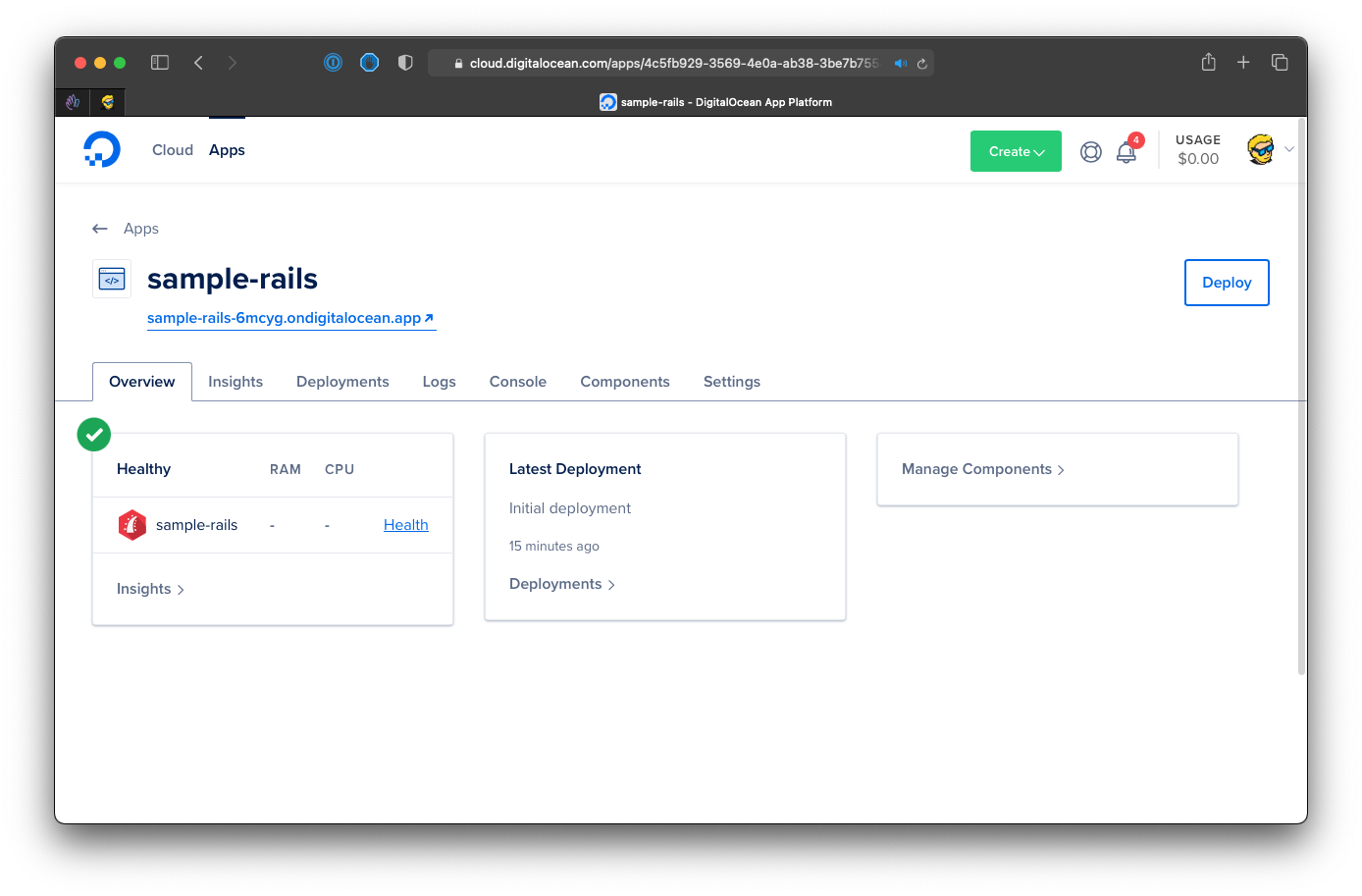
The dashboard has several useful screens to monitor the CPU and memory consumption, the deployments logs, access to the app server through a console:
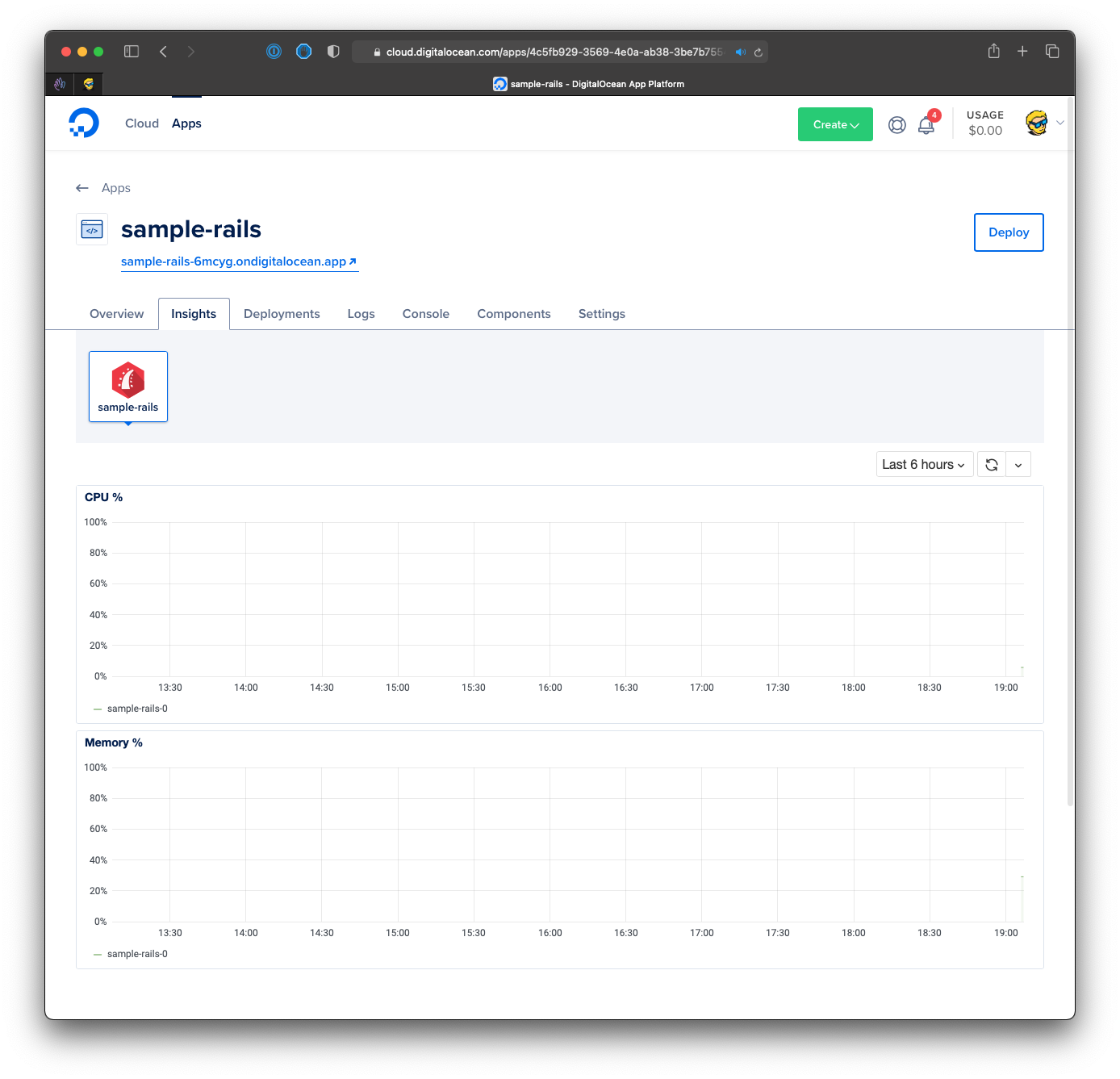
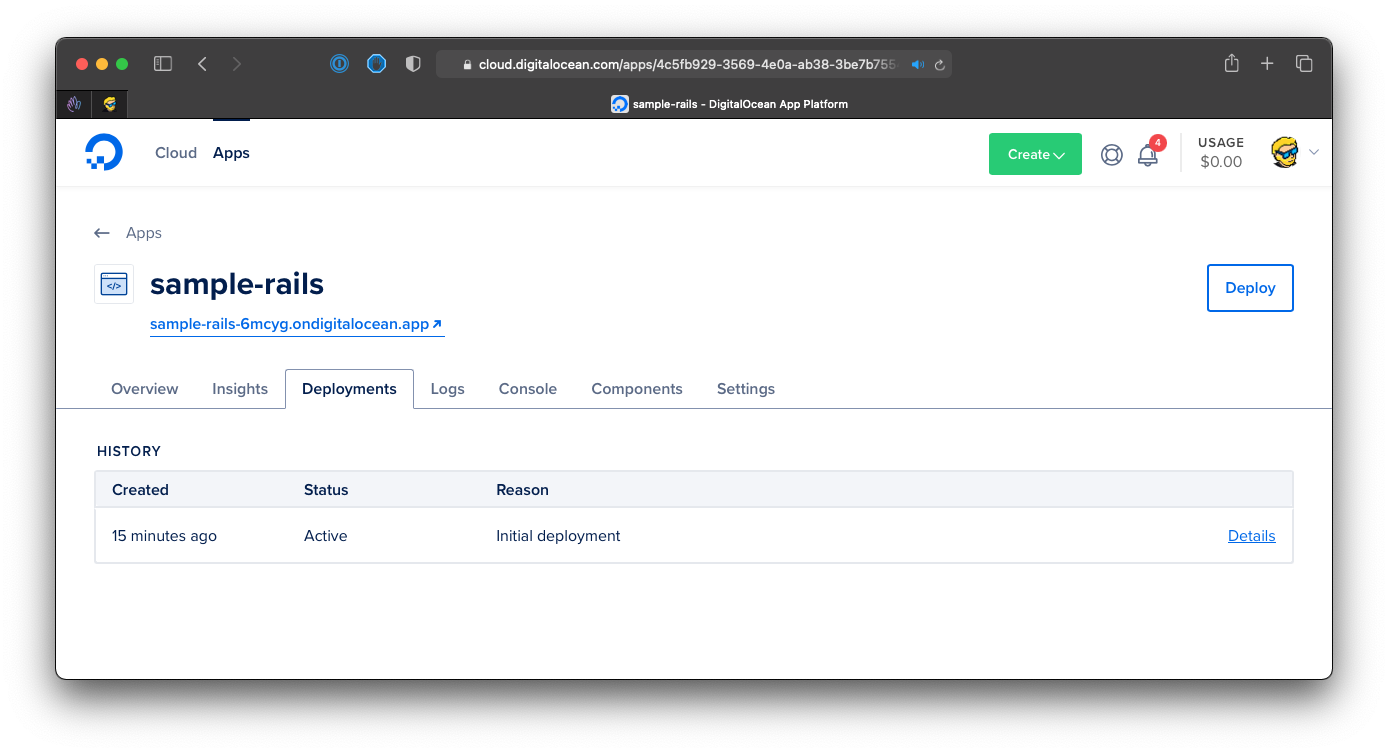
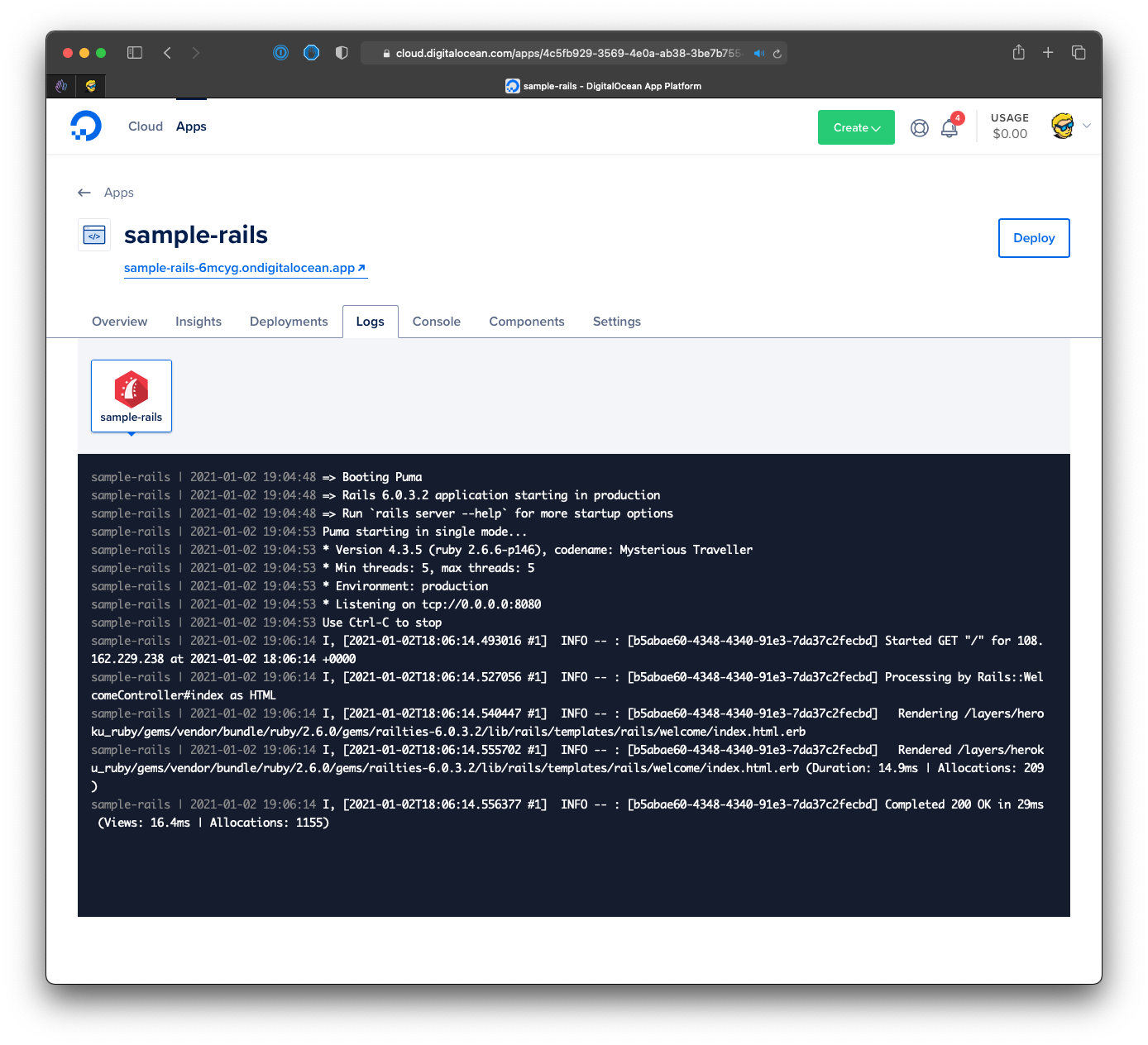
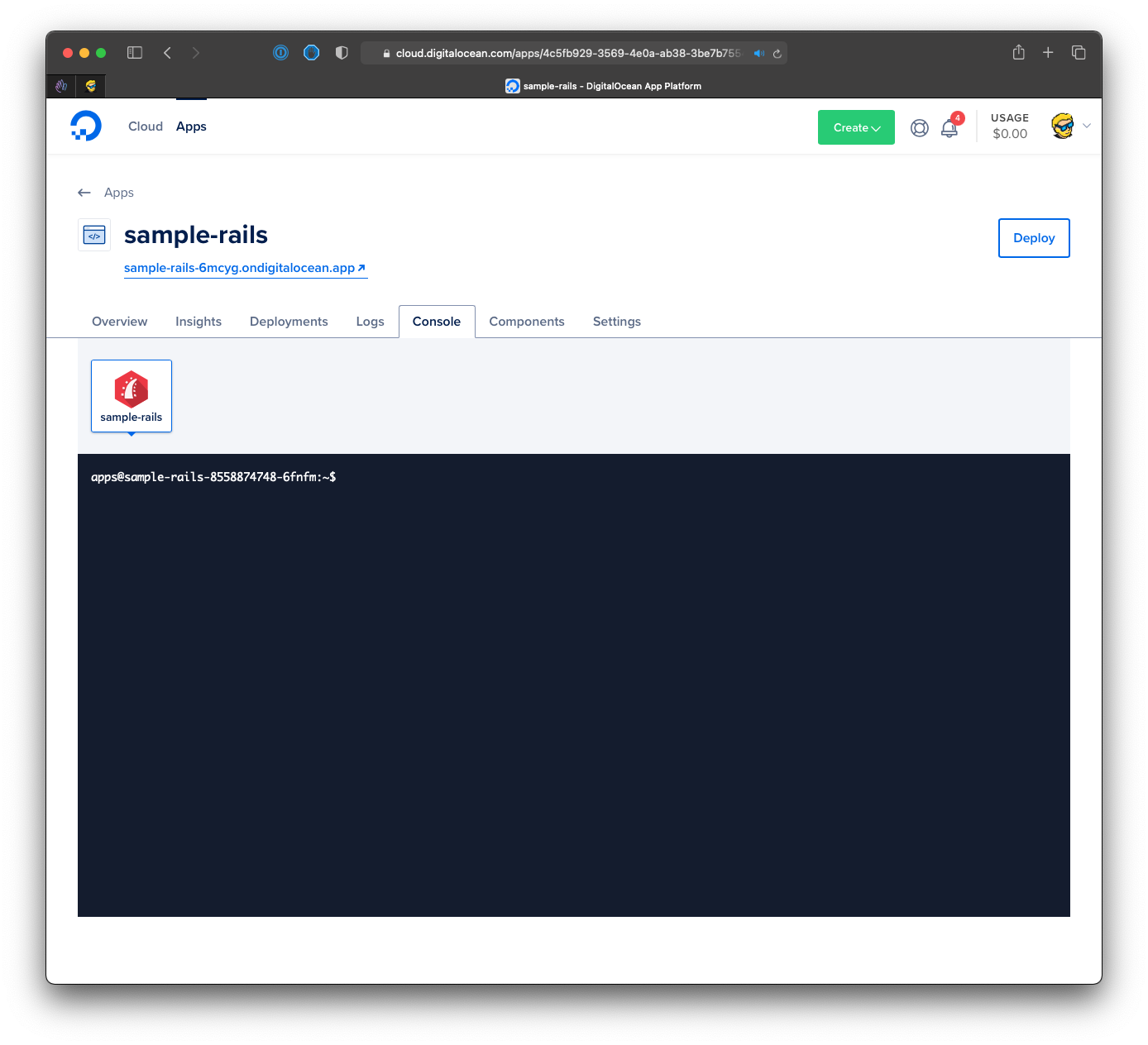
And you can tweak the configuration, scale the app, and more:
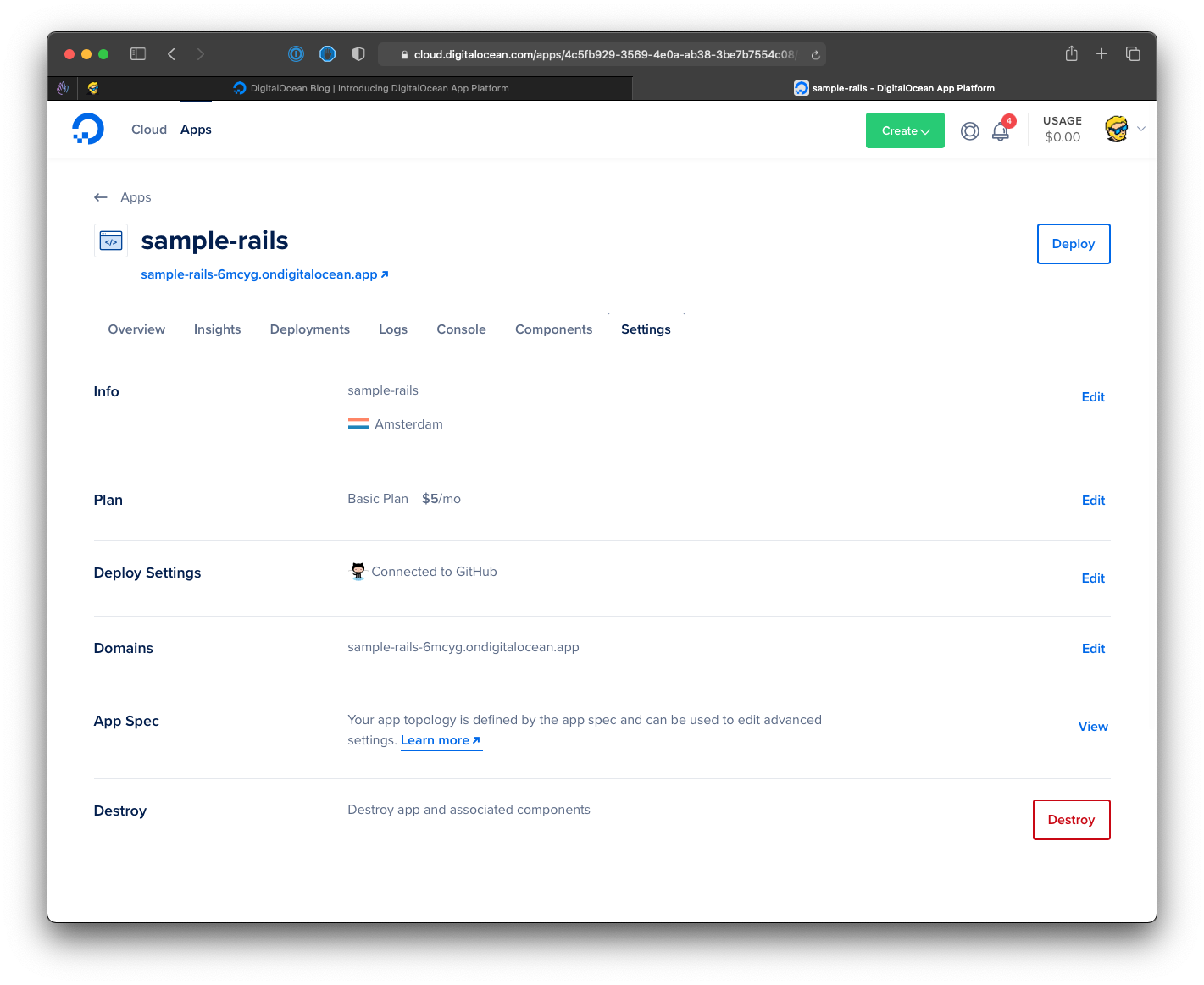
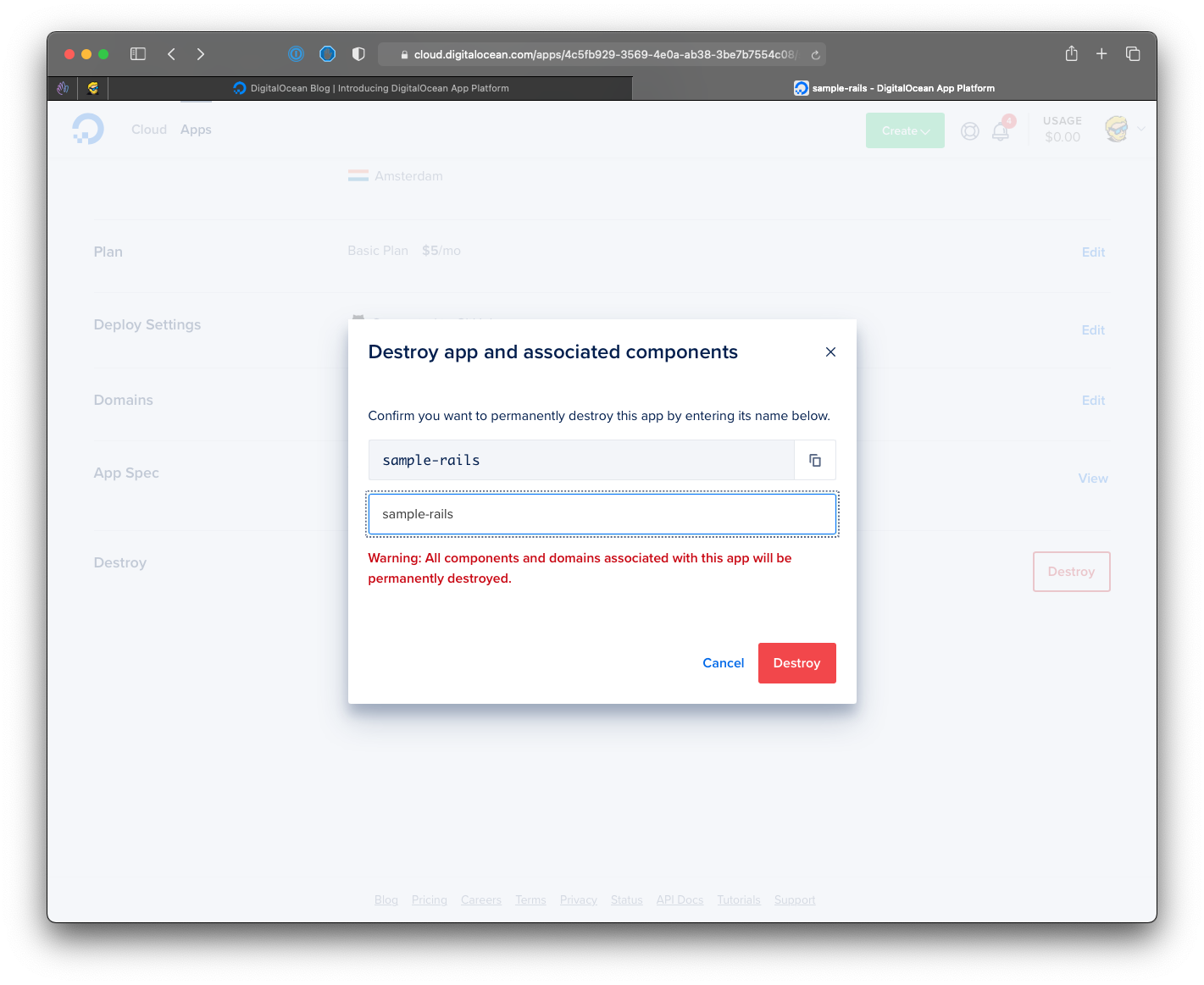
If you want to stop running the app, and stop paying DigitalOcean to run it, just click the Destroy button.
Want me to talk about your product? You can sponsor this site.
Related posts about services: