Fix 'Unknown at rule @tailwind' warning in VS Code
By Flavio Copes
How to fix Unknown at rule warnings for Tailwind in VS Code, for Tailwind 4 @import and for v3 @tailwind directives, with IntelliSense or unknownAtRules.
Problem: you include Tailwind in a project, but you get a warning like Unknown at rule @tailwindcss(unknownAtRules) in VS Code:
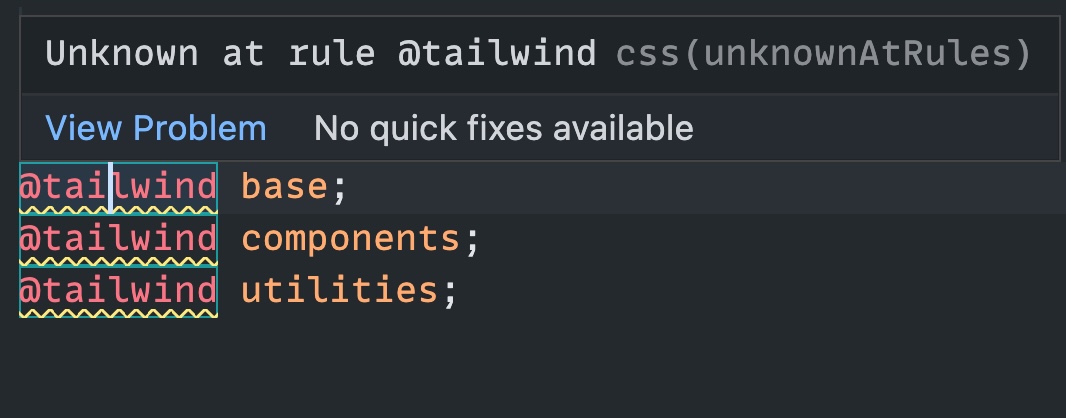
The warning is harmless. VS Code validates the file as plain CSS, and plain CSS has no Tailwind-specific at-rules. Those directives only mean something to Tailwind itself, which processes them at build time and replaces them with real CSS.
Your build works fine. Only the editor complains. You’ll see the same warning on other Tailwind rules too, like @apply, @layer, @theme, and @source.
Tailwind 4 vs Tailwind 3
In Tailwind 4, the main entry looks like this (see how to set up Tailwind CSS for the full install):
@import "tailwindcss";You may also see @theme and @source in the same file. Those are real Tailwind 4 at-rules, and VS Code flags them the same way if it thinks the file is plain CSS.
In Tailwind 3 (published on npm under the v3-lts tag), the classic directives stay:
@tailwind base;
@tailwind components;
@tailwind utilities;
The VS Code fix is the same for both versions.
Here’s how to fix this.
Change the language mode
Open a CSS file in your project, and from the VS Code Command Palette choose “Change Language Mode”, then pick “Tailwind CSS” from the list.
That language mode is provided by the official Tailwind CSS IntelliSense extension, so install it first if you don’t see the option in the list. You want it anyway, for the class name autocompletion.
Changing the mode from the palette only affects the currently open file. To make it stick for the whole project, open .vscode/settings.json (create it if you don’t have it in your project) and type
{
  "files.associations": {
    "*.css": "tailwindcss"
  }
}
Now every .css file in the project is treated as Tailwind CSS. Since this file lives in the project, the fix also applies to anyone else who opens it.
Or hide the warning
In VS Code you can also hide those warnings, because they’re just …warnings we don’t need to be warned about.
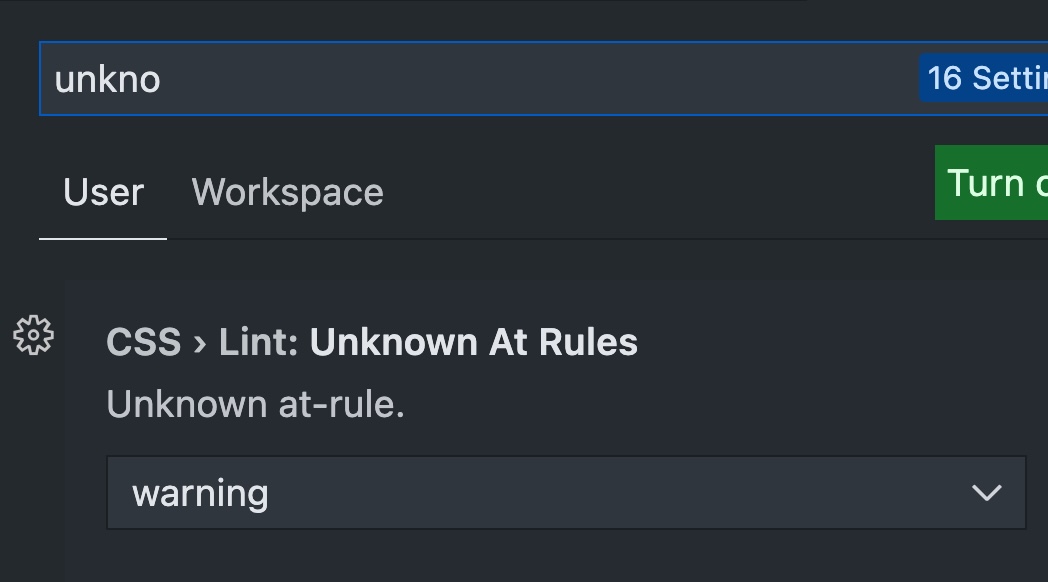
Open the settings, search for “unknown”, the first result should be the one you’re looking for: CSS > Lint: Unknown At Rules:
Change that to ignore:
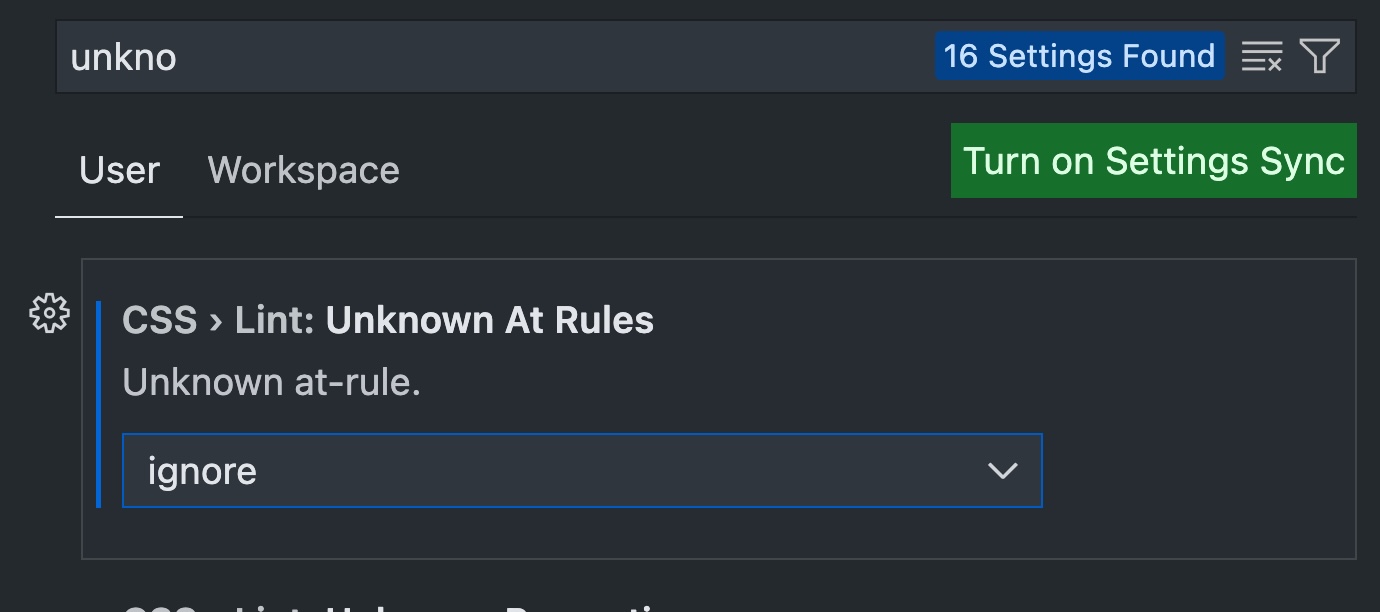
The settings.json equivalent is "css.lint.unknownAtRules": "ignore", in case you prefer editing the file directly.
Done!
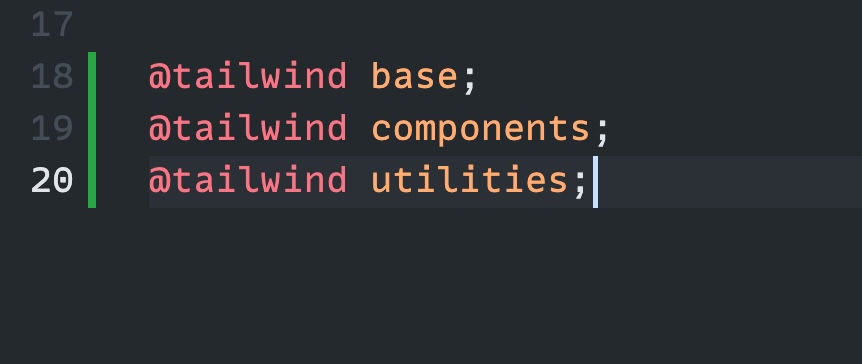
One tradeoff with this second approach: it silences every unknown at-rule, so a genuine typo like @meida instead of @media goes unnoticed too. That’s why I prefer the language mode fix.
Want me to talk about your product? You can sponsor this site.