A deep dive into GitHub Actions
By Flavio Copes
A practical deep dive into GitHub Actions: workflows, runners, job graphs, artifacts, caching, security, deployments, and debugging.
GitHub Actions lets you run automation directly from a GitHub repository.
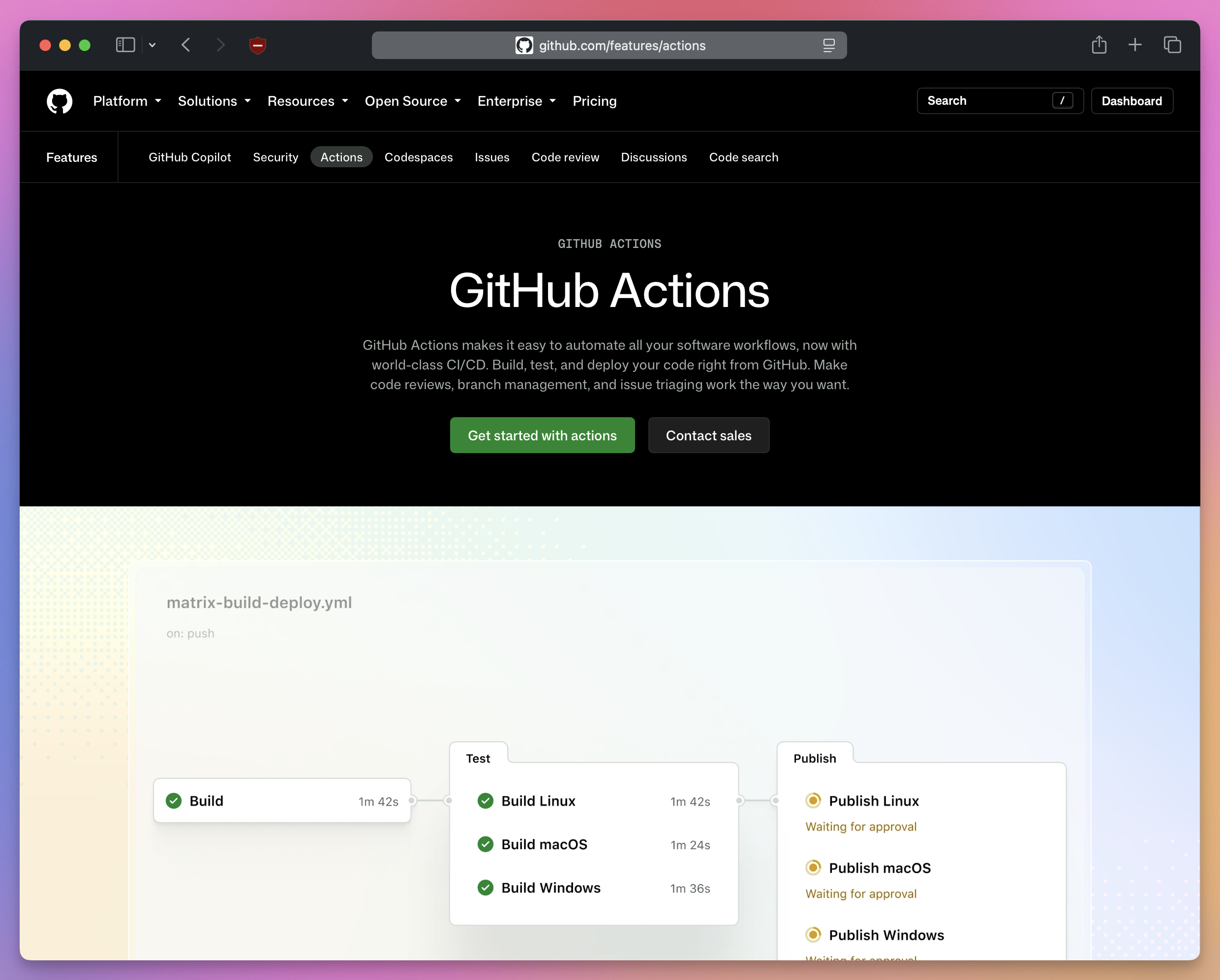
Most people meet it through a small CI workflow. Push some code, GitHub installs the dependencies, runs the tests, and shows a green checkmark.
That is the easy part.
The details become important when you add multiple jobs, deployments, secrets, pull requests from forks, or reusable workflows. At that point, the YAML file is not just a list of commands. It describes machines, data flow, permissions, and trust boundaries.
In this deep dive, I want to build that mental model first. Then we will create a complete pipeline that tests, builds, stores an artifact, and deploys it.
If you want to work through the subject as a complete project, I also have a free GitHub Actions and CI/CD course.
The GitHub Actions mental model
A workflow starts with an event.
That event can be a push, a pull request, a release, a manual button, a schedule, or many other things GitHub knows about.
The event starts a workflow run. The workflow contains one or more jobs. Each job contains ordered steps.
The complete path looks like this:
event
  -> workflow run
      -> job
          -> step
          -> step
      -> job
          -> step
This distinction matters because state is shared at some levels and isolated at others.
Steps inside one job run on the same machine. They can see files created by earlier steps.
Jobs are different. Each job gets its own runner. A file created in one job does not appear in another job unless you explicitly pass it across.
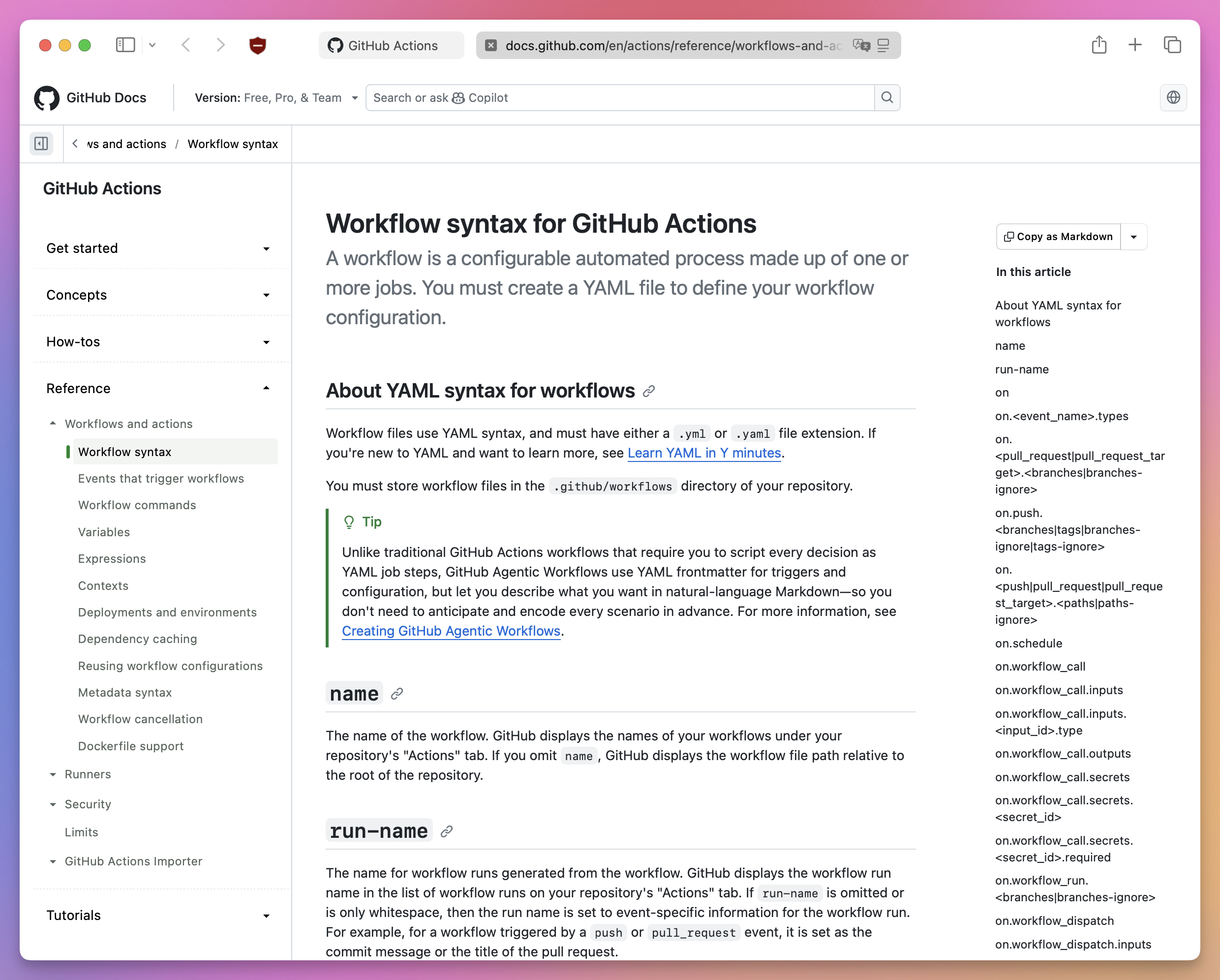
GitHub describes all the available keys in the official workflow syntax reference. You do not need to memorize that reference. You need to know which boundary you are working with.
Where workflows live
Workflow files go in .github/workflows/ and use YAML:
.github/
  workflows/
    ci.yml
    deploy.yml
A repository can have many workflows.
I prefer to separate CI from deployment when they have different triggers or permissions. A test workflow should not receive a production credential just because one deploy step needs it.
The filename does not control when the workflow runs. The on configuration inside the file does that.
Start with the smallest workflow
Here is a complete workflow:
name: Hello

on: push

jobs:
  hello:
    runs-on: ubuntu-latest
    steps:
      - run: echo 'Hello from GitHub Actions'
Commit this as .github/workflows/hello.yml and push it to GitHub.
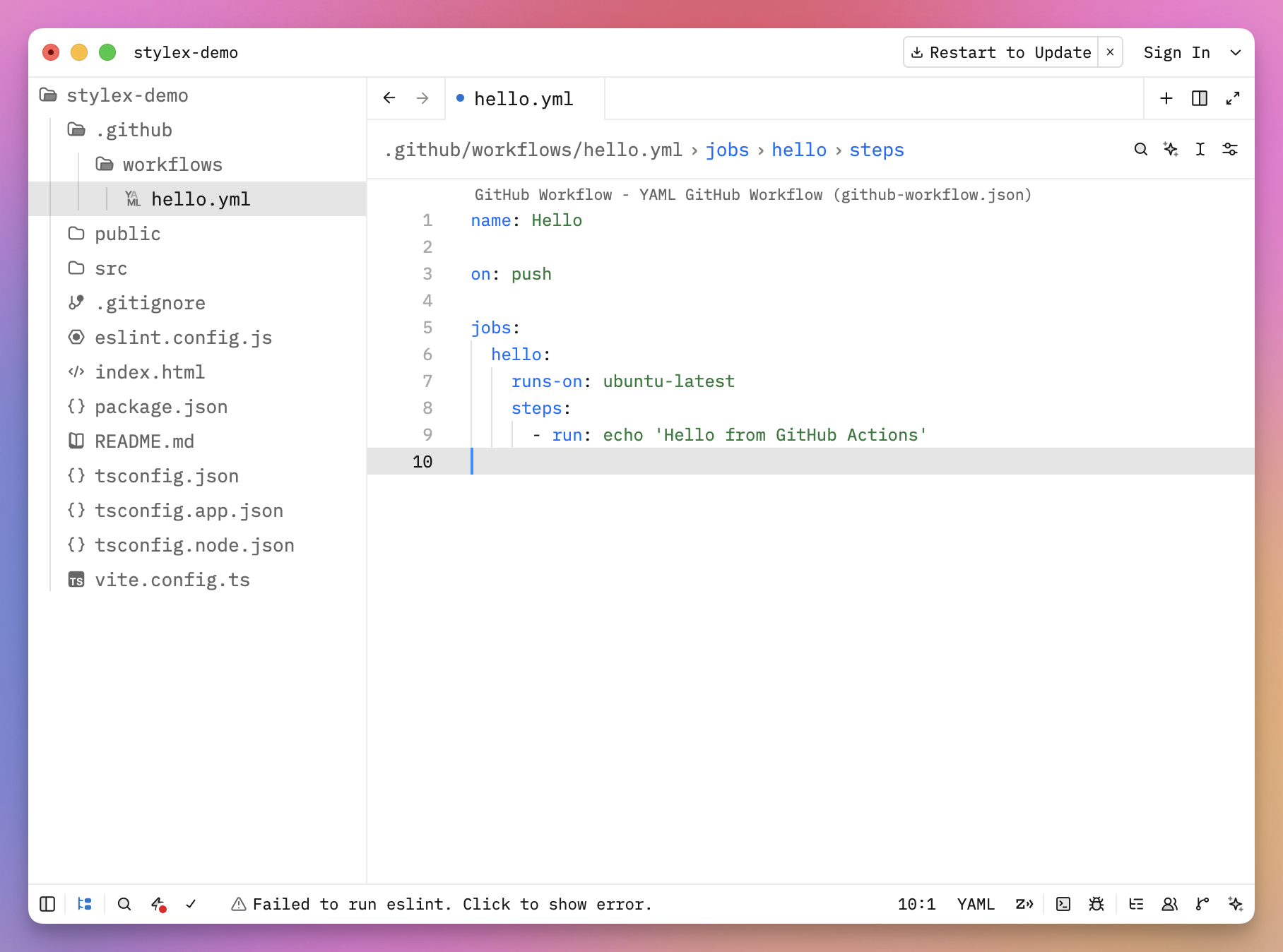
The push event starts the workflow. GitHub creates an Ubuntu runner for the hello job, runs the shell command, records its output, and then removes the runner.
The hello key is the job ID. It only needs to be unique inside this workflow.
The job has one step. A step can run a shell command with run, or it can call a reusable action with uses.
Choose the right event
The on key can listen to several events:
on:
  push:
    branches: [main]
  pull_request:
    branches: [main]
  workflow_dispatch:
This workflow runs in three situations:
- someone pushes to
main - a pull request targets
main - someone starts it manually from the Actions tab
Branch filters are different for push and pull_request.
For push, the filter describes the branch receiving the commit. For pull_request, it describes the target branch of the pull request.
You can also filter paths:
on:
  pull_request:
    paths:
      - 'src/**'
      - 'package.json'
      - 'package-lock.json'
Now a documentation-only change can skip the application workflow.
Be careful with required checks and path filters. If branch protection expects a workflow that never starts, a pull request can remain waiting for that check. Design the required-check rules and filters together.
GitHub documents the exact behavior of each event in Events that trigger workflows.
Manual inputs
workflow_dispatch can accept inputs. This is useful for a maintenance job or a controlled deployment:
on:
  workflow_dispatch:
    inputs:
      environment:
        description: Where to deploy
        required: true
        type: choice
        options:
          - staging
          - production
The chosen value is available through the inputs context:
jobs:
  deploy:
    runs-on: ubuntu-latest
    steps:
      - run: echo "Deploying to $DEPLOY_ENVIRONMENT"
        env:
          DEPLOY_ENVIRONMENT: ${{ inputs.environment }}
Notice how I pass the expression into an environment variable. The shell receives data through a normal shell boundary.
I avoid inserting user-controlled text directly into a long shell command. Pull request titles, issue bodies, branch names, and manual text inputs can all contain shell characters.
Scheduled workflows
A schedule uses cron syntax:
on:
  schedule:
    - cron: '0 6 * * *'
This requests a run every day at 06:00 UTC.
Scheduled workflows run from the default branch. The workflow file must exist there.
GitHub schedules are best effort. A run can start later during busy periods, and schedules can stop in an inactive public repository. Do not use GitHub Actions as an exact-time scheduler.
UTC creates another small trap. If you want 07:00 in Rome all year, daylight saving time changes the UTC offset. You need to account for both offsets inside the workflow or use a scheduler with timezone support.
I built a cron expression builder when I need to check an expression without doing the arithmetic in my head.
Contexts and expressions
GitHub Actions exposes workflow data through contexts.
The most common contexts are:
githubfor the repository, event, commit, branch, and workflow runrunnerfor the current runnerjobfor the current jobstepsfor step outcomes and outputsneedsfor completed dependency jobs and their outputsmatrixfor the current matrix combinationvarsfor configuration variablessecretsfor secrets
Expressions use this syntax:
${{ expression }}For example, this job runs only for a push to main:
jobs:
  deploy:
    if: github.event_name == 'push' && github.ref == 'refs/heads/main'
    runs-on: ubuntu-latest
    steps:
      - run: echo 'deploying'
GitHub evaluates that if expression before sending the job to a runner.
Once the job starts, the shell has its own environment variables:
- run: echo "ref=$GITHUB_REF"These two forms look similar, but they run at different times:
if: github.ref == 'refs/heads/main'is evaluated by GitHub Actions.
if [ "$GITHUB_REF" = "refs/heads/main" ]; then
  echo 'main branch'
fi
is evaluated later by Bash on the runner.
The official contexts guide lists where each context is available. Context availability changes depending on the event and the part of the workflow being evaluated.
Runners and isolation
A runner is the machine that executes a job.
GitHub-hosted runners are the simplest option. GitHub provides Linux, Windows, and macOS images and maintains the machines.
With the exception of the smaller single-CPU runner, every GitHub-hosted job starts in a new virtual machine. The runner disappears when the job ends.
This has several consequences:
- the repository is not present until you check it out
- installed dependencies do not survive the job
- files survive between steps in the same job
- files do not survive between separate jobs
- the preinstalled software can change when a runner image changes
Here is why most workflows start with actions/checkout:
steps:
  - uses: actions/checkout@v7
  - run: ls
Without the checkout step, the runner does not have your repository files.
You can also run your own machine as a self-hosted runner. That gives you more control, access to private networks, and possibly faster builds.
It also creates a bigger security responsibility. The machine can keep files and processes between jobs. Untrusted pull request code should not run on a persistent runner that can reach production systems.
My default is GitHub-hosted runners. I choose self-hosted runners only when the workload genuinely needs special hardware, private network access, or a controlled machine image.
Build a reproducible Node.js CI job
Let’s create a useful CI workflow for a Node.js project:
name: CI

on:
  push:
    branches: [main]
  pull_request:
  workflow_dispatch:

permissions:
  contents: read

jobs:
  test:
    runs-on: ubuntu-latest

    steps:
      - uses: actions/checkout@v7

      - uses: actions/setup-node@v7
        with:
          node-version: '24'
          cache: npm

      - run: npm ci
      - run: npm test
      - run: npm run build
actions/setup-node installs the declared Node.js version. This keeps the workflow independent from the version currently preinstalled on the runner image.
The cache: npm option caches npm’s download cache. It does not cache node_modules.
npm ci installs the exact dependency tree recorded in package-lock.json. It fails when the lockfile and package.json disagree. That is useful in CI because it catches an incomplete dependency update.
The commands should also work locally. I keep real build logic in package.json scripts or normal project scripts, not in 80 lines of workflow-only shell code.
YAML should coordinate the work. The project should define how it tests and builds.
Steps share one workspace
All steps in a job use the same workspace.
This works because the second step can see report.txt:
steps:
  - run: npm test > report.txt
  - run: wc -l report.txt
Environment changes need a special file. A shell process cannot change the parent process environment after it exits.
GitHub provides $GITHUB_ENV for values needed by later steps:
steps:
  - run: echo 'APP_ENV=staging' >> "$GITHUB_ENV"
  - run: echo "$APP_ENV"
The new value is available to later steps, not to the step that writes it.
Use a normal job-level env key when the value is known in advance:
jobs:
  test:
    runs-on: ubuntu-latest
    env:
      NODE_ENV: test
Jobs form a dependency graph
Jobs run in parallel by default.
That is useful when linting and tests do not depend on each other:
jobs:
  lint:
    runs-on: ubuntu-latest
    steps:
      - uses: actions/checkout@v7
      - run: npm ci
      - run: npm run lint

  test:
    runs-on: ubuntu-latest
    steps:
      - uses: actions/checkout@v7
      - run: npm ci
      - run: npm test
Add needs when one job must wait for another:
jobs:
  build:
    needs: [lint, test]
    runs-on: ubuntu-latest
    steps:
      - run: npm run build
The build job starts only after both required jobs succeed.
Remember that build gets a fresh runner. It does not inherit the checkout or installed dependencies from lint or test. The abbreviated example above needs its own setup steps in a real workflow.
I design jobs around independent outcomes, not individual commands. Splitting a three-second lint command into its own job can cost more runner startup time than it saves.
Pass small values between jobs
A step can create an output by writing to $GITHUB_OUTPUT:
steps:
  - id: version
    run: |
      VERSION=$(node -p "require('./package.json').version")
      echo "value=$VERSION" >> "$GITHUB_OUTPUT"
Later steps in the same job can read it:
- run: echo "version=${{ steps.version.outputs.value }}"To pass the value to another job, expose it as a job output:
jobs:
  package:
    runs-on: ubuntu-latest
    outputs:
      version: ${{ steps.version.outputs.value }}
    steps:
      - uses: actions/checkout@v7
      - id: version
        run: |
          VERSION=$(node -p "require('./package.json').version")
          echo "value=$VERSION" >> "$GITHUB_OUTPUT"

  release:
    needs: package
    runs-on: ubuntu-latest
    steps:
      - run: echo "releasing $RELEASE_VERSION"
        env:
          RELEASE_VERSION: ${{ needs.package.outputs.version }}
Outputs are good for small strings such as a version, an artifact ID, or a generated URL.
Use an artifact for files.
Artifacts are not caches
Both features store files, but they solve different problems.
A cache makes future workflow runs faster. The job must still work when the cache is missing.
An artifact preserves an output from a workflow run. Another job can download it, or a developer can inspect it later.
Good cache contents include package manager downloads and rebuildable compiler data.
Good artifacts include:
- the application build
- test reports
- screenshots from failed browser tests
- coverage reports
- logs needed to diagnose a failure
This build job stores a static site:
jobs:
  build:
    runs-on: ubuntu-latest
    steps:
      - uses: actions/checkout@v7
      - uses: actions/setup-node@v7
        with:
          node-version: '24'
          cache: npm
      - run: npm ci
      - run: npm run build

      - uses: actions/upload-artifact@v7
        with:
          name: site
          path: dist/
          if-no-files-found: error
          retention-days: 7
Another job can download that exact build:
jobs:
  deploy:
    needs: build
    runs-on: ubuntu-latest
    steps:
      - uses: actions/download-artifact@v8
        with:
          name: site
          path: dist/
      - run: find dist -maxdepth 2 -type f | head
The deploy job does not rebuild the site. It deploys the output already produced by the verified build job.
That gives us a useful release property: the bytes we deploy are the bytes we tested.
GitHub’s dependency caching guide also warns that restored caches are untrusted input. Never put secrets in a cache.
Use a matrix for real compatibility requirements
A matrix creates several versions of one job.
A Node.js library might support Node 22 and 24:
jobs:
  test:
    strategy:
      fail-fast: false
      matrix:
        node: [22, 24]

    runs-on: ubuntu-latest

    steps:
      - uses: actions/checkout@v7
      - uses: actions/setup-node@v7
        with:
          node-version: ${{ matrix.node }}
          cache: npm
      - run: npm ci
      - run: npm test
GitHub creates two independent jobs.
fail-fast: false lets both finish when one version fails. This gives you the complete compatibility result.
You can add operating systems too:
strategy:
  matrix:
    os: [ubuntu-latest, windows-latest, macos-latest]
    node: [22, 24]

runs-on: ${{ matrix.os }}
That creates six jobs.
Do this only when the project promises support for those combinations. A matrix multiplies time, cost, and failure noise very quickly.
For an application deployed on Linux, I usually test the production Node.js version on Linux. A library with cross-platform users has a stronger reason for a larger matrix.
Conditions and failure behavior
A step runs after previous steps succeed unless you change its condition.
You can run a diagnostic upload even after tests fail:
- uses: actions/upload-artifact@v7
  if: failure()
  with:
    name: test-results
    path: test-results/
    if-no-files-found: ignore
Useful status functions include:
success()failure()cancelled()always()
Use always() carefully. Cleanup and reporting are good uses. A critical step that should stop after cancellation usually needs a more precise condition.
You can also stop one non-critical step from failing the job:
- run: npm run optional-report
  continue-on-error: true
Do not use continue-on-error to hide a required test. A green workflow must still mean something.
I also set timeouts on commands that can hang:
- run: npm test
  timeout-minutes: 15
Control overlapping runs
Two quick pushes can start two copies of the same workflow.
For CI, the old result is often no longer useful. Cancel it when a newer commit arrives:
concurrency:
  group: ci-${{ github.workflow }}-${{ github.ref }}
  cancel-in-progress: true
The workflow name keeps this group separate from other workflows. The ref keeps branches separate from each other.
Deployments need a different decision.
Cancelling a deploy halfway through can leave the target in an unknown state. If the deploy command is not safely interruptible, queue production deploys instead:
concurrency:
  group: production-deploy
  queue: max
Now production deploys run one at a time.
Concurrency is part of release design. Decide whether an old run should be cancelled, skipped, or allowed to finish.
Variables, secrets, and environments
GitHub Actions has several kinds of values:
- workflow
envvalues live in the YAML - configuration variables use the
varscontext - secrets use the
secretscontext - environment secrets belong to a deployment environment
A public application URL is configuration, not a secret:
env:
  APP_URL: https://flaviocopes.com
An API token is a secret:
- run: npm run deploy
  env:
    DEPLOY_TOKEN: ${{ secrets.DEPLOY_TOKEN }}
Add repository secrets under Settings → Secrets and variables → Actions.
GitHub masks matching secret values in logs, but masking is not a security boundary. A transformed, encoded, or split value may not be redacted. Do not print secrets.
Secrets are not passed to normal workflows triggered by pull requests from forks. That prevents untrusted code from reading a repository secret.
For production, create an environment such as production:
jobs:
  deploy:
    environment:
      name: production
      url: https://flaviocopes.com
An environment can restrict branches, hold separate secrets, add a wait timer, and require approval. Environment secrets become available only after its protection rules pass.
The official deployments and environments reference lists the rules available for each GitHub plan.
Minimize GITHUB_TOKEN permissions
Every job receives a GITHUB_TOKEN. Actions can use it to call GitHub APIs or interact with the repository.
Do not rely on an account-wide default. Declare the permissions the workflow needs:
permissions:
  contents: read
When you specify one permission, unspecified permissions become none.
You can override permissions for one job:
jobs:
  release:
    permissions:
      contents: write
This job can create a release or tag. The test job does not need that authority.
A deployment using OpenID Connect needs this permission:
permissions:
  contents: read
  id-token: write
id-token: write does not directly grant cloud access. It lets the job request an identity token. The cloud provider must trust a matching repository, workflow, branch, or environment.
When a provider supports it, I prefer OpenID Connect over a long-lived cloud key. The workflow receives a short-lived credential for that run instead of storing a permanent administrator token in GitHub.
Treat actions as dependencies
This line executes code maintained in another repository:
- uses: owner/action@v3That action can read the workspace, access the network, and use any credential available to the job.
Review third-party actions before adding them. Check the owner, source code, release history, inputs, and requested permissions.
Major version tags are readable in tutorials:
- uses: actions/checkout@v7For a security-sensitive workflow, pin external actions to a reviewed full commit SHA:
- uses: actions/checkout@3d3c42e5aac5ba805825da76410c181273ba90b1 # v7A full SHA is immutable. A tag can move.
Dependabot can update GitHub Actions references. I built a Dependabot configuration generator if you want a small starting file for that.
Pull requests are a security boundary
A workflow often executes repository code:
- run: npm ci
- run: npm test
A pull request can change package.json, install scripts, tests, build scripts, and application code. Treat all of that as untrusted until reviewed.
The normal pull_request event uses restricted access for forked pull requests and does not expose repository secrets.
pull_request_target is different. It runs in the context of the base repository and can receive privileged access.
Never use pull_request_target to check out and execute untrusted pull request code in a job with write permissions or secrets.
The same rule applies to event data. A pull request title is attacker-controlled text. Pass it through an environment variable and quote it instead of placing it directly inside a shell script.
GitHub keeps a current secure use reference. Read it before building a workflow that mixes untrusted contributions and privileged automation.
Reuse the right layer
Duplication appears in workflows at different levels.
I use three reuse boundaries:
- a project script for commands that should also run locally
- a composite action for a repeated group of steps
- a reusable workflow for complete jobs and policy
Start with a script:
{
  "scripts": {
    "check": "npm run lint && npm test && npm run build"
  }
}
The workflow stays small:
- run: npm run checkA composite action packages several steps and runs as one step inside a job.
A reusable workflow can define several jobs, runners, permissions, inputs, secrets, and outputs. Another workflow calls it at the job level.
Use a reusable workflow when several repositories must follow the same deployment policy. Use a composite action when several workflows repeat the same setup steps.
GitHub has a useful comparison in Reusing workflow configurations.
Do not abstract a workflow after seeing the same three lines once. Extract behavior when it is stable and the shared boundary is clear.
Run tests with a service container
Integration tests may need PostgreSQL, Redis, or another service.
GitHub Actions can start a service container next to a Linux job:
jobs:
  integration:
    runs-on: ubuntu-latest

    services:
      postgres:
        image: postgres:18
        env:
          POSTGRES_PASSWORD: test-password
          POSTGRES_DB: app_test
        ports:
          - 5432:5432
        options: >-
          --health-cmd pg_isready
          --health-interval 10s
          --health-timeout 5s
          --health-retries 5

    steps:
      - uses: actions/checkout@v7
      - run: npm ci
      - run: npm run test:integration
        env:
          DATABASE_URL: postgresql://postgres:test-password@localhost:5432/app_test
The test connects to PostgreSQL on localhost:5432 because this job runs directly on the runner and maps the container port.
GitHub starts and removes the service container with the job. The service container guide explains the networking difference when the job itself also runs in a container.
Use a test-only password here. Do not copy a production database credential into an integration test job.
A complete test, build, and deploy workflow
Now let’s combine the pieces.
This workflow tests supported Node.js versions, builds the site once, stores the build as an artifact, and deploys that same artifact from main:
name: CI

on:
  push:
    branches: [main]
  pull_request:
  workflow_dispatch:

permissions:
  contents: read

concurrency:
  group: ci-${{ github.workflow }}-${{ github.ref }}
  cancel-in-progress: ${{ github.event_name == 'pull_request' }}

jobs:
  test:
    strategy:
      fail-fast: false
      matrix:
        node: [22, 24]

    runs-on: ubuntu-latest

    steps:
      - uses: actions/checkout@v7

      - uses: actions/setup-node@v7
        with:
          node-version: ${{ matrix.node }}
          cache: npm

      - run: npm ci
      - run: npm test

  build:
    needs: test
    runs-on: ubuntu-latest

    steps:
      - uses: actions/checkout@v7

      - uses: actions/setup-node@v7
        with:
          node-version: '24'
          cache: npm

      - run: npm ci
      - run: npm run build

      - uses: actions/upload-artifact@v7
        with:
          name: site-${{ github.sha }}
          path: dist/
          if-no-files-found: error
          retention-days: 7

  deploy:
    if: github.event_name == 'push' && github.ref == 'refs/heads/main'
    needs: build
    runs-on: ubuntu-latest

    concurrency:
      group: production-deploy
      queue: max

    environment:
      name: production
      url: https://flaviocopes.com

    permissions:
      contents: read

    steps:
      - uses: actions/checkout@v7

      - uses: actions/setup-node@v7
        with:
          node-version: '24'
          package-manager-cache: false

      - run: npm ci

      - uses: actions/download-artifact@v8
        with:
          name: site-${{ github.sha }}
          path: dist/

      - run: npm run deploy:ci
        env:
          DEPLOY_TOKEN: ${{ secrets.DEPLOY_TOKEN }}
Let’s follow one pull request through it.
The pull request starts two test jobs. One uses Node 22 and one uses Node 24.
A new push to the same pull request cancels the old run. A run from main is allowed to finish, so a newer commit cannot interrupt a production deployment halfway through.
When both pass, the build job starts on a fresh runner. It installs from the lockfile, builds the site once, and uploads dist/.
The deploy condition is false for a pull request, so production is untouched.
After the pull request merges, the push to main starts the workflow again. Tests and the build run. The deploy job then waits for any protection rules on the production environment.
The job downloads the artifact created by that workflow run. It does not create a second build after approval.
The production concurrency group also queues deploy jobs instead of running them at the same time.
I disable the package manager cache in the privileged deploy job. The job can install its deployment tool from the lockfile without restoring a cache created in a lower-trust context.
The deploy token is available only to the final command. If the hosting provider supports OIDC, I would replace that stored token with short-lived authentication.
The exact deploy command depends on the host. My GitHub Actions deploy workflow generator creates smaller starting workflows for Cloudflare Pages, Fly.io, a VPS, and npm.
Debug a failing workflow
Start with the first failing step. Later failures are often consequences.
These are the problems I check first:
- a file exists locally but was never committed
- the job uses the wrong working directory
- the lockfile does not match
package.json - the runtime version differs from local development
- a secret or token permission is missing
- a filename differs only by letter case and fails on Linux
- a command assumes Zsh but the runner uses Bash
- one job expects files created on another runner
- a forked pull request expects a secret it cannot receive
Give every important step a clear name:
- name: Run unit tests
  run: npm test
The workflow log becomes much easier to scan.
You can inspect safe context values:
- name: Show run context
  run: echo "event=$EVENT_NAME ref=$REF_NAME sha=$COMMIT_SHA"
  env:
    EVENT_NAME: ${{ github.event_name }}
    REF_NAME: ${{ github.ref_name }}
    COMMIT_SHA: ${{ github.sha }}
Do not dump the complete github context into logs. It can contain values you did not intend to expose.
You can also write a readable summary:
- run: echo '## Build completed' >> "$GITHUB_STEP_SUMMARY"For a complex shell block, move it into a project script and run it locally. Debugging a normal script is easier than repeatedly pushing YAML changes.
Keep workflows fast and affordable
The fastest workflow is the work you do not run.
Start with these changes:
- narrow triggers to meaningful branches and paths
- cancel obsolete CI runs
- remove matrix combinations you do not support
- cache rebuildable dependencies
- keep artifacts only as long as needed
- run independent jobs in parallel
- combine tiny commands when runner startup dominates their runtime
Do not add a cache without measuring it. Uploading and restoring a large cache can take longer than reinstalling the dependency.
Self-hosted runners are not automatically cheaper. Include machine maintenance, patching, isolation, scaling, and the risk of persistent credentials.
I built a CI cost calculator to estimate how run frequency, duration, operating system, and team size change monthly usage.
How I use GitHub Actions
I use GitHub Actions as an independent check around normal project commands.
My ideal CI workflow is boring. It checks out the repository, selects the runtime, installs from a lockfile, runs tests, and builds the project.
I keep deployment authority separate from pull request checks. The deployment path gets its own condition, environment, concurrency rule, and minimum permissions.
On this site, Cloudflare Pages handles normal deployments when I push to the repository. I do not need GitHub Actions to rebuild and upload the site on every commit.
I do use a scheduled GitHub workflow as a backup for future-dated posts. It calls a Cloudflare deploy hook in the morning. A scheduled Cloudflare Worker is the punctual publisher because GitHub cron can run late.
I explain that real setup in How I auto-publish scheduled posts with a Cloudflare Worker cron.
This is the boundary I like: use the platform’s native Git deployment when it already solves the problem, and add Actions for checks or automation the platform does not provide.
When I would not use GitHub Actions
GitHub Actions is a poor fit for some jobs.
I would not use it for work that must start at an exact minute. Scheduled workflows are best effort.
I would not use it as a general application server or a long-running background worker. Jobs are temporary and have execution limits.
I would think twice before moving a high-volume, compute-heavy build into Actions. A specialized CI platform or build service may be faster and easier to control.
I would also avoid self-hosting just to save a few minutes. A persistent runner is infrastructure and a security boundary, not a free speed button.
Finally, I would not add a custom deployment workflow when the hosting platform’s repository integration already gives me previews, production deploys, logs, and rollback with less code.
GitHub Actions is most useful when repository events, versioned automation, and GitHub’s permission model fit the work.
The YAML is the visible part. The real design is the event, job graph, data flow, permissions, and recovery path behind it.
Want me to talk about your product? You can sponsor this site.