How to fix the Chrome blue noise/lines rendering problem
By Flavio Copes
How to fix the blue lines and noise rendering glitch in Chrome on macOS by turning off the Use hardware acceleration when available option in settings.
If Chrome shows blue lines and noise instead of your pages, toggle off the “Use hardware acceleration when available” option in the settings, then relaunch Chrome. That fixed it for me.
Here’s the full story. I had this problem today - I woke my computer (MacBook Pro 16” 2019) from sleep and I saw this:
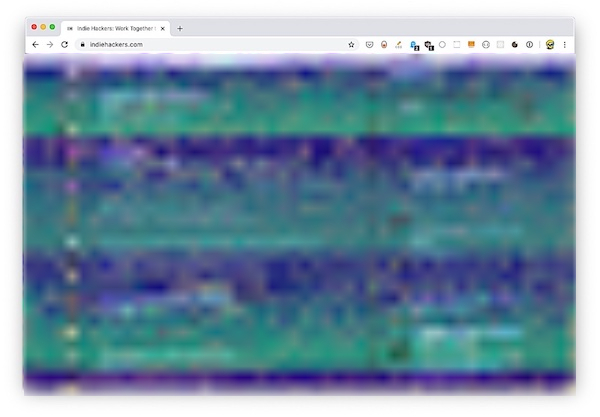
Weird, right?
I reloaded the page - same thing.
I remembered I had the same problem a few weeks ago.
Back then I rebooted, and the problem went away. But I don’t like rebooting. If I can, I go months without rebooting.
So I tried closing Chrome - no fix.
I also noticed the problem manifested on an Electron based app, Workflowy.
But it didn’t happen for all Chrome tabs.
So I tweeted the problem, and a kind random Internet person told me to disable hardware acceleration in the Chrome settings.
The fix
Open the Chrome settings and search for “hardware acceleration”. You’ll find the “Use hardware acceleration when available” option.
I disabled it, restarted Chrome, and the problem went away:
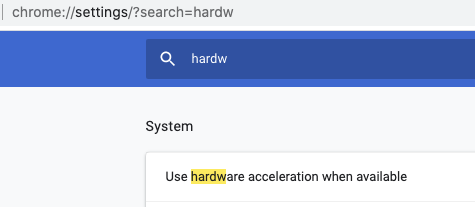
Chrome asks you to relaunch when you flip this option. The change only applies after the restart.
I then re-enabled that, until the next time I’ll see this problem.
Why does this happen?
Hardware acceleration exists for a reason, and that’s to make browsing faster. Chrome takes advantage of the GPU to render animations, decode video, and enable WebGL.
Sometimes the GPU gets into a bad state, in my case after waking the Mac from sleep. When that happens, everything Chrome composites through it comes out as garbage on screen.
That also explains why Workflowy broke at the same time. Electron apps embed Chromium, so they render pages the same way Chrome does.
Turning hardware acceleration off makes Chrome render on the CPU instead, which sidesteps the broken GPU path entirely. That’s why the artifacts disappear right away.
Should you leave it off?
I wouldn’t. Rendering on the CPU makes video playback and animations heavier, and it costs battery on a laptop. WebGL content suffers too.
Toggle it off to clear the glitch, then turn it back on. A reboot also resets the GPU state, if you don’t mind rebooting.
It has been reported through the Google Support channels but so far no fix.
Want me to talk about your product? You can sponsor this site.
Related posts about platform: