How to manage coding agents with Herdr
By Flavio
Herdr keeps coding agents in persistent terminals. Its desktop app, built on herdr-core, lets an agent change every part of the interface.
Herdr organizes coding agents into persistent terminal workspaces. Its sidebar shows which agents are working and which need an answer.
On October 29, 2026, Herdr announced a native desktop app built on a new runtime, herdr-core. The desktop app and herdr-core covers the app, the core, and what happens when you close the window. The terminal app in the rest of this guide stays, and it keeps getting updates.
I run several coding agents every day. One might be changing a website while another reviews the change and a third runs tests. This guide walks through installing the terminal app, arranging those terminals, and coordinating the agents from its command line.
What is Herdr?
The Herdr homepage now leads with the desktop app. The terminal app in this guide is still a workspace manager for several coding agents at once, like Codex and Claude Code. It’s a single Rust binary that works like tmux rebuilt around agents: your sessions keep running after you close the terminal, and Herdr knows which agent is working, blocked, or done.
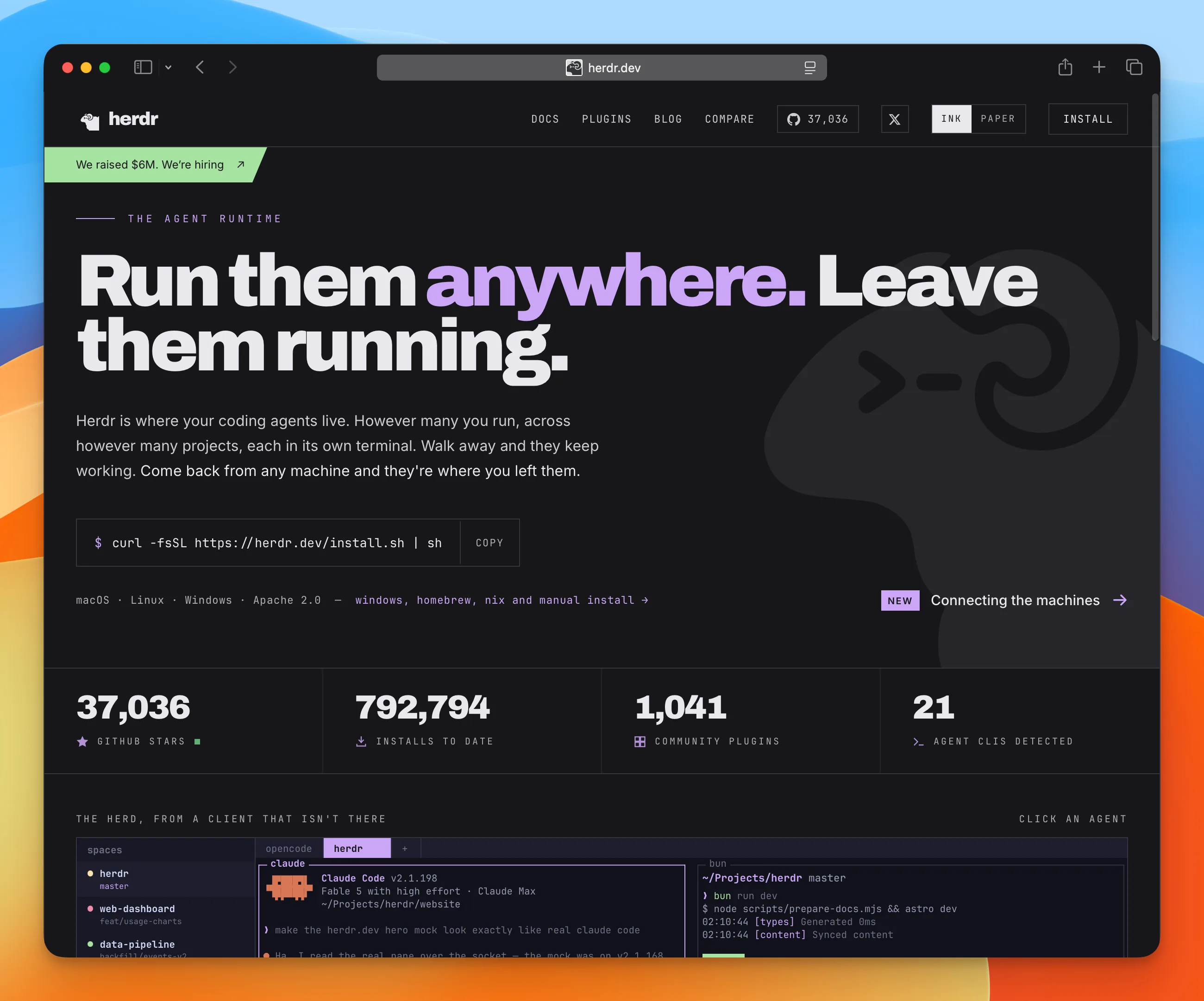
It gives every agent a real terminal. It organizes those terminals into workspaces, tabs, and panes. A sidebar tells me which agent is working, blocked, done, or idle.
The session keeps running when I close the terminal. I can reconnect locally, over SSH, or from my phone. Since version 0.9, one client can also show local and remote machines together.
Herdr is scriptable through its CLI and local socket API. A script can create a workspace, split a pane, start an agent, send it a prompt, wait for it, and read the result. An agent can do the same thing.
This is also how agents communicate through Herdr. A coordinator talks to the local Herdr server, targets another agent, sends a prompt, waits for its state to change, and reads its response.
I use the same interface to watch the agents and control them.
If you used tmux, the shortest explanation is: Herdr is tmux rebuilt around coding agents.
If you never used a terminal multiplexer, that is fine. Herdr is mouse-native. You can start by clicking tabs, dragging pane borders, and using the right-click menus.
Here is how it works and how it fits into my workflow.
The desktop app and herdr-core
On October 29, 2026, Herdr announced a native desktop app and a new runtime called herdr-core. The announcement thread shows both. The app, herdr-core, and the terminal app are open source under Apache 2.0.
The repositories are herdr-app, herdr-core, and the terminal app in herdr.
The install commands in this section are from herdr.dev and the GitHub READMEs, as of October 30, 2026.
The desktop app
The app is a native window for your agents. A space is one project, usually one repo, on one machine. Each space has tabs, and you split a tab into panes. The sidebar lists agents that need you.
The window only arranges terminals. herdr-core runs them.
On Linux, or on an Apple Silicon Mac, install the app with:
curl -fsSL https://releases.herdr.dev/app/install.sh | shThe installer puts the app on your machine and a command in ~/.local/bin. Add that folder to your PATH if it asks. On macOS the app is ~/Applications/Herdr.app. You can also download Herdr.dmg and drag it to Applications.
The Mac download is Apple Silicon. An Intel Mac builds from the herdr-app repository. Linux needs a desktop session and a working Vulkan driver. The Linux builds are x86-64 and ARM64.
That installer also installs herdr-core when the core is missing. The app can help install or update a core it cannot use.
On x64 Windows 10 (1803 or newer), with curl and tar, run this in PowerShell:
irm https://releases.herdr.dev/app/install.ps1 | iexHerdr then shows up in the Start menu.
Every part of the app is a file your agent can change. Those files live in ~/.config/herdr-app. AGENTS.md in that folder tells the agent what it may edit.
~/.config/herdr-app/
├── AGENTS.md
├── settings.json
├── keys.json
├── layouts/
├── mods/
└── themes/
herdr-app --skill prints the guide for driving that window.
The layouts that ship with the app are Herdr, Terminals, and Herdr 98. Duplicate a shipped layout or mod before you change its code. When the app starts, it updates the shipped copies and leaves your copies alone.
The announcement demo asks the agent to build a mod with this prompt:
build a herdr mod that shows my PLAN.md next to you as a live checklist with a progress bar and open it beside this paneThe agent edits the app’s files. The demo then opens a plan pane beside the terminal, with that checklist and a progress bar.
Herdr published more layouts an agent can add. They are not in the download. Each page has one line you give your agent, and your current layout stays as it is.
| Layout | What it adds |
|---|---|
| Board | Agents as cards: Needs you, Working, Done, and Idle. Click a card and its terminals open below. |
| Chat | Spaces look like channels. Agents post updates like teammates. |
| Mission | A green mission-control screen. The active tab is a set of command feeds. |
| Pasture | Agents as sheep in a meadow. Click a sheep and its terminal opens. |
Release builds of the app send usage telemetry. Turn it off under Settings, then Privacy.
Close the window and the terminals keep running. Close a pane or a tab and the terminals inside it end.
herdr-core
herdr-core is a new runtime. The announcement calls it leaner and more capable than the terminal app’s engine. The desktop app is one client. The terminal app keeps its own server.
The command is hc. It draws nothing. A shell, an agent, or your own program can drive it.
The app installer already fetches the core when it is missing. To install the core by itself on Linux or macOS:
curl -fsSL https://releases.herdr.dev/core/install.sh | shOn Windows, in PowerShell:
powershell -c "irm https://releases.herdr.dev/core/install.ps1 | iex"Linux and macOS builds are x86_64 and aarch64. The Windows build is x86_64. hc update updates the core, and terminals that are already running keep running.
Your terminals and agents live in the core. Close the app, update it, or crash it, and they keep going. A core update leaves them running too.
A reboot or a crash of the core itself is a different case. The programs stop. Panes you kept come back as a fresh shell in the last folder. Herdr does not restart the agent, or the command that was in the pane. You start that work again.
An agent running in a core terminal can start other agents. Those children report back with hc send. The parent gets a note when a child needs you, and when a child exits. Children stop with the parent, unless you started them with --outlive-parent.
The herdr-core page starts a Codex review like this. The second command steers it while it works:
hc run --bg --name review codex "review src/x.rs. Done: hc send $HC_TERMINAL_ID"
hc send review "also check the tests"
hc attach review takes that terminal over from a shell, a script, or another machine. Ctrl+\ detaches and leaves the program running.
Another app uses the same core. hc schema prints the API as OpenRPC. hc connect carries that protocol on stdin and stdout, including over SSH.
This runs a command on a machine you can already reach with SSH. Attach with the address hc prints. box/t3 is only an example of that shape.
hc machine add my-ssh-host --name box
hc run --on box --cwd /srv/app cargo test
The program and its files stay on that machine. Your local core lists those terminals beside the local ones.
Status in the core is whatever the program reports through OSC 7501. The core stores that report. It does not guess from the screen. The terminal app still detects agents by watching the pane, on its own server.
The terminal app stays
The terminal app stays, and it keeps getting updates. The install steps, keys, and workflows below are for that app. Its docs are at herdr.dev/tui.
A terminal you start in the terminal app stays there. The desktop app has its own list, fed by herdr-core.
Why use Herdr?
Use Herdr when you run several coding agents and lose track of their terminals. It shows in one sidebar which agent is working, blocked waiting for approval, or done. It keeps your agents running when you close the terminal or lose the SSH connection, and it lets scripts or other agents drive the panes through its CLI.
Running one coding agent is easy.
Open a terminal, start Codex or Claude Code, describe the task, and watch it work.
The workflow changes when you run several agents. Organizing terminals doesn’t replace deciding what each conversation is allowed to change.
Now you need to remember:
- which terminal belongs to which project
- which agent is still working
- which one needs approval
- which one asked a question
- which one finished while you were looking elsewhere
- where the development server is running
- where the test output went
- what survives if you close the terminal or lose the SSH connection
Normal terminal tabs only solve the first part.
tmux and Zellij add persistent sessions, panes, and layouts. They are excellent general-purpose tools, but they do not understand the process inside a pane.
I later wrote a direct Herdr vs tmux vs Zellij comparison.
To tmux, Codex is just another command.
Graphical agent managers understand agent state, but they usually put the terminal inside their own application. That can mean a wrapped terminal, a desktop-only workflow, or a tool that does not follow me onto a remote Linux server.
Herdr sits between those two approaches.
It keeps the real terminal and persistent-session model. Then it adds agent awareness, mouse controls, remote access, notifications, and automation.
The terminal app is a single Rust binary. There is no account and no hosted dashboard, and that binary does not send telemetry. My code continues to run on the machine where I started it. The native desktop app is a separate program, covered above.
The comparison below describes the terminal app.
Here is the practical comparison:
| Capability | Plain terminal tabs | tmux or Zellij | Graphical agent manager | Herdr |
|---|---|---|---|---|
| Real terminal processes | Yes | Yes | Depends on the app | Yes |
| Persistent detach and reattach | No | Yes | Usually different | Yes |
| Panes and tabs | Terminal-dependent | Yes | Yes | Yes |
| Agent lifecycle state | No | No | Yes | Yes |
| Works through normal SSH | Yes | Yes | Usually limited | Yes |
| Several machines in one client | One tab per machine | One client per server | Depends on the app | Yes, since 0.9 |
| Mouse-native workspace UI | Terminal-dependent | Limited | Yes | Yes |
| Local CLI and socket API | No shared layer | General terminal control | Product-dependent | Yes, agent-aware |
| Agent can control another agent | No | Possible, but manual | Product-dependent | Built in |
Herdr is not automatically better in every row. I use one shell when that is all I need, and tmux is enough on a machine where I want a battle-tested general multiplexer. For product-level tasks, isolated environments, and a complete agent event history, a graphical agent platform may be the stronger abstraction.
I use Herdr when I need persistence and agent awareness around real terminals, with commands I can automate.
In September 2026, Herdr announced a $6 million seed round. Bessemer Venture Partners led it. Y Combinator and E2 also participated.
The angel investors included Tobi Lütke, @dok2001, and @gorkem.
Herdr compared to cmux
Herdr is not strictly better than cmux. It is a different layer.
cmux is the better Mac desktop terminal: native interface, vertical workspaces, notification rings, and a built-in scriptable browser.
Herdr is the better terminal-native multiplexer: server-owned persistent processes, semantic agent states, and the same interface on my Mac, a remote Linux server, or a small-screen terminal.
They can also work together. Herdr can run inside cmux, with cmux providing the Mac interface and browser while Herdr owns the persistent local or remote terminal session.
How does Herdr work?
The terminal app runs a background server that owns your terminals and the processes inside them, plus a client that draws the interface in your terminal window. Closing the client doesn’t stop anything. Terminals are grouped into workspaces, tabs, and panes, and Herdr checks the foreground process of each pane to recognize coding agents and read their state.
The mental model
Herdr has five important concepts:
A workspace is a project
A workspace is the top-level container.
I use one workspace per repository or focused investigation.
For example, flaviocopes.com can be one workspace and sitebase.dev can be another. Switching workspaces changes the entire project context instead of mixing unrelated terminals in one long tab bar.
A workspace owns its tabs and panes. It also rolls up the states of the agents inside it.
If an agent inside a background workspace needs a decision, the workspace shows that state in the sidebar.
A tab is one view of the project
A tab is a layout inside a workspace.
I might have tabs called:
agentsdevtestslogsreview
Each tab can contain one pane or a split layout.
Tabs let me keep related terminals together without showing all of them at once.
A pane is a real terminal
A pane is a real terminal controlled by Herdr.
It can run a shell, an agent, a development server, a test watcher, wrangler, ssh, or any other terminal program.
Herdr renders the program’s actual terminal screen and sends input back to it. Full-screen terminal interfaces keep working because Herdr is not converting their output into chat messages.
Panes survive when the client detaches because the background Herdr server owns them.
An agent is a recognized process inside a pane
A pane always exists as a terminal.
An agent exists when Herdr recognizes a coding-agent process inside that pane.
A test runner belongs to the pane layer. Codex belongs to both the pane and agent layers. Herdr can send raw input to either one, but only the agent layer understands lifecycle states such as working and blocked.
A session owns the complete runtime
A session is a persistent Herdr server namespace.
The normal herdr command starts or attaches to the default session. Most people only need one session and several workspaces.
Named sessions are useful when you need completely separate runtime state:
herdr session attach work
herdr session attach experiments
Each named session gets its own workspaces, tabs, panes, processes, and socket.
My advice is to start with workspaces. Add named sessions only when you need a hard separation between two groups of work.
The client and server architecture
The normal herdr command looks like one terminal application, but it starts two roles.
The server owns the pseudo-terminals, child processes, live pane state, and session layout.
The client renders that state and sends keyboard or mouse input back to the server.
Closing a client does not stop the work because the process tree belongs to the server.
It also means several clients can attach to the same session. The server remains the single owner of the live terminal state.
Until version 0.9, the split was less clean than this diagram suggests. The server rendered the whole interface, sidebar included, and the client just displayed it. One client could show one server.
Since 0.9 the outer UI is rendered on the client. Servers own their sessions and supply the terminal views. This is what lets one client show several servers side by side, which I cover in the multi-machine section below.
How do you use Herdr?
To use the terminal app, install it with brew install herdr or its install script, then run herdr inside a project folder. Start Codex or Claude Code in a pane as usual, and Herdr lists it in the sidebar with its state. Split a pane with ctrl+b, then v. Detach with ctrl+b, then q, and run herdr again to reattach. The desktop app is a separate install, in The desktop app and herdr-core.
Install Herdr
Herdr publishes stable binaries for macOS, Linux and Windows.
The direct installer is:
curl -fsSL https://herdr.dev/install.sh | shYou can also use Homebrew:
brew install herdrOr mise:
mise use -g herdrCheck the installation:
herdr --versionGenerate shell completions if you use the CLI often.
For the current zsh session:
source <(herdr completion zsh)Herdr can also generate completions for Bash, Fish, PowerShell, and Elvish.
Then start it inside a project:
cd ~/www/flaviocopes.com
herdr
The first run creates or attaches to the default background session. If the session has no workspace yet, Herdr creates one.
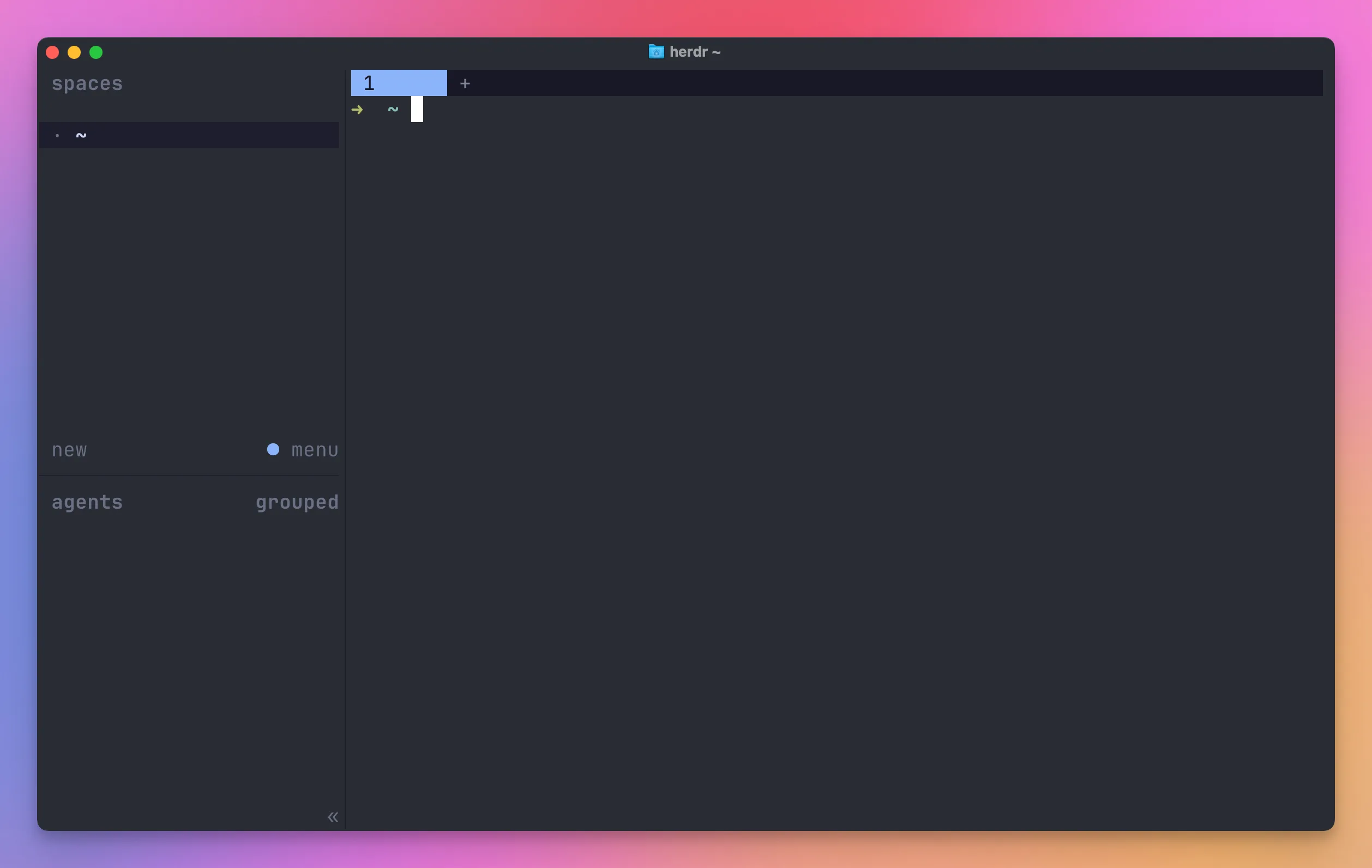
The sidebar on the left lists workspaces on top and agents below. Both are almost empty at this point. The pane on the right is a normal shell.
There is no socket setup to remember.
Herdr on Windows
Herdr also runs natively on Windows. Windows builds moved from the preview channel to stable releases in August 2026, so a new Windows install uses the stable channel, like macOS and Linux.
Install it from PowerShell:
powershell -ExecutionPolicy Bypass -c "irm https://herdr.dev/install.ps1 | iex"If your endpoint security blocks that command, the install docs have an install.cmd alternative for Command Prompt. An older preview install stays on preview until you run herdr channel set stable.
Native panes run through ConPTY, the Windows pseudo-console. New panes open PowerShell by default, and cmd.exe works too. The config file lives in %APPDATA%\herdr\config.toml.
If your projects and agents live in WSL, you can run the Linux build there instead. Open your WSL shell and use the curl installer above.
A few things don’t work on native Windows yet: direct terminal attach, live handoff with --handoff, and Herdr’s clipboard image bridge in local panes. Plugins are still in preview, and the binary isn’t signed, so SmartScreen can warn you. The Windows support page keeps the current list.
Update Herdr
Installer-managed copies update with:
herdr updateHomebrew, mise, and Nix installations update through their package managers instead.
An updated client binary can sometimes connect to an older compatible server that is still running. Check both with:
herdr statusIf the protocol requires a server restart, remember that stopping the server exits its pane processes. Finish important work first, or use the experimental live handoff path when the installed version supports it:
herdr update --handoffUninstall Herdr
Herdr has no uninstall command, so it takes a few manual steps.
First stop the server. This ends every process running in your panes, so finish your work before you run it. Stop named sessions too, with herdr session stop <name>.
herdr server stopIf you installed agent integrations, remove each one while the binary still exists. This deletes the hooks Herdr wrote into that agent’s config folder:
herdr integration uninstall codexThe install script writes a single file, ~/.local/bin/herdr (or the folder in HERDR_INSTALL_DIR, if you set it). Delete it:
rm ~/.local/bin/herdrWith Homebrew, run brew uninstall herdr instead. With mise, run mise unuse -g herdr.
The last step is optional. ~/.config/herdr holds your config.toml, the logs, the server sockets, the saved session layout, named sessions and installed plugins. Delete it with rm -rf ~/.config/herdr if you don’t plan to come back. Worktrees created by Herdr live in ~/.herdr/worktrees by default. Those are code checkouts, so check them for unmerged work before you delete them.
Your first five minutes
You can use Herdr with the mouse immediately.
Click a pane to focus it. Right-click to split it or create another tab. Drag the border between two panes to resize them. Click a workspace or agent in the sidebar to jump to it.
Herdr also has a tmux-style prefix key.
The default prefix is ctrl+b. Press the prefix, release it, then press the action key.
These are enough to get started:
| Action | Key |
|---|---|
| Split right | ctrl+b, then v |
| Split down | ctrl+b, then - |
| New tab | ctrl+b, then c |
| Next tab | ctrl+b, then n |
| Previous tab | ctrl+b, then p |
| Workspace navigation | ctrl+b, then w |
| Zoom the focused pane | ctrl+b, then z |
| Detach | ctrl+b, then q |
| Show active bindings | ctrl+b, then ? |
The prefix keeps Herdr from stealing normal keystrokes from the shell, editor, or agent. The complete default keymap is in Herdr keyboard shortcuts.
Start an agent normally inside a pane:
codexHerdr detects the foreground process. The agent appears in the sidebar, and its state changes as it works.
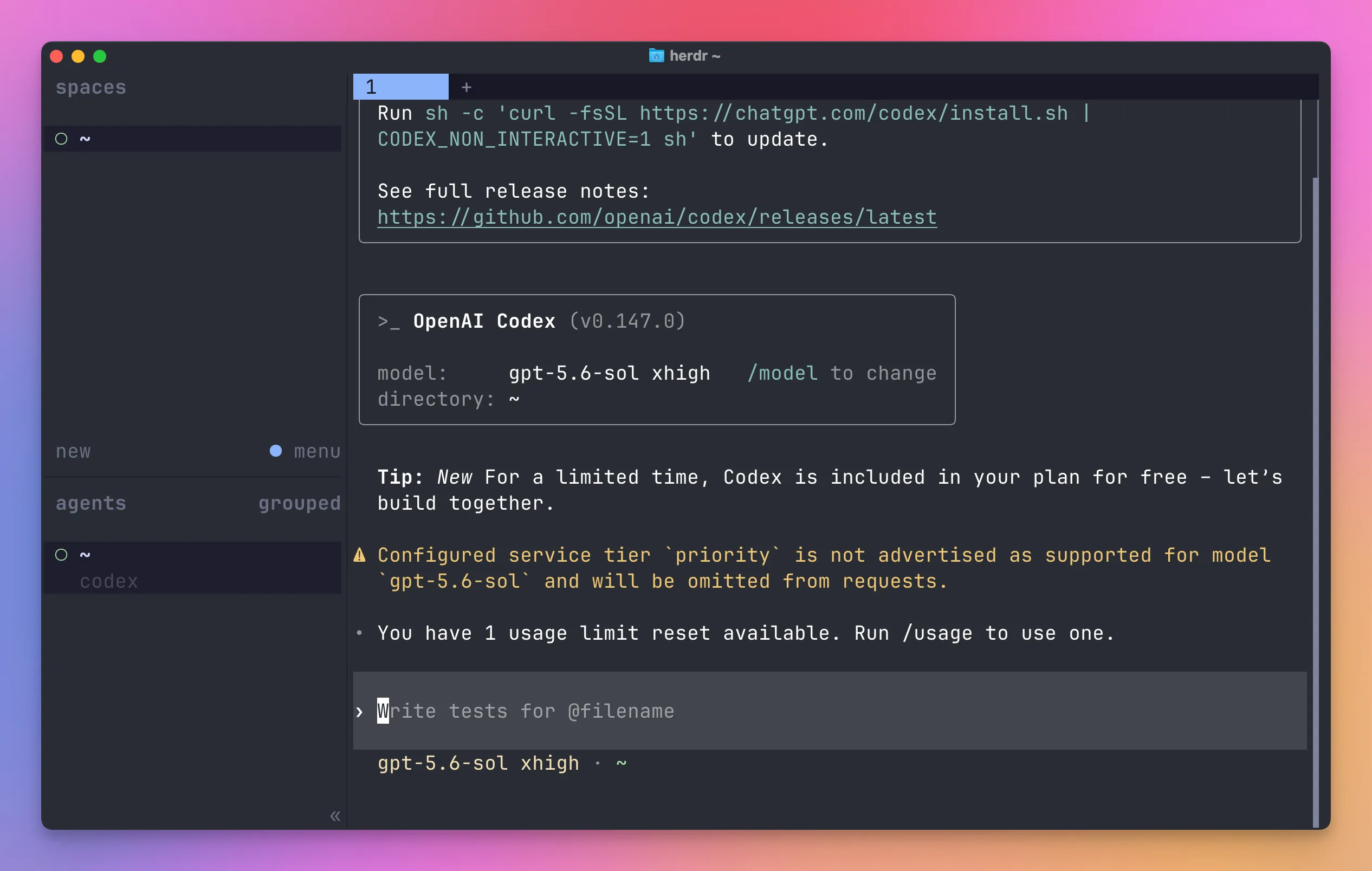
Here Codex just started in the ~ workspace. Herdr recognized it and added a codex row to the agents list. Nothing was configured for this to happen.
Detach with ctrl+b q. The terminal client closes, but the Herdr server, panes, agents, test watchers, and development servers keep running.
Reattach with:
herdrYou return to the same live processes. For the difference between detaching and stopping the server, see how to exit Herdr without losing work.
Agent state is the killer feature
Persistent panes are useful, but I rely on the agent sidebar to see where my attention is needed.
Herdr tracks five states:
| State | Meaning |
|---|---|
working | The agent is actively working |
blocked | The agent needs input, approval, or a decision |
done | The agent finished in the background and I have not viewed it yet |
idle | The agent is ready and its tab has been seen |
unknown | Herdr sees an agent but cannot classify it confidently |
The states roll upward.
done is not a separate condition reported by the agent. It is an attention state: the agent became ready while its tab was in the background. Once I view or focus it, it becomes idle.
When an agent is blocked, Herdr marks its pane, tab, and workspace. Working agents make their workspace active, while completed background agents stay visible as done until I look at them.
I do not need to open six tabs every few minutes to see whether an agent stopped. I can read its state in the sidebar.
How detection works
Herdr first detects the foreground process in the pane.
For many agents, it then examines the live bottom of the terminal screen and matches known interface states. The project calls these rules screen manifests.
This works without configuring hooks.
Herdr can recognize Codex, Claude Code, Cursor Agent CLI, Pi, OpenCode, GitHub Copilot CLI, Devin, Kimi, Droid, and many other agents. Unsupported agents still run as normal terminal programs. They just do not get the richer lifecycle state automatically.
Some agents expose lifecycle hooks or plugins. For those, an official Herdr integration can report state directly.
Other integrations report the agent’s native session ID. Herdr can use that ID to resume the conversation after a full server restart.
Install the integrations for the agents you use:
herdr integration install codex
herdr integration install claude
herdr integration install cursor
herdr integration status
This is what the Codex one does on my Mac:
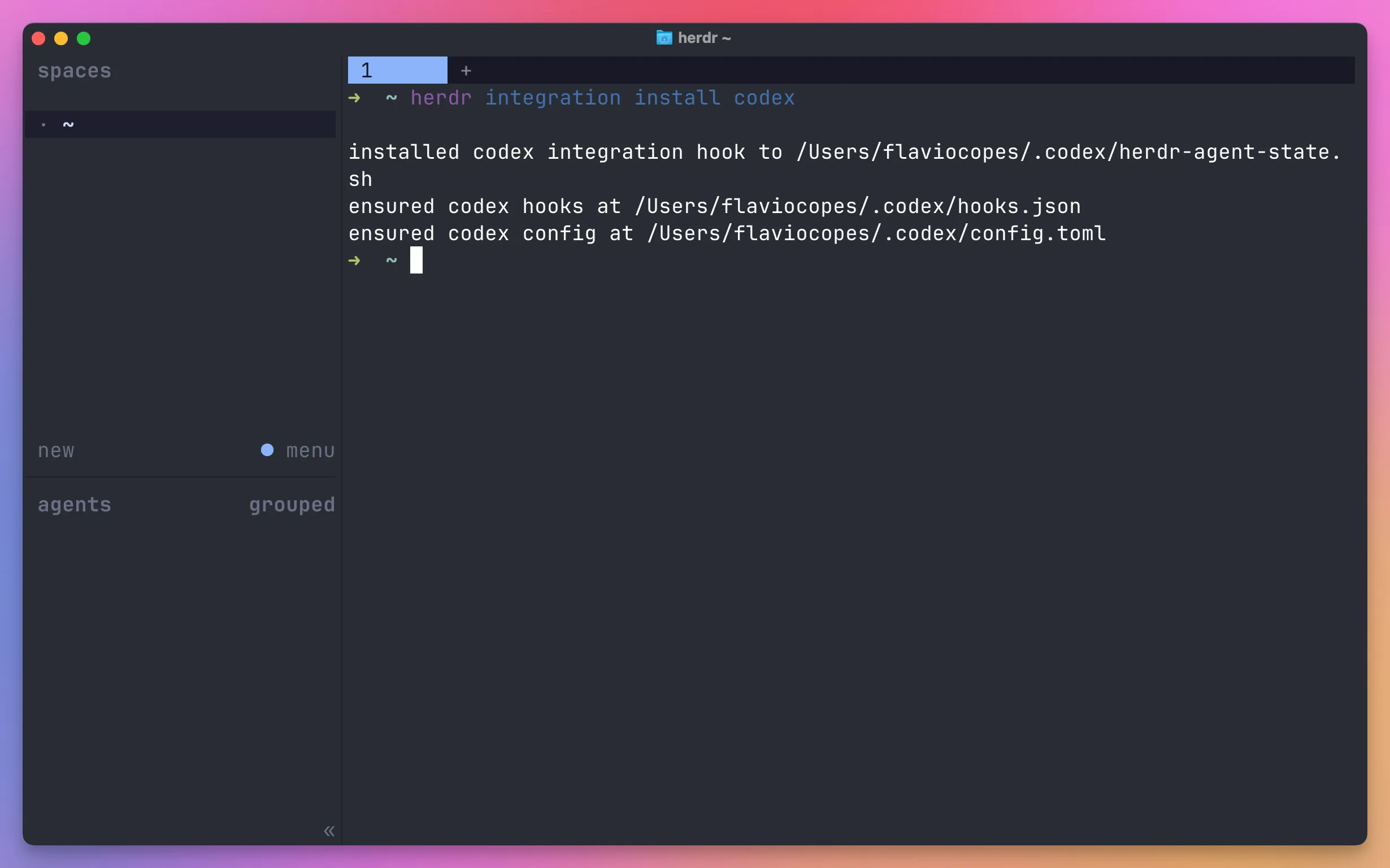
It writes a small hook script to ~/.codex/herdr-agent-state.sh, registers it in ~/.codex/hooks.json, and makes sure ~/.codex/config.toml loads hooks. Codex calls the hook as it runs, and the hook reports back to Herdr.
Codex and Claude Code still use screen detection for lifecycle state. Their integrations add native session identity for restore.
If a pane shows the wrong state, inspect the decision:
herdr agent explain reviewerThe output shows which detection source and rule produced the state.
Persistence has three different meanings
The word “persistent” can hide important details.
Herdr separates three cases.
Detach and reattach
When you detach normally, the server keeps running.
Every process stays alive. This is real process persistence.
Close the terminal, reopen it, run herdr, and you return to the original shells and agents.
Restart the Herdr server
If the Herdr server stops, its child processes stop too.
On the next start, Herdr restores the workspace, tab, pane, directory, layout, and focus structure. Normal panes come back as new shells.
The layout returns, but the old processes do not.
Supported agent conversations can resume when an official integration previously reported their native session IDs.
That means Codex can restart with codex resume <id> instead of opening an empty shell, provided the integration was installed and current.
Restore terminal history
Herdr can save recent pane contents across a server restart, but this is experimental and disabled by default.
Terminal output can contain prompts, source code, logs, API tokens, and secrets. Persisting the screen creates another sensitive file on disk, so the disabled default avoids creating that file without your knowledge.
Enable pane history only if you accept that tradeoff:
[experimental]
pane_history = true
Saved screen history restores what you can see, but not the process that produced it.
Remote work feels local
Herdr runs where the work lives.
The simplest remote setup is normal SSH:
ssh you@server
herdr
The Herdr server, agents, and shells all run on the remote machine. Detach, disconnect SSH, reconnect later, and attach to the same session.
This also works from a phone. Herdr adapts its interface to a narrow terminal, so I can check which agent needs me without installing a special mobile app.
There is another mode that starts from the local machine:
herdr --remote workboxOr:
herdr --remote ssh://you@server:2222In this mode, the local binary acts as a thin client for the remote Herdr server.
This keeps local desktop features available. For example, the local client can bridge an image from the local clipboard into a remote session.
For servers I visit often, I put the target in ~/.ssh/config and use its short name.
If SSH is new to you, my free SSH course covers host verification, keys, config, tunnels, automation, and troubleshooting.
Connect several machines in one client
--remote handles one machine at a time.
If agents run on my Mac and also on a server, each machine needs its own Herdr client. That means two terminal tabs, and I have to remember which agent lives where.
Herdr 0.9, released in September 2026, removes that step. You save a remote machine once. Its workspaces, tabs, and agents then appear in the same sidebar as the local ones.
Add a machine from an interactive terminal:
herdr machine add workbox --label "Build machine"workbox is a host from ~/.ssh/config. A full target such as ssh://you@server:2222 also works.
Herdr checks the SSH connection, the Herdr binary on the remote machine, and whether a compatible server is running. If something needs installing or replacing, it asks first. The default answer is No, because replacing a running server stops its pane processes.
The profile targets the remote default session. To use a named session instead:
herdr machine add workbox --label "Build machine" --remote-session agentsNow run herdr. The sidebar shows Local and Build machine. Click a machine, or one of its workspaces, to switch. If a client is already open, the new machine shows up within a second without changing what you are looking at.
When more than one machine is connected, agent rows gain a machine token. A blocked agent on the server stays visible while I type in a local pane.
Here is what happens when you switch:
- the selected machine receives your keyboard and mouse input and streams its pane screens
- the other machines keep sending workspace information, agent states, and notifications, but not their screens
Each machine keeps its own Herdr server, sessions, and processes. If the connection to one machine drops, its last known state stays visible but dimmed. That is cached information. You cannot type into those panes until the connection returns. The other machines keep working, and Herdr never moves your selection away from the machine you are using.
Local opens immediately at startup. A slow SSH connection cannot hold up local work.
Manage saved machines with the machine commands. Read profile IDs from the list, not from labels:
herdr machine list
herdr machine rename <profile-id> --label "Mac mini"
herdr machine disable <profile-id>
herdr machine enable <profile-id>
herdr machine remove <profile-id>
Disabling or removing a machine only disconnects the client. The remote server and its agents keep running.
The saved profile holds an ID, label, SSH target, session name, and enabled flag. It stores no passwords or private keys. Authentication stays with OpenSSH, so a key with a passphrase must be loaded with ssh-add before Herdr opens its background connections.
This works on macOS, Linux and Windows clients. The server can be macOS or Linux, or Windows on x86_64.
The 0.9 announcement makes a point I agree with: the laptop is turning into a client. Agents run for hours. It makes sense to run them on a VPS or a Mac mini that stays on, and treat the laptop as the window into that work.
What is still one machine at a time
The CLI still talks to one server.
Workspace, tab, and pane IDs are scoped to that server. Two machines can both have a w1:p1 and an agent named reviewer. Selecting a machine in the sidebar does not retarget a CLI command running inside a pane. That command still uses the session and socket its pane inherited.
For remote automation, run the commands on the host that owns the agents, and read the IDs there.
A coordinator on one machine prompting an agent on another is planned, not built.
The next planned piece is Herdr Cloud: a relay that connects your machines without you setting up SSH reachability, with terminal traffic end-to-end encrypted. You still bring your own machines because Cloud connects them instead of hosting the agents. At the time of writing it is a waitlist.
How I use Herdr
My Herdr configuration is deliberately boring.
I currently keep the default behavior and only disable onboarding after the first run:
onboarding = falseI prefer learning the defaults before customizing a terminal tool. I focus on the workspace structure first and change the keymap only when I need to.
Here is how Herdr fits into the work I already do.
One workspace per active repository
I move between several repositories every day.
There is this site, the AI Workshop site, Work Tracebook, and the individual products I build and ship.
I give every active repository its own workspace.
Inside flaviocopes.com, I might use:
workspace: flaviocopes.com
├── tab: agents
│   ├── pane: implementation agent
│   └── pane: review agent
├── tab: dev
│   └── pane: Astro development server
├── tab: checks
│   ├── pane: production build
│   └── pane: link or content audit
└── tab: deploy
    └── pane: Cloudflare Pages status and logs
This is that layout in Herdr, with the other repositories waiting in the sidebar:
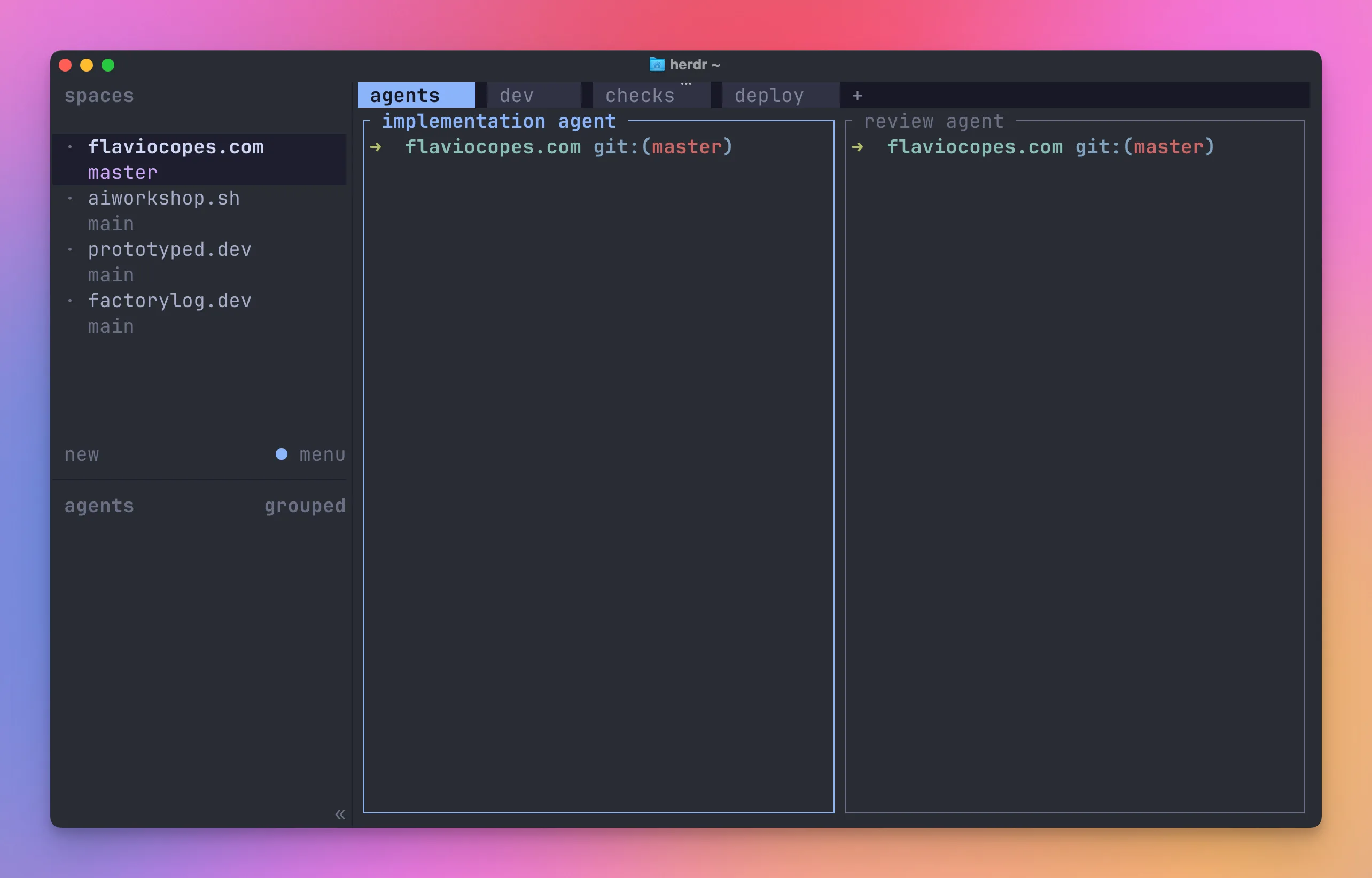
Every pane in that workspace can still point at the same working directory, so this setup does not provide isolation. Two agents editing the same file can conflict. I still need task boundaries, Git, reviews, and project instructions.
I avoid solving that with automatic worktrees in this project. I keep agents in the main working tree and give each one a narrow scope. One agent might edit a post while another checks unrelated metadata. Shared files and architecture stay under one coordinator.
The sidebar tells me when each agent finishes, and Git tells me what changed.
If Git is new to you, my free Git course explains branches, diffs, commits, and the working tree. The command line course covers the terminal foundations behind panes and persistent processes.
If coding agents are new to you, the free AI Fundamentals course covers agent loops, tools, permissions, and verification.
Separate building from reviewing
I often split implementation and review.
One agent makes a focused change. Another reads the diff and looks for factual mistakes, broken links, missing surfaces, or tests that do not prove the behavior.
Herdr makes this visible:
agents tab
├── builder     working
└── reviewer    idle
When the builder becomes done, I can prompt the reviewer. If the reviewer becomes blocked, I know the change needs a decision rather than more waiting.
This matches the workflow I described in my deep dive into bb, but Herdr stays much closer to the terminal. It does not create its own task database or agent runtime. It organizes and controls the terminal processes I already use.
Keep long-running processes beside the agents
Not every pane should contain an agent.
For an Astro project, I keep the development server in its own tab. Tests, build output, and deployment logs get their own panes.
The agent can work without owning the server process. I can restart the server, inspect its logs, or leave it running while I replace the agent.
This separation becomes useful when an agent finishes but the environment should stay alive.
I can close one agent pane without tearing down the development server and its logs.
Keep several product repositories open without losing context
My software library means I often touch several small products in the same week.
Without a workspace layer, every terminal starts to look the same. The prompt shows a directory name, but I still have to scan it before typing.
Herdr gives each product a named workspace. Its tabs, panes, current directories, and agent states stay together.
I can leave a test suite running in one product, switch to another repository, then return without rebuilding the terminal layout.
The workspace keeps that operational context together when I switch between repositories.
Detach instead of keeping a terminal window alive
Some tasks take a while: production builds, download generation, media processing, deployment monitoring, or a deep agent review.
I do not want the lifetime of that work tied to one terminal window.
Herdr lets me detach, close the window, and come back later. This is particularly useful on a remote server, where an SSH connection can disappear at any moment. The process belongs to the Herdr server and keeps running without the client.
Check remote work from another device
I maintain applications and infrastructure on remote servers.
For that work, Herdr gives me the good part of tmux: I can start an operation over SSH, disconnect, and return to the same terminal later.
The agent awareness makes the return faster. I do not only recover the pane. I immediately see whether the remote agent is still working, waiting for approval, or done.
I can also attach from a smaller device for a quick check. I would not review a large diff on a phone, but I can answer a question, approve a safe command, or confirm that a deployment finished.
Let an agent build the workspace
One fun use case is to let the agent create the terminal layout itself.
Shopify co-founder and CEO Tobi Lütke shared his favorite Herdr demo: open a workspace, launch an agent, and tell it to read herdr --skill before splitting ten more panes into a sci-fi hacker terminal.
The sci-fi layout is playful, but it shows the core idea. Once the agent knows Herdr’s controls, it can create the panes it needs instead of asking me to arrange everything by hand.
I wrote a separate guide to Herdr skills and herdr --skill.
A complete practical workflow
Let’s put the pieces together with one concrete session.
I want to change a feature, keep the development server visible, and ask another agent to review the result.
1. Start in the repository
cd ~/www/project
herdr
Rename the workspace from the UI, or find its ID and rename it from another Herdr pane:
herdr workspace list
herdr workspace rename w1 project
The IDs in your session might differ. Always read them from the command response.
2. Create the working layout
I create an agents tab with two panes and a dev tab with one pane.
From the UI, this is a new tab, a vertical split, and another new tab.
From the CLI, the same structure starts with:
agents=$(herdr tab create \
  --workspace w1 \
  --cwd "$PWD" \
  --label agents \
  --no-focus)

builder_pane=$(printf '%s\n' "$agents" |
  jq -r '.result.root_pane.pane_id')

review=$(herdr pane split "$builder_pane" \
  --direction right \
  --cwd "$PWD" \
  --no-focus)

review_pane=$(printf '%s\n' "$review" |
  jq -r '.result.pane.pane_id')
Create the development tab:
dev=$(herdr tab create \
  --workspace w1 \
  --cwd "$PWD" \
  --label dev \
  --no-focus)

dev_pane=$(printf '%s\n' "$dev" |
  jq -r '.result.root_pane.pane_id')
3. Start the ordinary process
The development server is not an agent, so I use the pane surface:
herdr pane run "$dev_pane" "npm run dev"I can read its output at any time:
herdr pane read "$dev_pane" \
  --source recent-unwrapped \
  --lines 80
4. Start the agents
herdr agent start builder \
  --kind codex \
  --pane "$builder_pane"

herdr agent start reviewer \
  --kind codex \
  --pane "$review_pane"
agent start needs an available shell pane. The shell must be at its prompt with no editor, server, or other foreground command running.
5. Give the builder a bounded task
herdr agent prompt builder \
  "Implement the requested change. Run the relevant tests and stop before committing." \
  --wait \
  --timeout 600000
The command returns when the agent reaches a settled idle, done, or blocked state.
If it returns blocked, I inspect the pane before replying:
herdr agent read builder \
  --source recent-unwrapped \
  --lines 120
6. Ask the reviewer to inspect the result
herdr agent prompt reviewer \
  "Review the current diff. Report only actionable findings with file and line references." \
  --wait \
  --timeout 600000
The review agent sees the same working tree in this example. It must remain read-only while reviewing, otherwise the ownership boundary becomes unclear.
7. Keep the final decision human
I read the diff, build output, and review findings. Herdr made the terminals and state easy to coordinate, but I still decide whether the implementation is correct and should ship.
Let one agent coordinate another
The CLI lets scripts and agents control Herdr.
Herdr exposes three control surfaces:
- layout commands create workspaces, tabs, and panes
- pane commands control raw terminals and ordinary processes
- agent commands control recognized agents and lifecycle state
Suppose a coordinator wants a second Codex agent to review a change.
First it splits the current pane:
split=$(herdr pane split --current \
  --direction right \
  --cwd "$PWD" \
  --no-focus)
Creation commands return JSON. Read the new pane ID from the response instead of guessing it:
review_pane=$(printf '%s\n' "$split" |
  jq -r '.result.pane.pane_id')
Start a named Codex agent in that pane:
herdr agent start reviewer \
  --kind codex \
  --pane "$review_pane"
Then send the task and wait for the agent to settle:
herdr agent prompt reviewer \
  "Review the current diff and report actionable findings." \
  --wait \
  --timeout 120000
Read the result:
herdr agent read reviewer \
  --source recent-unwrapped \
  --lines 120
The coordinator created a terminal, started a known agent, prompted that exact agent, waited on lifecycle state, and read its terminal output without faking keystrokes or sleeping for 30 seconds.
Use agent wait for an agent lifecycle. Use pane wait-output for a server or test command. There is no need to scrape agent text when Herdr already knows whether the agent is working or blocked.
Pane commands are for ordinary processes
Use pane commands when the program is not an agent.
For example, run tests in a pane:
herdr pane run w1:p3 "npm test"Wait for expected output:
herdr pane wait-output w1:p3 \
  --regex "passed|failed" \
  --timeout 120000
Then read the recent unwrapped output:
herdr pane read w1:p3 \
  --source recent-unwrapped \
  --lines 120
Use agent commands when lifecycle state matters:
herdr agent wait reviewer \
  --until blocked \
  --timeout 120000
That waits for an approval or question interface, not a text fragment that happens to contain the word “blocked”.
The IDs are stable handles
Herdr gives workspaces, tabs, and panes public IDs:
workspace: w1
tab:       w1:t1
pane:      w1:p2
Scripts should capture these values from JSON responses.
Agent names such as reviewer are convenient aliases for the live agent inside a pane. The name follows that agent and disappears when the process exits or is replaced.
This avoids a common automation bug: sending the next prompt to whatever terminal happens to be focused.
Start parallel agents in worktrees without naming anything
How do you handle several checkouts of the same repository with Herdr?
Typing a branch name and worktree folder before every task gets old. I want to type a prompt and have the checkout, branch, and agent appear, so I can start five of them and walk away.
I do not use worktrees in this repository. I keep agents in the main working tree with narrow scopes, as I explained above. But for repositories where isolated checkouts make sense, Herdr has the pieces to automate this completely. Let’s wire them together.
A worktree is a workspace
Herdr treats a Git worktree as a normal workspace with extra provenance. herdr worktree create runs git worktree add, opens the checkout as a new workspace, and groups it under the repository’s workspace in the sidebar.
herdr worktree create --cwd ~/www/project --branch fix-header --no-focusIf fix-header already exists as a local branch, Herdr checks it out. Otherwise it creates the branch from --base, or from HEAD when you omit it.
Without --path, the checkout lands under the configured worktrees directory:
[worktrees]
directory = "~/.herdr/worktrees"
Herdr creates <directory>/<repo>/<branch>. If you prefer sibling folders next to the repository, point this at something like ~/www/worktrees.
The sidebar has the same actions. Right-click a Git workspace row for New worktree and Open worktree…. But the dialog asks you to type the branch name, and that is the step we want to remove.
Let a script pick the name
A branch name only has to be unique. You do not need to remember it, because the sidebar label and the agent’s prompt tell you what the work is about.
So generate it from the clock:
stamp=$(date +%Y%m%d-%H%M%S)Create the worktree and read the root pane ID from the JSON response:
created=$(herdr worktree create \
  --cwd ~/www/project \
  --branch "agent/$stamp" \
  --label "$stamp" \
  --no-focus)

pane=$(printf '%s\n' "$created" |
  jq -r '.result.root_pane.pane_id')
Start an agent in that pane and hand it the task:
herdr agent start "agent-$stamp" --kind codex --pane "$pane"
herdr agent prompt "agent-$stamp" "Fix the mobile header overlap"
Agent names must match [a-z][a-z0-9_-]{0,31}, so the name uses a dash where the branch uses a slash.
agent start returns only when the agent owns the terminal and is ready for input. So the prompt can follow immediately. It does need the new pane’s shell to be at its prompt; if your shell startup is slow, add a short wait before starting the agent.
One command per task
Put it in a script called spawn:
#!/bin/sh
set -e

repo=${REPO:-$PWD}
stamp=$(date +%Y%m%d-%H%M%S)

created=$(herdr worktree create \
  --cwd "$repo" \
  --branch "agent/$stamp" \
  --label "$stamp" \
  --no-focus)

pane=$(printf '%s\n' "$created" |
  jq -r '.result.root_pane.pane_id')

herdr agent start "agent-$stamp" --kind codex --pane "$pane"
herdr agent prompt "agent-$stamp" "$1"
Now each task is one line:
spawn "Fix the mobile header overlap"
spawn "Add a sitemap route"
spawn "Upgrade the test runner and fix what breaks"
This starts three checkouts on separate branches, each with its own agent. I only type the prompts.
The sidebar groups the three workspaces under the repository. When one becomes blocked or done, you see it without opening its tab. A one-second stamp is unique enough for a human typing commands; a script that fires faster than that can add $$ or a random suffix.
Prepare the checkout automatically
A fresh worktree usually needs setup: install dependencies, copy an .env file, maybe start a dev server on a free port.
Herdr plugins can hook the worktree.created event and run a command with the new workspace in context. That keeps the setup out of the spawn script and makes it run for worktrees created from the sidebar too.
The Herdr plugin examples include a worktree-bootstrap plugin built for exactly this:
herdr plugin install ogulcancelik/herdr-plugin-examples/worktree-bootstrapRead it before installing. Plugins run with your permissions. My Herdr plugins guide covers manifests, event hooks, and how to write one for your own repository.
Clean up
When a branch is merged, remove the checkout:
herdr worktree remove --workspace <workspace-id>This runs git worktree remove and closes the Herdr workspace. It never deletes the branch. If the checkout has uncommitted changes, Git refuses, and you must pass --force to override.
Closing the workspace from the sidebar does not delete anything on disk. Use Delete worktree checkout… on the child workspace, or the worktree remove command, when you want the folder gone.
What this does not solve
Worktrees prevent five agents on separate branches from overwriting each other’s files. They can still make incompatible changes to the same module, and you find out when you merge. You still need a plan that keeps the tasks apart.
Useful configuration
Herdr works without a custom config file.
When you do want to change it, the file is:
~/.config/herdr/config.tomlReload it without restarting the session:
herdr server reload-configChange the keybindings
The default keymap is prefix-first:
[keys]
prefix = "ctrl+b"
new_tab = "prefix+c"
next_tab = "prefix+n"
previous_tab = "prefix+p"
focus_pane_left = "prefix+h"
split_horizontal = "prefix+minus"
Press ctrl+b ? to see the bindings active in your session. For the full list of defaults, see Herdr keyboard shortcuts.
Add notifications
Herdr can notify you when a background agent finishes or needs input:
[ui.toast]
delivery = "herdr"
delay_seconds = 1

[ui.toast.herdr]
position = "bottom-right"
The delivery can use an in-app toast, the outer terminal, the operating-system notification service, or be disabled.
Herdr suppresses the popup for the active tab. It alerts you about work you are not already watching.
Customize the sidebar
The default agent row shows the state, workspace, tab, and agent name.
You can add status text or metadata reported by an integration:
[ui.sidebar.agents]
rows = [
  ["state_icon", "agent", "state_text"],
  ["workspace", "tab"],
]
Plugins and scripts can report custom tokens such as the model name or a short task summary.
That makes the sidebar a small live operations view rather than a list of anonymous terminals.
Plugins and the socket API
The CLI is backed by a local socket API.
It can create and inspect layout, read panes, send input, control agents, subscribe to events, and wait for state changes.
Most automation should start with the CLI because it handles the socket details and returns structured JSON.
Use the raw API when you are building a long-running integration or need event subscriptions.
Herdr also supports plugins. I wrote a practical guide to Herdr plugins that covers installation, inspection, configuration, and building one.
A plugin is an executable workflow package with a herdr-plugin.toml manifest. The implementation can be Bash, JavaScript, Lua, Rust, or anything else the machine can run.
Plugins use the same CLI and socket API, so there is no separate plugin SDK.
The core handles terminals and agents, while plugins provide the reusable workflows around them.
A plugin could:
- create my preferred project layout
- open a development server and test watcher
- add a review agent beside the implementation agent
- report a task summary in the sidebar
- react when an agent becomes blocked or done
- open a deployment dashboard in a popup
Plugins run local commands with the user’s permissions. Treat an installed plugin like any other executable code and inspect it before trusting it.
Troubleshooting
Start every investigation with the installed version and the client/server state:
herdr -V
herdr status
Also note the outer terminal, operating system, local or remote mode, and whether tmux is wrapping Herdr or running inside one of its panes.
Herdr does not detect the agent
Check the foreground process and the classification evidence:
herdr pane process-info --current
herdr agent explain <pane-or-agent>
If a shell framework automatically starts tmux inside the pane, Herdr sees tmux rather than the agent behind it. Run Herdr inside tmux as the outer multiplexer if needed, but do not put another tmux session between Herdr and the agent you want it to detect.
Check for detection manifest updates:
herdr server agent-manifests
herdr server update-agent-manifests
The state looks wrong
Use:
herdr agent explain <target> --verboseThis shows the active manifest, matching rule, visible evidence, fallback reason, and remote update status.
An unknown state does not prove failure. An idle fallback does not always prove the agent finished. Read the pane before taking action.
The binary updated but the session did not
The installed client may be newer than a compatible server that was already running.
Check herdr status.
To replace the server normally:
herdr server stop
herdr
Be careful: stopping the server exits its pane processes. Use live handoff when appropriate, or finish the work first.
Remote attach cannot authenticate
Test normal SSH before debugging Herdr:
ssh workboxIf the SSH key has a passphrase, load it into ssh-agent. Once ordinary OpenSSH works, try:
herdr --remote workboxA saved machine shows Attention
Background connections never answer prompts. If the remote host needs host-key approval, authentication, or a compatible server, the machine shows Attention in the sidebar. The other machines keep working.
Run the standalone attach in an interactive terminal:
herdr --remote workboxIf the profile uses a named session, add --session <name>. Answer the prompts, then restart the client so it retries the connection.
Do not stop a running remote server only because its version differs from your client. Herdr negotiates compatibility between the two.
A keybinding does nothing
The operating system or outer terminal might consume the chord before Herdr sees it.
Open the help panel with ctrl+b ? and confirm the binding. Then check the terminal and desktop shortcuts.
Prefix bindings are the safest default. If you want direct shortcuts, the Herdr documentation recommends looking first at unused ctrl+alt combinations, while still checking conflicts on your operating system.
A pane refreshes when I switch back to the terminal
By default, Herdr redraws the complete interface when the outer terminal regains focus. This helps repair stale terminal content, but some terminal emulators make the redraw look like a flash.
You can disable it in ~/.config/herdr/config.toml:
[ui]
redraw_on_focus_gained = false
Then reload the configuration:
herdr server reload-configThe tradeoff is that a pane might occasionally show stale content until the next update.
Find the logs
The default log files live under ~/.config/herdr/:
herdr.log
herdr-client.log
herdr-server.log
Enable more detail for a diagnostic run with:
HERDR_LOG=herdr=debug herdrLogs can contain terminal and environment details. Inspect them before sharing them publicly.
Command cheat sheet
Here are the commands I would keep nearby while learning Herdr:
| Goal | Command |
|---|---|
| Start or reattach | herdr |
| Check client and server | herdr status |
| List workspaces | herdr workspace list |
| Create a workspace | herdr workspace create --cwd ~/project --label project |
| List tabs | herdr tab list --workspace w1 |
| Create a tab | herdr tab create --workspace w1 --label tests |
| Create a worktree workspace | herdr worktree create --cwd ~/project --branch fix-header |
| Remove a worktree checkout | herdr worktree remove --workspace <id> |
| List panes | herdr pane list --workspace w1 |
| Split the current pane | herdr pane split --current --direction right |
| Run a command | herdr pane run w1:p2 "npm test" |
| Read pane output | herdr pane read w1:p2 --source recent-unwrapped --lines 120 |
| List agents | herdr agent list |
| Start a named agent | herdr agent start reviewer --kind codex --pane w1:p2 |
| Prompt and wait | herdr agent prompt reviewer "Review the diff" --wait |
| Wait for a question | herdr agent wait reviewer --until blocked |
| Explain detection | herdr agent explain reviewer --verbose |
| Install an integration | herdr integration install codex |
| Reload config | herdr server reload-config |
| Save a remote machine | herdr machine add workbox --label "Build machine" |
| List saved machines | herdr machine list --json |
| Detach the UI | ctrl+b, then q |
Use explicit IDs or unique agent names in automation. Commands that act on the UI-focused pane are convenient for a person but fragile in a script.
Where Herdr is a great fit
Herdr is compelling when your work already lives in terminals.
It fits especially well when:
- you run more than one coding agent
- you switch between several repositories
- you want real terminal interfaces, not summarized transcripts
- development servers and tests need to live beside agents
- you work over SSH
- you run agents on more than one machine and want one view of all of them
- you want processes to survive terminal disconnects
- you want one agent or script to coordinate another
- you use different agent products and want one shared view
You do not need heavy automation to benefit from it. Two agents and one long-running server are enough for persistent workspaces and visible state to help.
Where Herdr is not the answer
Herdr does not solve every multi-agent problem.
It does not isolate file changes
Two panes in the same directory can edit the same file.
Herdr can create worktrees, and I showed how to automate that above. Using them safely is still a Git and project-architecture decision. I do not use them in every repository, and I do not let a terminal manager decide shared contracts for me.
Use clear task ownership, narrow scopes, branches when appropriate, and review.
It does not provide shared memory
Herdr does provide a local communication path between agents. Agents and scripts talk to the Herdr server through its socket API. A coordinator can target another agent, send it a prompt, wait for it, and read its response.
This is orchestration, not shared memory. Herdr does not automatically merge agent context or project state.
Agents share project data through files, Git, and commands, like normal terminal processes. Agents in the same checkout see filesystem changes immediately, which also means they can conflict.
Agents in separate worktrees need an explicit handoff through commits, patches, or shared artifacts.
Herdr coordinates terminals, communication, prompts, and agent state. It does not synchronize project data for the agents.
It does not replace an agent platform
Herdr does not store a product-level task graph, issue database, approval policy, or complete event history for every agent turn.
bb, Buzz, and T3 Code operate at that higher application layer. My T3 Code guide compares it with Herdr when choosing between an application interface and terminal workspaces.
Herdr stays closer to the processes. That is a strength when I want a lightweight terminal-native tool. It is a limitation when I need a managed team workflow with durable tasks and organizational policy.
Detection is not perfect
Screen-based detection depends on recognizable agent interfaces.
An agent update can introduce a new prompt shape. A wrapper can hide the foreground process. An unsupported agent may stay unknown.
Official integrations and remotely updated detection manifests improve this, but unknown still means exactly that. It does not mean success.
A server restart is different from a detach
Detach keeps processes alive. Stopping the Herdr server does not.
The layout can return, and supported agent conversations can resume, but an arbitrary development server or test process must be started again.
Know which kind of persistence you are relying on.
More agents still create more coordination
Herdr makes agent state visible, but five overlapping tasks can still be a bad plan.
Parallel agents can produce incompatible changes, overload CI, and queue many deployments. I think through that coordination in Parallel coding agents. I have already seen a burst of parallel pushes block a Cloudflare Pages build queue.
The dashboard reduces the attention cost. It does not remove the need for one clear plan and a review step.
Why I find Herdr compelling
Herdr does not ask me to replace the tools I already use. Codex, Claude Code, the shell, Astro, tests, Git, SSH, and deployment tools keep running as normal processes.
Herdr adds structure, visible agent state, and persistence around those tools. I use it with a mouse and keyboard, while scripts and agents work through its CLI and API on the same live system.
I can start an agent by hand, let Herdr recognize it, then address it from a script. An agent can create a reviewer in another pane. I can watch both in the sidebar, detach, and reconnect later over SSH.
I liked the same property in bb: agents can operate the environment where I watch them. Herdr gives me that through workspaces, tabs, panes, processes, state, and a socket, and it fits the way I work today.
The October 29 desktop app is a separate client on herdr-core. The workflow in this section is the terminal app.
I also wrote a deep dive into cmux and a direct Herdr vs cmux comparison. For the wider list, see Herdr alternatives.
Start with the Herdr quick start, then read the agent guide and agent automation guide.
Want me to talk about your product? You can sponsor this site.
Related posts about ai: