I built Slide Lookout, a Chrome extension that shows your next slide
By Flavio Copes
Slide Lookout is my free, open source Chrome extension that shows the next slide of a Notion presentation in a small floating window, on top of the fullscreen slides.
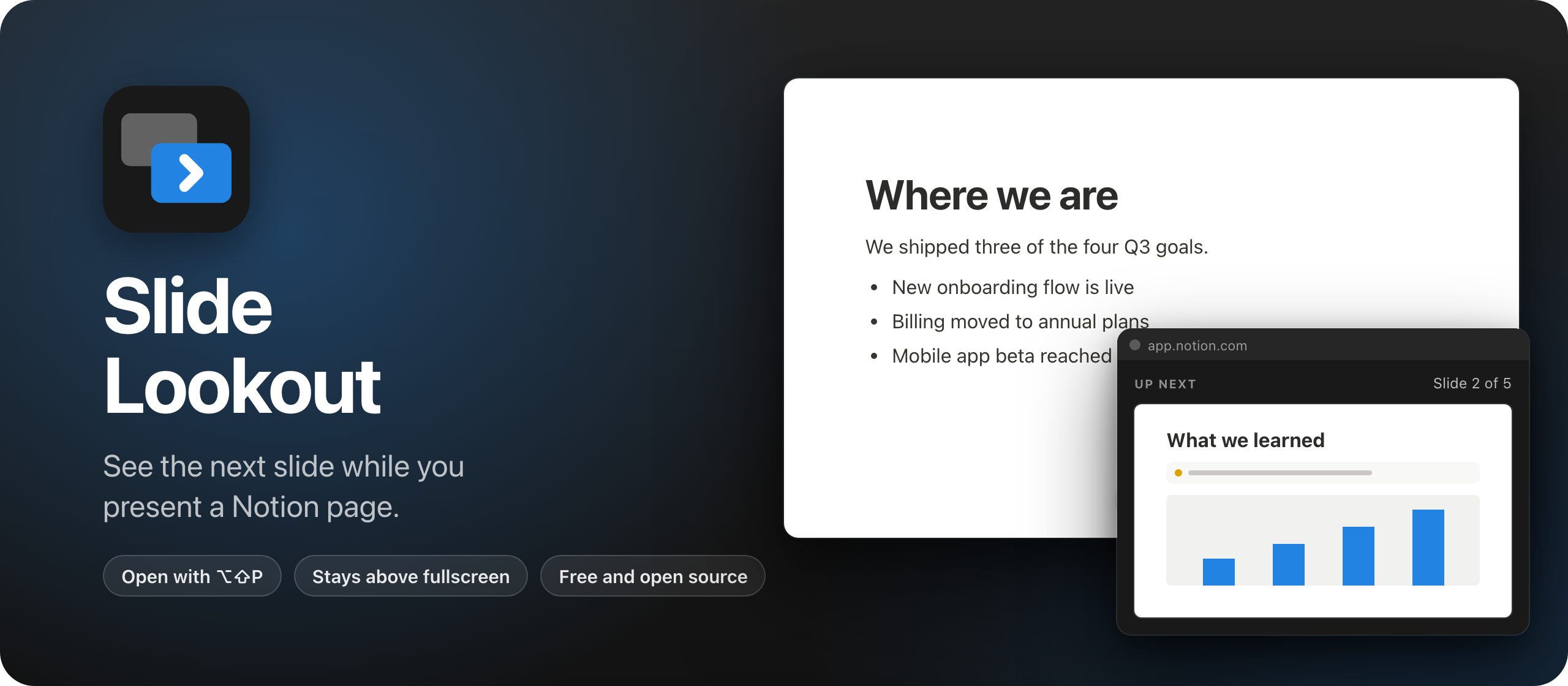
I built Slide Lookout, a Chrome extension that shows the next slide while you present a Notion page. It’s free and open source, like Tab Reunion.
In March, Notion added a presentation mode. You put a divider between the sections of a page, press ⌘⌥P, and the page becomes a slide deck, one section per slide. The page title is the first slide.
What it doesn’t have is a presenter view. Keynote and PowerPoint show you the next slide on your own screen while the audience sees the current one. In Notion you see exactly what they see, so you find out what comes next when you click.
Slide Lookout adds that view. A small floating window shows the next slide and where you are, like “Slide 3 of 12”, and it stays on top of the fullscreen slides.
Here it is in 30 seconds:
How to use it
Open the Notion page you want to present and press Option+Shift+P (Alt+Shift+P on Windows and Linux), or click the extension’s button in the toolbar. The panel opens.
Drag it where only you can see it. Then click the Notion page and press ⌘⌥P to start presenting.
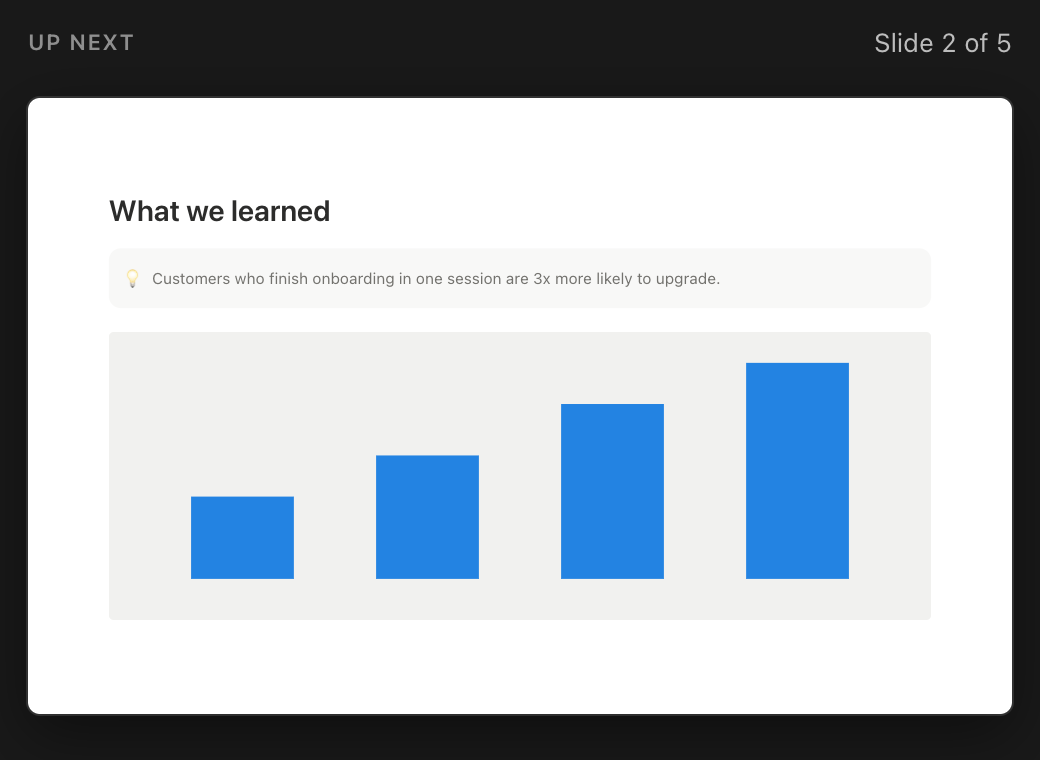
The panel shows the next slide the way Notion will draw it on your screen, with its images, callouts and colors. It follows every slide change, whether you use the arrow keys, Space or a clicker, and on the last slide it tells you the presentation is over.
If you click the panel by mistake, nothing breaks. The keys you press there go to Notion, so the clicker keeps working.
The panel belongs to the Notion tab. Switch to another tab, window or app, and it closes, so it doesn’t float over everything else.
Started presenting and forgot the panel? Move the mouse, and an Open presenter view button shows up in the bottom right corner. Like Notion’s own controls, it fades out when the mouse stops.
If the slides are fullscreen when you open the panel, Chrome takes them out of fullscreen, and an extension can’t change that. Click the slides and press F, and you’re back in fullscreen with the panel on top. If you open the panel before you start presenting, this doesn’t come up.
On a call or with a projector
The panel is a separate window. When you share the Notion tab or the Chrome window in a video call, people see the slides and not the panel. If you share your whole screen, they see it too.
With a projector, set it up as a second display. The slides go fullscreen on the projector and the panel stays on your laptop. If the two displays mirror each other, the audience sees the panel.
Under the hood
Notion’s presentation mode keeps three slides in the page: the previous one, the current one and the next one. Each sits in an element with a data-slide-index attribute, and only the current one is visible. So the next slide is already there, fully drawn by Notion, just hidden.
The extension clones it into a Document Picture-in-Picture window. That’s a Chrome API for an always-on-top window you fill with HTML, like a page. The extension copies Notion’s stylesheets and theme colors into it, so the slide looks right in light and dark mode, and scales it the way Notion scales it on your screen. A MutationObserver updates the panel every time the slide changes.
Chrome opens that window only after a user gesture in the page, like a click. A click on the corner button is one. The extension’s shortcut is Chrome’s _execute_action command, which fires the same event as the toolbar button, and Chrome counts both as a gesture in the page when the extension runs its script there.
Forwarding the keys from the panel took one trick. Notion matches its shortcuts on the old keyCode property, which new KeyboardEvent() can’t set. The script runs in the page itself, so it defines keyCode on each event before it sends it.
The repo has a test that loads the extension into Chromium with Playwright and goes through a whole presentation on a mock Notion page, which copies the markup of the real one. It runs on every push. Notion can change that markup at any time, and when it does, the mock and the extension get updated together.
If you want to build an extension yourself, start with my Chrome extension tutorial.
Permissions
Slide Lookout runs on Notion pages only: notion.so, notion.com and notion.site. It needs them to show the corner button while you present, so when you install it, Chrome says it can “read and change your data” on those sites.
It reads the slides Notion already has in the page and adds that one button. It doesn’t change your pages, it never goes online, and there are no accounts or analytics.
Get it
The code is on GitHub at flaviocopes/slide-lookout, MIT licensed.
It isn’t on the Chrome Web Store, so you load it into Chrome yourself:
- Download the zip from the latest release and unzip it.
- Move the unzipped folder somewhere it can stay, like your Documents folder. Chrome runs the extension from that folder.
- Open
chrome://extensionsand turn on Developer mode in the top right corner. - Click Load unpacked and pick the folder.
- Click the puzzle icon in the toolbar and pin Slide Lookout.
You need Chrome 116 or later, and a Notion plan with presentation mode, which means Plus or above.
An extension you load this way doesn’t update itself. When a new version comes out, copy its files over the old ones in the same folder, then click the reload arrow on its card in chrome://extensions. The README has the details.
If you want to ship an extension through the store instead, I wrote how to publish a Chrome extension to the Chrome Web Store.
Want me to talk about your product? You can sponsor this site.
Related posts about news: