Sprites, disposable Linux VMs for YOLO AI coding
By Flavio Copes
Sprites by Fly.io gives you a real Linux VM in seconds, with Claude Code and Codex preinstalled. How I use it as a disposable sandbox for AI coding, with checkpoints, URLs, and pricing.
Sprites (sprites.dev) is a service by Fly.io that gives you a Linux virtual machine in seconds.
Fly.io is known for a powerful but complex infrastructure platform. Sprites is refreshingly simple by comparison.
A Sprite is a hardware-isolated Linux machine running a recent Ubuntu. It’s not a container. It’s an actual Linux box, with 8 vCPUs and 100 GB of disk.
It comes loaded with development tools:
- JavaScript runtimes: Node.js, Bun, Deno
- Languages: Python, Go, Ruby, Java, Elixir, Rust, C compilers
- CLI AI agents: Claude Code, Codex, Gemini CLI
- Git and SQLite
You can install anything else you need.
Sprites launched in January 2026. You get $30 of free credit to start. After that, pricing is pay-per-use, and there are monthly plans too.
They’re meant to be disposable. Use them, throw them away. You only pay while a Sprite is doing something.
You can control Sprites programmatically with their SDK. But the CLI is where most people start, and it’s what I’ll use here.
Video
I made a long video on this topic. Let me know if you like the format, I might do more.
Getting started
Install the CLI:
curl -fsSL https://sprites.dev/install.sh | shLog in with your Fly.io account:
sprite loginCreate your first Sprite:
sprite create test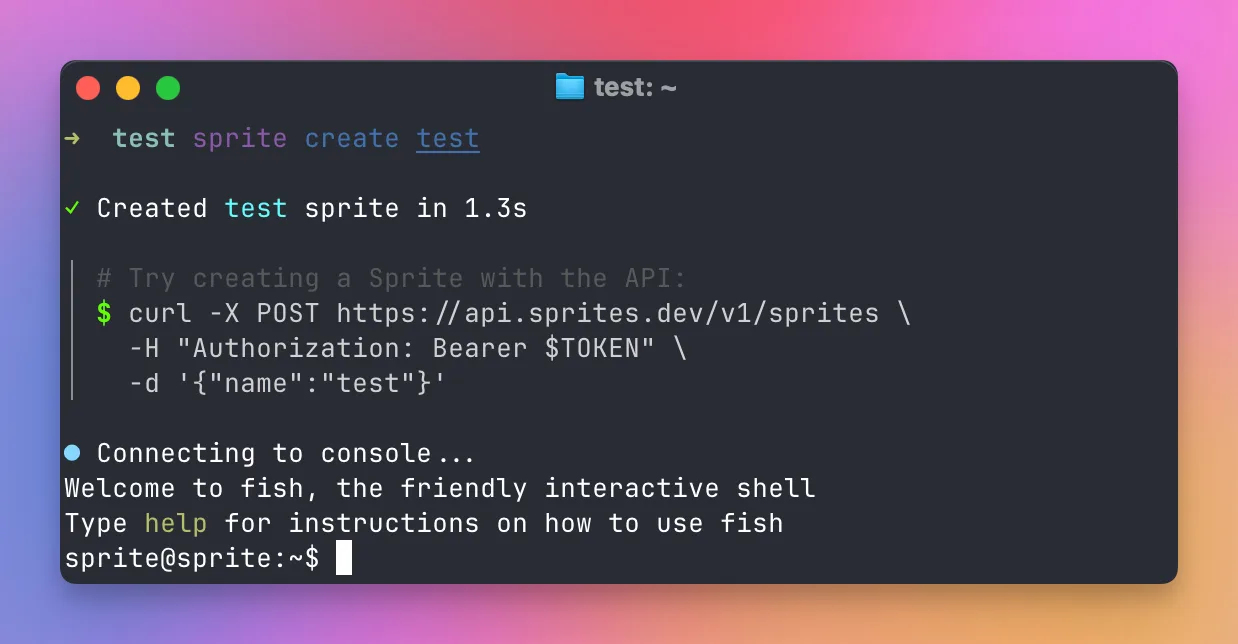
You’re in. No SSH keys. No config. It just works.
You land in /home/sprite, your home folder. Run df -h and you’ll see 100 GB of space.
Press ctrl-d to exit. The Sprite stays there, you just left the console.
Working with Sprites
Every command needs the -s flag to say which Sprite you mean.
For example, to connect back to the Sprite:
sprite console -s testThat gets tedious. Instead, from a project folder (I’m using ~/dev/test), run:
sprite use test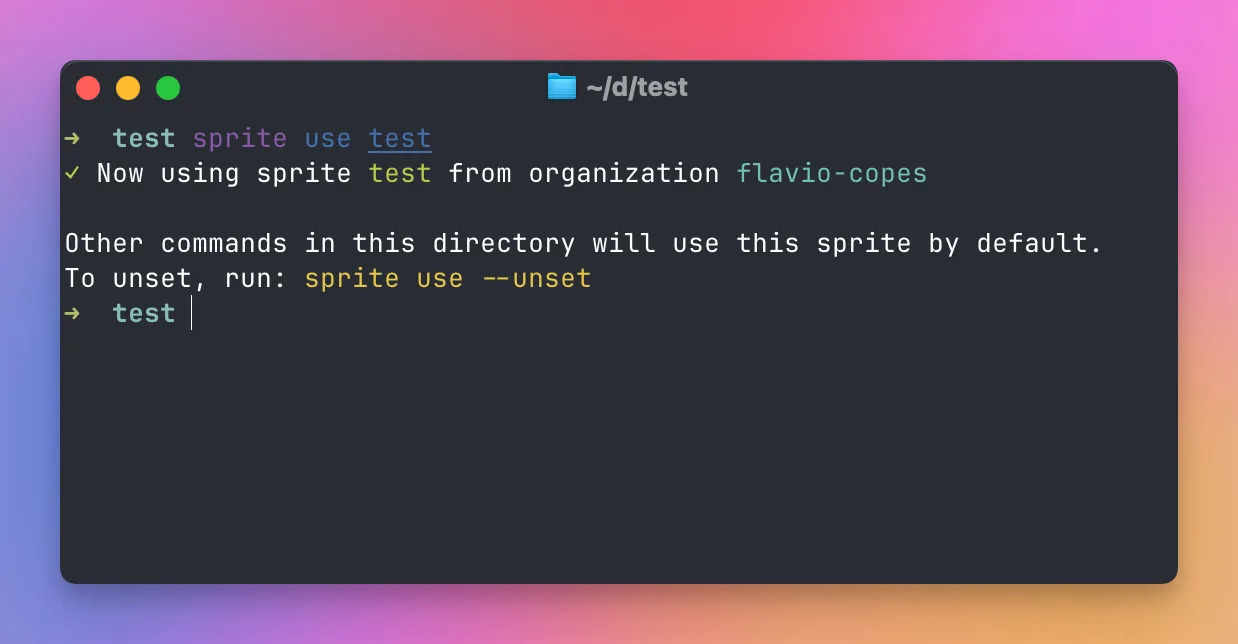
This creates a .sprite file in that directory. From now on every command in that folder targets test:
sprite console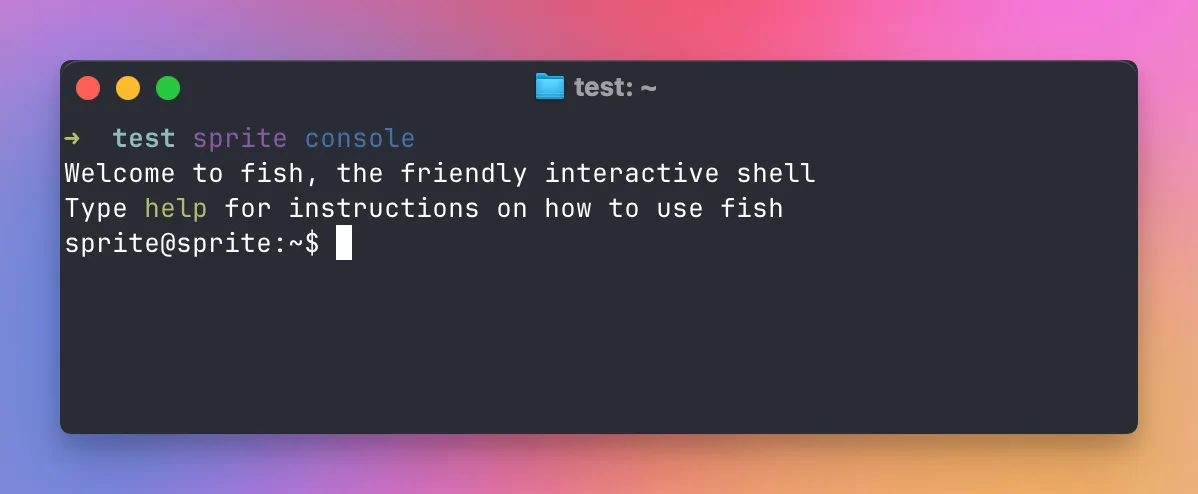
List all your Sprites:
sprite listOr use the short version:
sprite ls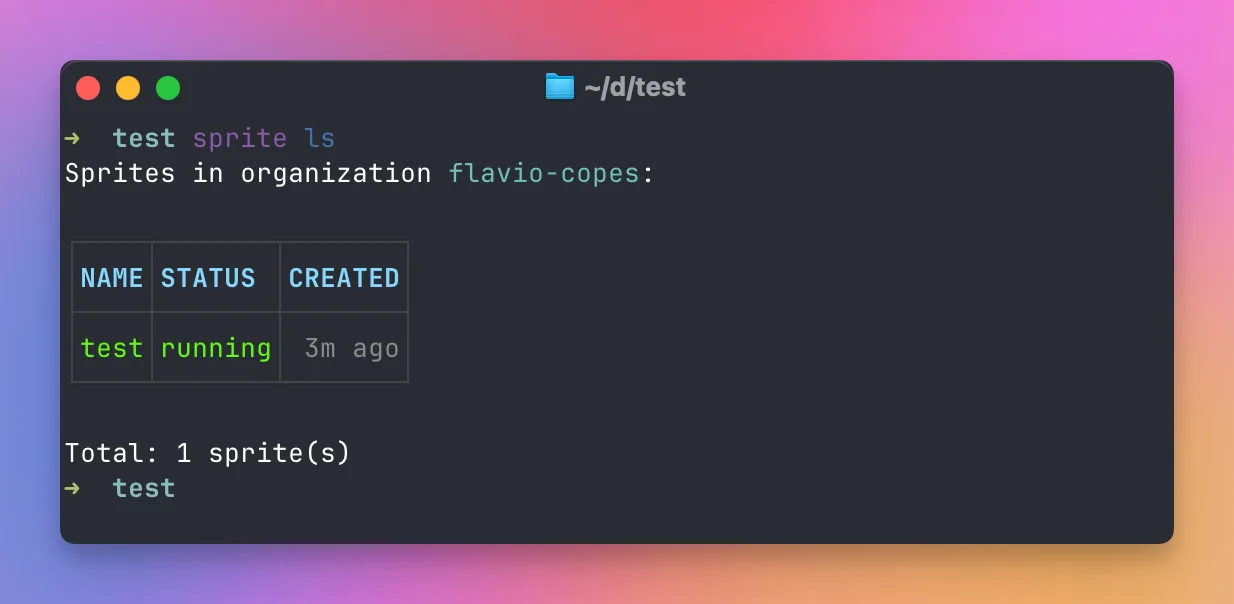
Destroy a Sprite when you’re done:
sprite destroy -s test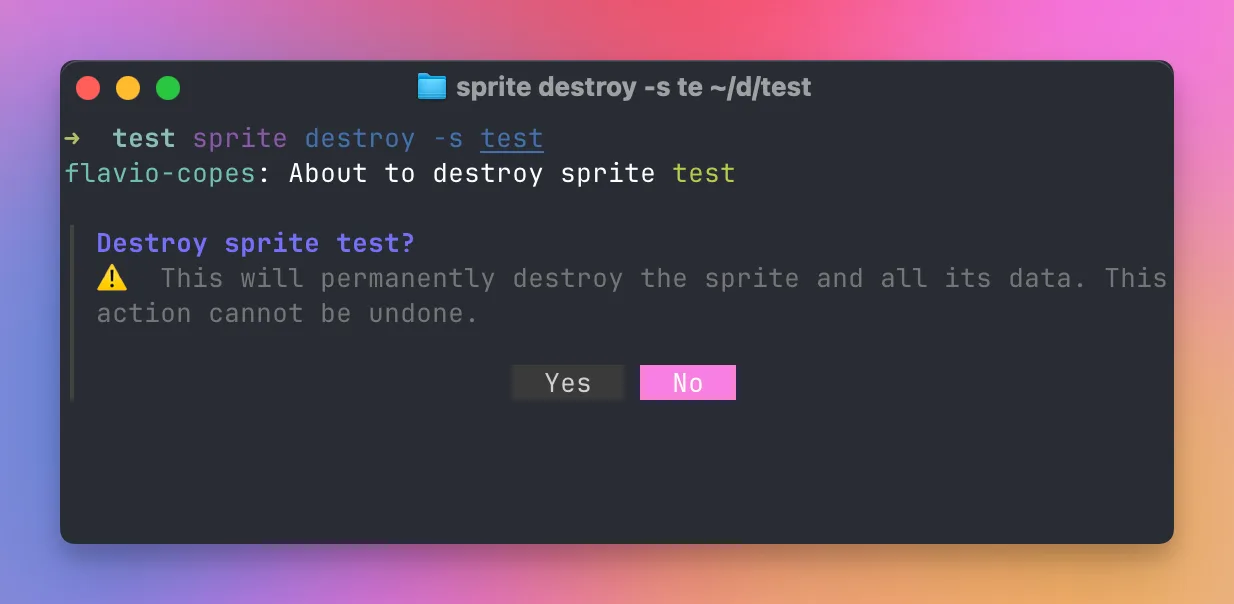
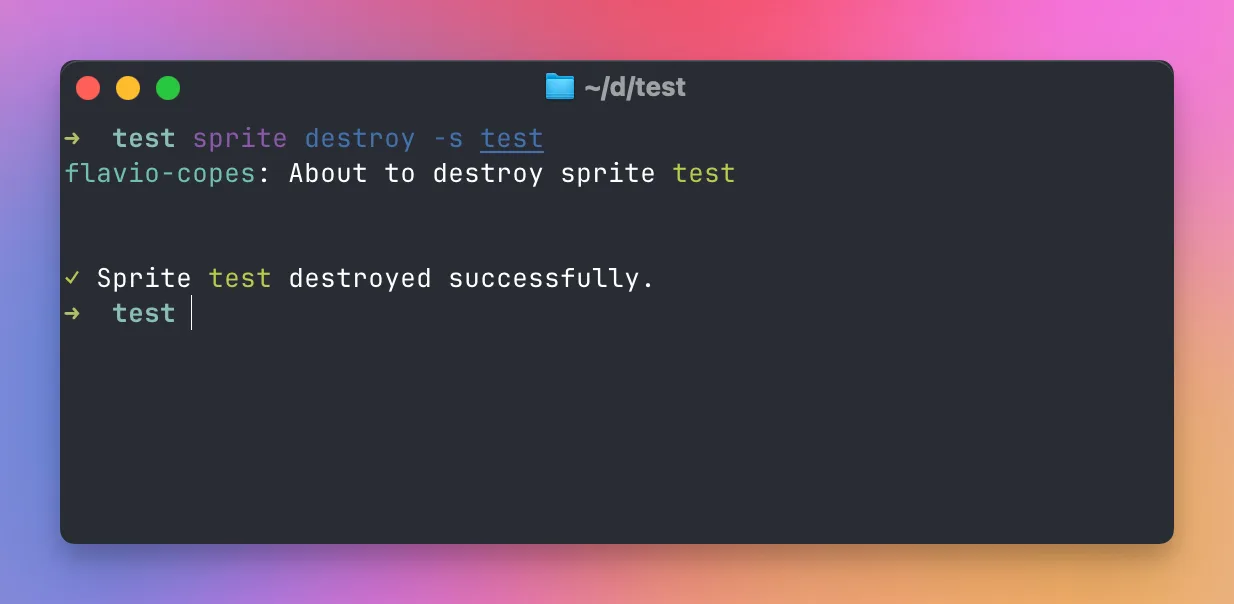
This is permanent. The Sprite is gone.
I alias sprite to s in my shell, so I can type s console. In the fish shell that’s alias -s s=sprite.
URLs and HTTP access
Every Sprite gets a unique URL. Check it with:
sprite url
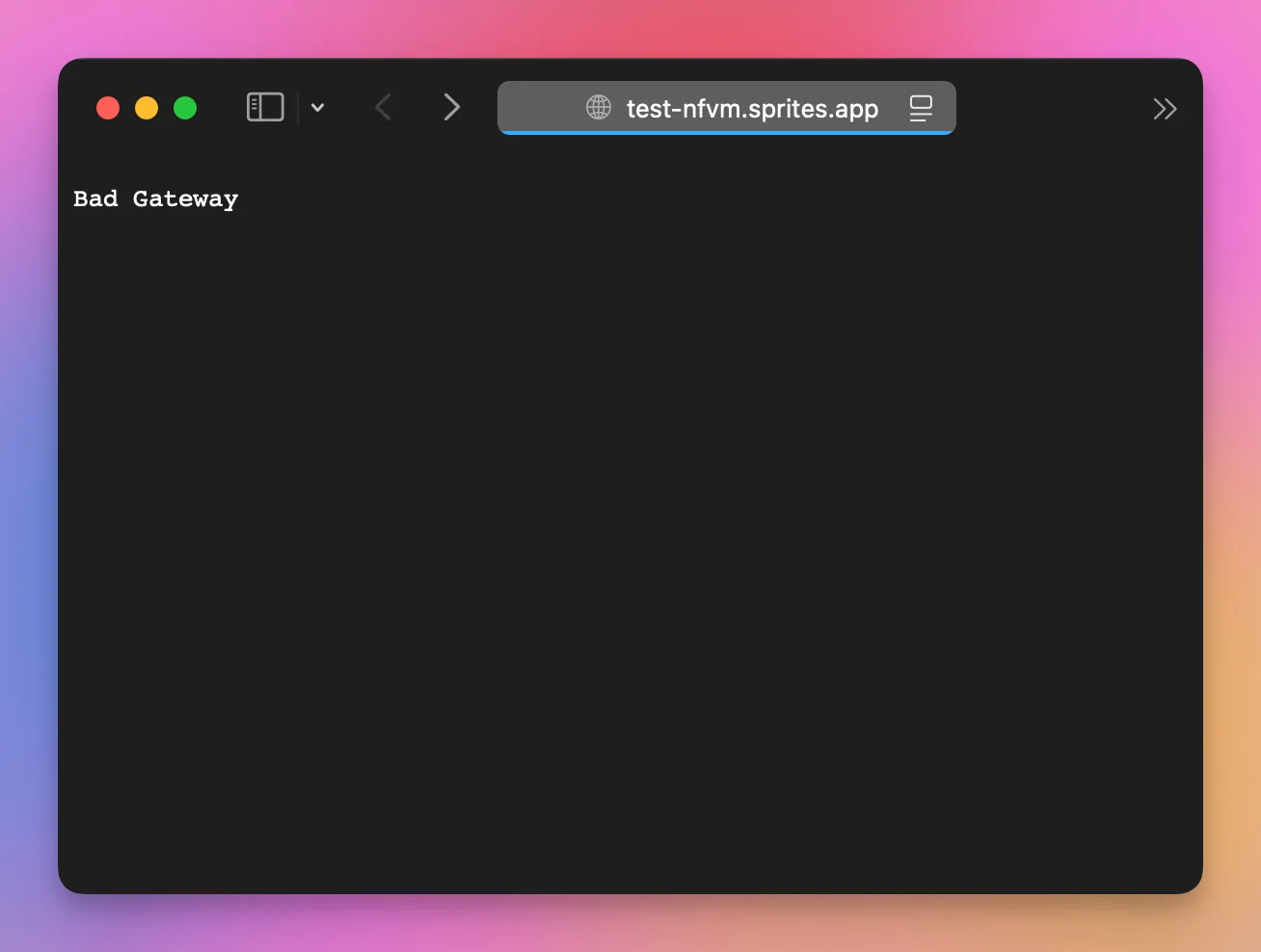
If you visit that URL now, you’ll see an error. Nothing is listening on port 8080, which is the port the URL forwards to.
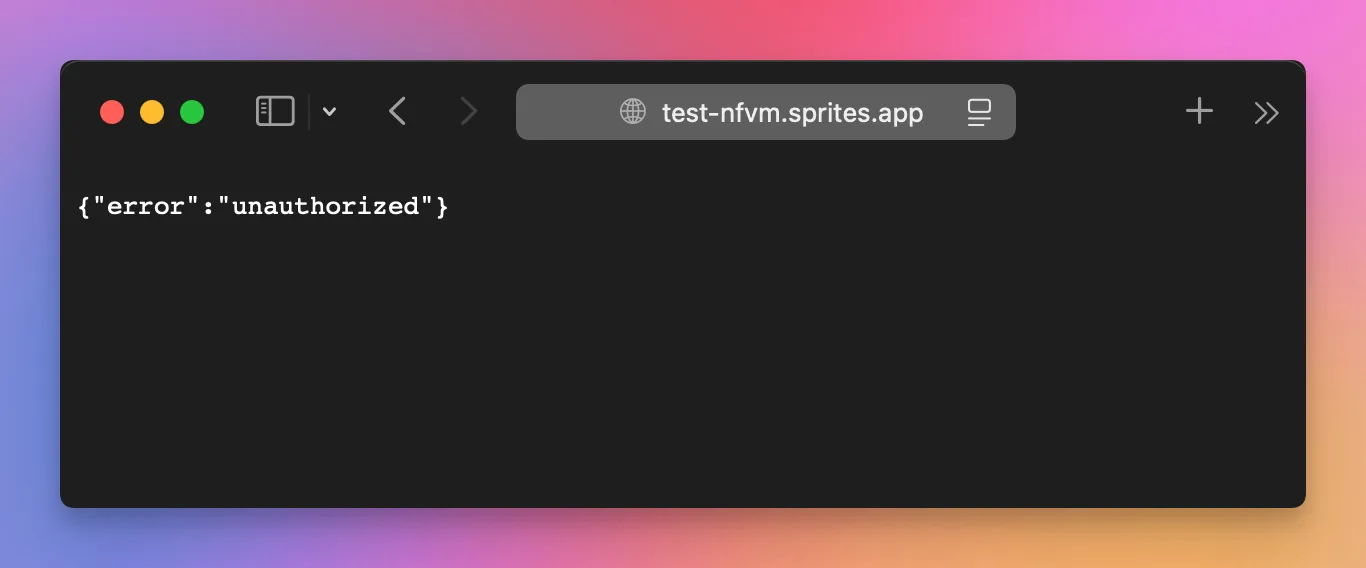
By default, URLs require authentication. Make it public:
sprite url update --auth public
To make it private again:
sprite url update --auth defaultRemember: anything public is public. Anyone can access it.
Running commands with exec
Use sprite exec to run a command on your Sprite without opening a console. The -- separates the CLI flags from the command:
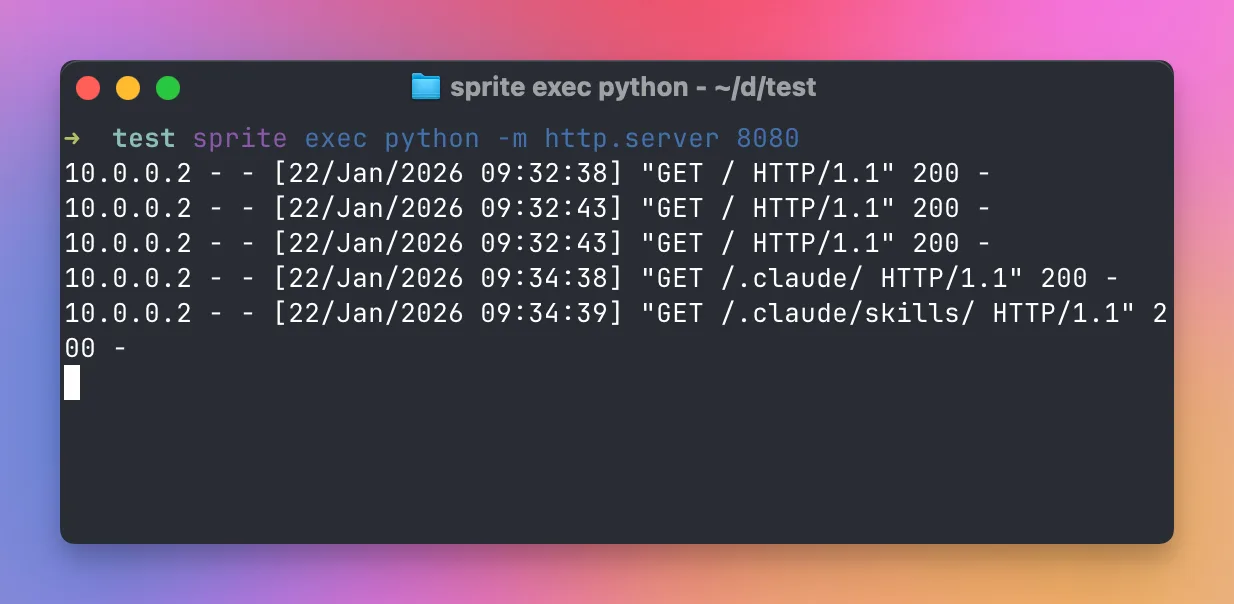
sprite exec -- python -m http.server 8080This starts a Python HTTP server that serves the folder it runs in, which is your home folder on the Sprite.
On a real machine this would be dangerous, since anyone could read your config files. This is a clean install, so we can get away with it.
Port 8080 is what the URL maps to. Visit your Sprite’s URL:
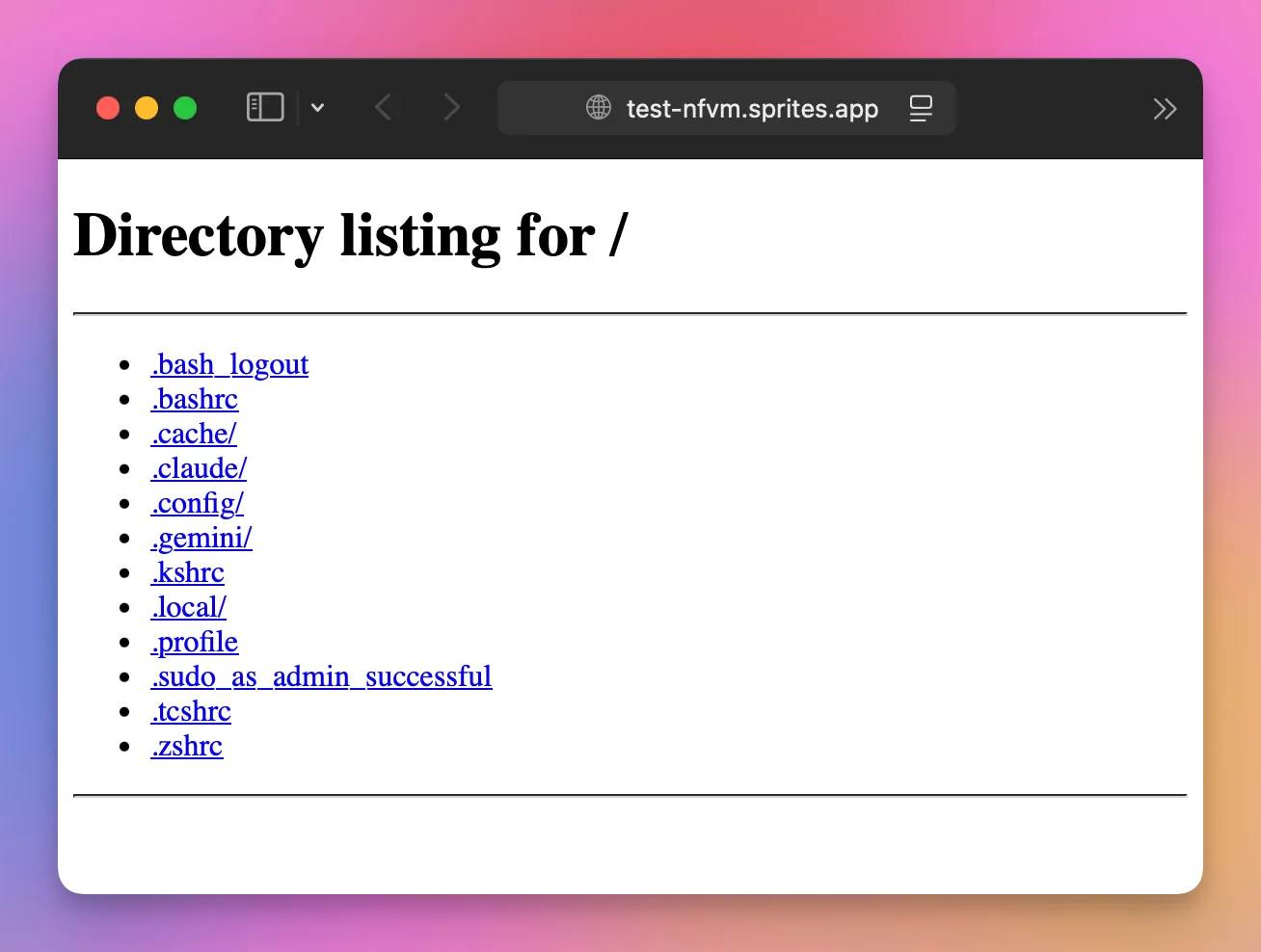
Logs appear in your terminal as requests come in:
Stop the server with ctrl-c. Requests now return “Bad gateway”, because nothing is listening on 8080:
Hibernation
Sprites don’t run all the time. They pause automatically. You can’t pause one yourself.
A Sprite stays active while:
- it’s handling an HTTP request
- you’re in the console
- an exec command is producing output
After about 30 seconds of inactivity, the Sprite pauses.
When paused:
- memory is kept for a while (the Sprite is “warm”), then dropped (it goes “cold”)
- the filesystem persists
- you pay almost nothing, just the cold storage for your files
Everything you installed, every file, every database stays where you left it. The filesystem is your source of truth.
Connect again and it wakes up in a couple of seconds.
Using Claude Code
This is what excites me most about Sprites.
Claude Code comes preinstalled. I can vibe code freely. If I break something, I destroy the Sprite. Or restore a checkpoint.
It’s a perfect sandbox for AI-assisted development. No risk to my local machine. Full freedom to experiment.
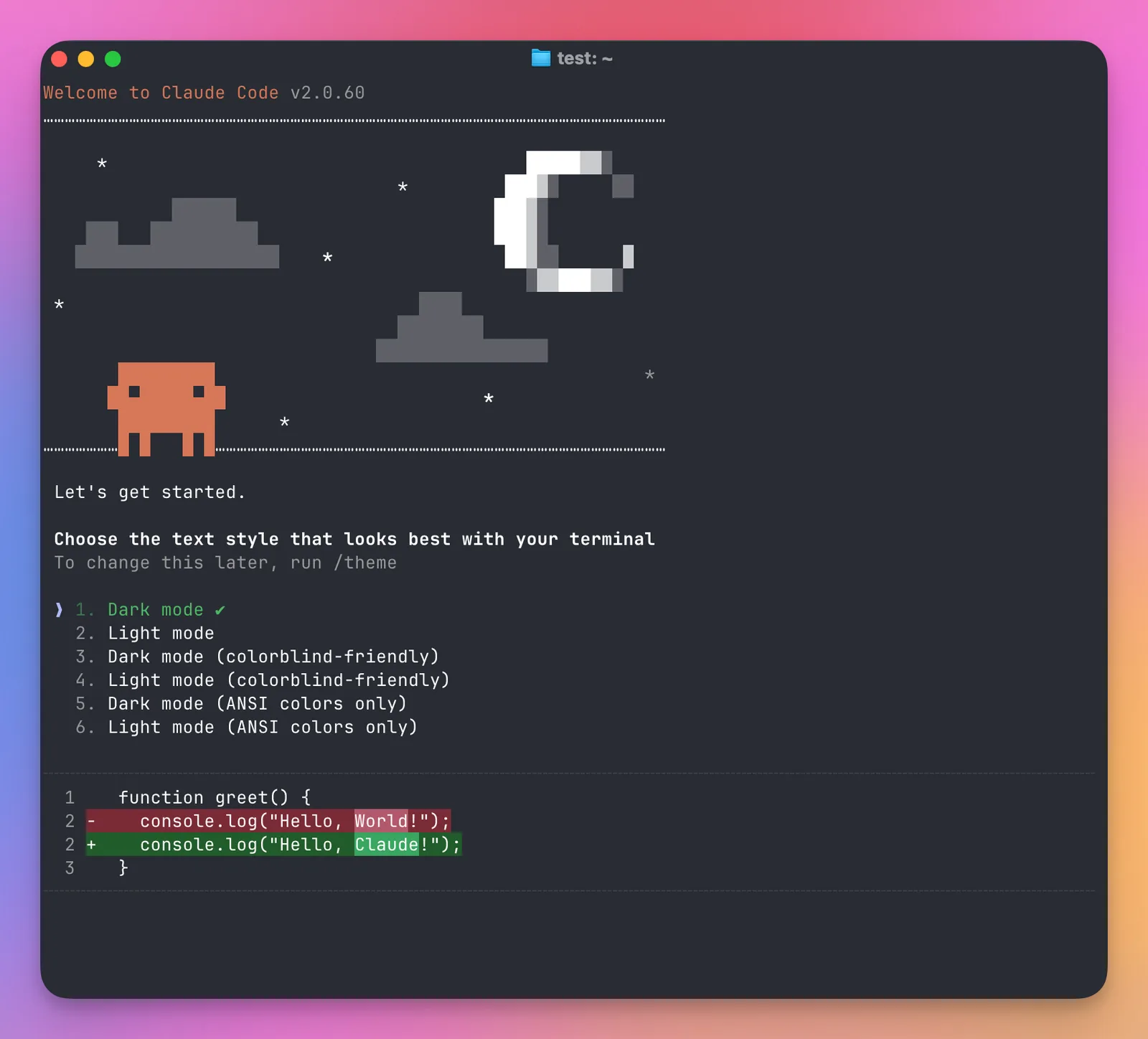
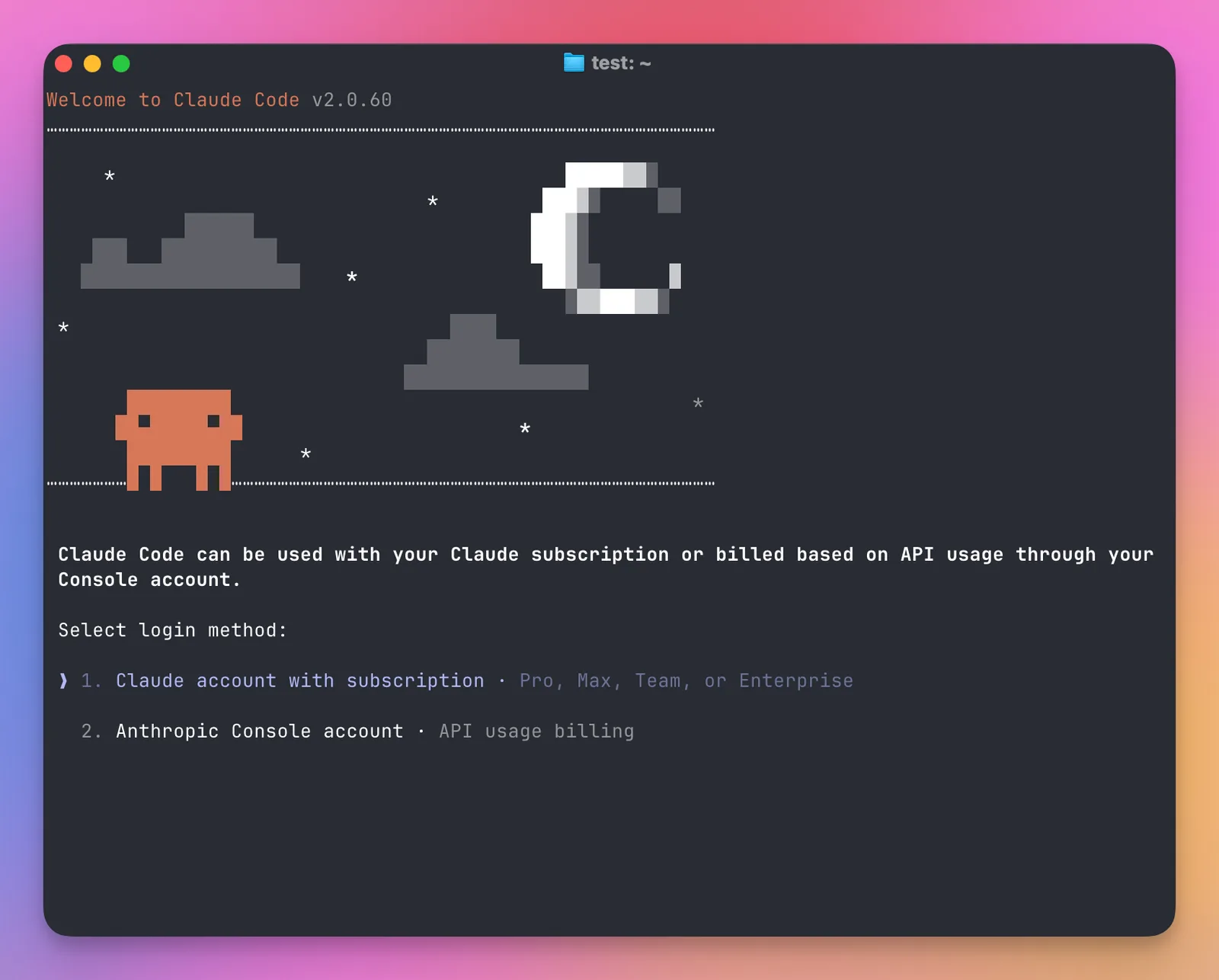
Somehow the authentication opens in the browser on my Mac, and I can authorize Claude Code running on the Sprite:
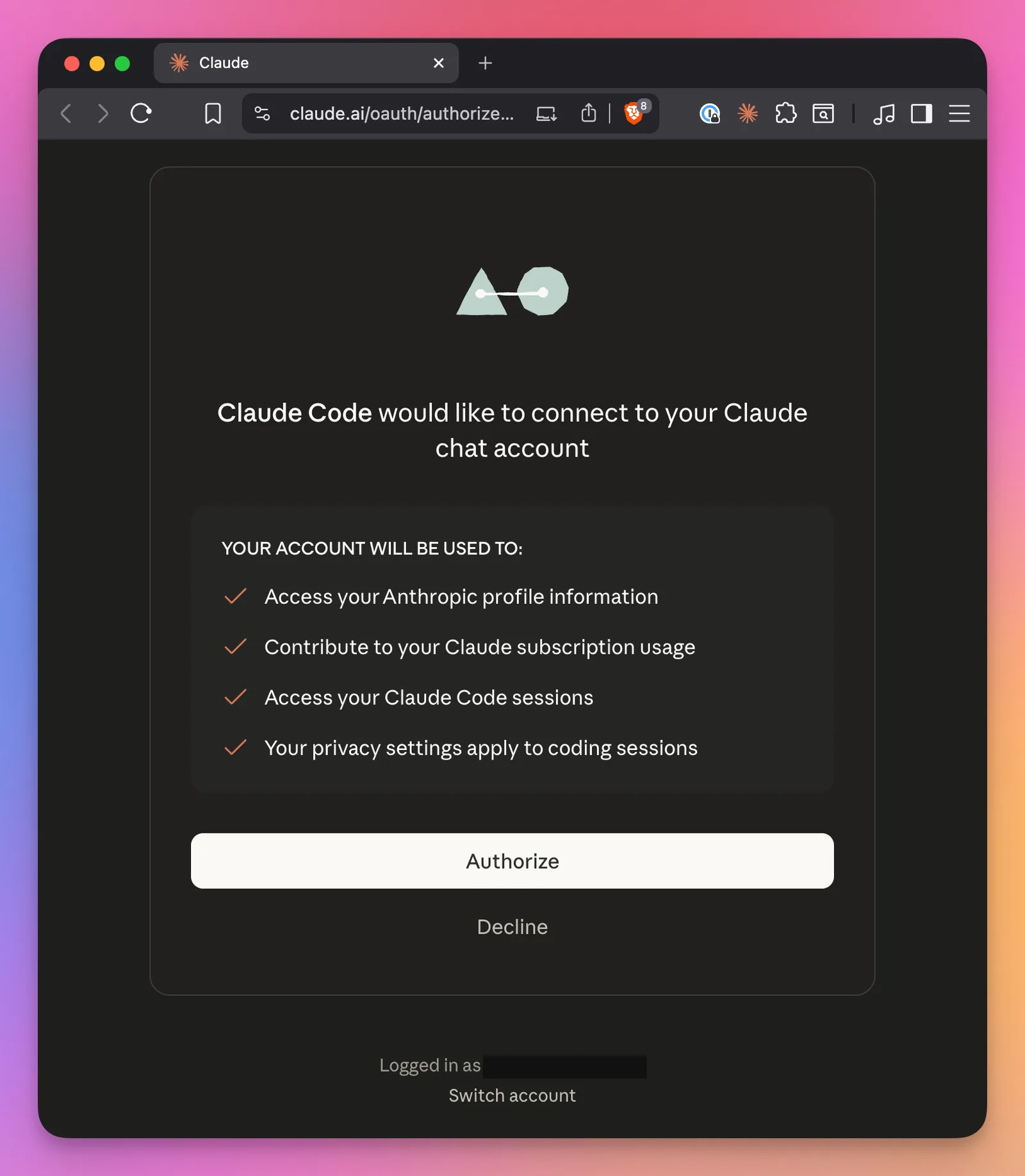
No idea how that works. I’m happy it does.
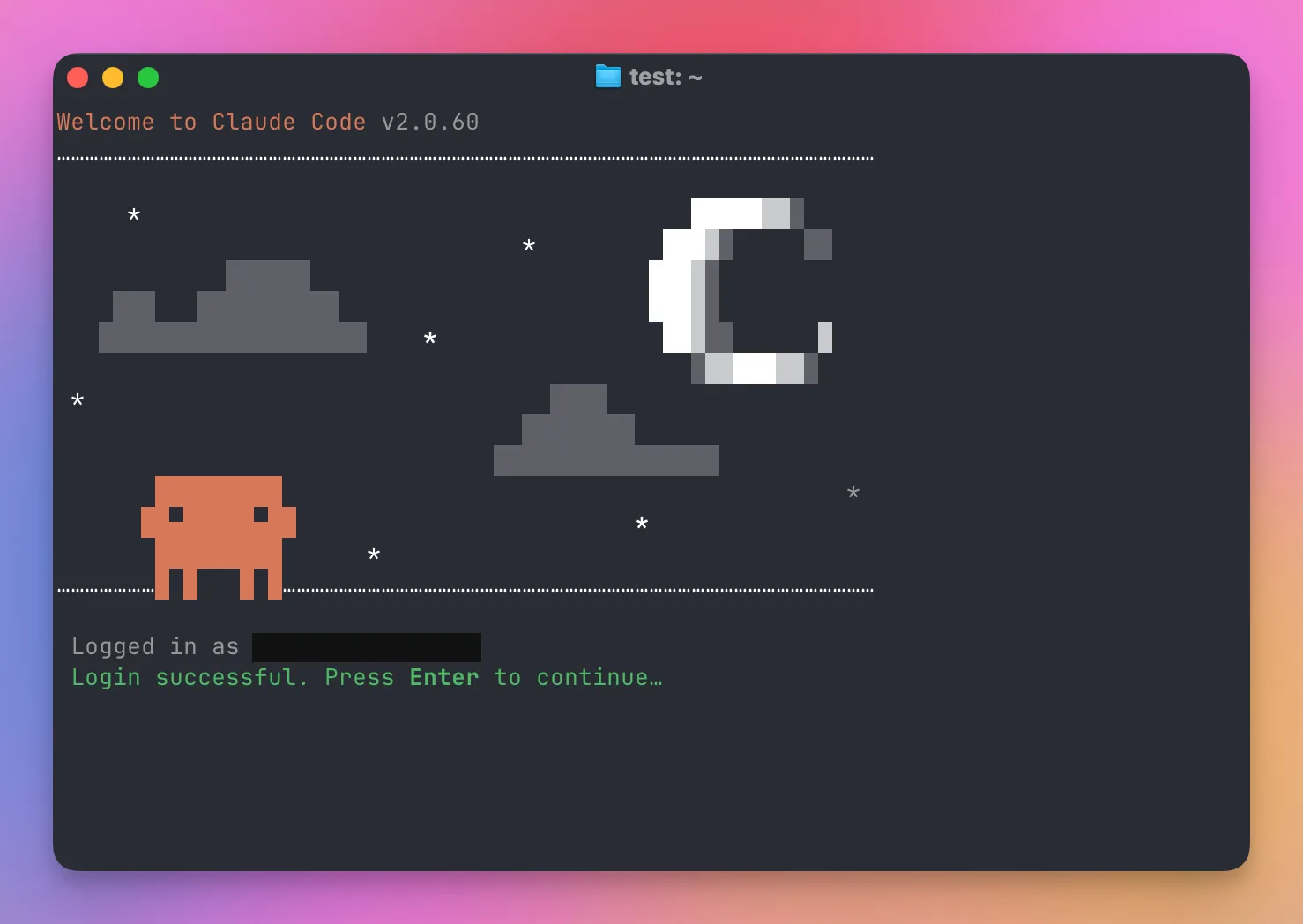
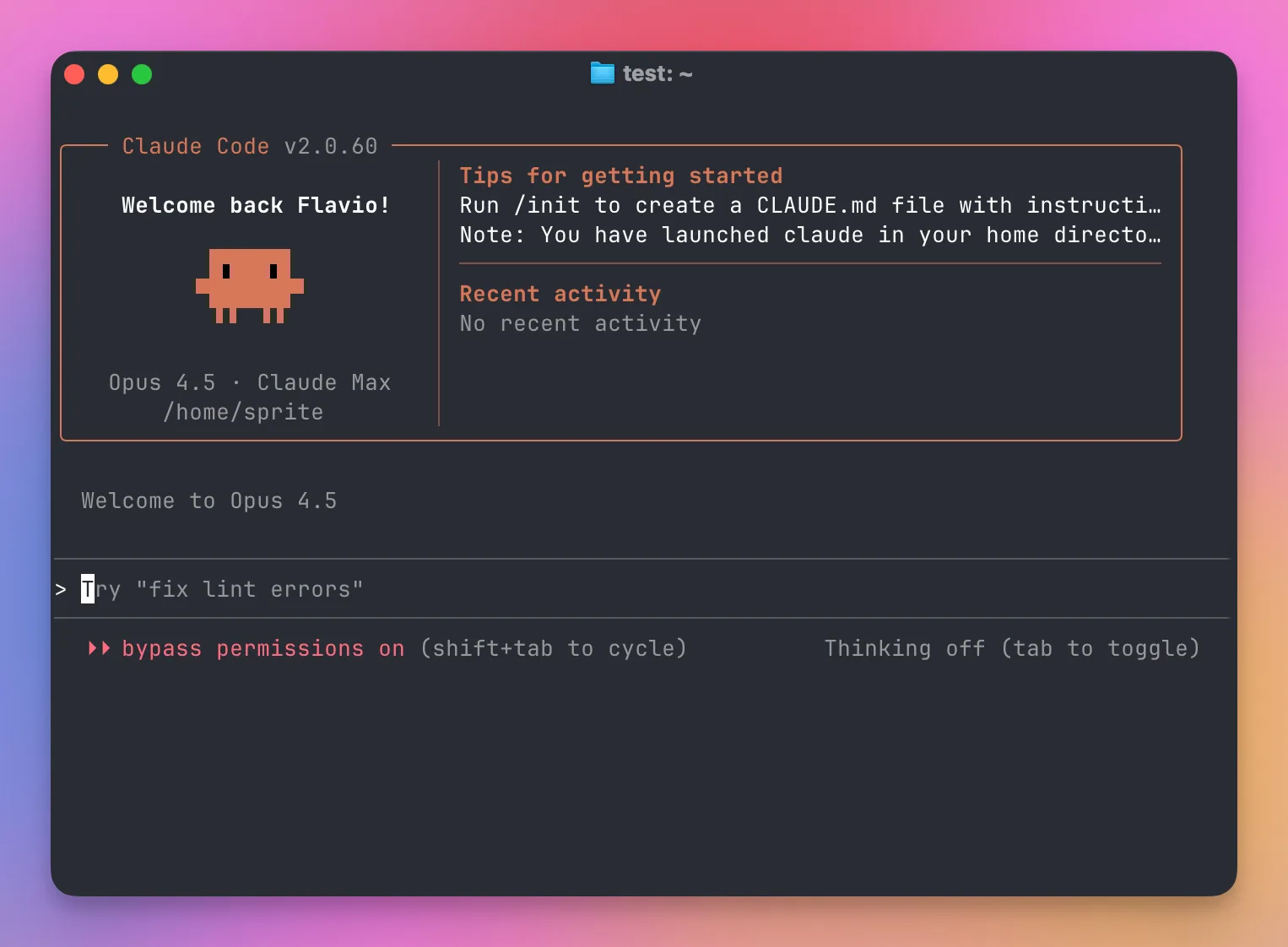
We’re in, with dangerous mode enabled, since we’re in a sandbox:
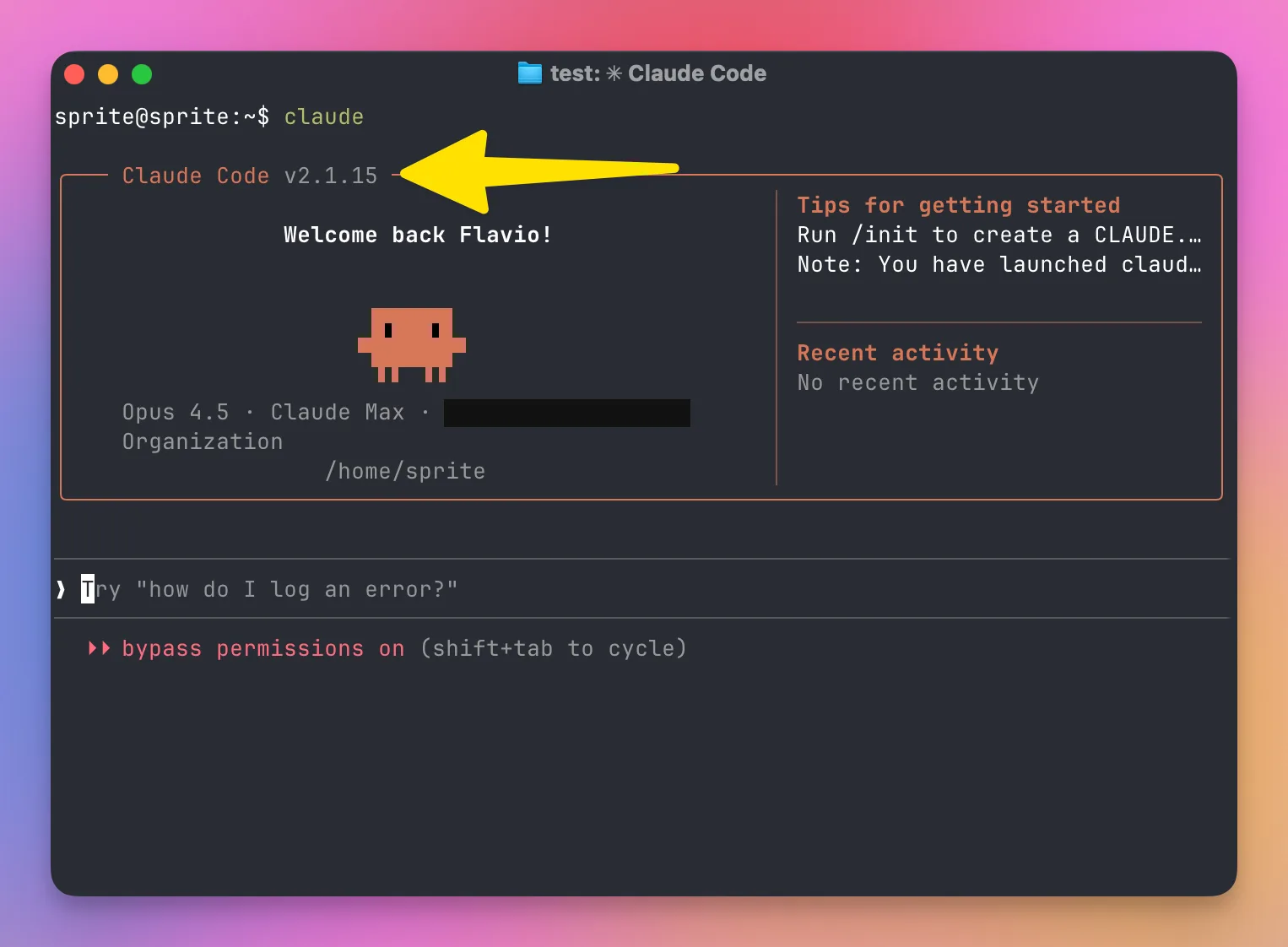
The preinstalled Claude version is a bit old, but it updates itself. The next time you start it, you have the latest version:
The built-in Claude Code skill
In .claude/skills/sprite/SKILL.md in your home folder, Sprites ships a skill that teaches the agent how the platform works:
---
name: sprite
description: Use this skill when users are modifying system configuration, starting dev servers, requesting services (databases, Docker, Redis, etc.), installing dependencies or runtimes, or when they have made a functional change to their code that appears to be working (to create a checkpoint). Also use for managing checkpoints, restores, and understanding network policy in the Sprite VM.
---

You are the Sprite environment agent. Load context from:
- `/.sprite/llm.txt` - platform behavior
- `/.sprite/llm-dev.txt` - language runtimes and dev tools
- `/.sprite/logs/services/` - service logs
- `/.sprite/checkpoints/v<X>/` - filesystem snapshot for checkpoint X

When invoked:
1) Review `/.sprite/llm.txt` for platform behavior (services, checkpoints, filesystem, network policy).
2) For service start/stop, do not pre-confirm expectations; if a start is requested, run it and surface the logs from that start back to the caller.
3) For checkpoint/restore, note copy-on-write behavior and that only overlay data is captured. Always confirm with the user before restore because it drops the entire session.
4) For network policy, respect allowed domains; avoid raw IP unless resolved from allowed domains.
5) Checkpoints are very, very fast. Checkpoint every time you think you're at a good spot. Include a useful comment describing what was accomplished.
6) When users indicate something is working, looks good, or is functioning as intended, immediately create a checkpoint to preserve that state with a descriptive comment.

Output concise, actionable steps. If you need more data, say exactly which file/path to inspect. Do not duplicate large file contents—summarize key facts.
The skill points to /.sprite/llm.txt, which is short:
# Sprite Environment

## CRITICAL: Security Rules
- HTTP services you create may become PUBLIC - never expose secrets, env vars, or sensitive data
- See /.sprite/docs/agent-context.md for full security requirements

## Documentation: /.sprite/docs/

- /.sprite/docs/agent-context.md - Environment overview (services, checkpoints, network policy)
- /.sprite/docs/languages.md     - Language runtimes and version managers

Per-language details: /.sprite/languages/<lang>/llm.txt

CLI help: sprite-env --help
/.sprite/docs/agent-context.md is the long one. It explains the environment to the agent: it runs as the sprite user with passwordless sudo, there’s no systemd (you use Sprite “services” instead), port 8080 gets the proxied HTTP traffic, and the Sprite pauses when nothing is happening.
The part I find most interesting is the security section:
### Sensitive Information - NEVER Expose
LLM agents MUST NEVER:
- Create HTTP endpoints that expose environment variables, API keys, tokens, or credentials
- Serve file contents without explicit user request and proper access controls
- Create "debug", "admin", or "status" endpoints that dump system internals
- Log, print, or return secrets in HTTP responses or service output
- Build tools that proxy arbitrary file system access over HTTP
- Create endpoints that return unfiltered process info, user data, or system state
Think about why this exists. A Sprite URL can be made public. An agent that builds a quick “debug” page dumping process.env would leak your keys to the whole internet. So the platform tells the agent, in plain words, not to do that.
The same file documents the network policy. Outbound traffic is filtered by DNS: only allowed domains resolve. The default policy includes GitHub, npm, PyPI, Docker Hub and the AI APIs. You can inspect the active policy from inside the Sprite:
cat /.sprite/policy/network.jsonYou can’t change it from inside. Policy updates go through the Sprites API from outside the VM.
/.sprite/docs/languages.md lists the runtimes and how each one is managed: nvm for Node, pyenv for Python, rbenv for Ruby, rustup for Rust, SDKMAN for Java, and so on. Each has a default version installed, and shims in /.sprite/bin make node, python, go and friends just work.
Checkpoints
Checkpoints save the state of a Sprite at a point in time.
Create one:
sprite checkpoint create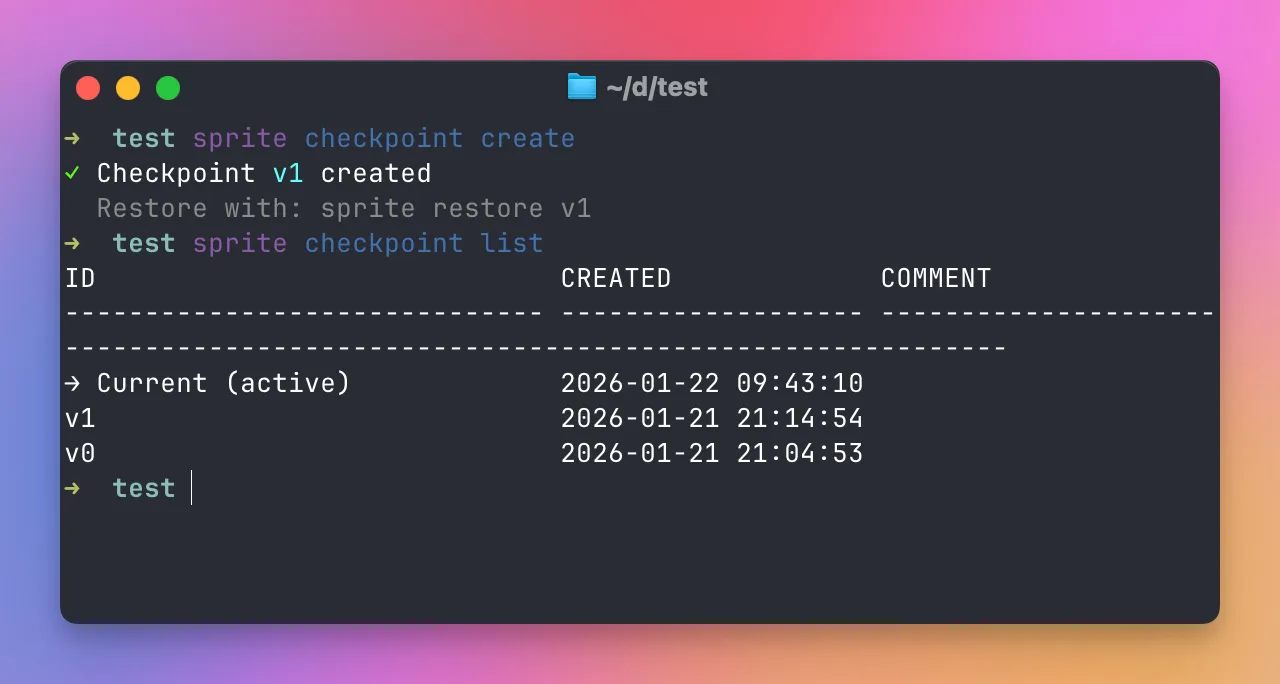
Add a comment to remember what it was for:
sprite checkpoint create --comment "before updating the project"Now try something experimental. Install a tool, for example Amp:
sprite console
curl -fsSL https://ampcode.com/install.sh | bash
Now you can run amp on the Sprite:
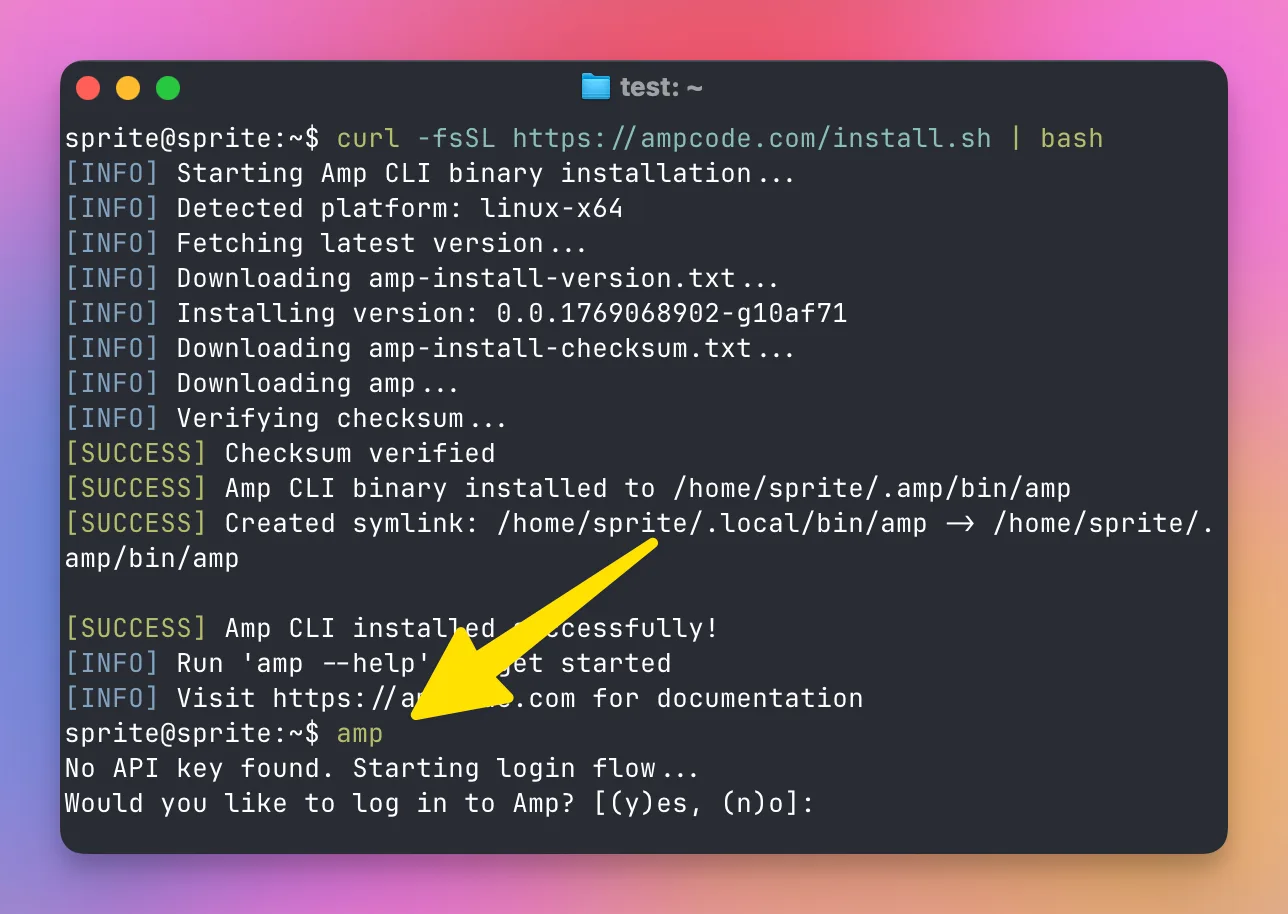
Not happy with the result? List your checkpoints:
sprite checkpoint lsRestore to an earlier state:
sprite restore v1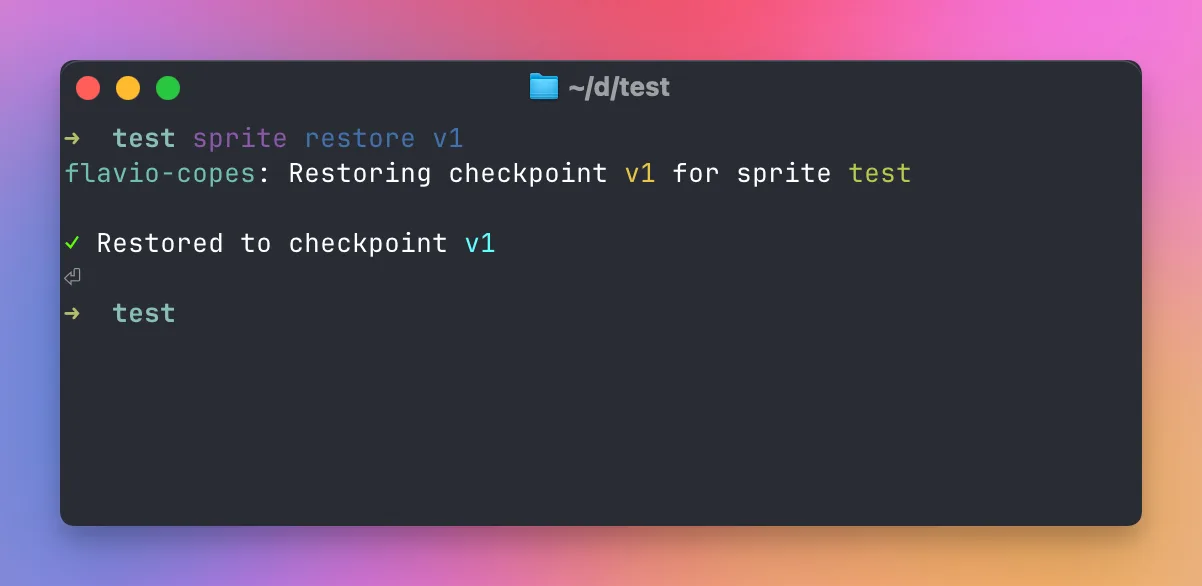
Now amp is gone. You’re back where you were:
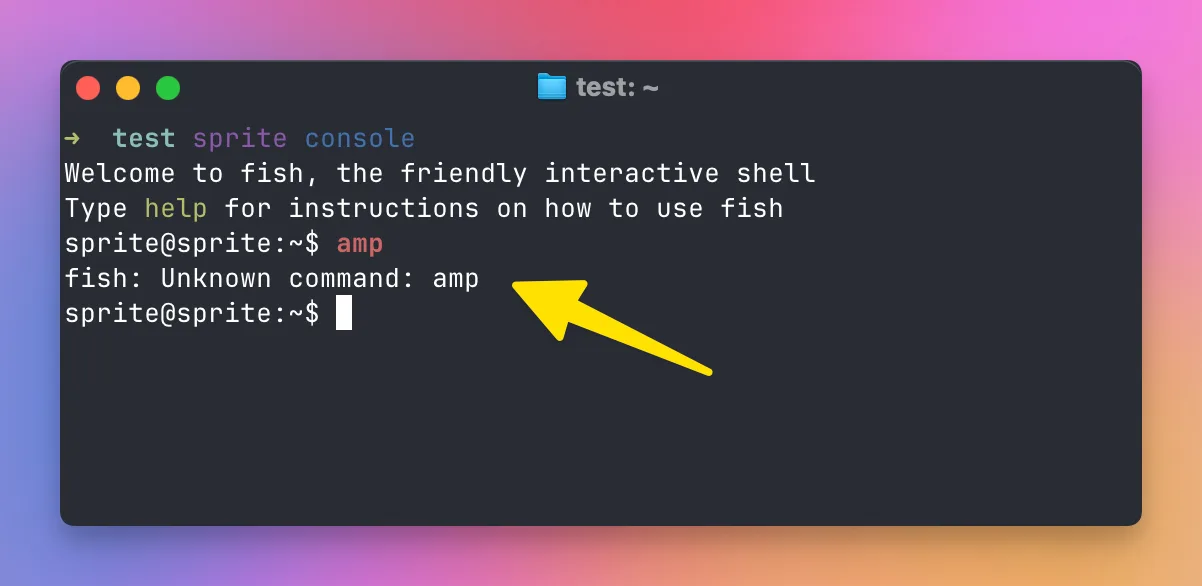
You can move back and forth in time through your checkpoints.
Delete a checkpoint you don’t need:
sprite checkpoint delete v1When you destroy a Sprite, all its checkpoints go with it.
TTY sessions
A normal exec runs one command and waits for it to finish. Good for quick things.
Add --tty to get a real terminal:
sprite exec --tty -- claude
This feels like SSH. You interact with the process, and it keeps the Sprite awake.
Press ctrl-\ to detach. The process keeps running.
List active sessions:
sprite sessionsReattach with sprite attach and see everything that happened while you were away.
The VS Code and Cursor extension
Sprites has an official extension that lets you browse and edit files on a Sprite from your editor.
Search for “Sprites” by Fly.io in the extensions panel:
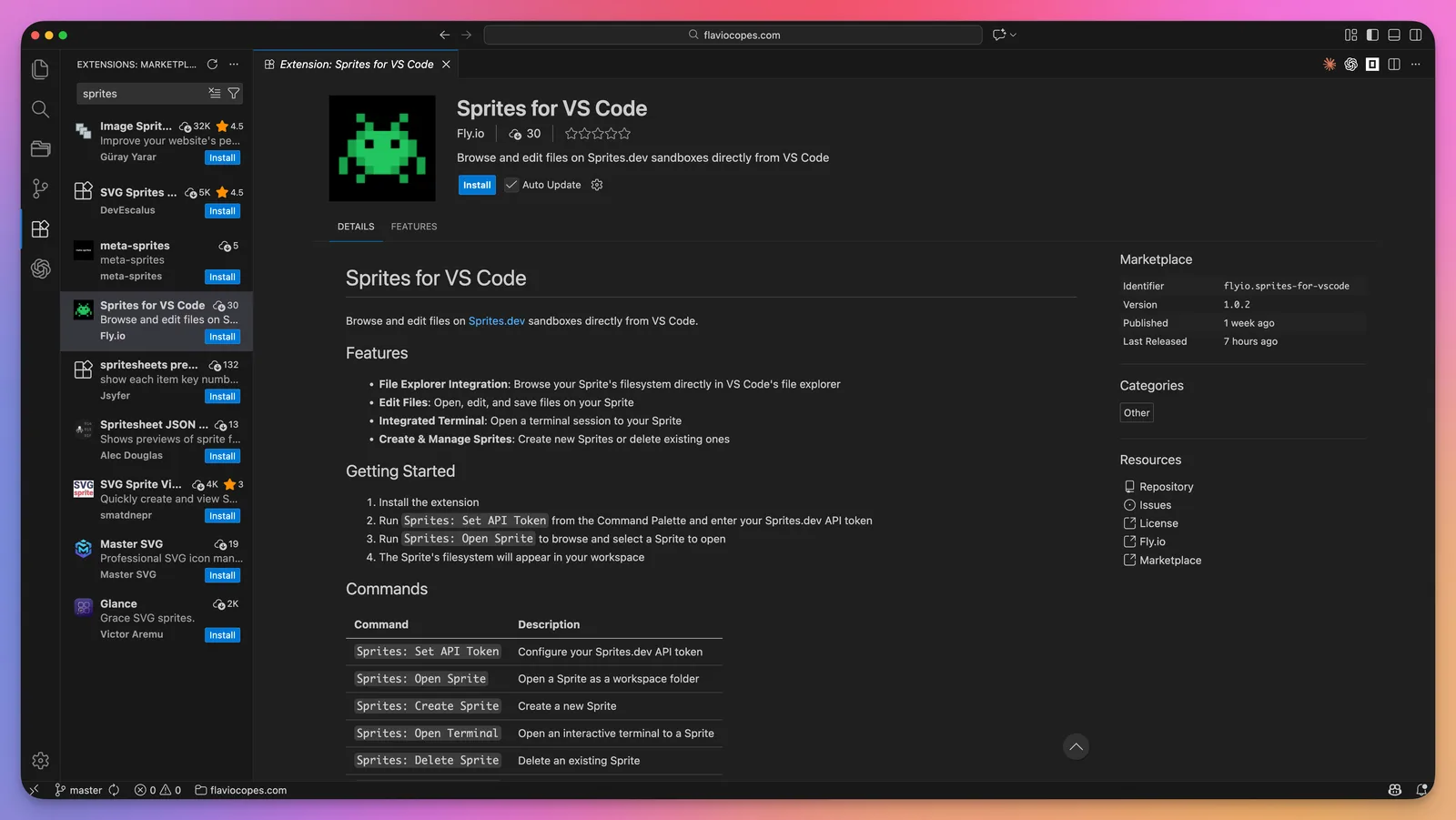
The source is at github.com/superfly/sprites-vscode-ext.
Once installed you have the command Sprites: Set API Token:
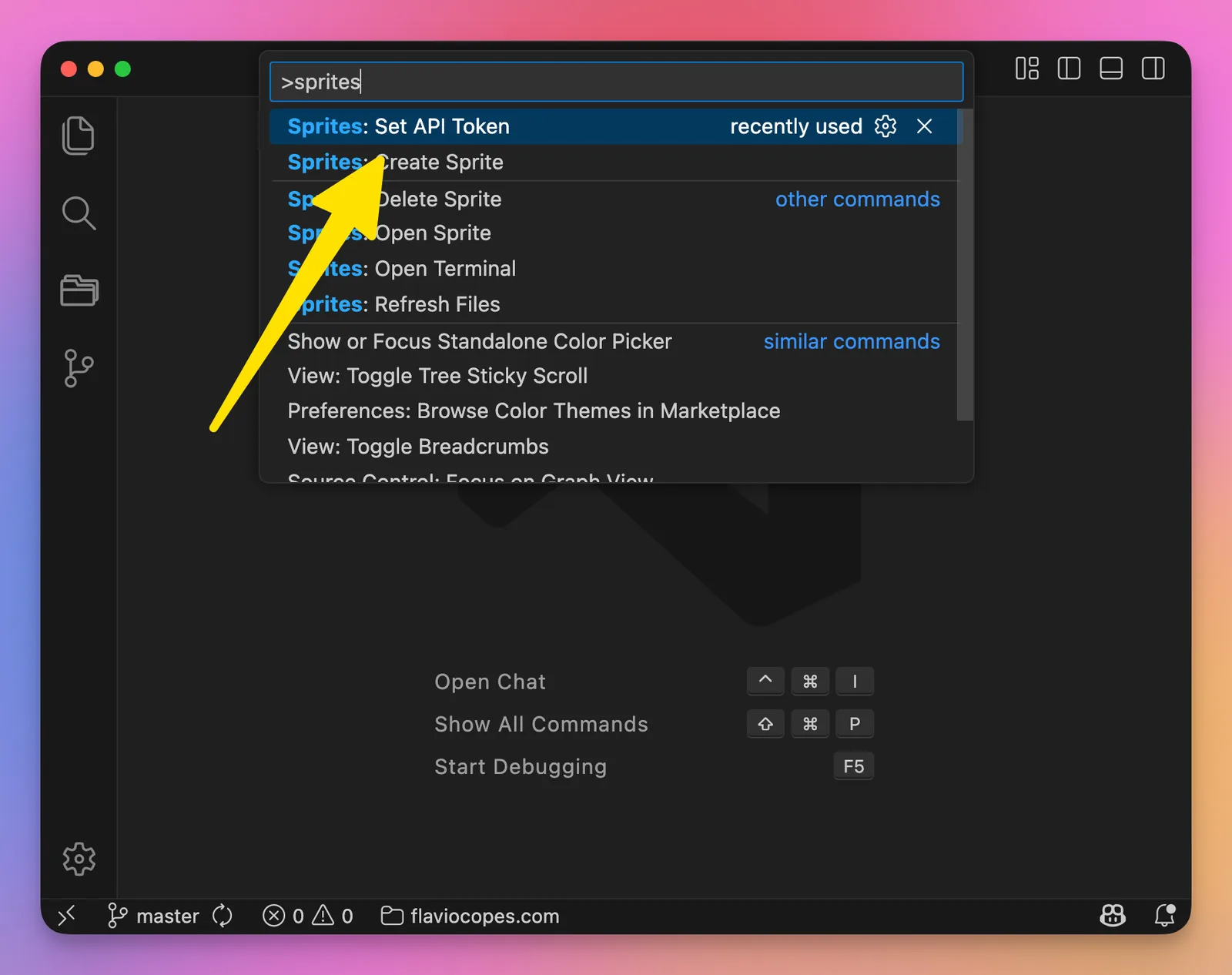
Generate a token from the sprites.dev account page:

And paste it into the prompt:
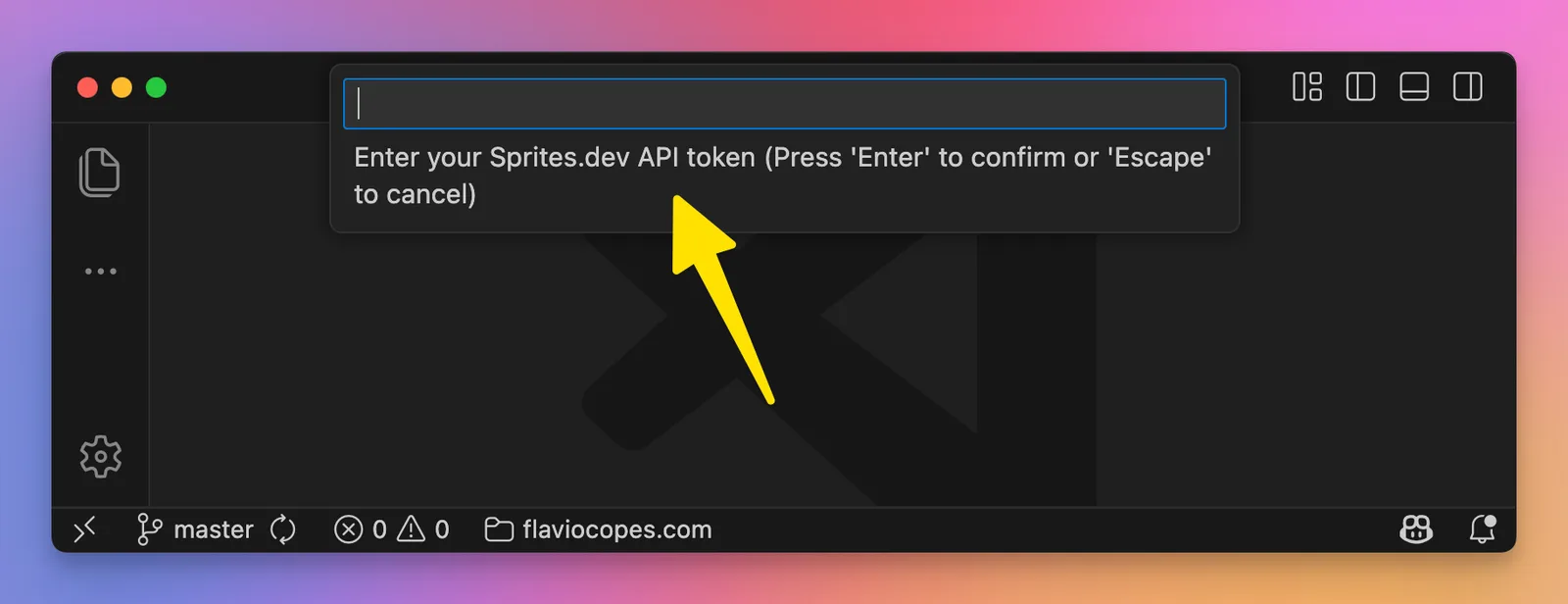
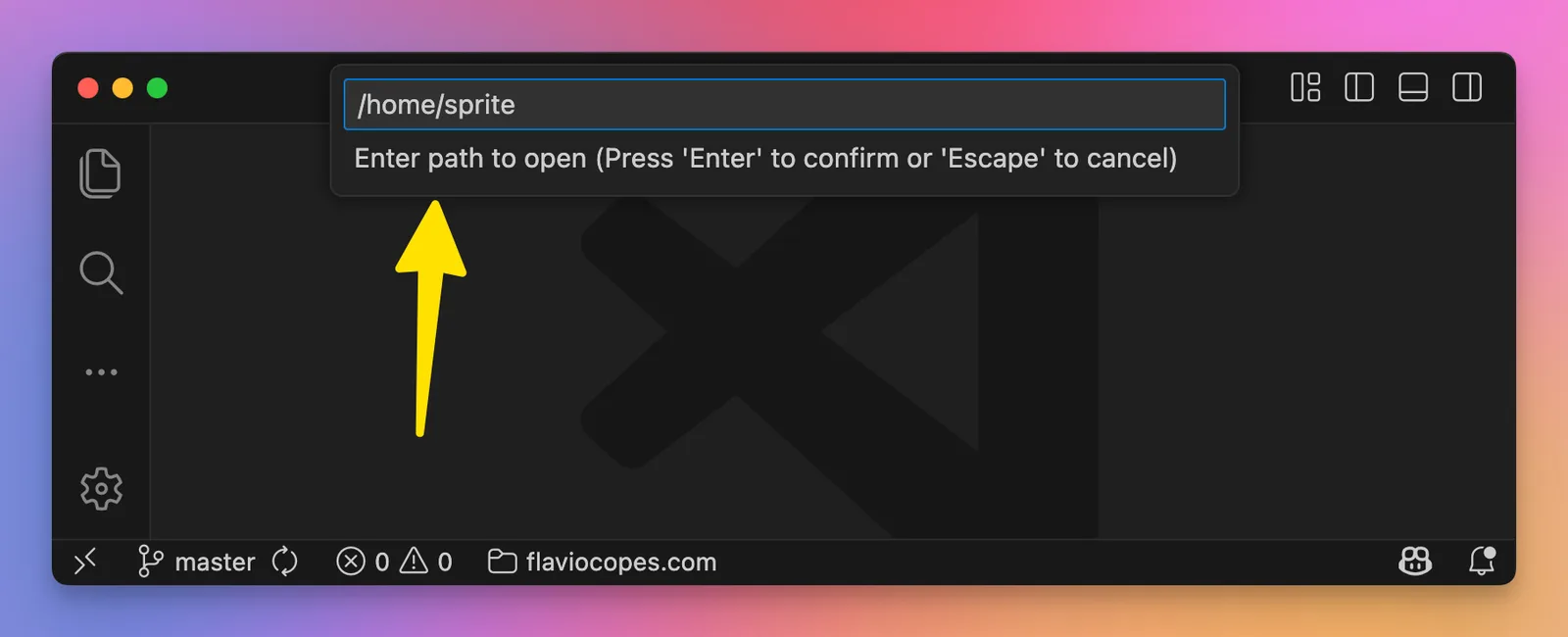
Now run Sprites: Open Sprite and pick one:
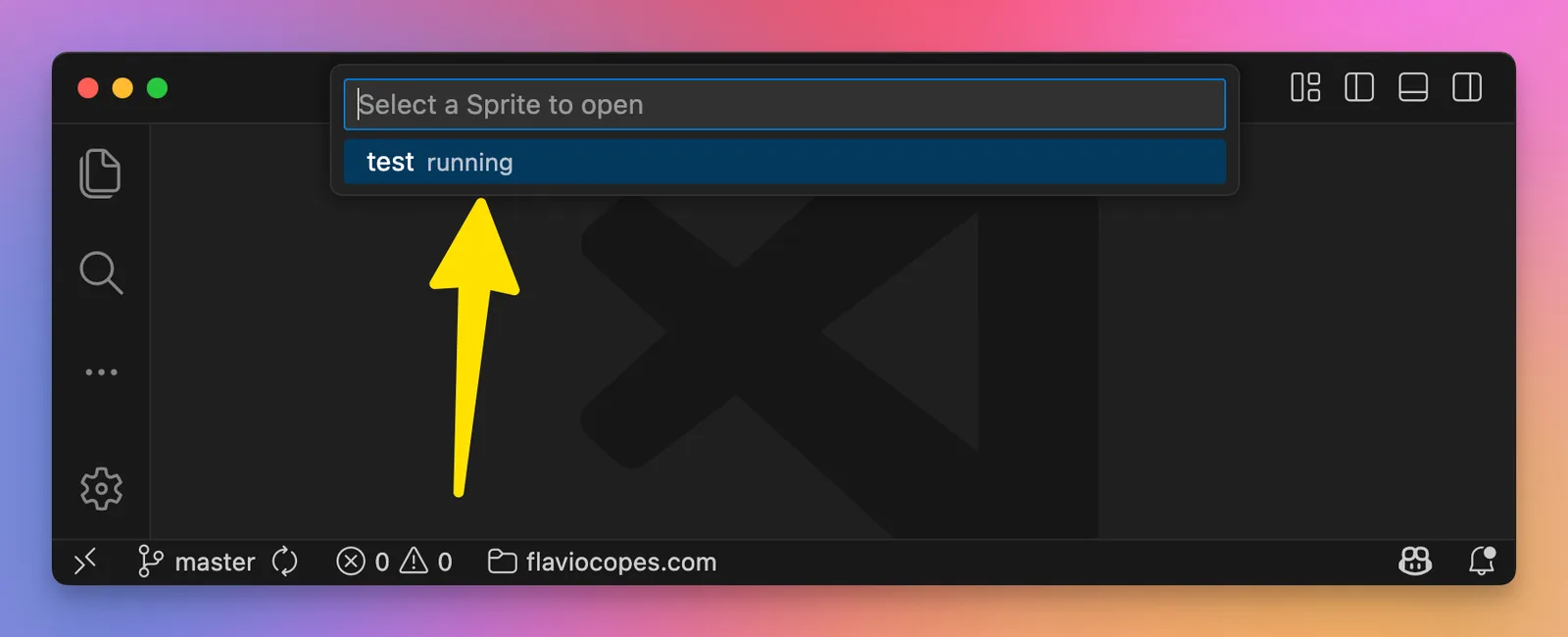
The Sprite’s filesystem opens in your workspace:
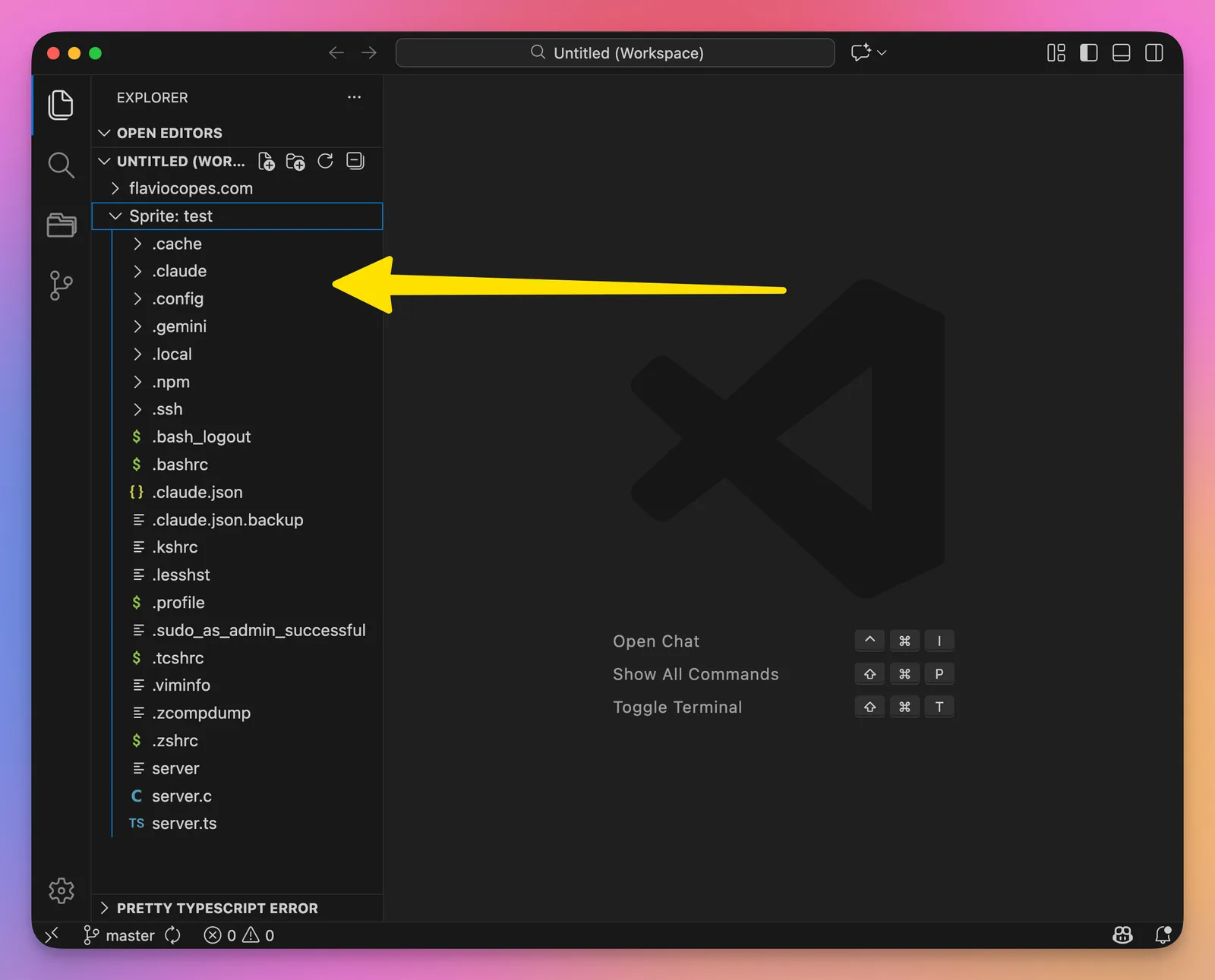
Right-click a folder to download it to your computer. That’s the easy way to get a project out of a Sprite.
Pricing
Sprites bill for what you use, as of September 2026:
- CPU: $0.07 per CPU-hour
- Memory: $0.04375 per GB-hour
- Hot storage: $0.000683 per GB-hour
- Cold storage: $0.000027 per GB-hour
Their own examples: a 4-hour coding session costs about $0.44. A small web app awake 30 hours per month costs about $1.89.
When paused, you pay almost nothing. Just cold storage for your files.
The free $30 credit is enough to play for a long time. There are also monthly plans that bundle a fixed amount of CPU and memory hours.
Why I like Sprites
We never had anything quite like this.
Spin up a real Linux box in seconds. Install whatever you want. Run AI coding agents with all the guardrails off. Mess up? Restore a checkpoint. Done? Destroy it.
For AI-assisted development it’s ideal. A disposable sandbox where you can experiment without consequences.
Read more
- docs.sprites.dev
- The Sprites launch discussion on Hacker News
- A second Hacker News thread on Sprites
Want me to talk about your product? You can sponsor this site.
Related posts about ai: