Service Workers Tutorial
By Flavio
Published · Updated
Tagged: Web Platform
Learn how service workers power Progressive Web Apps, a programmable proxy that caches network requests for offline use and enables push notifications.
- Introduction to Service Workers
- Background Processing
- Offline Support
- A Service Worker Lifecycle
- Updating a Service Worker
- Fetch Events
- Background Sync
- Push Events
- A note about console logs
Introduction to Service Workers
A service worker is an event-driven worker that sits between your web app, the browser, and the network. It can intercept requests, serve cached responses, and handle events such as push messages.
This programmable proxy is the foundation of many offline experiences and Progressive Web Apps.
Like other web workers, it runs in a worker context without DOM access. The browser starts it to handle an event and can stop it again when the work is complete. Do not keep important state only in global variables.
Service workers cannot use Local Storage or XHR. Use the Fetch API for requests, Cache or IndexedDB for storage, and postMessage() to communicate with pages.
Service Workers cooperate with other recent Web APIs:
They are only available in secure contexts. In production that means HTTPS. Browsers also treat http://localhost as secure for local development. See the MDN Service Worker API guide.
Background Processing
Service workers do not run continuously. The browser starts them for events such as fetch, push, and supported background sync events.
The main scenarios where Service Workers are very useful are:
- they can be used as a caching layer to handle network requests, and cache content to be used when offline
- to allow push notifications
The exact background behavior is controlled by the browser and operating system. Do not use a service worker as if it were a permanent background process.
Offline Support
Traditionally the offline experience for web apps has been very poor. Without a network, often web mobile apps won’t work, while native mobile apps have the ability to offer either a working version, or some kind of nice message.
This is not a nice message, but this is what web pages look like in Chrome without a network connection:
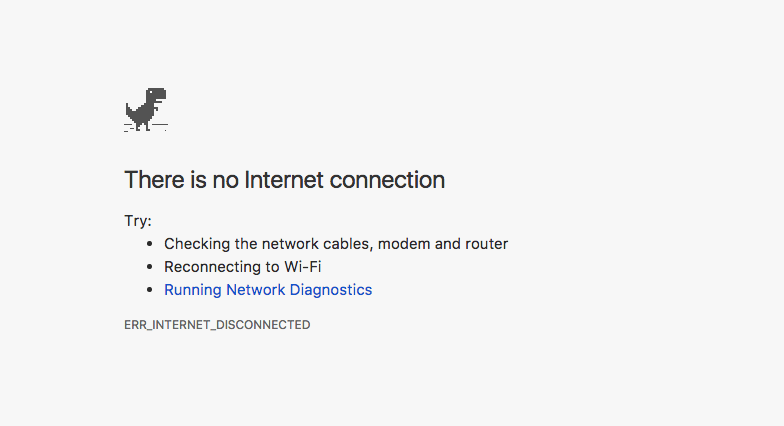
Possibly the only nice thing about this is that you get to play a free game by clicking the dinosaur, but it gets boring pretty quickly.

In the recent past the HTML5 AppCache already promised to allow web apps to cache resources and work offline, but its lack of flexibility and confusing behavior made it clear that it wasn’t good enough for the job, failing its promises (and it’s been discontinued).
Service workers and the Cache API are the standard tools for offline caching.
Which kind of caching is possible?
Precache assets during installation
Assets that are reused throughout the application, like images, CSS, JavaScript files, can be installed the first time the app is opened.
This gives the base of what is called the App Shell architecture.
Caching network requests
Using the Fetch API we can edit the response coming from the server, determining if the server is not reachable and providing a response from the cache instead.
A Service Worker Lifecycle
A Service Worker goes through 3 steps to be fully working:
- Registration
- Installation
- Activation
Registration
Registration tells the browser where the service worker file is and starts installation in the background.
Example code to register a Service Worker placed in worker.js:
async function registerServiceWorker() {
  if ('serviceWorker' in navigator) {
    try {
      const registration = await navigator.serviceWorker.register('/worker.js')
      console.log('Service worker scope:', registration.scope)
    } catch (error) {
      console.error('Service worker registration failed:', error)
    }
  } else {
    console.log('Service workers not supported')
  }
}

registerServiceWorker()
Calling register() more than once is safe. The browser uses the existing registration when the script URL and scope match.
Scope
The register() call also accepts a scope parameter, which is a path that determines which part of your application can be controlled by the service worker.
It defaults to all files and subfolders contained in the folder that contains the service worker file, so if you put it in the root folder, it will have control over the entire app. In a subfolder, it will only control pages accessible under that route.
The example below registers the worker, by specifying the /notifications/ folder scope.
navigator.serviceWorker.register('/worker.js', {
  scope: '/notifications/',
})
The / is important: in this case, the page /notifications won’t trigger the Service Worker, while if the scope was
{
  scope: '/notifications'
}
it would have worked.
By default, a worker cannot control a scope above the folder containing its script. A server can deliberately allow a broader scope with the Service-Worker-Allowed header.
Installation
If a service worker is new or has changed, the browser installs it.
self.addEventListener('install', (event) => {
  event.waitUntil(
    caches.open('app-v1').then((cache) => {
      return cache.addAll(['/', '/app.css', '/app.js'])
    }),
  )
})
The waitUntil() call keeps the installation alive until the cache operation finishes. If that Promise rejects, installation fails instead of activating a worker with an incomplete app shell.
Activation
The activation stage is the third step, once the service worker has been successfully registered and installed.
After activation, the service worker controls pages opened inside its scope. A page that loaded before registration normally needs to reload before it becomes controlled.
self.addEventListener('activate', (event) => {
  event.waitUntil(
    caches.keys().then((keys) => {
      return Promise.all(
        keys.filter((key) => key !== 'app-v1').map((key) => caches.delete(key)),
      )
    }),
  )
})
Activation is a good time to clean up old caches. Again, pass the Promise to waitUntil() so cleanup finishes before functional events are handled.
Updating a Service Worker
The browser checks the service worker script for updates. When its contents change, the new version installs in the background.
Once a Service Worker is updated, it won’t become available until all pages that were loaded with the old service worker attached are closed.
This ensures that nothing will break on the apps / pages already working.
Refreshing one controlled page might not be enough if another tab still uses the old worker.
You can call skipWaiting() and clients.claim() to take over sooner, but do that carefully. Two versions of your app can otherwise use incompatible assets or data. The MDN lifecycle guide explains the default update flow.
Fetch Events
A fetch event fires for requests made by pages controlled by the service worker.
This offers us the ability to look in the cache before making network requests.
This cache-first example returns a cached response when available. Otherwise, it uses the network:
self.addEventListener('fetch', (event) => {
  event.respondWith(
    caches.match(event.request).then((response) => {
      return response || fetch(event.request)
    }),
  )
})
Background Sync
Background sync can defer work until the user has a working network connection.
This is key to ensure a user can use the app offline, and take actions on it, and queue server-side updates for when there is a connection open, instead of showing an endless spinning wheel trying to get a signal.
navigator.serviceWorker.ready.then((swRegistration) => {
  return swRegistration.sync.register('event1')
})
This code listens for the event in the Service Worker:
self.addEventListener('sync', (event) => {
  if (event.tag === 'event1') {
    event.waitUntil(doSomething())
  }
})
doSomething() returns a Promise. Passing it to waitUntil() tells the browser that the event is still doing work. The browser may retry a failed sync according to its own policy.
The Background Synchronization API is not supported in every major browser. Always provide a normal retry path in your app.
Push Events
Service Workers enable web apps to provide native Push Notifications to users, through the use of:
Push and Notifications are actually two different concepts and technologies, but combined to provide what we know as Push Notifications. Push provides the mechanism that allows a server to send information to a service worker, and Notifications are the way service workers can show information to the user.
A push service can wake the service worker to handle a push event even when no app page is open. Delivery and background execution still depend on browser and operating-system policies.
The user must grant notification permission before the app can show notifications.
The browser gives your app a push subscription. Your backend sends messages to that subscription through the browser’s push service. The MDN Push API guide explains the full flow.
Here is an example of how the service worker can listen for incoming push events:
self.addEventListener('push', (event) => {
  console.log('Received a push event', event)

  const title = 'I got a message for you!'
  const options = {
    body: 'Here is the body of the message',
    icon: '/img/icon-192x192.png',
    tag: 'tag-for-this-notification',
  }

  event.waitUntil(self.registration.showNotification(title, options))
})
A note about console logs
If you have any console log statement (console.log and friends) in the Service Worker, make sure you turn on the Preserve log feature provided by the Chrome DevTools, or equivalent.
Otherwise, since the service worker acts before the page is loaded, and the console is cleared before loading the page, you won’t see any log in the console.
Want me to talk about your product? You can sponsor this site.
Related posts about platform: