Arduino project: use an active buzzer
By Flavio Copes
Learn how to control an active buzzer with Arduino by setting a digital pin as output and switching it HIGH and LOW to create a beep pattern.
In this project we’ll make a beep with an Arduino and an active buzzer.
An active buzzer contains its own oscillator. Give it power and it produces one fixed tone. You only need to turn it on and off.
First connect wires to the buzzer:
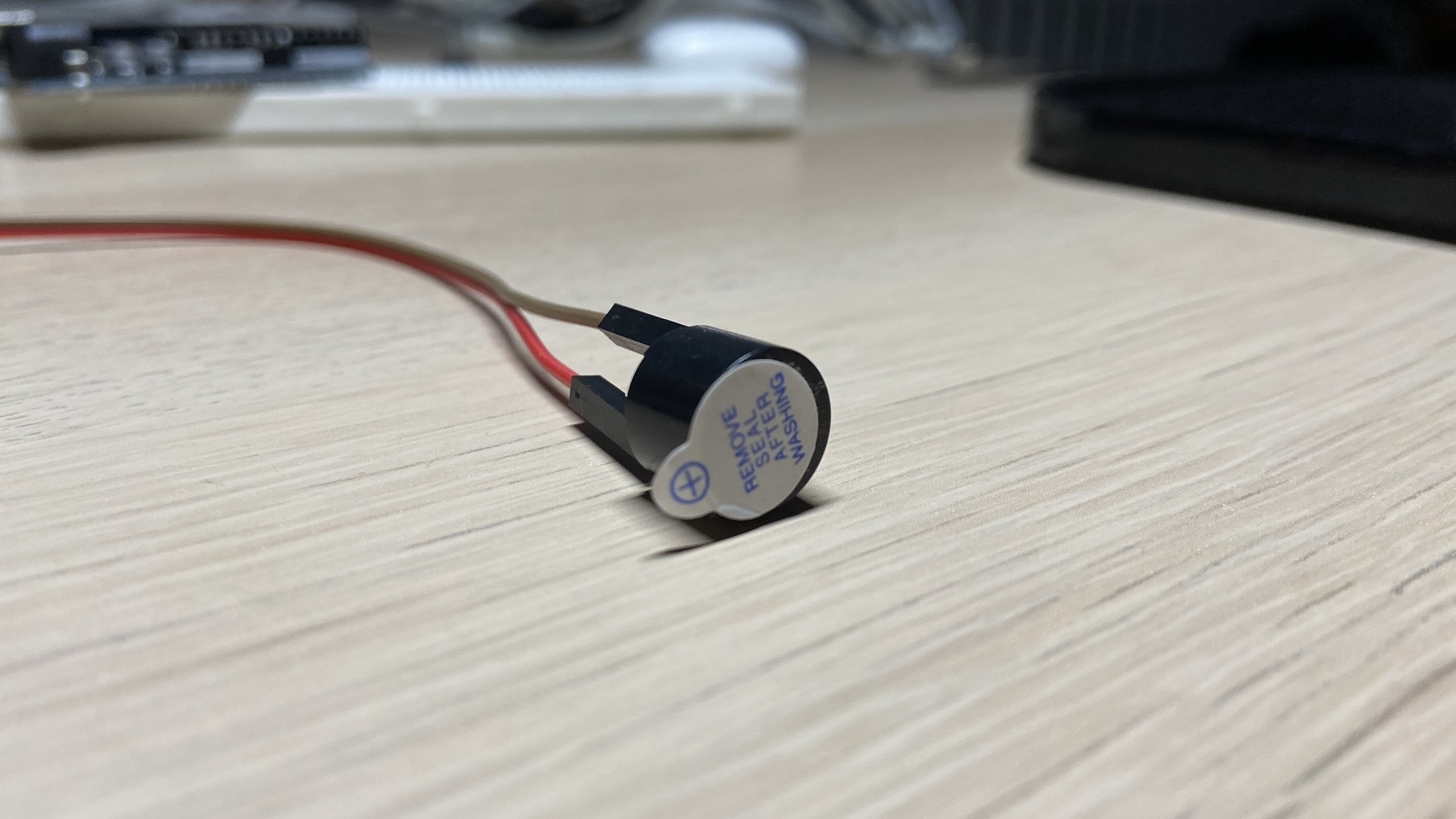
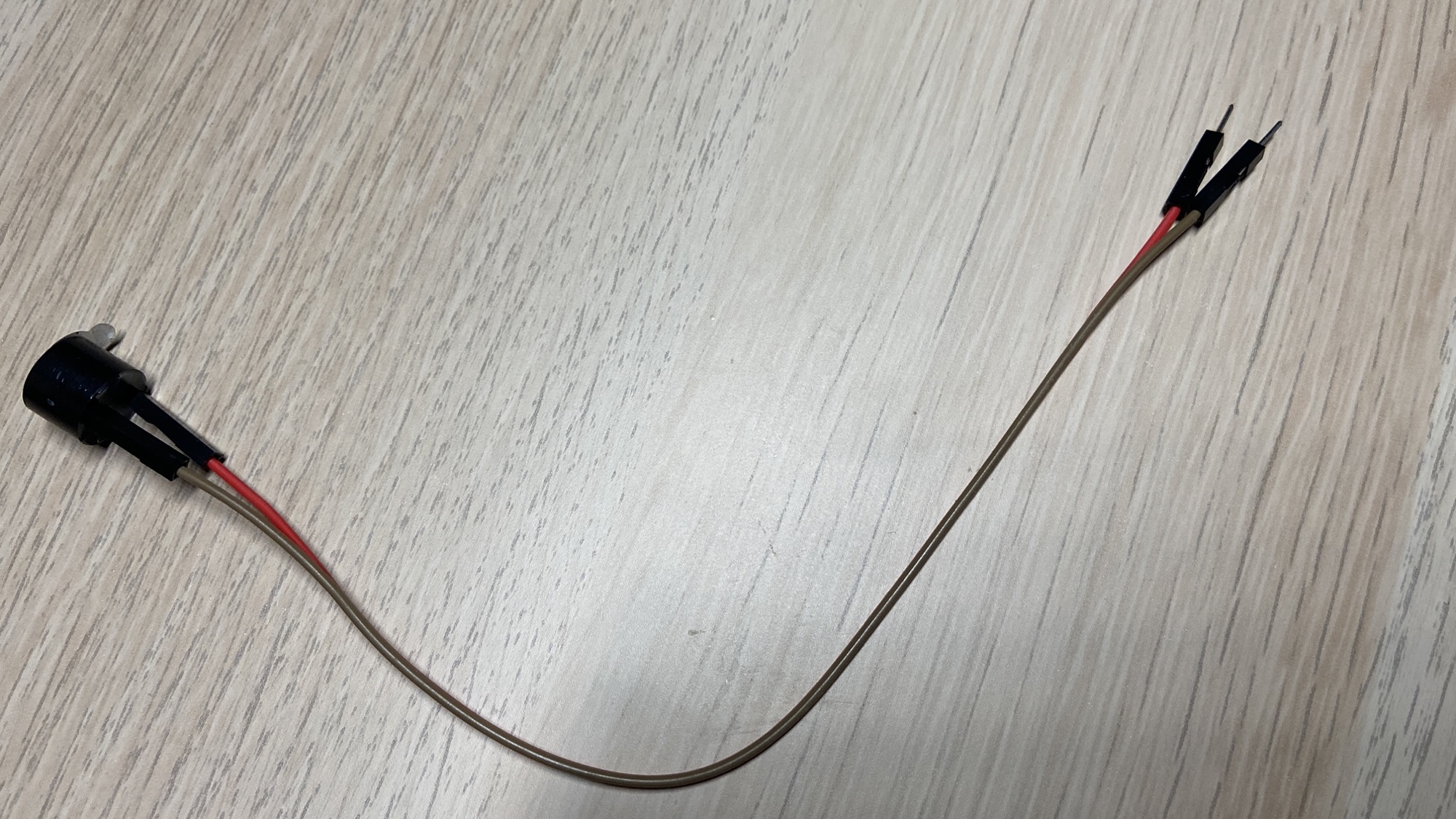
The buzzer has a + pole. I used the red wire for that.
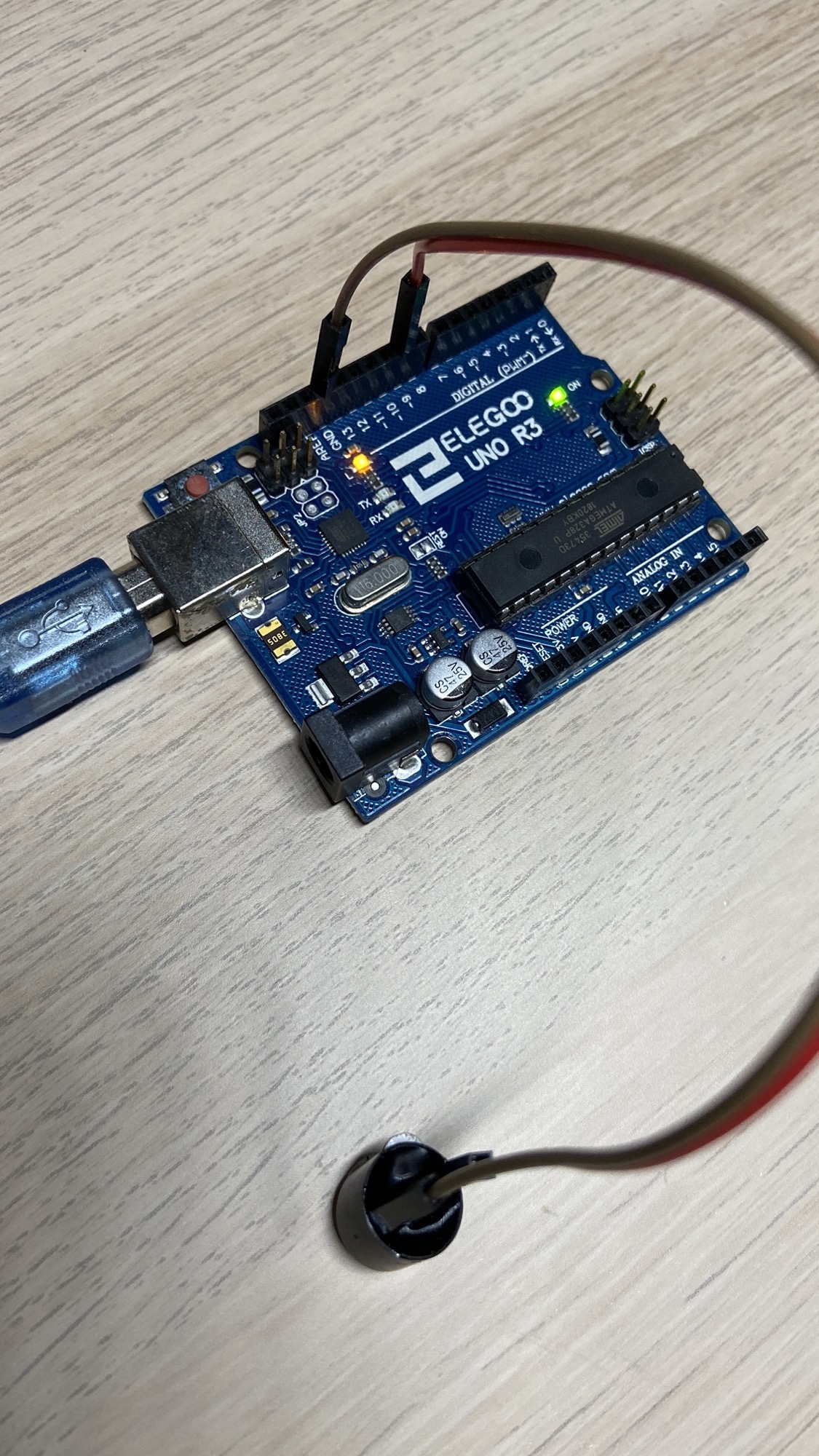
Connect the negative wire to GND. Connect the positive wire to a digital output pin. I used pin 9:
Check the buzzer’s rated voltage and current first. If it needs more current than an Arduino pin can safely provide, control it through a transistor instead of connecting it directly.
This program turns the buzzer on for half a second, then turns it off for half a second:
const int buzzerPin = 9;

void setup() {
  pinMode(buzzerPin, OUTPUT);
}

void loop() {
  digitalWrite(buzzerPin, HIGH);
  delay(500);

  digitalWrite(buzzerPin, LOW);
  delay(500);
}
Changing the delays changes the beep rhythm, not its pitch. Use a passive buzzer and the tone() function when you want to play different notes.
Want me to talk about your product? You can sponsor this site.
Related posts about electronics: