Permissions and users
Linux commands: chmod
Learn how the Linux chmod command changes file permissions for the owner, group, and others, using symbolic letters like u+x or numeric modes like 644.
Every file in Linux, macOS, and UNIX systems in general has 3 permissions: read, write, execute.
Go into a folder, and run the ls -al command.
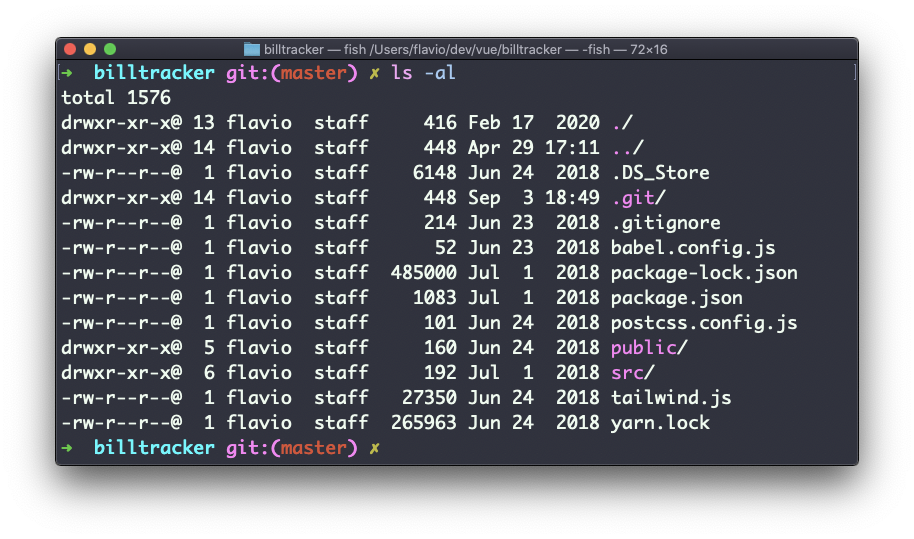
The weird strings you see on each file line, like drwxr-xr-x, define the permissions of the file or folder.
Let’s dissect it.
The first letter indicates the type of file:
-means it’s a normal filedmeans it’s a directorylmeans it’s a link
Then you have 3 sets of values:
- The first set represents the permissions of the owner of the file
- The second set represents the permissions of the members of the group the file is associated to
- The third set represents the permissions of everyone else
Each set has 3 values. rwx means that specific persona has read, write and execute access. Anything that is removed is swapped with a -, which lets you form various combinations: rw-, r--, r-x, and so on.
You can change the permissions given to a file using the chmod command.
chmod can be used in 2 ways. The first is using symbolic arguments, the second is using numeric arguments. Let’s start with symbols, which is more intuitive.
You type chmod followed by a space, and a letter:
astands for allustands for usergstands for groupostands for others
Then you type either + or - to add a permission, or to remove it. Then you enter one or more permission symbols (r, w, x).
All followed by the file or folder name.
Here are some examples:
chmod a+r filename #everyone can now read
chmod a+rw filename #everyone can now read and write
chmod o-rwx filename #others (not the owner, not in the same group of the file) cannot read, write or execute the file
You can apply the same permissions to multiple personas by adding multiple letters before the +/-:
chmod og-r filename #other and group can't read any moreThe most common thing I do with chmod is making a script executable:
chmod u+x deploy.sh
ls -l deploy.sh
-rwxr--r-- 1 flavio staff 120 Sep 8 18:22 deploy.shThe owner’s set is now rwx. Before, ./deploy.sh failed with Permission denied. Now it runs.
In case you are editing a folder, you can apply the permissions to every file contained in that folder using the -R (recursive) flag. Capital R: a lowercase r is the read permission.
Numeric arguments are faster, but I find them hard to remember when you are not using them day to day. You use a digit that represents the permissions of the persona. The maximum is 7, and it’s calculated in this way:
1if has execute permission2if has write permission4if has read permission
Add them up and you get these combinations:
0no permissions1can execute2can write3can write, execute4can read5can read, execute6can read, write7can read, write and execute
We use them in groups of 3 digits, to set the permissions of all the 3 personas at once, owner first:
chmod 777 filename
chmod 755 filename
chmod 644 filename
644 is what most files have, 755 adds execute for scripts and folders. My advice is to never use 777: it turns a permission problem into a security problem.
Only the owner of a file (and root) can change its permissions. On someone else’s file, chmod answers Operation not permitted. Either you need sudo, or the owner should change. We’ll see chown in the next lesson.
If you don’t want to do the math, I built a free chmod calculator that converts between the rwx notation, octal numbers, and ls -l output.
The
chmodcommand works on Linux, macOS, WSL, and anywhere you have a UNIX environment
Lesson completed