Shell, system, and network tools
A short guide to vim
A short, beginner-friendly guide to the vim editor: how to open files, switch between command and insert mode, move around, edit text, and save and quit.
vim is a very popular file editor, especially among programmers. It’s actively developed, and there’s a very big community around it. There’s even a Vim conference!
On modern systems vi is just an alias to vim, which stands for Vi IMproved.
You start it by running vi:
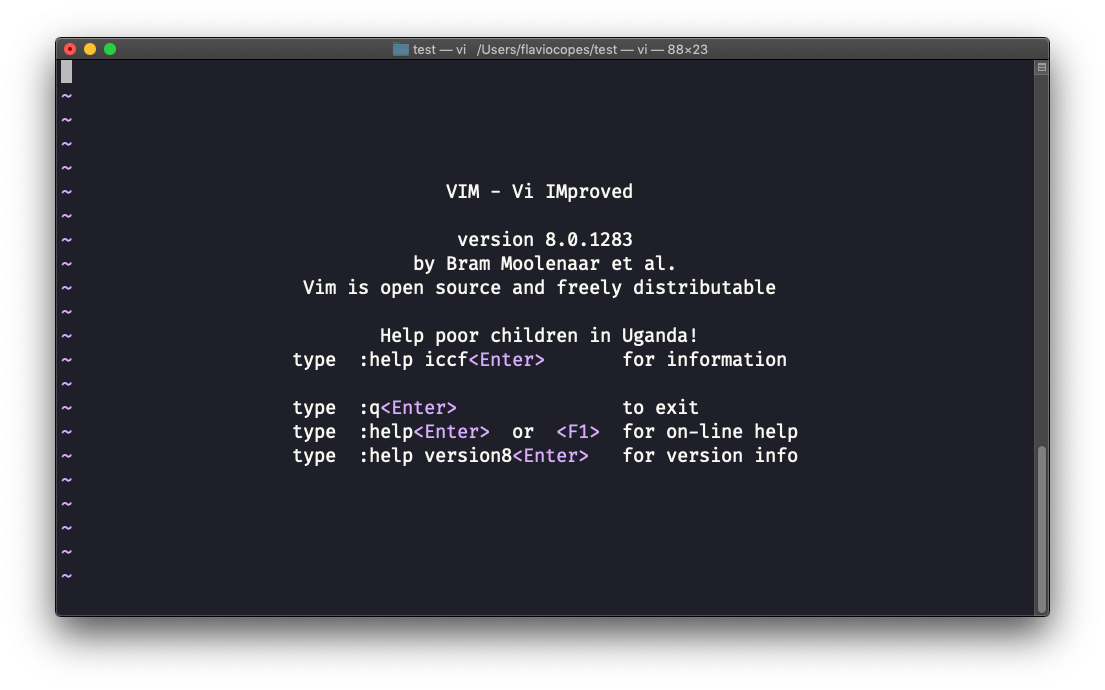
You can pass a filename to edit that specific file:
vi test.txt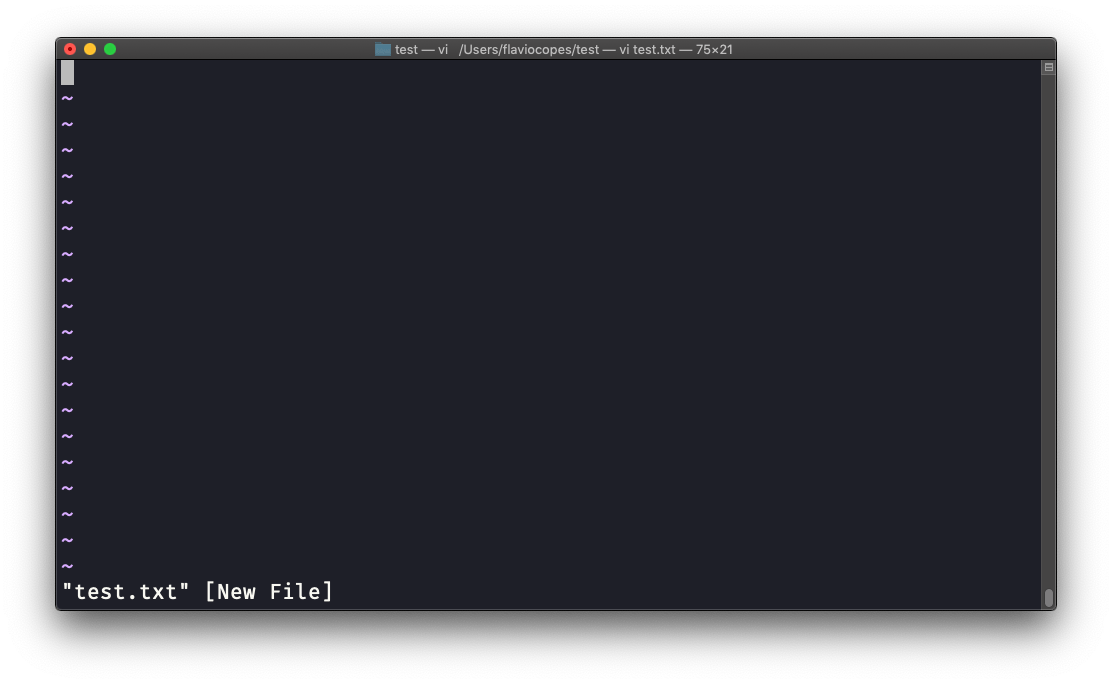
You have to know that Vim has 2 main modes:
- command (or normal) mode
- insert mode
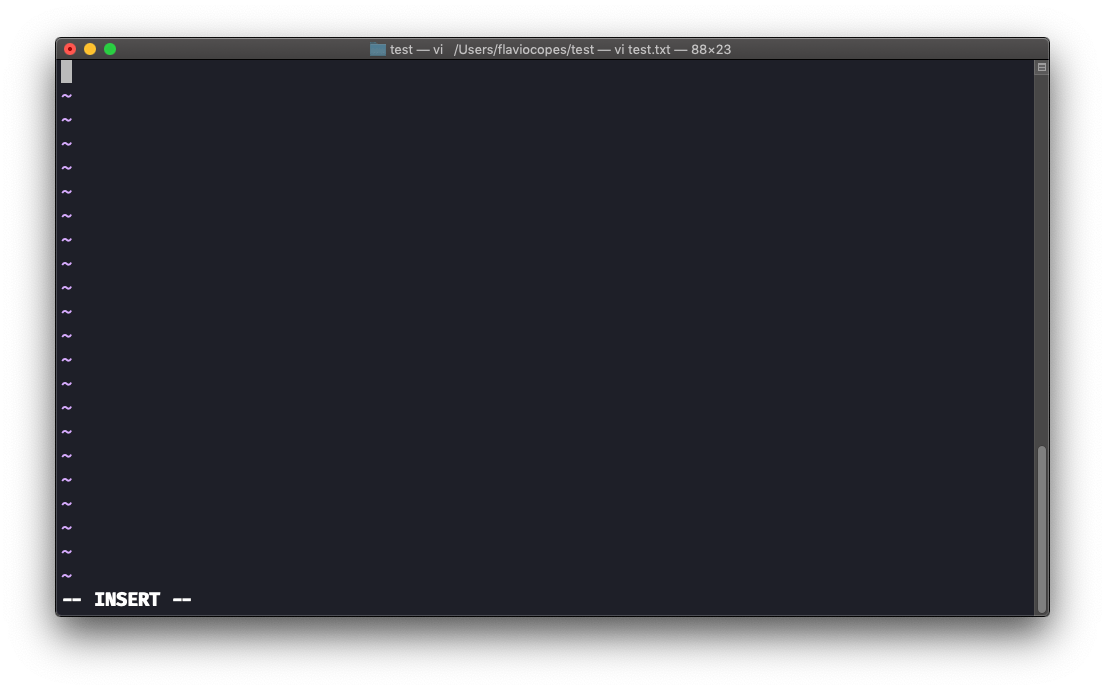
When you start the editor, you are in command mode. You can’t type text like you expect from a GUI editor, because every key is a command. To type, you have to enter insert mode. Press the i key. The -- INSERT -- label appears at the bottom of the editor:
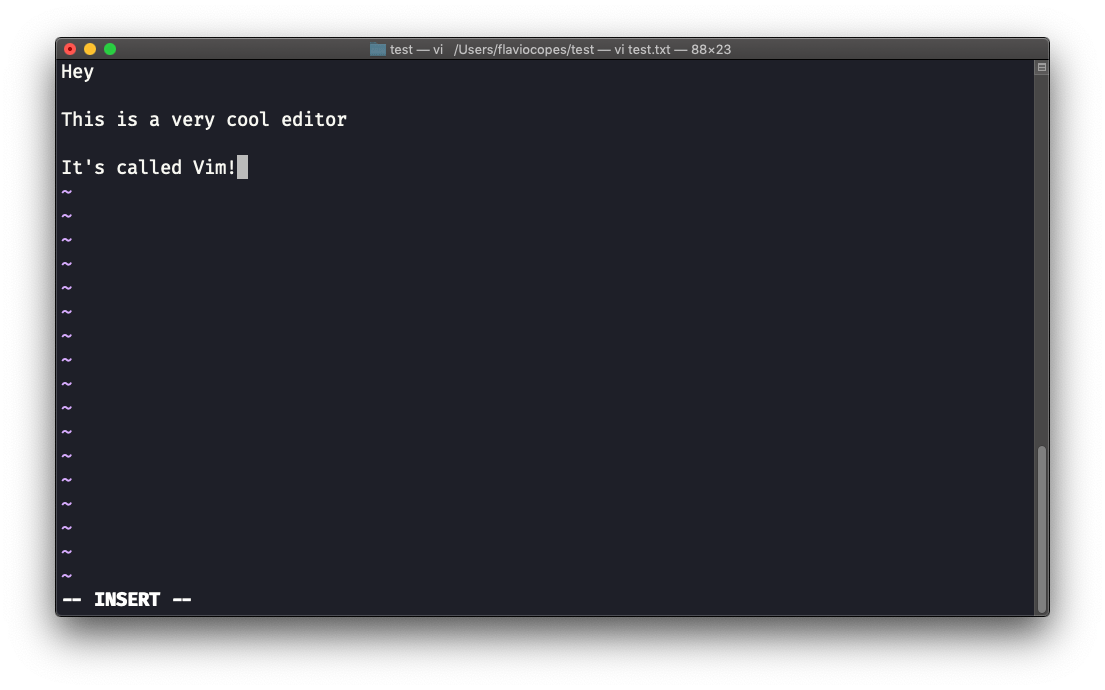
Now you can start typing the file contents:
You can move around the file with the arrow keys, or with the h j k l keys: h l for left and right, j k for down and up.
Once you are done editing, press esc to exit insert mode and go back to command mode:
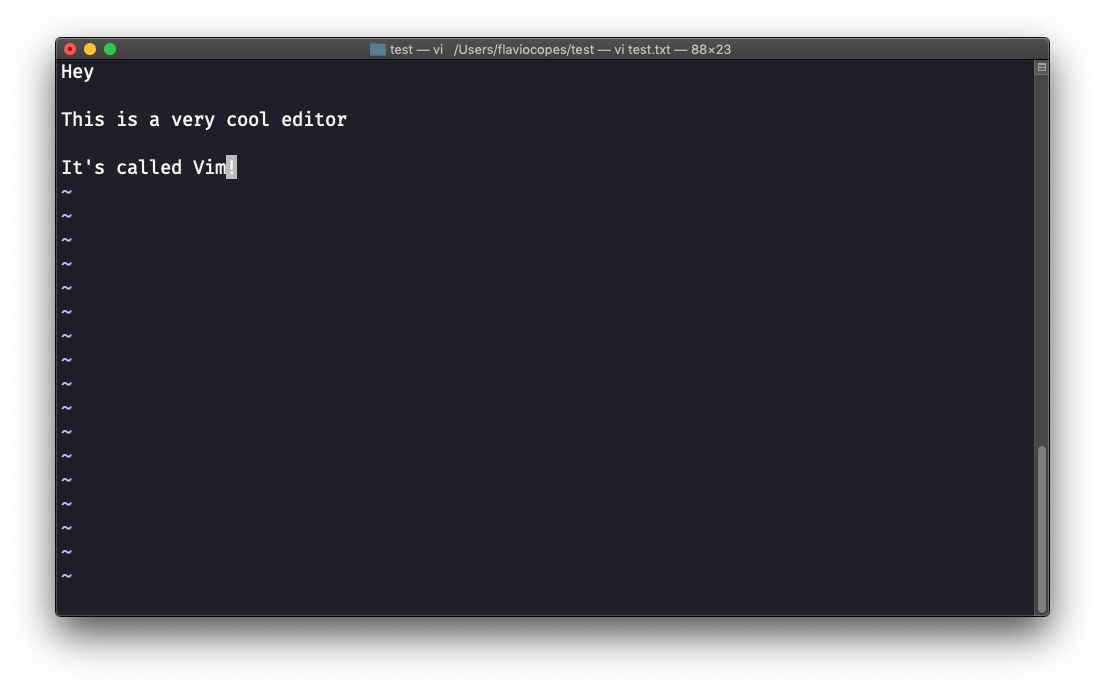
At this point you can navigate the file, but you can’t add content to it. Be careful which keys you press, they might be commands.
Now you want to save the file. Press : (colon), then w, then enter.
You can save and quit by pressing : then w and q: :wq
You can quit without saving by pressing : then q and !: :q!
That last one solves the famous “I’m stuck in Vim” problem. Press esc, type :q!, press enter, and you’re out.
You can undo an edit in command mode by pressing u, and redo (cancel an undo) by pressing ctrl-r.
Those are the basics of working with Vim. From here starts a rabbit hole we can’t go into in this little introduction. I will only mention the commands that will get you started:
- pressing the
xkey deletes the character under the cursor - pressing
Agoes to the end of the current line and enters insert mode - press
0to go to the start of the line - go to the first character of a word and press
dfollowed bywto delete that word. If you follow it witheinstead ofw, the white space before the next word is preserved - use a number between
dandwto delete more than 1 word, for example used3wto delete 3 words forward - press
dfollowed bydto delete a whole line. Pressdfollowed by$to delete from where the cursor is until the end of the line
To find out more about Vim I can recommend the Vim FAQ and especially running the vimtutor command. It should already be installed on your system, and it’s the best way I know to start your vim explorations.
Lesson completed