Processes and jobs
Linux commands: jobs
Learn how the Linux jobs command lists the background jobs you started with &, giving you the job number for fg and showing process ids with jobs -l.
When we run a command in Linux or macOS, we can send it to the background by adding & after the command.
For example we can run top in the background:
top &The shell prints something like [1] 48213 and gives you the prompt back. That’s job number 1, with process ID 48213. This is very handy for long-running programs: you keep working while they run.
We can get back to that program using the fg command. This works fine if we have just one job in the background. With more than one, we need the job number: fg 1, fg 2 and so on.
To find the job number, we use the jobs command.
Say we run top & and then top -o mem &, so we have 2 top instances in the background. jobs tells us this:
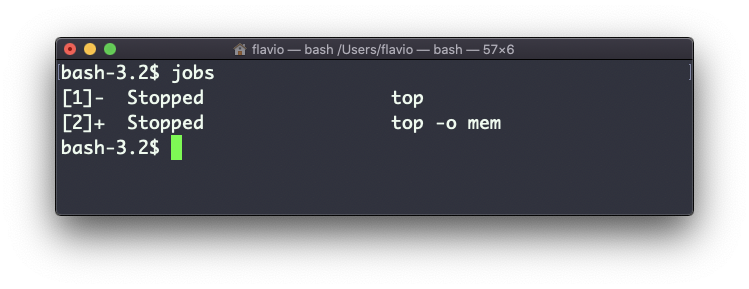
Let’s read that output:
[1]-  Stopped                 top
[2]+  Stopped                 top -o mem
The number in brackets is the job number. The + marks the current job, the one fg picks when you don’t pass a number. The - marks the previous one.
Notice both say Stopped, not Running. top is an interactive program that wants to read from the terminal, and a background job can’t do that, so the shell suspends it. A command that does not need the terminal, like sleep 300 &, shows Running instead.
Now we can switch back to one of those using fg <jobid>. To suspend the program again and return to the shell, press ctrl-Z.
Running jobs -l also prints the process ID of each job. That’s useful when you want to kill one, because kill wants a PID, not a job number.
Jobs belong to the shell that started them. Open a new terminal tab, type jobs, and the list is empty. Your top is still running in the first tab, but the second shell knows nothing about it.
Ask for a job that doesn’t exist and the shell tells you:
fg 3
bash: fg: 3: no such job
Run jobs first, then pick a number from the list.
This command works on Linux, macOS, WSL, and anywhere you have a UNIX environment
Lesson completed