Pipes and text
Linux commands: xargs
Learn how the Linux xargs command turns the output of one command into arguments for another, like piping cat into rm, plus the handy -p and -n options.
The xargs command converts its standard input into arguments for another command.
In other words, the output of one command becomes the arguments of the next one.
Why do we need it? A pipe sends text to a command’s standard input. But commands like rm or mkdir ignore standard input and only look at their arguments. xargs is the bridge.
Here’s the syntax:
command1 | xargs command2The pipe (|) passes the output to xargs, which runs command2 using the output of command1 as its argument(s).
Let’s do a simple example. You want to remove some files listed inside a text file.
We have 3 files: file1, file2, file3.
todelete.txt lists the files we want to delete, file1 and file3:
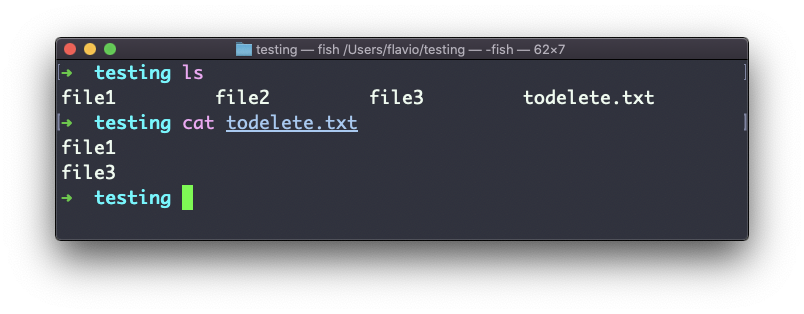
We send the output of cat todelete.txt to the rm command, through xargs:
cat todelete.txt | xargs rmThat’s the result. The files we listed are now gone:
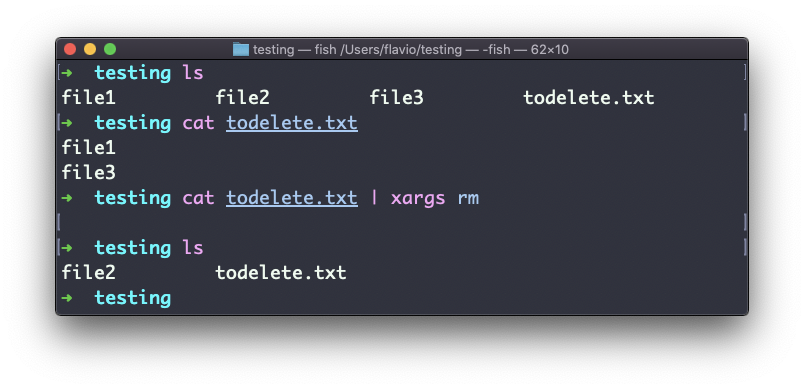
Behind the scenes, xargs collected the two lines printed by cat and ran rm file1 file3, one command with both names as arguments.
This is the simplest usage of xargs. There are several options we can use.
One of the most useful when you start learning xargs is -p. It prints the exact command about to run and asks for confirmation first:
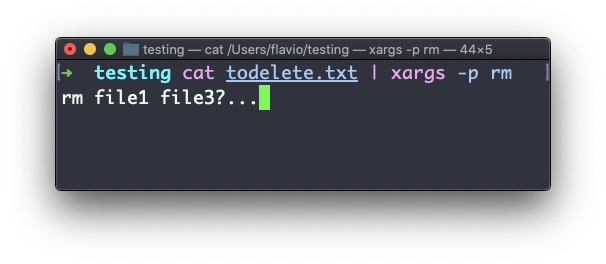
My advice is to add -p the first time you run a pipeline that deletes things. You can still say no.
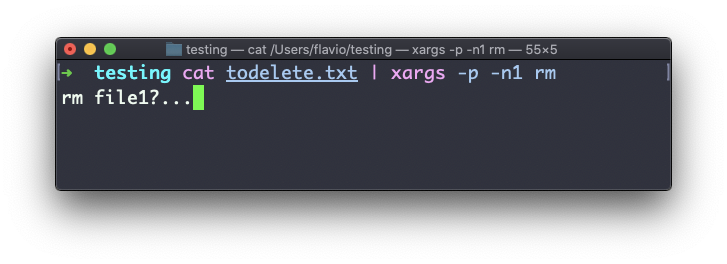
The -n option sets how many arguments to pass per command. With -n1 it runs the command once per line, so with -p you can confirm each one individually:
The -I option is another widely used one. It puts each input line into a placeholder, which you can then use anywhere in the command, even more than once.
That’s how you run multiple commands for each line:
command1 | xargs -I % /bin/bash -c 'command2 %; command3 %'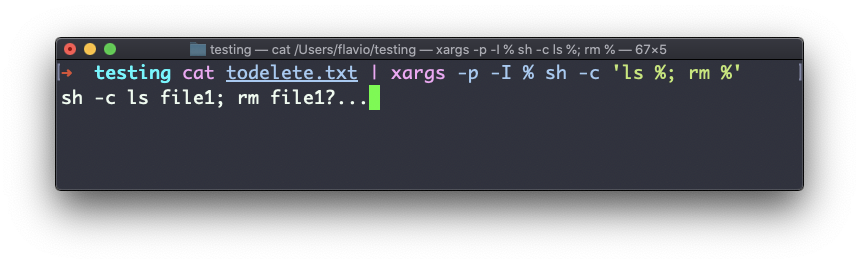
You can swap the
%symbol I used above with anything else, it’s a variable
Be careful: xargs splits its input on whitespace, not just on newlines. A file named my notes.txt becomes two arguments, my and notes.txt, and rm complains that neither exists. When file names can contain spaces, pair find -print0 with xargs -0, so both sides use a null byte as the separator.
The xargs command works on Linux, macOS, WSL, and anywhere you have a UNIX environment
Lesson completed