Pipes and text
Linux commands: grep
Learn how the Linux grep command matches patterns in files or piped output, with -n for line numbers, -C for context, -i to ignore case, and -v to invert.
The grep command finds lines that match a pattern. Once you master it, it will help you tremendously in your day to day work.
If you’re wondering,
grepstands for global regular expression print
You can use grep to search inside files, or combine it with pipes to filter the output of another command.
Let’s start with a file. Here’s how we find the lines containing document.getElementById in index.md:
grep document.getElementById index.md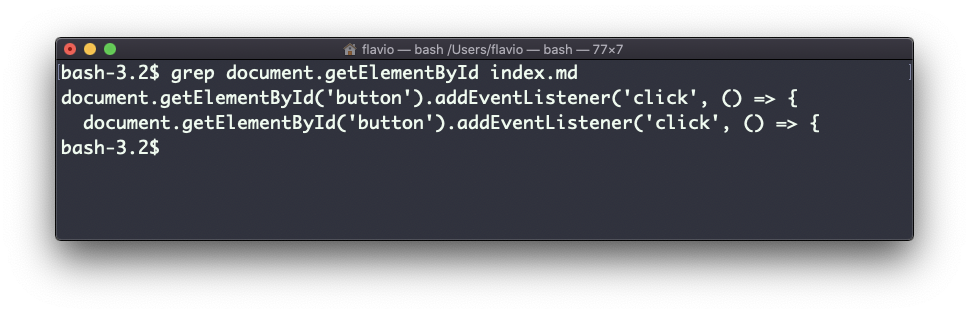
We get the two matching lines, and nothing else. grep throws away everything that does not match.
Add the -n option and it also shows the line numbers:
grep -n document.getElementById index.md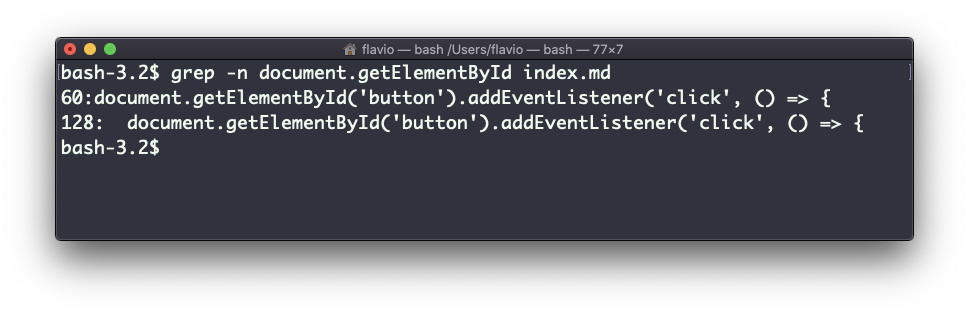
Now we know the matches are on lines 60 and 128. I use -n almost every time, because the next step is usually opening the file at that line.
One very useful thing is to see 2 lines before and 2 lines after each match, to get some context. That’s the -C option, which accepts a number of lines:
grep -nC 2 document.getElementById index.md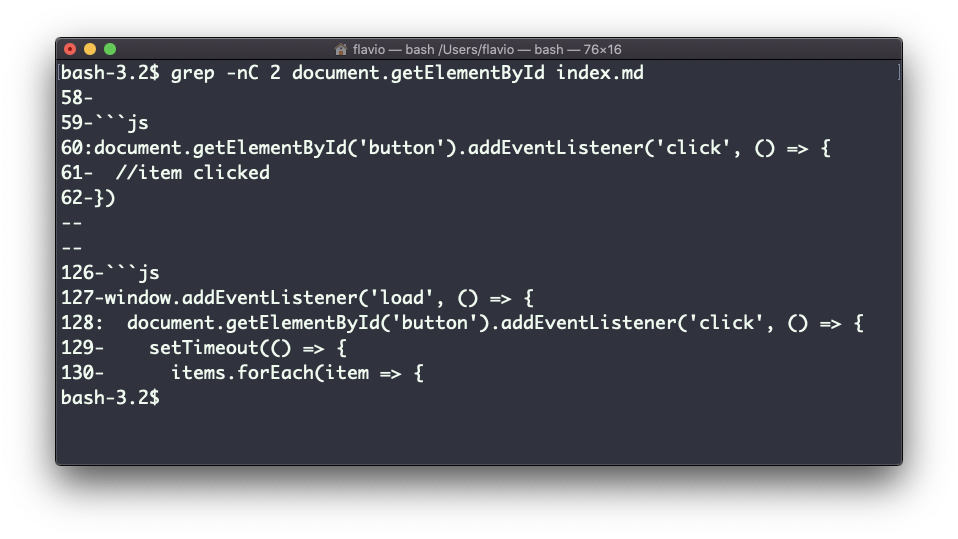
Search is case sensitive by default. grep button index.md will not find Button. Use the -i flag to make it case insensitive.
As I mentioned, you can use grep to filter the output of another command. We can get the same result as above by piping the file into it:
less index.md | grep -n document.getElementById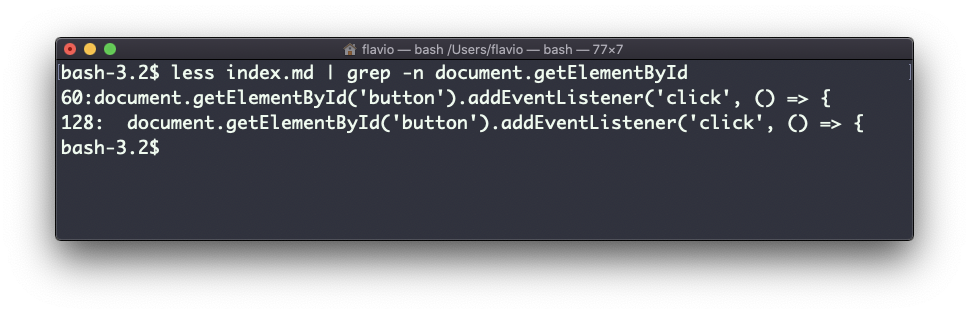
This is the pattern you’ll use most: ps ax | grep node, history | grep docker. Any command that prints lines can feed grep.
The search string can be a regular expression, a pattern that describes text instead of spelling it out. grep -n 'getElementBy[A-Z]' index.md matches getElementById and getElementByTagName in one go. This is what makes grep so powerful.
One more option you’ll find very useful is -v. It inverts the result, so you get every line that does not match. Here I list the files in the folder and drop the index.md line:
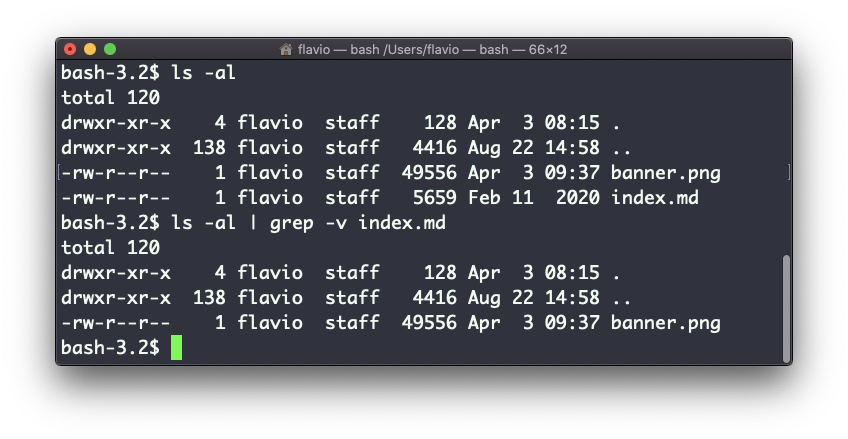
If grep prints nothing at all, check the case of your pattern first. Then check for characters like . or *, which mean something special in a regular expression. Wrap the pattern in single quotes so the shell does not expand them before grep sees them.
The
grepcommand works on Linux, macOS, WSL, and anywhere you have a UNIX environment
Lesson completed