Processes and jobs
Linux commands: top
Learn how the Linux top command shows running processes in real time, with live CPU, memory, and system load, and how top -o mem sorts them by memory use.
The top command shows the processes running on your system, in real time.
Where ps gives you a snapshot, top keeps refreshing. It’s the command I reach for when the fan spins up and I want to know why.
Its usage is simple. You type top, and the terminal switches to this new full-screen view:
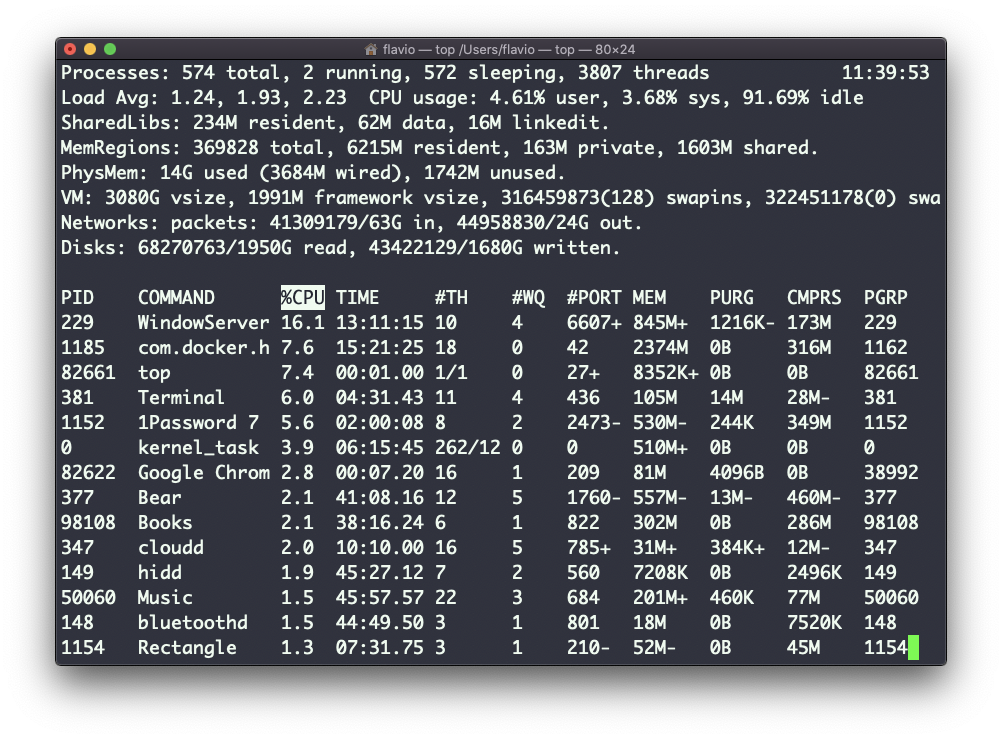
top keeps running until you stop it. To quit, press q or ctrl-C.
There’s a lot of information in the header: the number of processes, how many are running or sleeping, the system load, the CPU usage, the memory in use, and more.
The load average is worth knowing. It’s three numbers, like 2.10, 1.95, 1.80, which are the average number of processes waiting for CPU over the last 1, 5 and 15 minutes. On a 4-core machine a load of 2 is fine. A load of 12 means things are queuing up.
Below the header, the list of processes is constantly updated, the busiest ones first.
By default, as you can see from the highlighted %CPU column, processes are sorted by CPU usage.
You can add a flag to sort them by memory instead:
top -o memNow the process at the top of the list is the one holding the most memory. On my Mac that’s usually a browser.
That mem field name is the macOS one. On Linux the column is called %MEM, so the same command is top -o %MEM. If you type top -o mem on a Linux server, top rejects the field name and exits instead of starting. Check the column headers on screen and use the exact name you see there.
You can also watch a single process instead of all of them. On macOS pass its process ID with top -pid 1234, on Linux with top -p 1234. Get the ID from ps first.
Once you found the process that’s misbehaving, note its PID. The kill lesson later in this module shows what to do with it.
This command works on Linux, macOS, WSL, and anywhere you have a UNIX environment
Lesson completed