Shell, system, and network tools
A short guide to emacs
A short guide to the emacs editor on UNIX systems, covering how to open and edit a file, save with ctrl-x ctrl-w, and quit, plus the built-in tutorial.
emacs is an awesome editor, and historically it’s regarded as the editor for UNIX systems. The famous vi vs emacs flame wars caused many unproductive hours for developers around the world.
emacs is very powerful. Some people use it all day long as a kind of operating system (https://news.ycombinator.com/item?id=19127258). We’ll just talk about the basics here.
You open a new emacs session by invoking emacs:
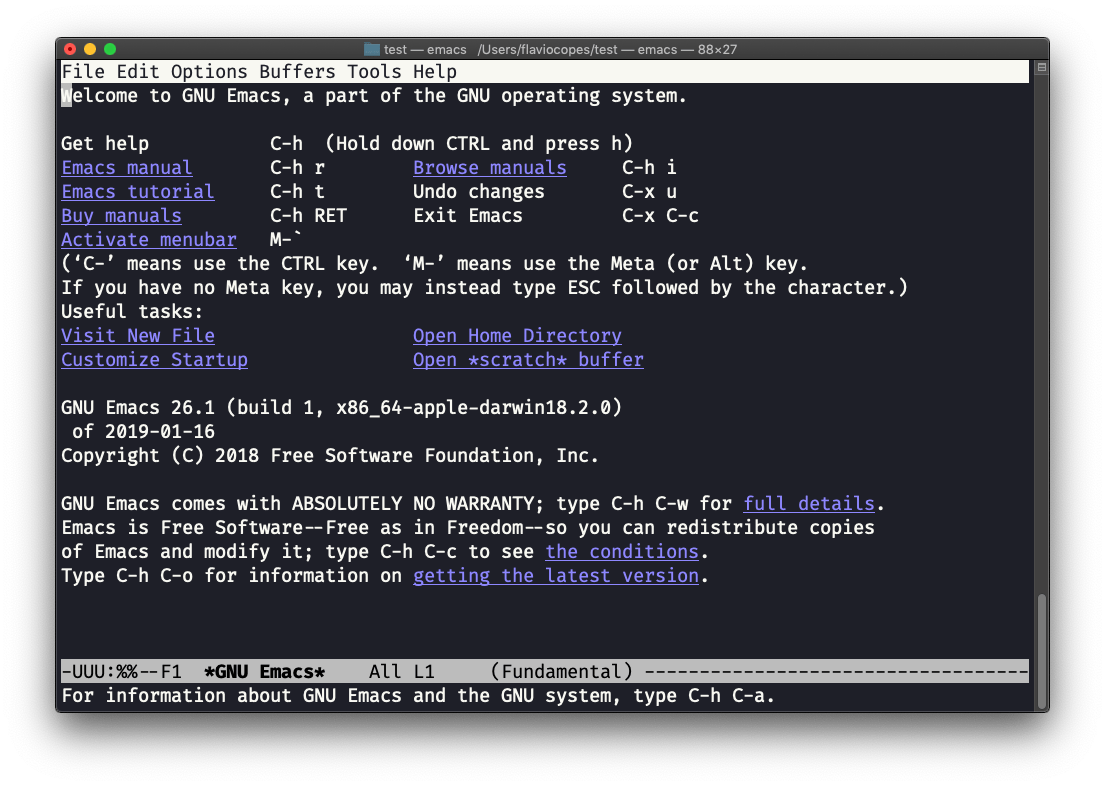
macOS users, stop a second. On Linux there are no problems. But macOS does not ship applications licensed under GPLv3, so every built-in UNIX command that moved to GPLv3 stopped being updated. For the commands we saw so far that’s a minor detail. For emacs it’s not: older Macs shipped a version from 2007, and recent macOS versions don’t ship
emacsat all, so you getcommand not found. Vim doesn’t have this problem, it’s up to date. The fix isbrew install emacs, and from then onemacsruns the current version from Homebrew (make sure you have Homebrew installed).
You can edit an existing file by calling emacs <filename>:
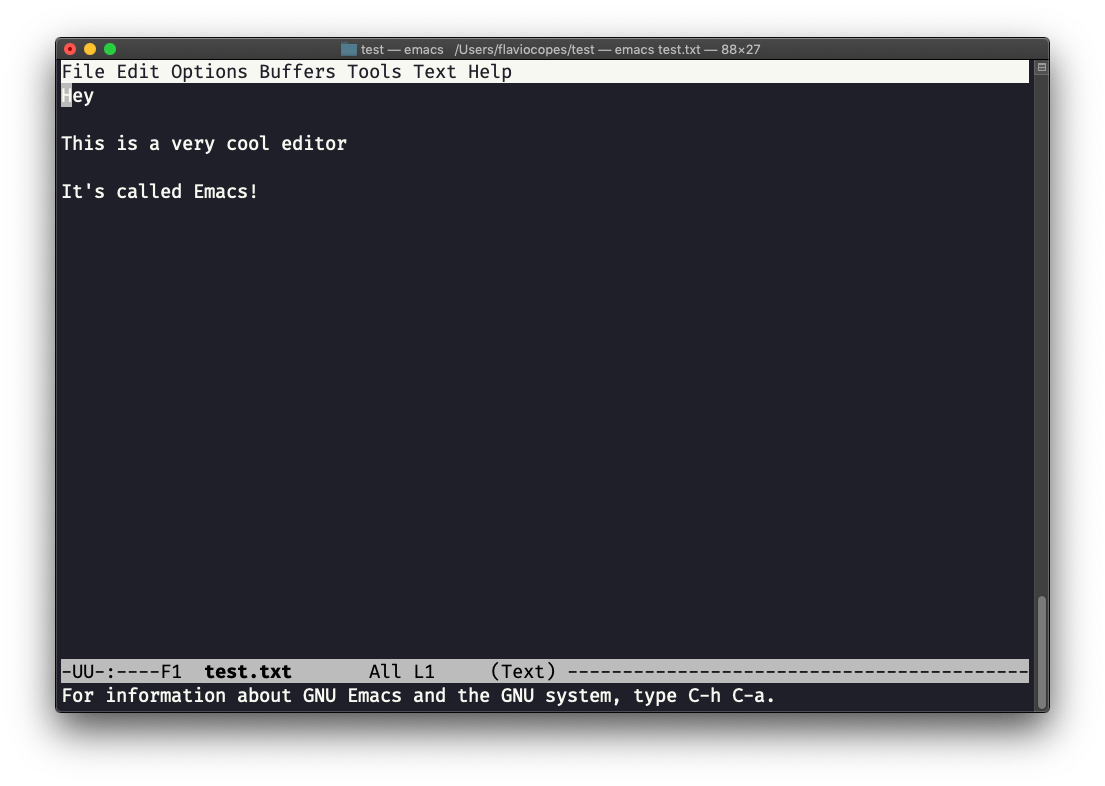
Unlike Vim, there are no modes. You start typing and the text goes into the file.
Once you are done, press ctrl-x followed by ctrl-w. Emacs asks where to write the file. Confirm the folder:
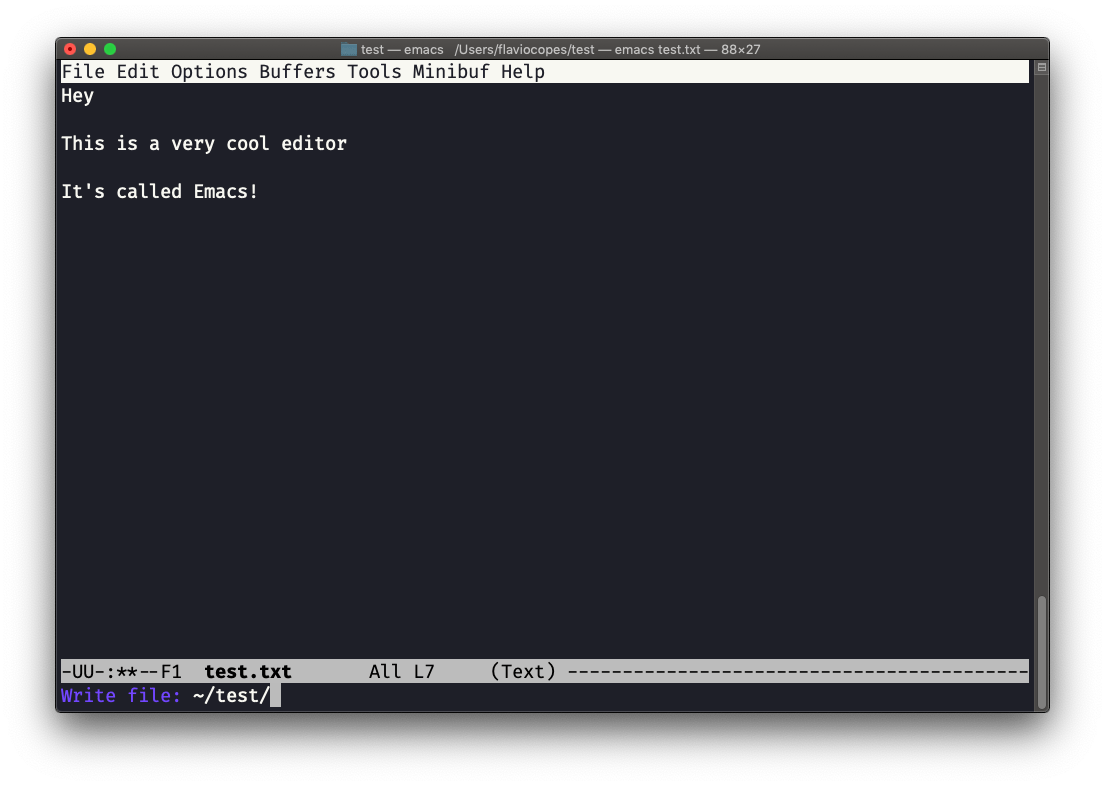
Emacs tells you the file exists, and asks if it should overwrite it:
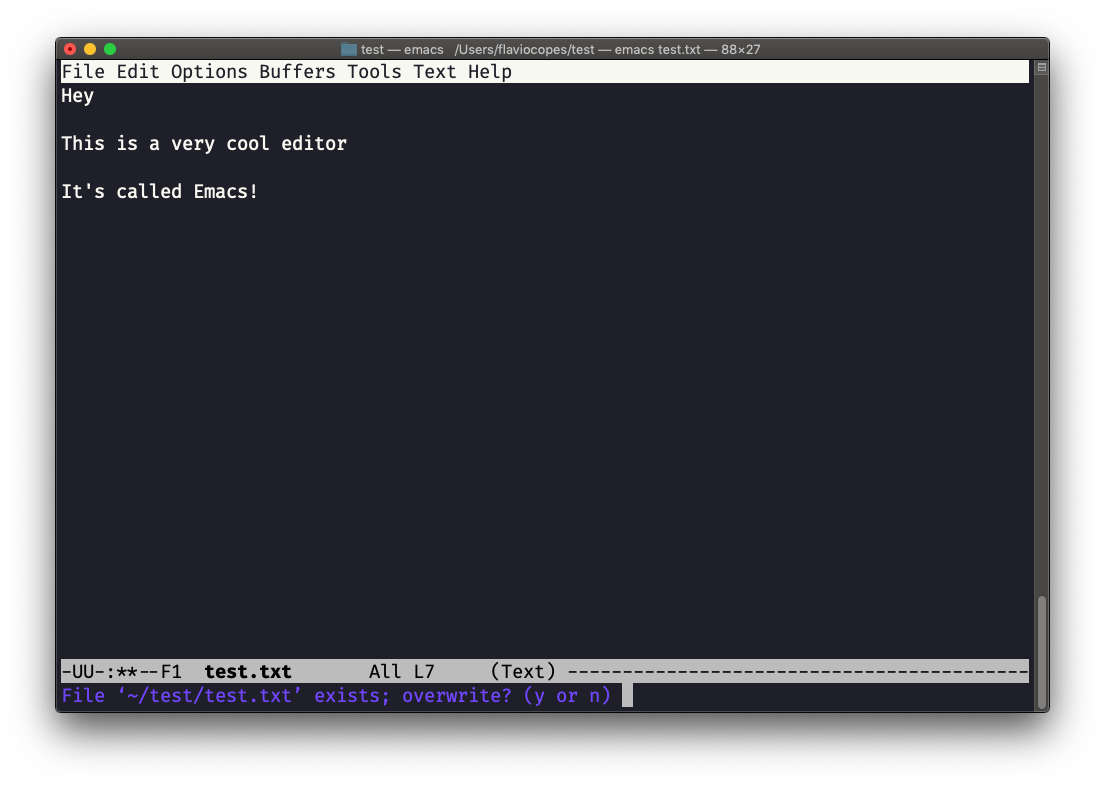
Answer y, and you get a confirmation of success:
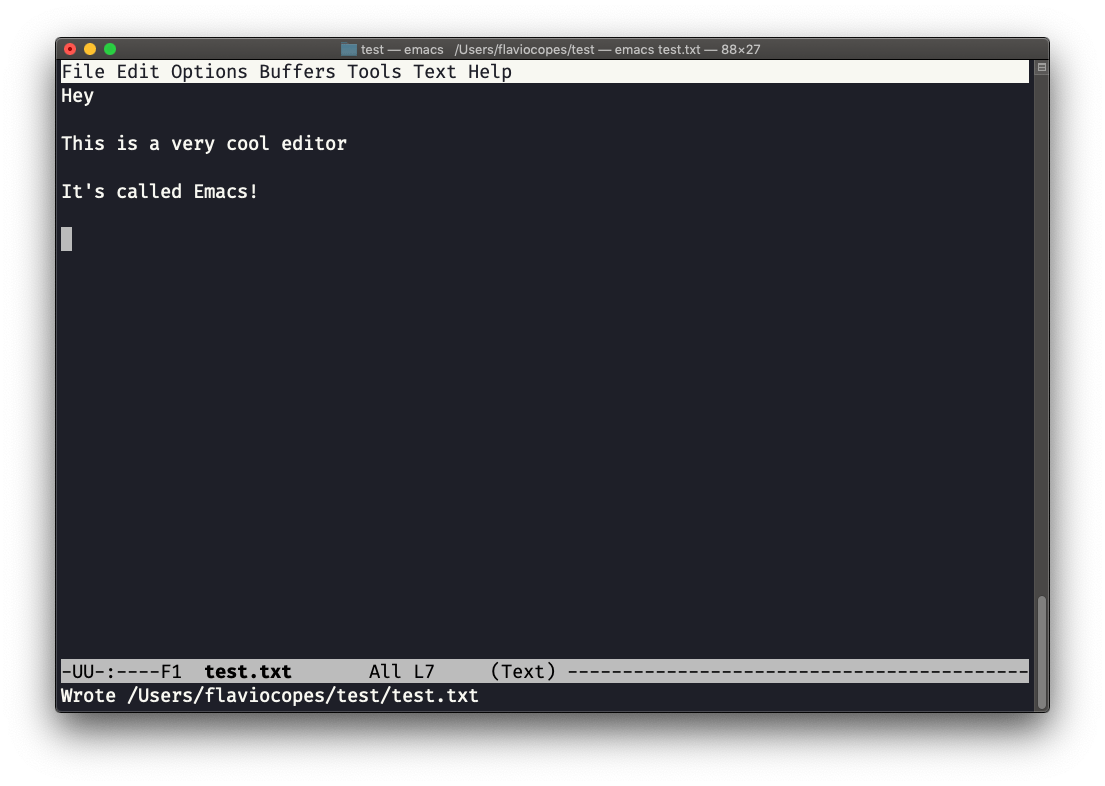
ctrl-x ctrl-w is “write to a file”, the equivalent of Save As. To save the file you already have open, ctrl-x ctrl-s does it with no questions asked.
Notice the pattern: almost every Emacs command is a prefix like ctrl-x followed by a second key.
You exit Emacs by pressing ctrl-x followed by ctrl-c. Or ctrl-x followed by c, keeping ctrl pressed. With unsaved changes, Emacs asks Save file ~/test/test.txt?. Press y to save, or n and then confirm you really want to quit.
The mistake everyone makes at the start is pressing ctrl-c alone, hoping to quit like in the terminal. Nothing happens, because ctrl-c is a prefix too. If you get lost halfway through a command, ctrl-g cancels it.
There is a lot to know about Emacs. More than I can write in this little introduction. I encourage you to open Emacs and press ctrl-h r to open the built-in manual, and ctrl-h t to open the official tutorial. It’s the best first hour you can spend with the editor.
Lesson completed