Navigation basics
The Command Line for Complete Beginners
A beginner's guide to the command line: what the terminal and shells like Bash, ZSH and Fish are, plus core commands like ls, cd and man to get started.
Computers today are easy to use. We click, we tap, we drag things around. The keyboard is for typing emails, blog posts and reports.
It wasn’t always like this. For a long time you could only use a computer through the keyboard, typing short, cryptic instructions called commands into a terminal.
That was true when a computer filled an entire room. It was still true when the first personal computers became affordable and booted straight into a BASIC prompt.
That way of working never went away. It’s hidden, and consumers never touch it, but it’s still there in every computer you own.
We use it through a terminal.
macOS ships with an app called Terminal. Simple name, and it does exactly what it says.
Microsoft has an app called Windows Terminal.
And Linux users know their terminals very well.
The terminal isn’t only for programmers. I think every professional computer user should know it, because it lets you do things that are impossible with a GUI (Graphical User Interface).
Since I mentioned GUI: the terminal’s acronym is CLI, Command Line Interface.
There isn’t one single terminal. You wish. The program you actually talk to inside the terminal window is called a shell, and we have lots of them.
We have Bash, ZSH, Fish Shell, CSH, and many more. Bash and ZSH are the most popular.
Bash is often the default. It was the default on macOS too, until recently, when Apple switched to ZSH.
My favorite shell, to be honest, is Fish Shell. It’s simple, it comes with great defaults, and you configure it from a web page. I don’t have time to spend tuning my prompt and colors by hand. When something works out of the box, I take it.
The terminal is also how you access a server. You can create a VPS on Amazon or DigitalOcean, or wherever you like, and connect to it with SSH, the secure protocol for opening a shell on a remote machine.
You type in your local shell, but you could be driving a server on the other side of the Earth. Pretty cool. Except for some delay, if the connection is laggy.
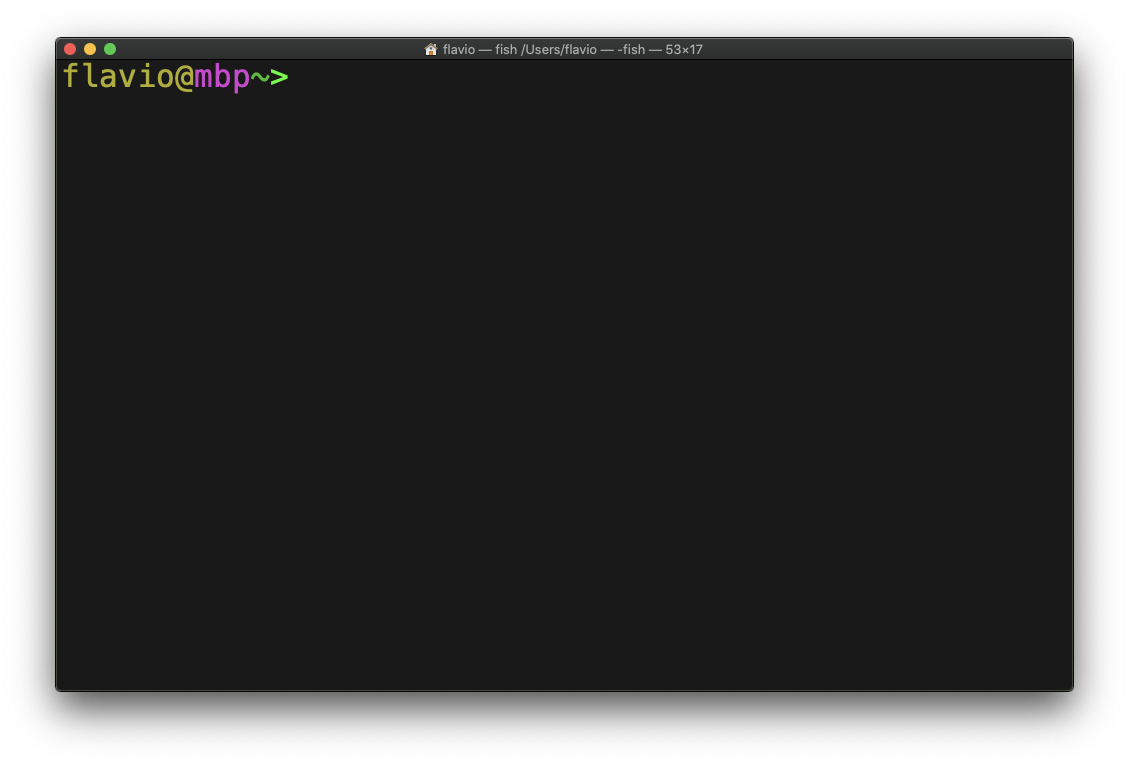
This is my macOS shell:
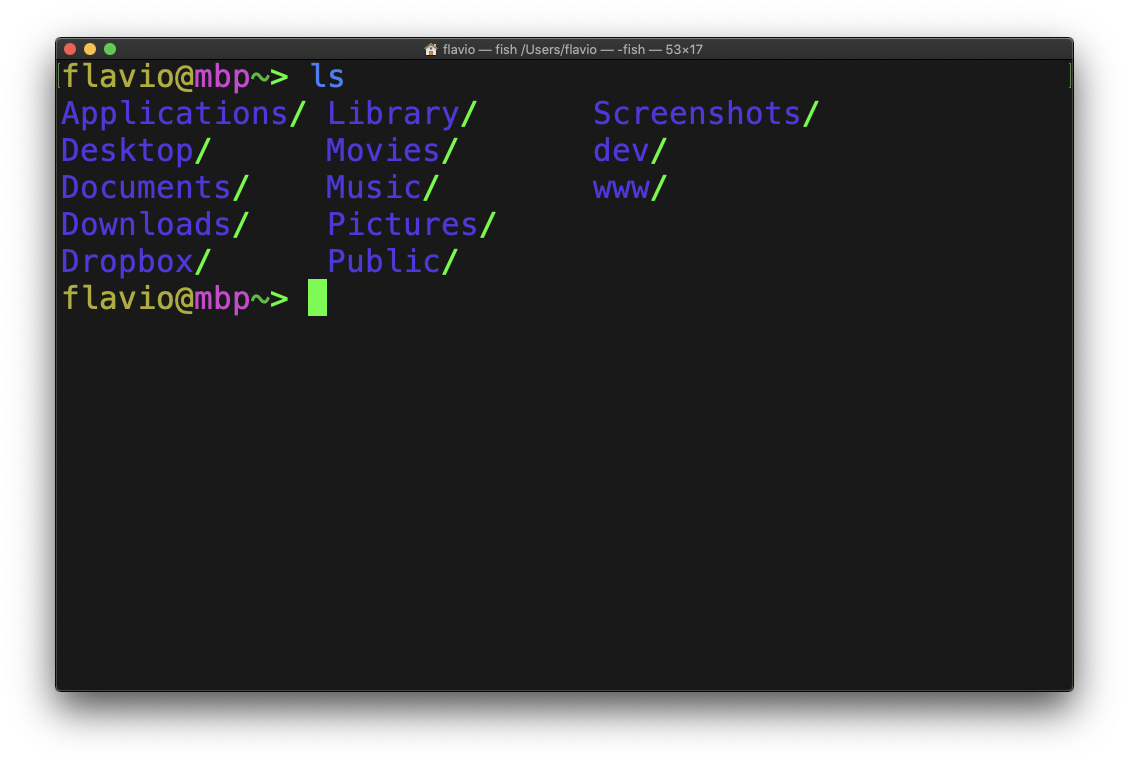
I can list all the files in my home folder by typing ls and pressing enter:
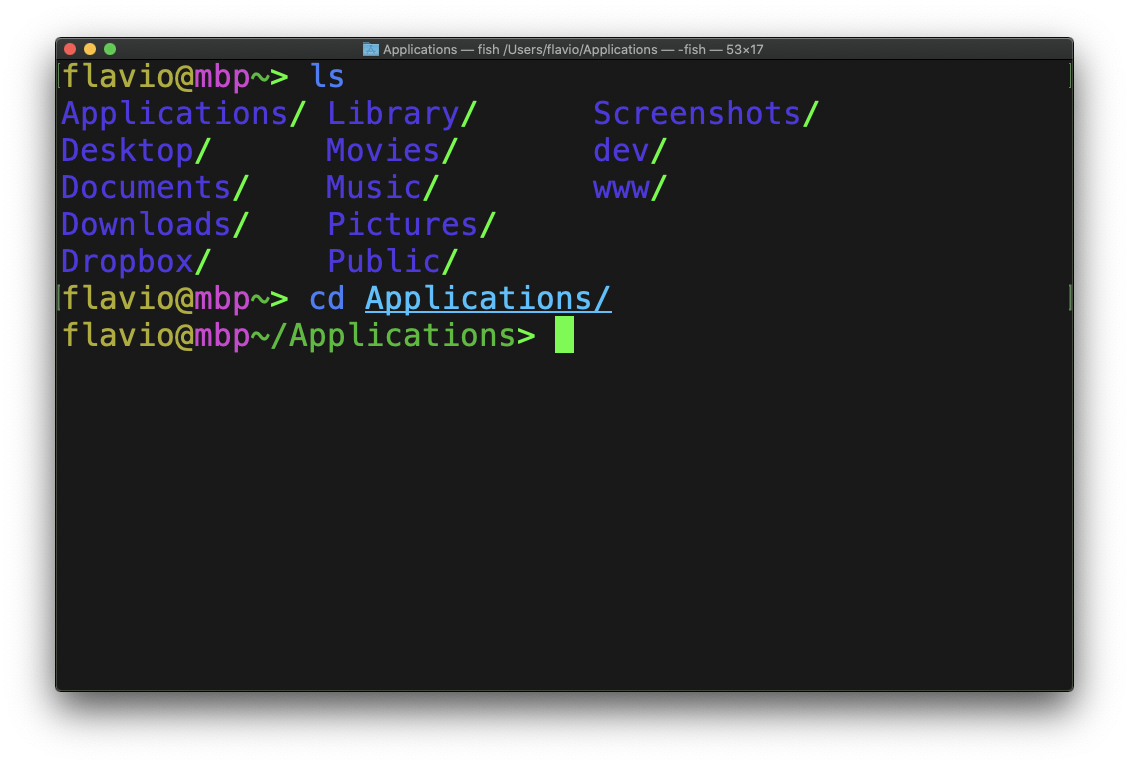
I can change the current working directory to another folder using the cd command:
And every time I don’t know how to use a command, I type man <command> to get the manual:
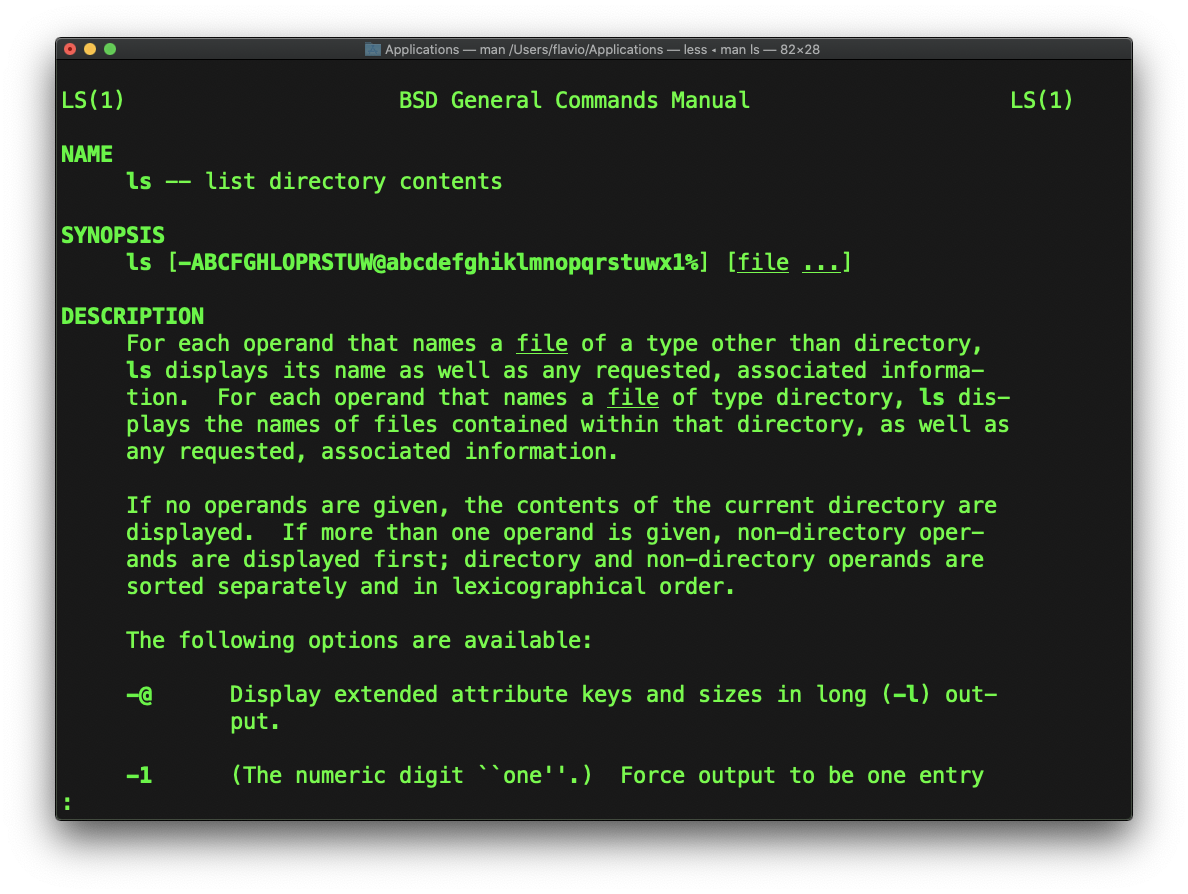
This is a man page. I find man pages contain too much information. What you see here is 1 of 14 screens of explanation for the ls command.
Most of the time, when I need help, I use a site called tldr pages: https://tldr.sh/. It’s a command you install, then you run it like this: tldr <command>
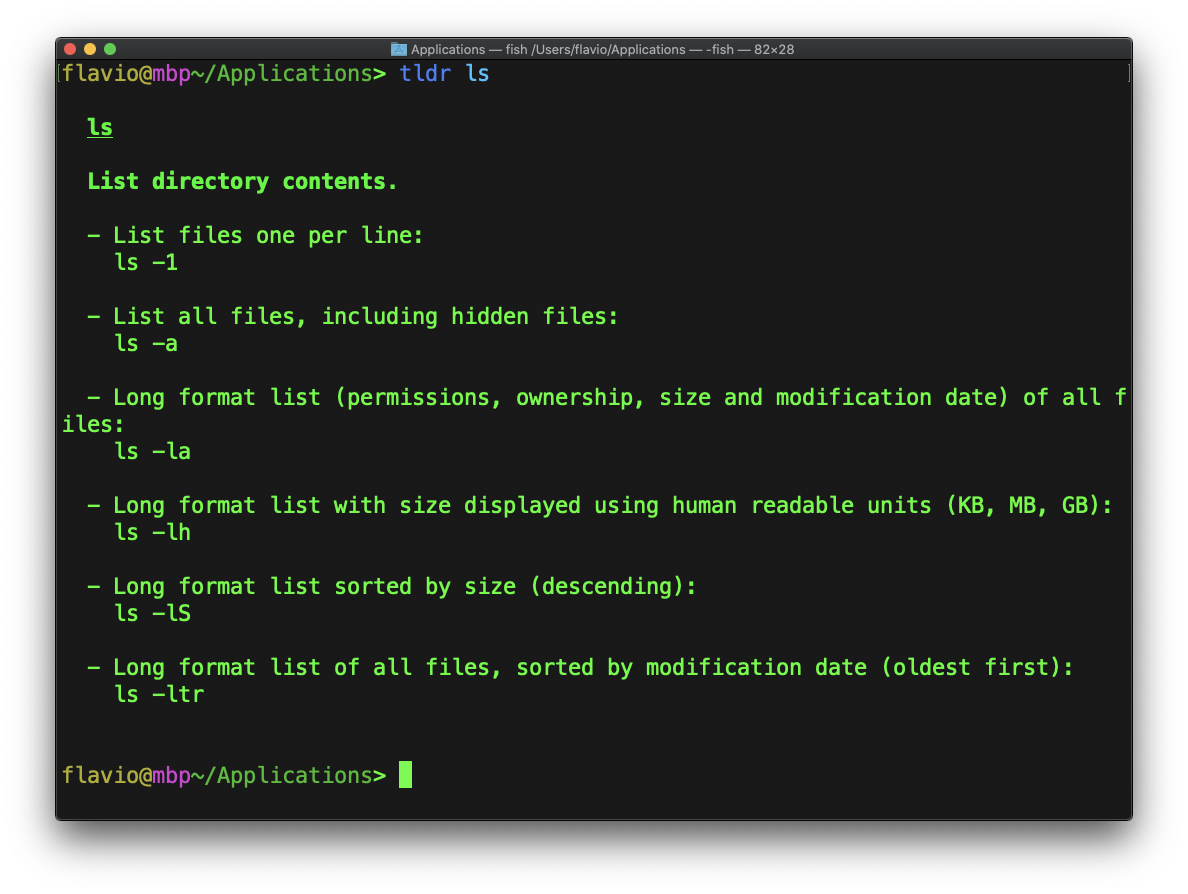
It gave me a few useful options with examples.
Anyway, I’m digressing. When you type a command, the left and right arrows move the cursor along the line.
Some systems also let you use the mouse to jump to a specific spot in the line. On macOS I can option-click to place the cursor anywhere I want.
Pressing the up arrow brings back the last command you typed. It’s nice when you make a typo and you don’t want to type the whole thing again.
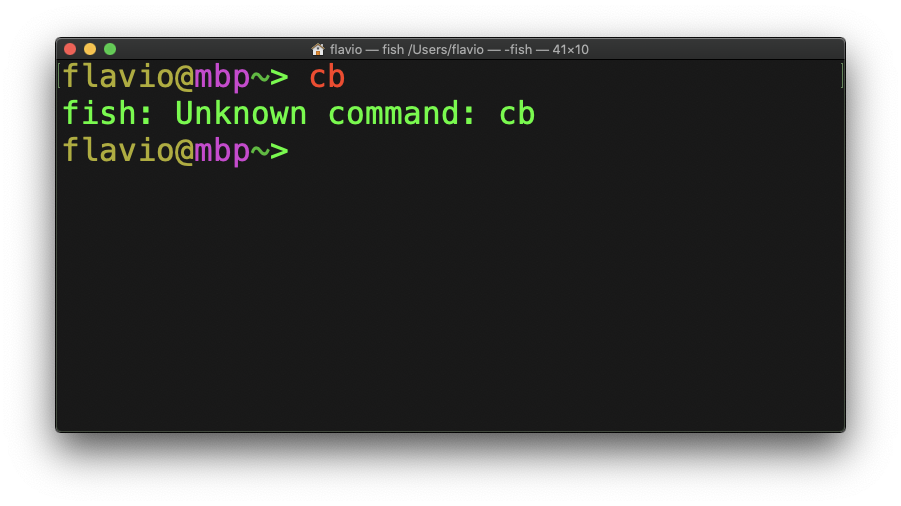
If you type a command that doesn’t exist, the shell tells you:
I made a few tutorials on using shells:
- How to use the macOS terminal
- The Bash shell
- Unix Shells Tutorial
- Introduction to Bash Shell Scripting
There’s a lot to read if you want!
Lesson completed