Working with files
Linux commands: ln
Learn how the Linux ln command creates links to files: hard links that share content, and soft links made with -s that can point to directories too.
The ln command is part of the Linux file system commands.
It’s used to create links. What is a link? It’s like a pointer to another file. A file that points to another file. You might be familiar with Windows shortcuts. They’re similar.
We have 2 types of links: hard links and soft links.
Hard links
Hard links are rarely used. They have a few limitations: you can’t link to directories, and you can’t link to external filesystems (disks).
A hard link is created using
ln <original> <link>For example, say you have a file called recipes.txt. You can create a hard link to it using:
ln recipes.txt newrecipes.txtThe new hard link you created is indistinguishable from a regular file:
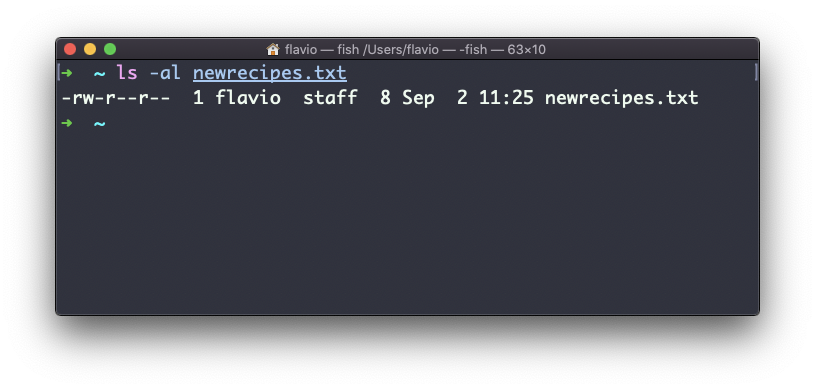
One clue, though: the second column of ls -l now shows 2 for both files, the number of names pointing to the same content.
Now any time you edit either of those files, the content will be updated for both.
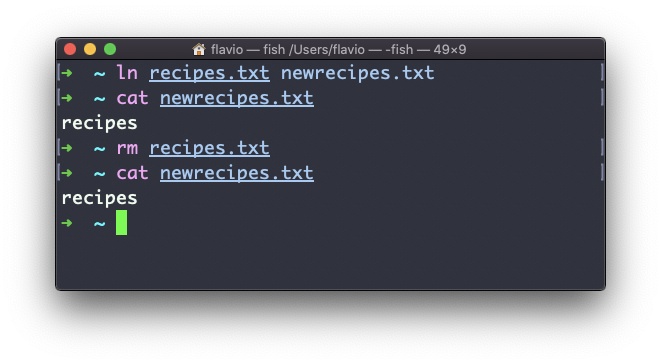
If you delete the original file, the link will still contain the original file content. The data is only removed when the last hard link pointing to it is gone.
Soft links
Soft links are different. They are more powerful, as you can link to other filesystems and to directories, but when the original is removed, the link will be broken.
You create soft links using the -s option of ln:
ln -s <original> <link>For example, say you have a file called recipes.txt. You can create a soft link to it using:
ln -s recipes.txt newrecipes.txtIn this case you can see there’s a special l flag when you list the file using ls -al, and the file name has a @ at the end, and it’s colored differently if you have colors enabled:
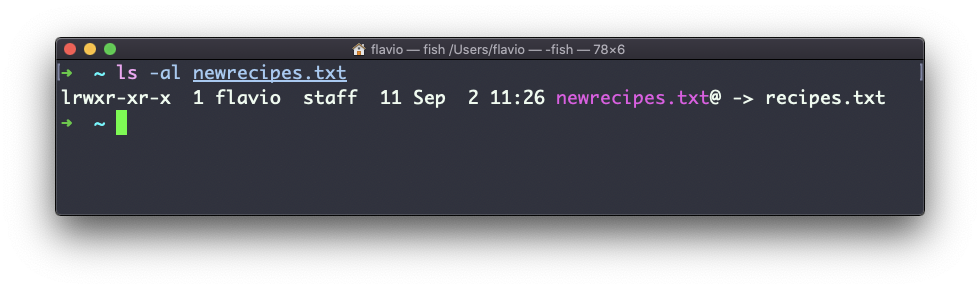
Notice the size too: 11 bytes, the length of the string recipes.txt. A soft link doesn’t hold the content, only the path to it.
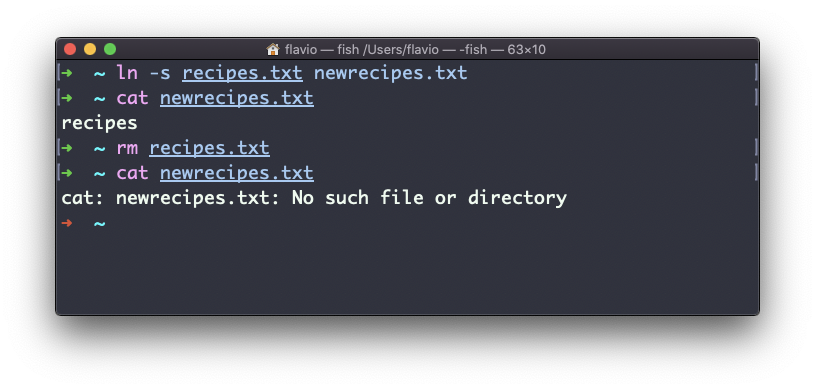
Now if you delete the original file, the link will be broken, and the shell will tell you “No such file or directory” if you try to access it:
The order of the arguments trips people up. It’s always original first, link name second. Get it backwards and ln complains:
ln -s newrecipes.txt recipes.txtln: recipes.txt: File existsHere recipes.txt is already there, so ln refuses to overwrite it. Swap the arguments and it works.
This command works on Linux, macOS, WSL, and anywhere you have a UNIX environment
Lesson completed