Archives and disk tools
Linux commands: gzip
Learn how the Linux gzip command compresses a file into a .gz archive, how to keep the original with -k, set a level from 1 to 9, and decompress with -d.
gzip compresses a file. Under the hood it uses the LZ77 algorithm, but you don’t need to know anything about that to use it.
Here’s the simplest usage:
gzip filenameThis compresses the file and appends a .gz extension to it. Be careful: the original file is deleted. That surprises everyone the first time.
To keep the original, you can use the -c option and redirect the output to the filename.gz file:
gzip -c filename > filename.gzThe
-coption sends the output to the standard output stream, leaving the original file intact
Or you can use the -k option, which is what I do:
gzip -k filenameThere are various levels of compression. The more the compression, the longer it takes to compress (and decompress). Levels range from 1 (fastest, worst compression) to 9 (slowest, best compression). The default is 6.
You choose a level with the -<NUMBER> option:
gzip -1 filenameYou can compress multiple files by listing them:
gzip filename1 filename2Each one gets its own .gz file. gzip never bundles files together. That’s the job of tar, which we’ll see in a couple of lessons.
You can compress all the files in a directory, recursively, using the -r option:
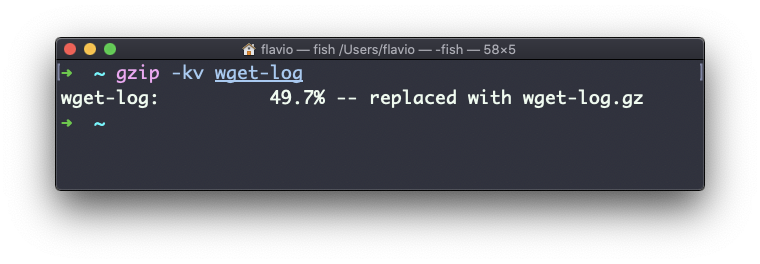
gzip -r a_folderThe -v option prints how much space you saved. Here’s an example of it being used along with the -k (keep) option:
Try it on a text file of your own. Text compresses very well:
seq 1 100000 > numbers.txt
gzip -k numbers.txt
ls -l numbers.txt numbers.txt.gz
On my machine numbers.txt is 588,895 bytes and numbers.txt.gz is 212,870. Log files and CSV exports shrink even more, because they repeat the same words over and over.
gzip can also decompress a file, using the -d option:
gzip -d filename.gzTwo things go wrong often. If you pass a folder without -r, gzip refuses with gzip: a_folder is a directory and exits with status 1. Add -r, or use tar if you want a single archive.
And if filename.gz already exists, gzip won’t silently replace it. In an interactive terminal it asks do you wish to overwrite (y or n)?, and in a script it prints already exists -- skipping. Add -f to force the overwrite.
The gzip command works on Linux, macOS, WSL, and anywhere you have a UNIX environment.
Lesson completed