Permissions and users
Linux commands: sudo
Learn how the Linux sudo command runs a command as root using your own password, how sudo -i opens a root shell, and how -u runs it as any other user.
sudo is commonly used to run a command as root.
root is the administrator account. It can read, write and delete anything on the system. You don’t want to work as root all day, because one typo can take down the machine. So you work as a normal user and borrow root’s powers for a single command with sudo.
You must be enabled to use sudo, and once you are, you can run commands as root by entering your own user’s password (not the root user password). On macOS and Ubuntu, the first user created on the machine is enabled by default.
The permissions are highly configurable, which is great in a multi-user server environment. Some users can be granted access to run only specific commands through sudo, and nothing else.
For example, you can edit a system configuration file:
sudo nano /etc/hostsWithout sudo, nano opens the file but can’t save it, because /etc/hosts belongs to root and you don’t have write permission.
The same idea works for reading. On a Linux server, root’s home folder is off limits to everyone else:
ls /rootls: cannot open directory '/root': Permission deniedPut sudo in front and the listing appears. Your password is cached for a few minutes, so the next sudo in the same terminal won’t ask again.
If you’re not enabled, sudo tells you, and it also logs the attempt:
flavio is not in the sudoers file. This incident will be reported.Nothing runs. To fix it, an existing administrator has to add your user to the sudo group (or admin on macOS).
You can run sudo -i to start a shell as root:
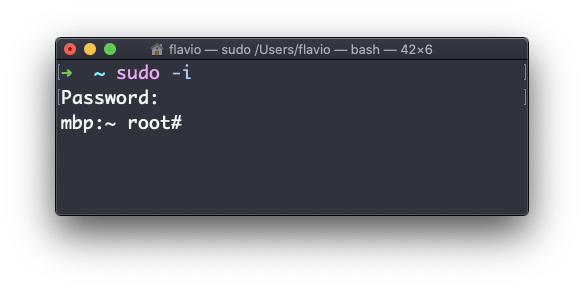
Notice the prompt changed to #. That’s the traditional sign you’re root. Every command you type now runs with full power, so I only do this for a short series of admin tasks, then type exit to go back to my user.
You can use sudo to run commands as any user. root is the default, but use the -u option to specify another user:
sudo -u flavio ls /Users/flavioI use this on servers to run a command as the user a service runs under, like sudo -u www-data ls /var/www, to check whether that user can actually reach the files.
One habit worth building: when a command fails with Permission denied, don’t reach for sudo right away. Ask why you don’t have permission. Often the real fix is the file’s owner or group, and sudo just hides it.
The
sudocommand works on Linux, macOS, WSL, and anywhere you have a UNIX environment
Lesson completed