Navigation basics
Linux commands: man
Learn how the Linux man command opens the manual page for any command, how its pages are grouped by section number, and how tldr gives you a quick summary.
Every time I don’t know how to use a command, I type man <command> to get the manual:
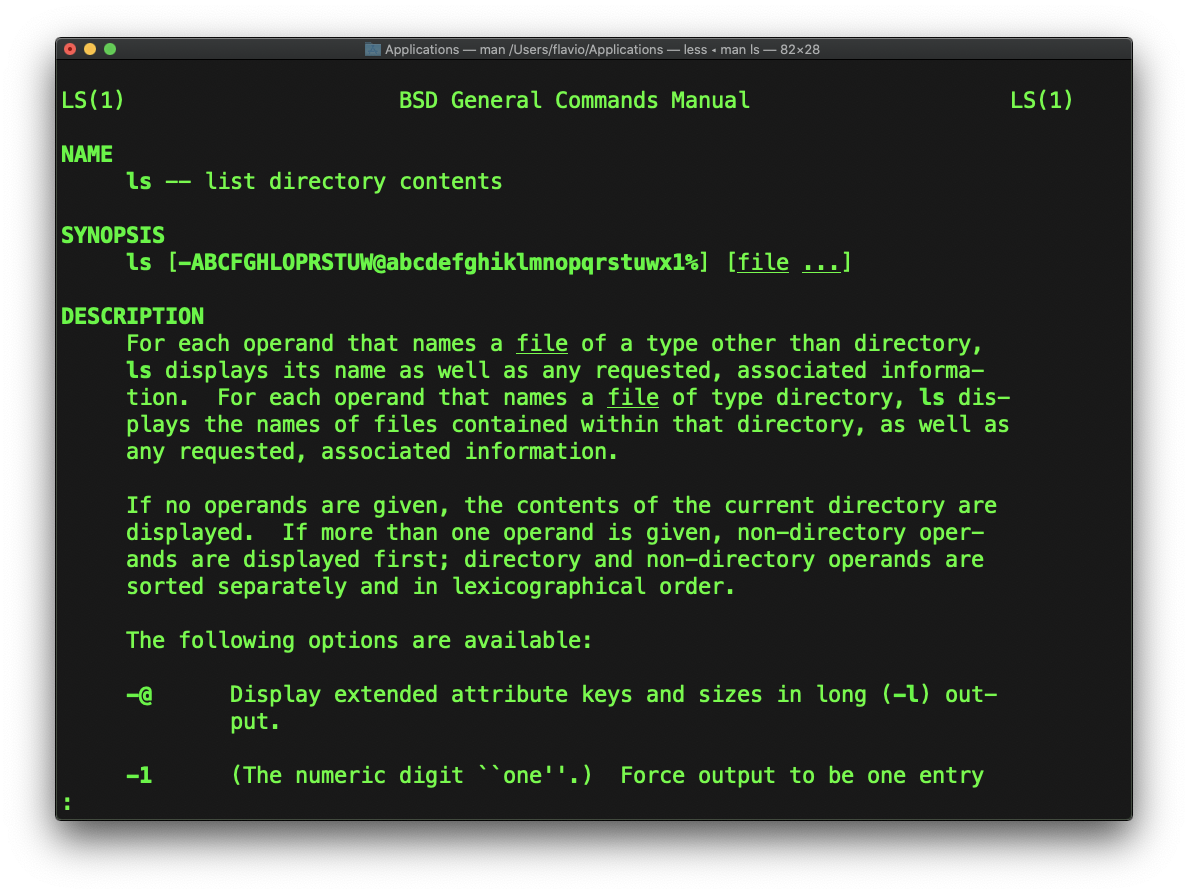
This is a man page, short for manual. Man pages are an essential tool to learn as a developer. Every command in this course has one, and it’s always there, even on a server with no internet access.
They contain so much information that sometimes it’s almost too much. The screenshot above is just 1 of 14 screens of explanation for the ls command.
Man pages open inside a pager, the same program less uses. Press the space bar to go forward one screen, b to go back, / followed by a word to search, and q to quit. That last one matters: beginners often get stuck inside a man page.
Try it now:
man lsType /hidden and press enter, and the pager jumps to the first place where the word appears. That’s how I find the option I need without reading all 14 screens.
Man pages are divided into 8 different sections, identified by a number:
1is user commands2is kernel system calls3is C library functions4is devices5is files formats and filesystems6is games7is miscellaneous commands, conventions and overviews8is superuser and system administrator commands
The number matters when the same name lives in more than one section. passwd is both a command (section 1) and a file format (section 5). man passwd opens the command. To read about the file, you ask for the section explicitly:
man 5 passwdIf you ask for something that has no manual, man says so:
No manual entry for tldrxEither you typed the name wrong, or the tool doesn’t ship a man page. Many modern tools print help with --help instead.
Most of the times when I need to learn a command quickly I use this site called tldr pages: https://tldr.sh/. It’s a command you can install, then you run it like this: tldr <command>. It gives you a very quick overview of a command, with some handy examples of common usage scenarios:
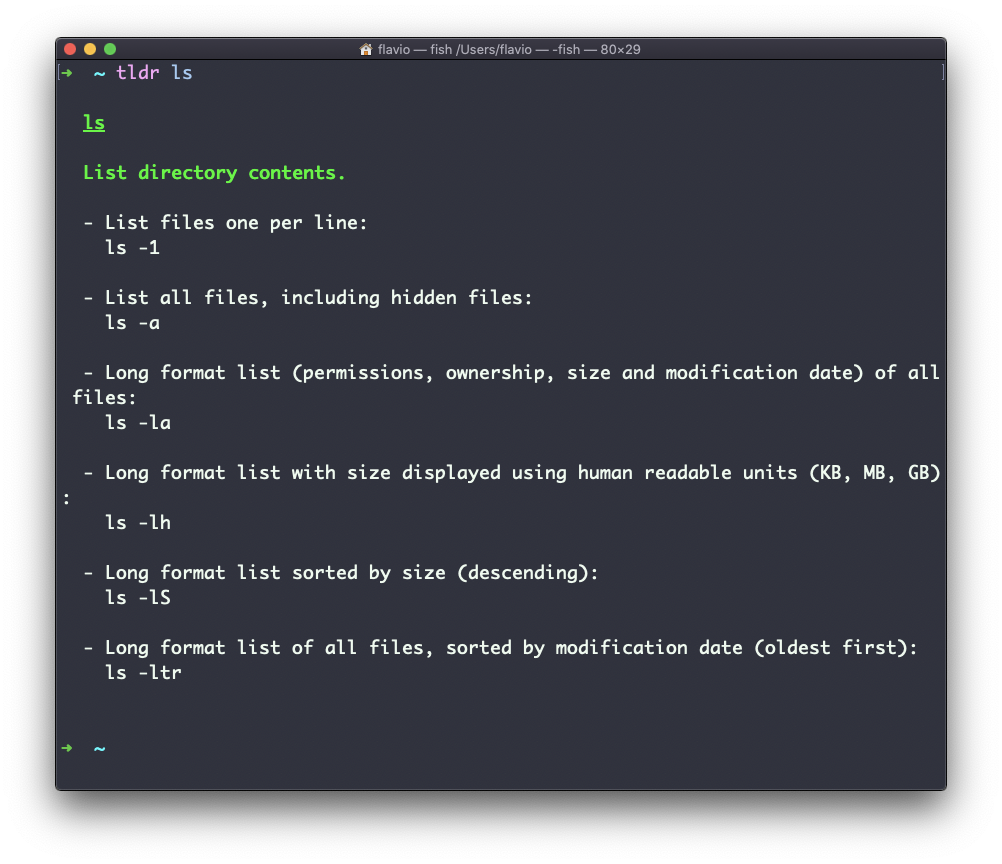
This is not a substitute for man, but a handy tool to avoid losing yourself in the huge amount of information present in a man page. I start with tldr to find the common case, then open the man page when I need all the options and details.
The
mancommand works on Linux, macOS, WSL, and anywhere you have a UNIX environment
Lesson completed