Navigation basics
Linux commands: history
Learn how the Linux history command shows your past commands, how to rerun one with the !number syntax, search them with grep, and clear with history -c.
Every time you run a command, the shell remembers it. You can see the whole list with history:
historyEach command comes with a number:
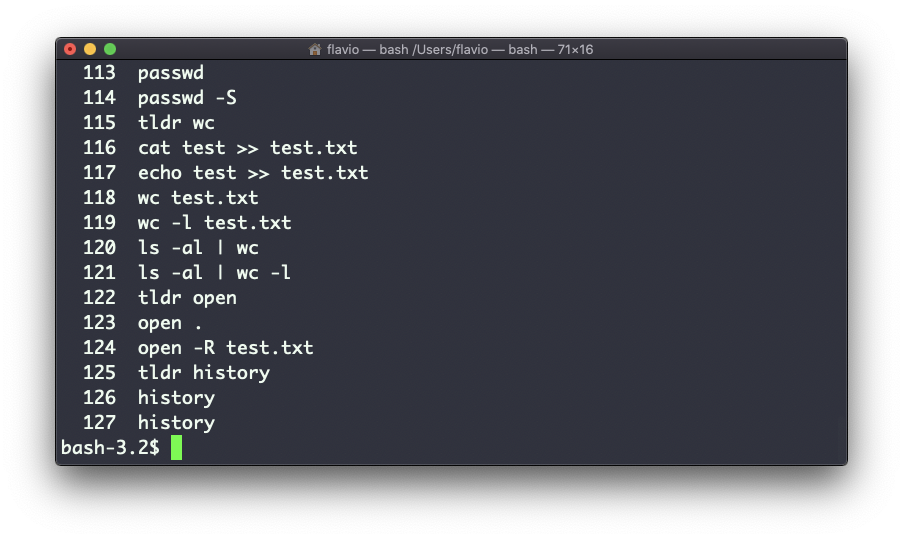
The shell keeps this list in memory while you work, and saves it to a file when you close the terminal: ~/.bash_history in Bash, usually ~/.zsh_history in ZSH. How many entries it keeps, and whether two open terminals share the list, depends on your shell configuration.
Those numbers are useful. Type ! followed by a number and the shell runs that command again:
!121This is called history expansion. !! repeats the previous command, which is handy when you forgot sudo:
sudo !!Be careful with both. The shell runs the expanded command right away, so !! after a typo, or in a different folder, can do something you didn’t mean. When the command modifies data, I press the up arrow, look at the line, then press enter.
Most of the time I don’t scroll the list at all. I press Ctrl-R and start typing. The shell searches backwards through the history as I type and shows the most recent match. Press Ctrl-R again for older matches, enter to run.
When I want to see every match at once, I filter the list with grep:
history | grep docker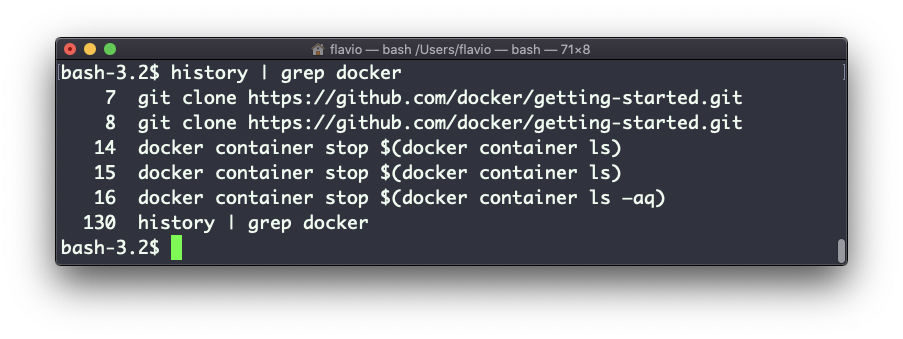
That’s how I recover a long docker run command I never wrote down.
Now the thing that bites people. Everything you type ends up in that file, including secrets. Run curl -H "Authorization: Bearer sk_live_abc123" ... and the token now sits in plain text in ~/.zsh_history.
My advice: never pass a secret as a command argument. Use an environment variable, read it from a file, or let the tool prompt you. If you already leaked one, deleting the history line is not enough. The secret may also be in your terminal scrollback, in a backup, or in a server log. Rotate it first, then clean up.
You can wipe the in-memory list with history -c:
history -cThis doesn’t always remove the saved file, and another open terminal can write its own copy back when it closes. To get rid of the file, delete it too, then close every terminal.
One more limit: history is not an audit log. Anyone can edit or clear their own, and commands run by scripts usually aren’t recorded. To know who did what on a server, use the system logs.
History behavior belongs to the shell, so Bash and ZSH differ even on the same machine. Try this: run echo $HISTFILE to find where your shell saves its history, then open that file with less.
Lesson completed