Archives and disk tools
Linux commands: du
Learn how the Linux du command shows the disk space used by files and directories, with du -h for human-readable sizes and sorting by size using sort -nr.
du calculates how much disk space a directory takes, as a whole. The name stands for disk usage. Run it with no arguments and it works on the current directory:
du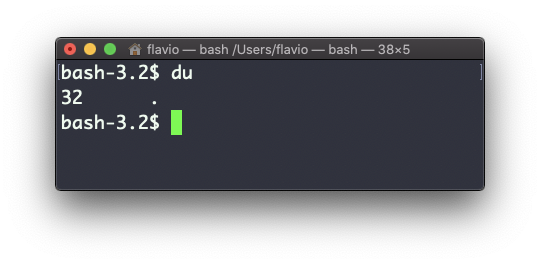
Be careful with that 32. It’s not bytes. du counts disk blocks: 512-byte blocks on macOS, 1 KB blocks on most Linux systems. That’s why I never read the raw number and always add -h, which we’ll see in a moment.
Running du * calculates the size of each item in the folder individually:
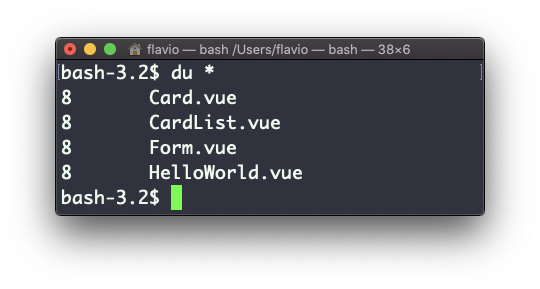
You can ask for a fixed unit instead: du -m prints megabytes, and on macOS du -g prints gigabytes.
The -h option shows a human-readable notation, picking the unit that fits each size:
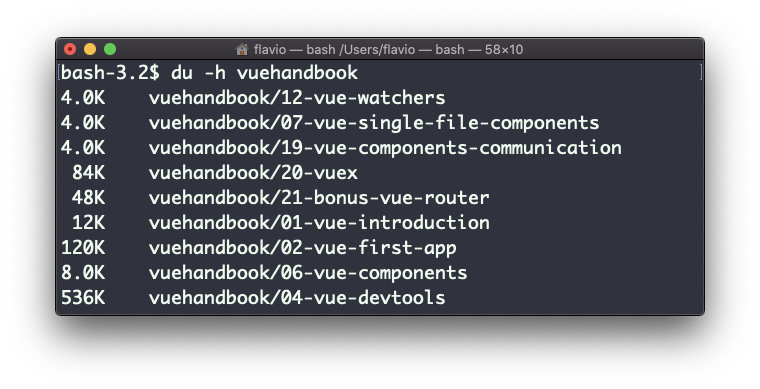
Adding the -a option prints the size of each file in the directories, too:
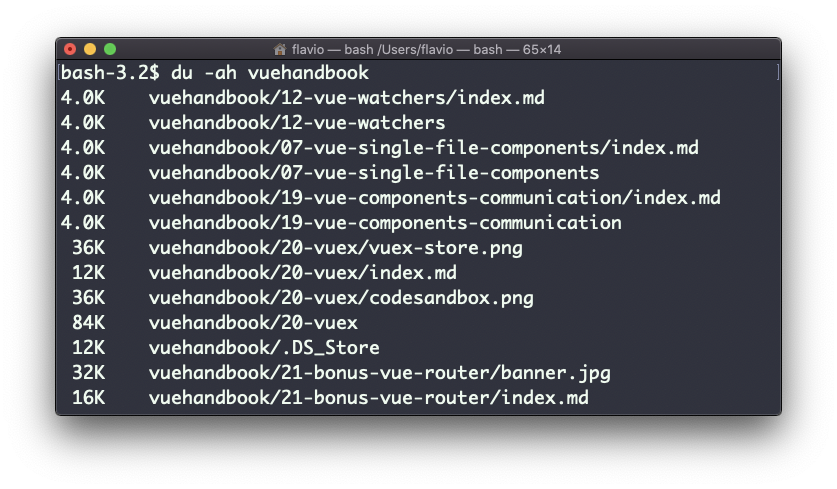
The combination I type most is -sh. The -s option prints one total instead of one line per subdirectory. Here’s the size of a node_modules folder on my machine:
du -sh node_modules
# 212M	node_modules
A handy thing is to sort the directories by size:
du -h <directory> | sort -nrand then piping to head to only get the first 10 results:
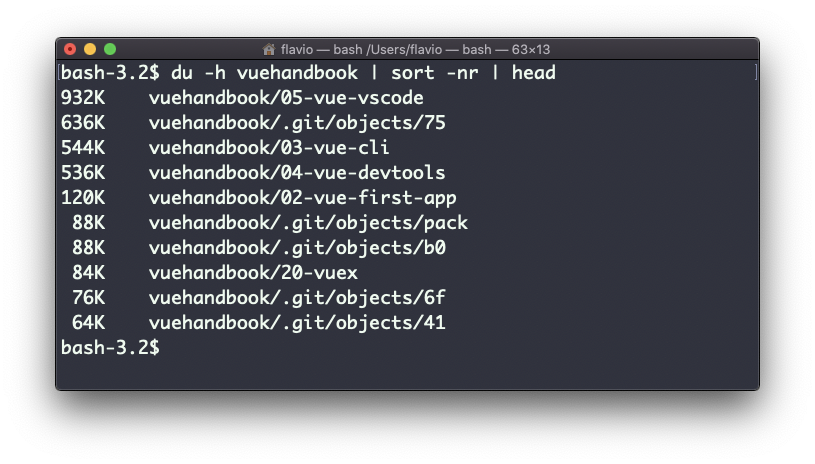
Notice one catch with sort -nr. It compares numbers only, so 540K sorts above 11M because 540 is bigger than 11. When your folders mix units, use sort -hr instead: the -h flag understands the K, M and G suffixes, and both Linux and macOS support it.
The failure you’ll meet is a permission error. Run du -sh /var as a regular user and you’ll see lines like du: cannot read directory '/var/lib/private': Permission denied mixed with the result. The total is still printed, but it’s incomplete. Add sudo in front when you need the real number.
The
ducommand works on Linux, macOS, WSL, and anywhere you have a UNIX environment
Lesson completed