Permissions and users
Linux commands: chown
Learn how the Linux chown command changes the owner of a file or directory, sets owner and group at once, and applies changes recursively with the -R flag.
Every file and directory in an Operating System like Linux or macOS (and every UNIX system in general) has an owner.
The owner of a file can do everything with it. It can decide the fate of that file: change its permissions, hand it to someone else, delete it.
The owner (and the root user) can change the owner to another user, using the chown command:
chown <owner> <file>Like this:
chown flavio test.txtFor example, if you have a file that’s owned by root, you can’t write to it as another user:
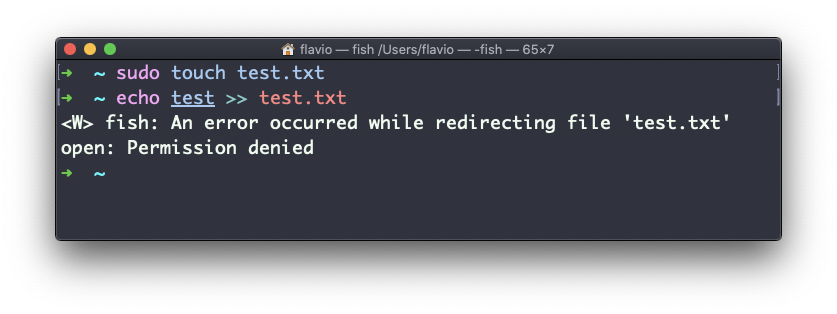
You can use chown to transfer the ownership to you:
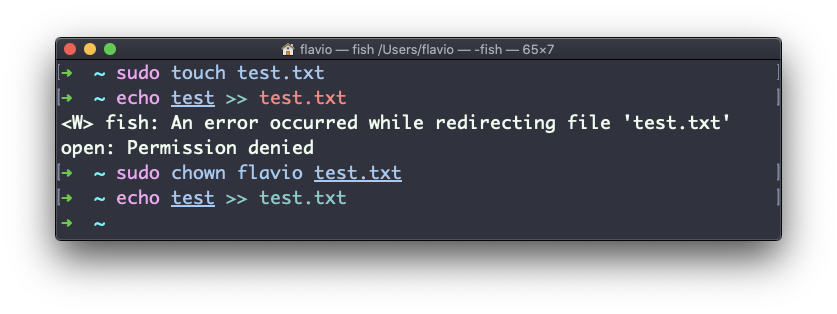
Notice the sudo in that screenshot. On most systems, a regular user can’t give a file away, not even a file they own. Only root can. Try it without sudo and this is what you get:
chown root notes.txtchown: notes.txt: Operation not permittedThe message says “not permitted”, not “not found”, so the file is there. You just need sudo chown root notes.txt.
Check the result with ls -l, which shows the owner in the third column:
ls -l notes.txt-rw-r--r-- 1 root staff 6 Sep 8 18:22 notes.txtIt’s rather common to need to change the ownership of a directory, and recursively all the files contained, plus all the subdirectories and the files in them, too.
You can do so using the -R flag:
chown -R <owner> <file>This is the chown I run most often. After copying a website to a server with sudo, every file belongs to root, and the web server can’t write its cache. One sudo chown -R www-data /var/www/site fixes the whole tree at once.
Files and directories don’t just have an owner, they also have a group. You can change both at the same time with a colon between them:
chown <owner>:<group> <file>Example:
chown flavio:users test.txtNow ls -l shows flavio as the owner and users as the group. Anyone in the users group gets the group permissions on the file.
You can also just change the group of a file using the chgrp command:
chgrp <group> <filename>Be careful with -R on the wrong path. sudo chown -R flavio / would hand every system file to your user and break the machine. I always run ls on the target folder first, and I never put a space between a path and its trailing slash.
The
chowncommand works on Linux, macOS, WSL, and anywhere you have a UNIX environment
Lesson completed