Working with files
Linux commands: less
Learn how the Linux less command shows a file in an interactive viewer, where you scroll, search with /, and press F for live follow mode like tail -f.
The less command is one I use a lot. It shows you the content stored inside a file, in a nice and interactive UI.
Usage: less <filename>.
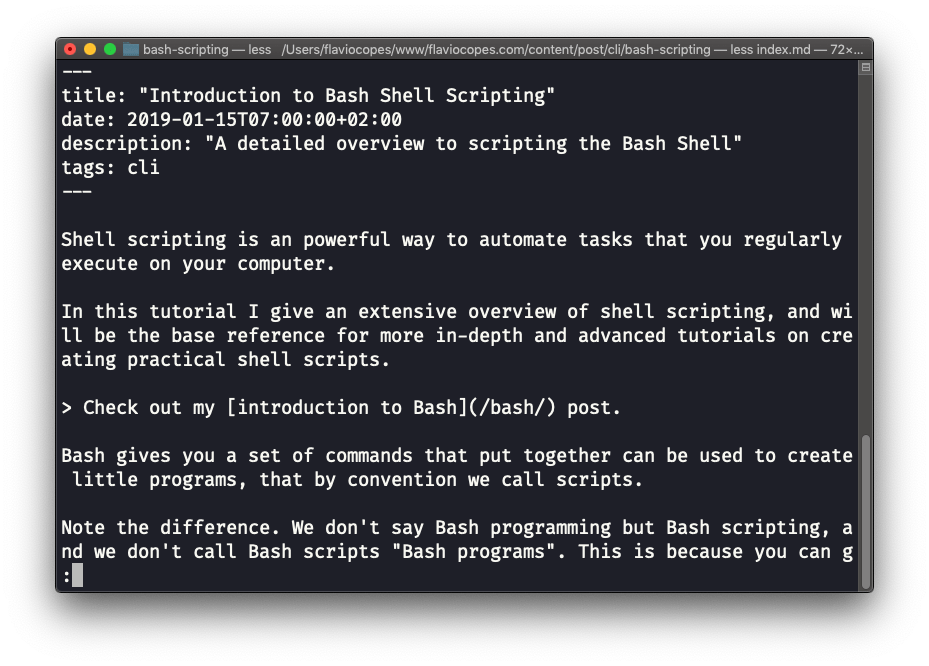
Unlike cat, which dumps everything at once, less shows one screen at a time and waits for you. That’s why it’s the right tool for anything longer than your terminal window.
Once you are inside a less session, you can quit by pressing q. Learn that key first, because nothing on the screen tells you how to get out.
You can navigate the file contents using the up and down keys, or using the space bar and b to move page by page. You can also jump to the end of the file by pressing G, and back to the start by pressing g.
You can search inside the file by pressing / and typing a word. This searches forward. You can search backwards using the ? symbol and typing a word. Press n to jump to the next match, and N to go to the previous one. This is how I find an error in a log file: less app.log, then /error, then n until I reach the right one.
This command just visualises the file’s content. You can directly open an editor by pressing v. It will use the system editor, which in most cases is vim.
Pressing the F key enters follow mode, or watch mode. When the file is changed by someone else, like from another program, you get to see the changes live. By default this doesn’t happen, and you only see the file version at the time you opened it. You need to press ctrl-C to quit this mode. In this case the behaviour is similar to running the tail -f <filename> command.
You can open multiple files, and navigate through them using :n (to go to the next file) and :p (to go to the previous).
less also reads from a pipe, and this might be the way I use it most. Any command with long output becomes scrollable:
ls -al /usr/bin | lessNow you can page through hundreds of files and search them with /, instead of watching them fly past.
If you pass a file that doesn’t exist, less tells you and exits right away:
less missing.txtmissing.txt: No such file or directoryTry this: open a long file on your machine, like less /etc/services. Search for http with /http, press n a few times, jump to the end with G, then quit with q.
This command works on Linux, macOS, WSL, and anywhere you have a UNIX environment
Lesson completed