Processes and jobs
Linux commands: fg
Learn how the Linux fg command brings a background job back to the foreground, resuming the last one or a specific job number you find with the jobs command.
fg brings a job back to the foreground.
A job ends up in the background in two ways. Either you started it with & at the end, like top &, or you suspended it with ctrl-Z and resumed it with the bg command. In both cases fg puts it back in front of you, attached to the terminal, as if you had just launched it.
Running
fgresumes the current job, the one marked with + in the jobs list. Most of the time that’s the last job you suspended.
Let’s try it. Start a command, suspend it, bring it back:
sleep 300
^Z
[1]+  Stopped                 sleep 300
fg
sleep 300
When fg runs, the shell prints the command name and then hands the terminal over to it. sleep is now in the foreground again, so the prompt is gone until it finishes or you press ctrl-C.
With more than one job you pass the job number, which you get from the jobs command:
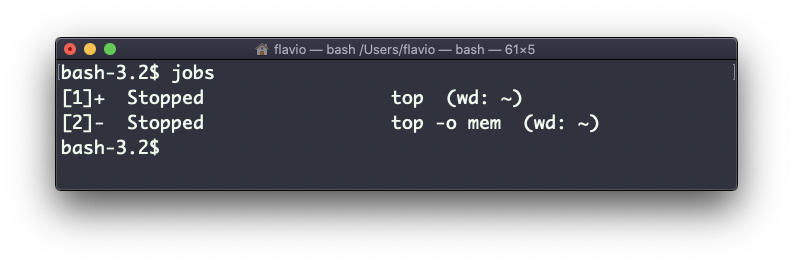
Running fg 2 resumes job #2, and top -o mem takes over the screen:
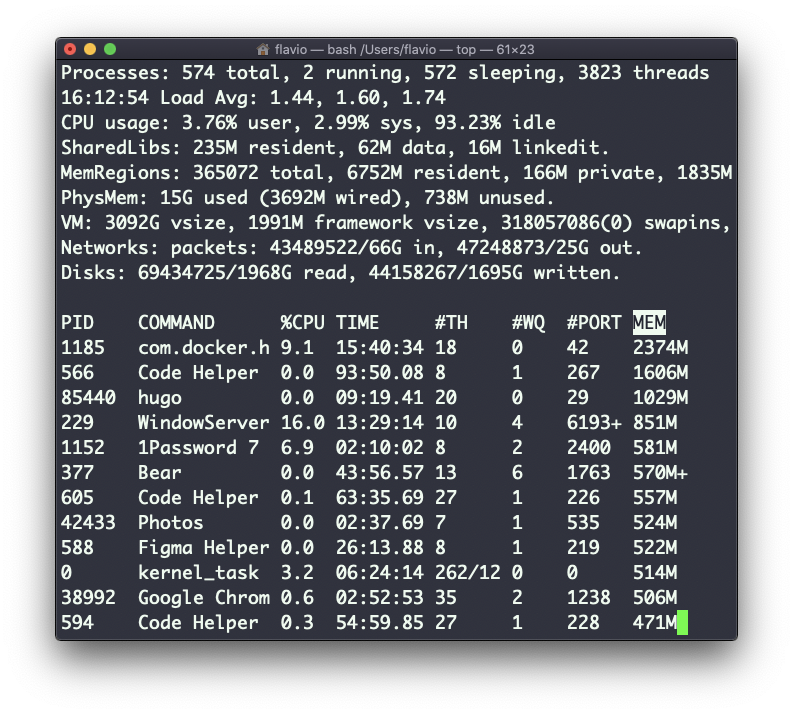
You can also write the number as fg %2. It’s the same thing, and it’s the syntax you’ll see in older tutorials.
This is how I handle an editor session. I open a file in vim, press ctrl-Z to check something in the shell, and type fg to get back exactly where I was. No need to quit and reopen.
fg, bg and jobs all work on the same list, and that list belongs to one shell. You can’t fg a job you started in another terminal window.
If there’s nothing to bring back, the shell tells you:
fg
bash: fg: current: no such job
Either the job already finished, or you’re in a different shell than the one that started it. jobs shows you what’s available.
The
fgcommand works on Linux, macOS, WSL, and anywhere you have a UNIX environment
Lesson completed