Shell, system, and network tools
Linux commands: su
Learn how the Linux su command switches your shell to another user, starting a new shell, or to root when run alone, with exit to return to your own user.
While you’re logged in with one user, you might need to become another user for a while. su does that. The name means switch user.
For example you’re logged in as root to perform some maintenance, and then you want to switch to a regular user account to test something with its permissions.
You do so with the su command:
su <username>For example: su flavio.
If you’re logged in as a regular user, running su with no argument asks for the root user password, because root is the default target:
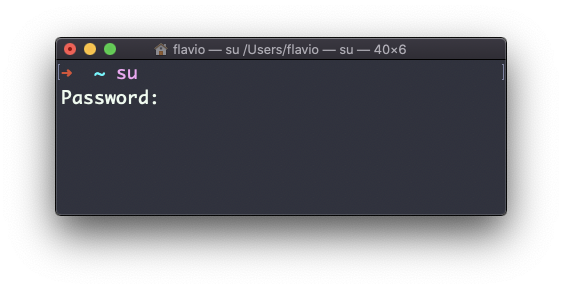
Notice the difference from sudo: sudo asks for your password, su asks for the password of the user you’re becoming.
su starts a new shell as the other user. You can verify it worked with whoami:
su flavio
# Password:
whoami
# flavio
When you’re done, type exit. That closes the new shell and returns you to your own user’s shell. Nothing was changed for good, you just stacked one shell on top of the other.
Two variants are worth knowing. su - flavio, with a dash, starts a login shell: it loads that user’s profile and moves you into their home folder, so the environment looks exactly like a fresh login. Without the dash you keep your current folder and most of your environment. When in doubt, use the dash.
And -c runs a single command as the other user, then comes back:
su -c 'ls /home/flavio' flavioThe failure you’ll hit most on Ubuntu and similar systems is this:
su
# Password:
# su: Authentication failure
It’s not a typo. Ubuntu ships with the root account locked, so root has no password and su can never succeed. That’s on purpose. Use sudo -i to get a root shell instead, with your own password. That’s the answer on most modern Linux installs, and my advice in general: prefer sudo for one command, and keep su for when you truly need to work as another user for a while.
The
sucommand works on Linux. On macOS it will not work unless you enable the root user (tip: you can usesudoinstead)
Lesson completed