Permissions and users
Linux commands: whoami
Learn how the Linux whoami command prints the user name currently logged in to your terminal session, and how it differs from the more detailed who am i.
whoami answers one question: which user am I right now?
whoami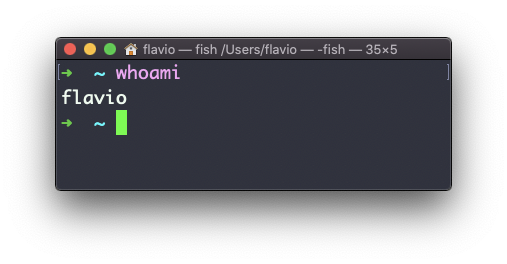
It prints a single word, the user name, and nothing else. That makes it easy to use in scripts, too.
“Right now” is the key phrase. whoami prints the effective user of the current process, not the account you logged in with. Most of the time those are the same. But after sudo -i, or inside a container, or after su, the shell runs as someone else, and whoami tells you who:
whoami
sudo whoami
flavio
rootSame terminal, two different answers. The second command ran as root, so that’s what whoami reported.
When I need more than a name, I use id:
iduid=501(flavio) gid=20(staff) groups=20(staff),12(everyone),80(admin)This shows the numeric user ID, the primary group, and every other group I belong to. Groups matter because a file can grant access to a whole group, and id is how you check whether you’re in it.
There’s also who am i, with spaces. Despite the name, it’s not a longer version of whoami. It’s the who command filtered to your own terminal, and it prints your login session: the user who logged in, the terminal name, and when:
who am iflavio ttys004 Sep 8 18:22After sudo -i, whoami says root but who am i still says flavio, because the login session hasn’t changed. That difference is the whole point of having both commands.
Here’s how I use whoami in practice. When a command fails with Permission denied, my first move is not chmod. It’s three questions:
- which user is the failing command actually running as?
- which groups does that user belong to?
- who owns the file it needs?
whoami and id answer the first two. ls -l on the file answers the third. Nine times out of ten, the fix is a wrong owner or a missing group membership, not a permission bit.
A classic example: a deploy script works when you run it with sudo and fails without. That’s not a reason to always use sudo. It means the files belong to the wrong user. Running everything as root hides the problem and makes every mistake more expensive.
Try this: run whoami and id, then ls -l on a file in your home folder. Read the permission bits and decide whether your user can read, write, and execute it. Then check with cat if you were right.
This command works on Linux, macOS, WSL, and anywhere you have a UNIX environment
Lesson completed